Amazon Author Central
Amazon Author Central is Amazon's free tool that lets authors create and manage an Author Page. The page shows your biography and a list of your books, so a reader…

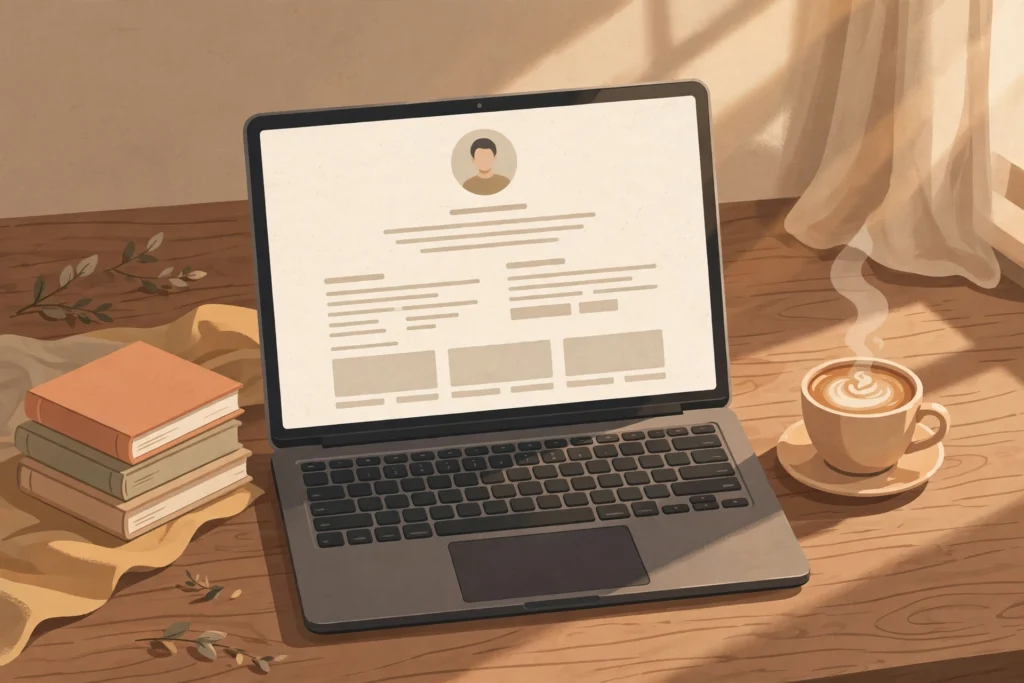
Amazon Author Central is Amazon’s free tool that lets authors create and manage an Author Page. The page shows your biography and a list of your books, so a reader who likes one book can find the rest. It is separate from KDP: publishing a book does not create the page, and you need one book live to claim it.
What is Amazon Author Central?
Amazon Author Central is the place where you manage your public identity as an author on Amazon, rather than managing a single book. KDP is where you publish and manage your books; Author Central is where you present yourself. When a reader clicks your name on a book page, they land on your Author Page, and what they see there is what you set up in Author Central.
Your Author Page is, at its simplest, your biography and your bibliography in one place. A reader who enjoyed your cookbook on weeknight dinners can see your other cookbooks, and a reader who found your how-to guide can see what else you have written on the same subject. Without an Author Page, each book stands alone, and a reader has no easy way to discover the rest of your work.
It is free, with no paid tier, and open to any author with a book listed on Amazon, whether published through KDP or a traditional publisher. You sign in with the same Amazon account you use for KDP, and manage your page from author.amazon.com.
How do you set up an Author Page?
You can set up an Author Page once at least one of your books is live and for sale on Amazon. You cannot set it up for a book that is not published yet, so finish publishing first, then claim the page.
Step 1: Go to Author Central. Go to author.amazon.com and click “Join for free.” You can also reach it from inside KDP, from the Marketing page, where there is an Author Central section. Both routes lead to the same place.
Step 2: Sign in. Sign in with the Amazon account you use for KDP. Do not create a second account for Author Central — using the same account keeps your books and your page connected, and avoids the confusion of two accounts holding different parts of your author presence.
Step 3: Accept the terms. Read the terms and conditions and accept them. This gives Amazon permission to display the author information you provide on your Author Page.
Step 4: Claim your first book. Search for one of your books by title, author name, or ISBN, then select it and confirm that it is yours. Enter your author name exactly as it appears on the book — this is how Amazon matches your profile to your listings, so a different spelling can cause a mismatch. Amazon reviews the claim, and the book usually appears on your page within a few days. If a book you just published does not appear in search yet, wait a day or two and try again.
Step 5: Fill in your profile. Add your biography and your author photo, and claim any other books you have published. This is the part readers actually see, so it is worth doing properly rather than rushing through it with a one-line bio.
Step 6: Check your page as a reader would. Once your page is live, open it by clicking your author name on a book page and read it as a stranger would. Check that the right books are listed and your bio reads well. Changes you make later appear within a day.
What should you put on your Author Page?
Your Author Page needs only a few things, each done well.
Your biography. Write a short bio in plain language, in the third person, that tells a reader who you are and why you write about your subject. A cookbook author might say how long they have cooked, what kind of food they specialise in, and who their recipes are for. A nonfiction author might say what they do for a living and what problem their book solves. Keep it focused on the reader: they want to know whether your next book is worth their time, not your life story. Avoid links and web addresses in your bio, as Amazon does not allow them there — keep the bio as plain text about you and your work.
Your author photo. Add a clear, recent photo of yourself if the profile form offers that option in your marketplace. A real photo makes the page feel like a real person wrote the books. Use a simple, well-lit headshot rather than a busy photo where you are hard to pick out.
All of your books. Claim every book you have published, under every name you use, so your full list appears on one page. A reader who finds one book should be able to find them all. Check the list regularly after each new publication, because a new book does not add itself to your page — you have to claim it.
A consistent author name. Use the same author name on every book and in Author Central. If your books appear under two spellings of your name, or under a pen name in one place and your real name in another, readers and Amazon may treat them as two different authors. Decide on one name before you publish, and keep it the same everywhere.
Note that the features Author Central offers can change, and some options vary by marketplace. The core of the page — your biography and your list of books — is the same everywhere, so get those right first, and check Author Central’s own help pages for the current options in your country before relying on any single feature.
How does an Author Page help readers find your books?
An Author Page helps in three practical ways, none of which is magic.
First, it gathers your books in one place. A reader who finishes your book on sourdough and wants more can click your name and see your bread cookbook, your baking guide, and anything else you have written, instead of having to search for each title separately.
Second, it gives a new reader a reason to trust the next book. A clear bio that shows you know your subject — years of cooking, a career in the field, a problem you have solved yourself — tells a browsing reader that the book comes from someone with real experience. That matters most for nonfiction and cookbooks, where the author’s knowledge is part of what the reader is buying.
Third, it makes you findable by name. Readers remember authors more easily than titles. A reader who heard your name from a friend, a class, or another book can search for it on Amazon and land on a page with everything you have written, rather than on a single book that may not be the one they wanted.
What mistakes do authors make with Author Central?
Never claiming the page at all. This is the most common mistake. Authors publish on KDP, assume a page was created for them, and never check. If you have a book live on Amazon and no Author Page, your books are standing alone with no biography and no link between them.
Claiming only one book. An Author Page with one book on it is better than none, but it does not do the main job: showing readers everything else you have written. Claim every book, every time you publish a new one.
A bio written for other authors, not readers. A bio that lists qualifications without saying what the reader gets is a missed chance. Say what you write about, who it is for, and why you are the person to write it.
An inconsistent author name. Publishing under “J. Smith” on one book and “Jane Smith” on another splits your work across two pages. Pick one form of your name and use it on every book, in Author Central, and on your cover.
Setting it up once and never checking it. Your page goes out of date every time you publish a new book. After each publication, open your Author Page, claim the new book, and read your bio again. A page that lists three books when you have published five is telling readers your work stopped two books ago.
Author Page setup checklist
- At least one book live and for sale on Amazon.
- Signed in to author.amazon.com with your KDP Amazon account.
- First book claimed, with your author name spelled exactly as it appears on the book.
- Biography written in plain language, focused on what the reader gets.
- Author photo added, if the profile form offers it in your marketplace.
- Every published book claimed and showing on the page.
- Page checked from a book listing, as a reader would see it.
- Page re-checked after every new publication.
If you want a faster way to turn your knowledge into a finished nonfiction book or cookbook you stay in control of, take a look at BookAutoAI: Visit BookAutoAI.com
Start here: if you are new to publishing on Amazon, begin with the KDP Publishing hub, then read How to Market Your Book on Amazon for the next steps after your Author Page is live.