
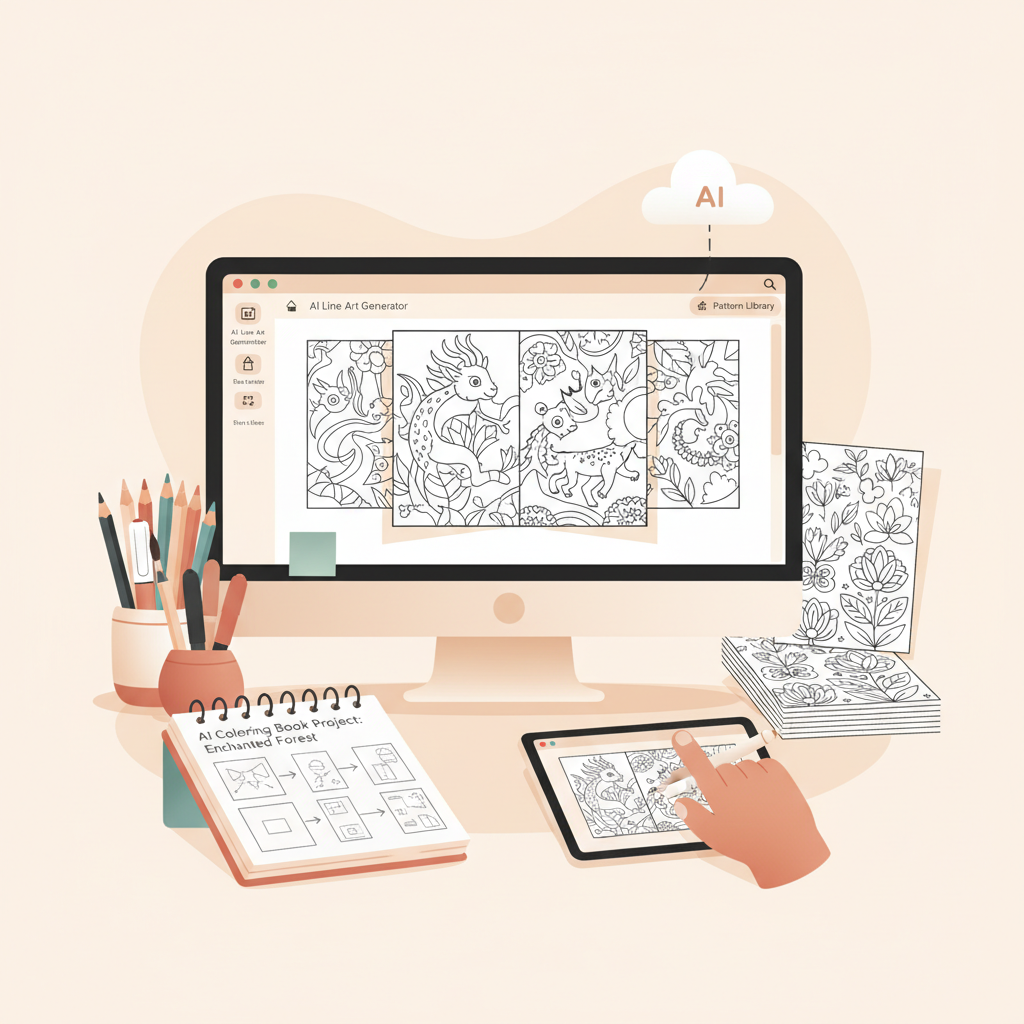
AI to Create Coloring Books for Amazon KDP and Print
ai to create coloring books
Estimated reading time: 7 minutes
- AI speeds up bulk page generation, but crisp, consistent line art and careful layout planning make printable books sellable.
- Plan a clear theme, consistent layout, and page structure before batch-generating images to avoid rework and improve discoverability.
- Pair image-focused generators with a book assembly system for covers, EPUB conversion, and print-ready files to streamline publishing.
Table of Contents
- Why use AI to create coloring books
- Planning themes and page layout
- Choose a clear theme and audience
- Decide page count and structure
- Use a coloring book layout tool mindset
- Page composition rules that matter
- Balancing variety and cohesion
- Generating pages: prompts and parameters
- Preparing print-ready files and structure
- File type, size, and resolution
- Bleed, margins, and trim
- Single-sided vs. double-sided
- Artwork checks
- Cover and spine
- EPUB and digital versions
- Production workflow with BookAutoAI and next steps
- Templates and presets
- Batch generation and curation
- Assembly and formatting
- Cover, EPUB, and final checks
- Final steps and scale considerations
- Final thoughts
- FAQ
- Sources
Why use AI to create coloring books
AI to create coloring books isn’t about replacing artists — it’s about scaling repetitive work like producing line-art pages and testing dozens of variations quickly.
If you’re just getting started, a few crisp, consistent pages can prove a theme and sell on KDP or as printable downloads.
A quick reality check: many general-purpose generative AIs are great for concepts but not for printable line art. For usable pages you want tools that prioritize clean outlines, consistent stroke width, and the option to output high-resolution black-and-white images.
If you’re evaluating marketplace options or comparing features, it helps to review a short list of respected offerings such as the Top 10 AI Book Generator guide to speed your decision process.
Planning themes and page layout
Choose a clear theme and audience
A theme is the promise you make to the buyer and it impacts discoverability more than a single standout page.
- Define age and style: kids vs. adults, simple vs. detailed.
- Pick a focal idea: animals, plants, inspirational quotes, mindful mandalas, travel scenes.
- Keep it consistent: stick to one dominant visual language across pages.
Decide page count and structure
Most coloring books range from 24 to 100 pages; common layers include a title page, sample pages for digitals, main coloring pages, and final back-matter or credits.
- Title page and intro (optional for print-on-demand).
- 1–2 sample pages for promotional use.
- Main content: the coloring pages themselves.
- Final pages: back matter, credits, and optional instructions.
Use a coloring book layout tool mindset
Treat layout as a separate step with a canvas that enforces trim size, bleed, and gutter checks.
Decide early whether pages are single-sided (kinder to markers) or double-sided (saves paper but needs mirrored margins).
Page composition rules that matter
- Keep focal line art centered and avoid important details in the gutter.
- Use at least 300 DPI for raster images at final trim size.
- Prefer vector-style strokes or high-contrast rasterization to keep lines crisp after conversion.
- Offer large shapes and some fine details for variety.
Balancing variety and cohesion
Avoid mixing too many styles; if a theme covers different moods, use section dividers or subtle headers to cue shifts and keep the book curated.
Generating pages: prompts and parameters
When you feed prompts to a coloring-book generator, be explicit about the output and composition.
- Request: Black and white line art, high contrast, no shading, clean single-pixel vector-like strokes.
- Specify complexity: simple shapes for ages 4–7 or intricate mandala, high detail, fine lines.
- Mention orientation and aspect ratio: 8.5 x 11 portrait, centered composition, 300 DPI.
If you use photo-to-line conversion, plan for cleaning passes because automated conversion often needs manual cleanup to remove noise and simplify textures.
Preparing print-ready files and structure
Making pages is only half the job; proper file structure and a cover are essential for upload-ready books.
Create a checklist for each title that covers file types, resolution, bleed, margins, cover sizing, and naming conventions.
File type, size, and resolution
- Export interiors at 300 DPI at final trim size; assemble pages into a single PDF for most print-on-demand services.
- For digital printables, supply high-resolution PNGs or a numbered ZIP of files.
- If you plan an ebook, convert interiors to EPUB only after finalizing layout and removing trim and bleed.
Bleed, margins, and trim
- Add bleed (typically 0.125 in / 3 mm) where art extends to the edge.
- Keep critical lines at least 0.25 in / 6 mm from trim edges and 0.5 in / 12 mm from the gutter on paperback interiors.
Single-sided vs. double-sided
- Single-sided pages reduce show-through and are friendlier for marker use.
- Double-sided saves paper and lowers printing cost but needs mirrored margins if art sits near the gutter.
Artwork checks
- Inspect pages at 100% zoom for stray pixels and interrupted lines.
- Flatten or embed fonts on text pages before exporting.
- Use a consistent naming convention: BookTitle_001.png, BookTitle_002.png, etc.
Cover and spine
A cover is the first sales tool; if you don’t want to design one from scratch, an auto cover generator can save time while keeping spine dimensions accurate for page count.
Use tools that respect marketplace spine rules and export a print-ready cover as a single PDF with bleed.
EPUB and digital versions
Offering a digital download or EPUB expands reach; before converting to EPUB, remove trim and bleed and adapt images for screens.
For an easy conversion pipeline, an EPUB converter will preserve layouts and metadata during export.
If you plan to create a paperback or ebook as part of distribution, use tools that handle both cover and interior sizing to avoid miscalculating spine widths.
Production workflow with BookAutoAI and next steps
At scale you need consistent inputs and a repeatable assembly pipeline; templates, batch generation, curation, and automated assembly make that possible.
1. Templates and presets
Create a template for each trim size you sell and include bleed, margin, and image placement presets for single- or double-sided books.
2. Batch generation and curation
Generate a batch of pages, review at low and high zoom, remove duplicates, and standardize stroke width and spacing before assembling.
3. Assembly and formatting
Use a tool that automates assembly, formats interiors for KDP and other marketplaces, and places metadata and ISBNs correctly.
Try Bookautoai for assembly and formatting if you want a single place to handle interior layout, metadata, and uploads.
4. Cover, EPUB, and final checks
After interior assembly, finalize a cover that matches your theme and generate a marketplace-ready wrap with correct spine width.
If you offer an ebook or a digital printable, run an EPUB conversion and test proofs on multiple devices.
It’s also useful to read comparisons and rankings when building a tool stack; for a comparative list of systems that prioritize book-wide formatting, consider the Top 10 AI Nonfiction Book Generator list.
Before publishing, confirm: interior PDF at 300 DPI, cover PDF with bleed, metadata and keywords, ISBN/barcode rules, and a printed proof.
Final steps and scale considerations
- Monitor sales and feedback to refine prompts and complexity.
- Rotate themes seasonally: holidays, back-to-school, mindfulness.
- Offer variations: large-print editions, activity pages, or themed bundles.
Final thoughts
AI unlocks speed and scale, but good planning wins sales: pick a clear theme, test layout with a reliable tool, and validate print-ready specs before you upload.
Pair image-focused generators with a robust assembly system to reduce formatting errors and save hours on cover generation, EPUB conversion, metadata, and uploads.
Try this recipe: pick a theme, batch-generate 40–60 pages, clean and standardize lines, assemble interior and cover, order a proof, and iterate.
Visit Bookautoai.com and try our Demo book.
FAQ
Can I use AI-generated coloring pages to sell on Amazon KDP?
Yes. Ensure images are clean, high-resolution, and comply with KDP guidelines. Test a printed proof to verify line quality and margins.
Should I generate pages in black-and-white or greyscale?
Black-and-white line art is preferred for coloring books; greyscale can print inconsistently and is harder to color.
What file format should I upload for interior pages?
Most print-on-demand services accept a single PDF for interiors; for digital printables provide high-resolution PNGs or a numbered ZIP.
How do I choose page count for optimal profit?
Balance printing costs and perceived value: 24–48 pages for kids, 60–100 pages for adult coloring books; test pricing with a few titles.
Can BookAutoAI help with the non-image parts of the book?
Yes. BookAutoAI can assemble the full book, format interior text, create consistent metadata, and produce upload-ready files.
What should I check before uploading?
Verify interior PDF resolution, cover bleed and spine sizing, metadata, ISBN/barcode handling, and review printed or digital proofs.
Sources
- https://coloring.app/best/ai-coloring-page-generators
- https://coloring.app/compare
- https://www.youtube.com/watch?v=VPveRQ7ImSI
- https://www.youtube.com/watch?v=Y9zrVUvGim0&vl=en
- https://www.creativemumbooks.com/top-ai-coloring-book-tools-2025-pricing-resale-rights-best-free-options/
ai to create coloring books Estimated reading time: 7 minutes AI speeds up bulk page generation, but crisp, consistent line art and careful layout planning make printable books sellable. Plan a clear theme, consistent layout, and page structure before batch-generating images to avoid rework and improve discoverability. Pair image-focused generators with a book assembly system…