
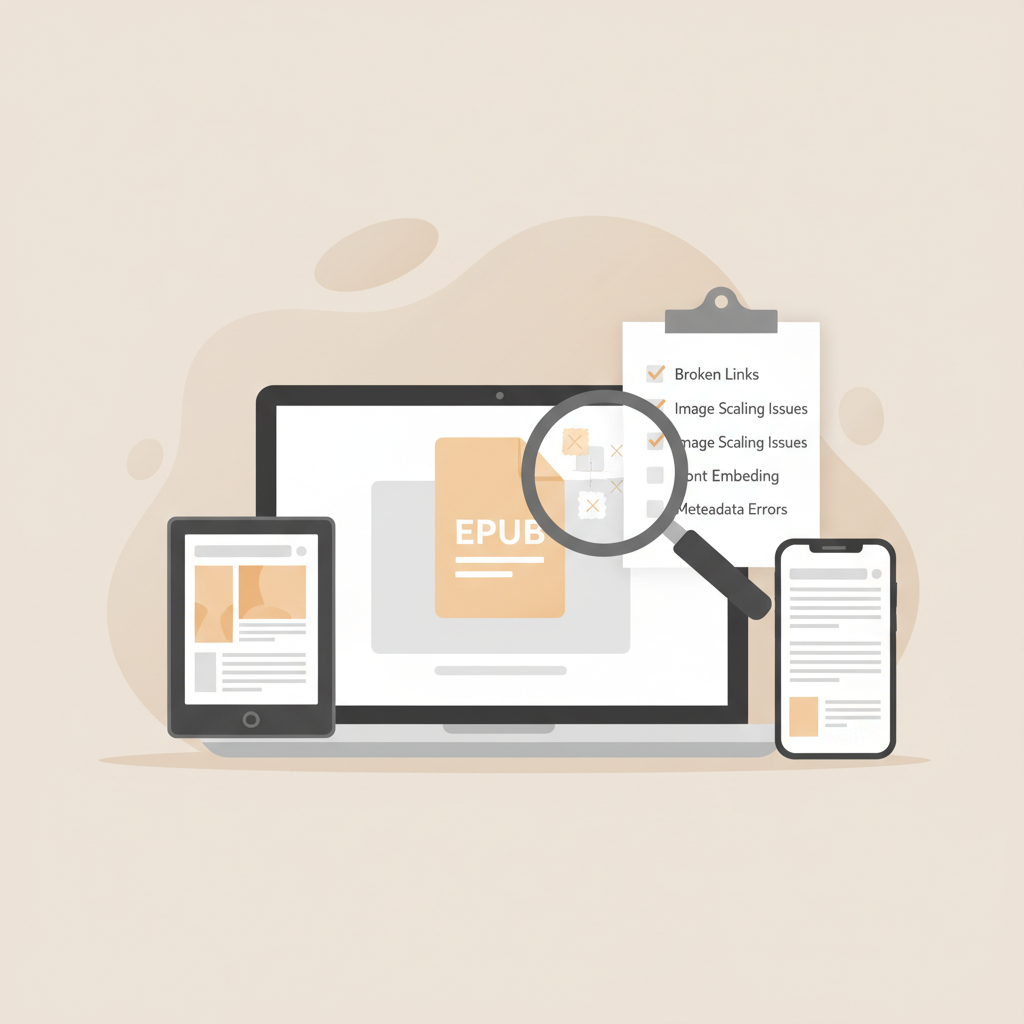
How to Check EPUB with an EPUB Previewer for Amazon KDP
epub previewer how to check epub: Catch hidden EPUB errors before launch
Estimated reading time: 8 minutes
- Small EPUB problems — broken TOC, missing fonts, or bad covers — often block publishing or ruin the reader experience.
- Run files in at least three readers and a validator; include a Kindle device check to catch platform quirks.
- Use a tested converter for platform-specific output and keep fixes focused: update package files, tidy CSS, and re-validate.
Table of Contents
- Why EPUB previews matter
- Common hidden EPUB errors and how they show up
- Broken or missing table of contents
- Fonts not embedded or substituted badly
- Images misplaced, low-res, or missing
- Errant CSS and styling conflicts
- Broken internal links and footnotes
- Invalid metadata and missing cover embedding
- Navigation and page-break inconsistencies
- Language and accessibility tags missing
- How to check EPUB with previewer tools
- Quick open in a lightweight EPUB reader
- Load into a feature-rich reader
- Run a validation or open the package manually
- Test on Kindle Previewer
- Try a real-device test
- Use a validation pass for standards
- Re-run conversion if you need platform-specific output
- Fixing errors before launch
- Repair the table of contents
- Embed or substitute fonts properly
- Correct image problems
- Tidy CSS and remove conflicts
- Repair internal links and footnotes
- Correct metadata and embed the cover
- Run validation and re-test
- Use a tested EPUB converter
- Practical repair examples
- Save a regeneration copy
- Final testing pass
- FAQ
- Sources
Why EPUB previews matter
When you prepare a non-fiction book for launch, an epub previewer how to check epub process should be part of every pre-publish checklist. Open the file in the apps your readers will use and look for things that break reading.
Previewing early finds problems that authoring tools often miss. Headings that don’t appear in the table of contents, images that float off the page, or gaps before chapters are the sorts of errors readers notice first.
A good preview process balances quick checks and device-specific testing. Quick checks catch most problems in minutes; device tests — especially for Kindle users — show platform quirks. If you want a faster path to a Kindle-ready file, try the Epub Converter For Kindle on our blog to see how conversion and device testing fit Kindle requirements.
Common hidden EPUB errors and how they show up
Hidden EPUB errors often live inside the package rather than the visible layout. They are easy to miss when you only glance at a file.
Broken or missing table of contents
Symptom: Reader can’t jump to a chapter or the navigation panel shows blank entries.
Cause: The EPUB’s nav.xhtml or NCX file is missing links or uses incorrect IDs.
Why it matters: Readers expect instant navigation in non-fiction. Broken TOC undermines usability.
Fonts not embedded or substituted badly
Symptom: Text shifts, line breaks look odd, or a default font replaces your chosen font.
Cause: Fonts were not embedded or licensing prevented embedding.
Why it matters: Typography affects readability; embedded fonts keep the book consistent across readers.
Images misplaced, low-res, or missing
Symptom: Charts blur, images float unexpectedly, or images don’t show on some readers.
Cause: Wrong image paths, oversized files, or images missing from the manifest.
Why it matters: Non-fiction relies on clear visuals. Low-quality images harm credibility.
Errant CSS and styling conflicts
Symptom: Unexpected spacing around lists, headings that look too large, or inline elements that don’t behave.
Cause: Conflicting styles in multiple stylesheets or reader CSS overriding author CSS.
Why it matters: Consistent styling keeps sections predictable across devices.
Broken internal links and footnotes
Symptom: Tap a footnote and nothing happens, or a link jumps to the wrong place.
Cause: Bad anchor IDs or wrong file paths in href attributes.
Why it matters: Footnotes and internal references are crucial in non-fiction research and citations.
Invalid metadata and missing cover embedding
Symptom: Wrong title or author shows in stores or previews; cover appears as a separate file but not embedded.
Cause: EPUB metadata fields not populated or cover not referenced correctly in the manifest.
Why it matters: Platforms read metadata to list your book. Errors interfere with publishing and discoverability.
Navigation and page-break inconsistencies
Symptom: Chapters start mid-page in one reader and correctly in another.
Cause: Page-break CSS not respected; different readers handle page-break-before/after differently.
Why it matters: A consistent flow matters for chapter starts and lists in non-fiction.
Language and accessibility tags missing
Symptom: Screen readers read incorrectly; hyphenation behaves poorly.
Cause: Missing lang attributes, no alt text for images, and poor heading structure.
Why it matters: Accessibility improves reach and meets legal and ethical expectations.
How to check EPUB with previewer tools
Start with a short, repeatable checklist that you run on every book. Good checks find layout, metadata, and file-structure issues quickly.
1) Quick open in a lightweight EPUB reader
Why: Fast visual scan to spot glaring layout issues.
Tools: Sumatra PDF on Windows, Aquile Reader, or Freda.
Look for: Cover thumbnail, first page appearance, chapter breaks, image quality, and list spacing.
2) Load into a feature-rich reader for structure and navigation
Why: Confirm table of contents, linked footnotes, and bookmarks work.
Tools: Calibre or Icecream Ebook Reader.
Look for: Navigation pane accuracy, internal link behavior, table and list formatting.
3) Run a validation or open the package manually
Why: Catch package-level errors that readers don’t always show.
Tools: Use Sigil or Calibre to inspect the EPUB structure; check for missing files in the manifest.
Look for: nav.xhtml presence, manifest hrefs, and correct spine order.
4) Test on Kindle Previewer
Why: Kindle is a critical platform with its own quirks; simulation shows conversion or rendering differences.
How: Open Kindle Previewer and load the EPUB, switching between device simulations like Paperwhite or Fire.
Look for: Font substitution, image scaling, TOC behavior, and conversion warnings. If you’re preparing for KDP, a Kindle-focused conversion step helps; check book upload tools for marketplace requirements.
5) Try a real-device test if possible
Why: Simulators are close but not perfect; a real device can reveal interaction issues.
How: Transfer the EPUB to a test device or sideload to an app like Kindle on Android or Apple Books.
Look for: Tap interactions, audio/text-to-speech where relevant, and reading flow.
6) Use a validation pass for standards
Why: Some platforms reject files that fail basic EPUB spec checks.
Tools: EpubCheck (desktop) or the validator in Sigil/Calibre.
Look for: Missing required files, invalid XML, or incorrect MIME types.
7) Re-run conversion if you need platform-specific output
Why: Some marketplaces prefer a specific flavor of EPUB or MOBI/AZW output.
How: Use tested converters or a service built for Kindle requirements to reduce rework.
Quick checklist (10 minutes): Open in Sumatra/Aquile, open in Calibre for TOC and links, load in Kindle Previewer, run EpubCheck, then spot-check on a device.
If you want a single, quick conversion step for Kindle compatibility, the Epub Converter For Kindle example on our blog shows the approach in plain language.
Fixing errors before launch
After previewing, you’ll have a list of issues to fix. Most fixes are straightforward and repeatable.
Repair the table of contents
Fix: Open nav.xhtml or the NCX, correct hrefs and IDs, and ensure every major heading is in the manifest.
Tip: Use an editor like Sigil or Calibre’s editor to confirm links inside the package.
Embed or substitute fonts properly
Fix: Embed font files and declare them in CSS with @font-face. If embedding isn’t allowed, pick a reliable fallback and test on devices.
Tip: Kindle often substitutes fonts; test in Kindle Previewer after embedding.
Correct image problems
Fix: Confirm images are in the manifest and paths are correct. Resize for suitable DPI (150–200 for ebooks) and export as JPG or PNG.
Tip: Compress large images to improve file size and performance.
Tidy CSS and remove conflicts
Fix: Consolidate styles into one main stylesheet, simplify selectors, and test lists and headings in multiple readers.
Tip: Use semantic HTML (h1-h6, p, ul) so readers handle styles gracefully.
Repair internal links and footnotes
Fix: Make sure each href points to an exact, unique ID and use relative paths without spaces.
Tip: IDs must be unique inside the package to avoid jump failures.
Correct metadata and embed the cover properly
Fix: Update package.opf metadata fields for title, author, identifiers, and language; list and reference the cover in the manifest.
Tip: Previews use metadata for store listings — double-check author name spelling.
Run validation and re-test
Fix: After changes, run EpubCheck or your editor’s validator and fix any XML or package errors.
Tip: Even after validation, reopen the EPUB in at least two readers and run Kindle Previewer again.
Use a tested EPUB converter when rebuilding feels safer
When fixes pile up, rebuilding with a reliable converter can be faster than incremental edits. Converters trained on publishing patterns reduce mistakes from manual export settings and mismatched metadata.
For non-fiction authors who want correct EPUB output, consider a platform that handles conversion and the small publishing details. See the Epub Converter for an example, or try Bookautoai for integrated tools that include metadata and cover embedding.
Practical repair examples
- Broken TOC: Open the OPF, confirm spine order, and re-generate nav.xhtml if needed.
- Images missing: Check manifest hrefs, confirm image paths, and re-add files to the package.
- Weird spacing: Remove inline styles, move spacing to the main CSS, and test again.
Save a regeneration copy before big changes
Keep an original working copy. When fixes get extensive, package a “before” and “after” EPUB so you can revert quickly if a change introduces new issues.
Final testing pass
After fixes, do one full run: open in quick readers, open in Calibre, run validation, test in Kindle Previewer, then spot-check on a device.
If all looks good, you are ready to upload.
FAQ
What is the best epub previewer tool for quick checks?
For fast visual checks on Windows, Sumatra PDF or Aquile Reader are excellent. Calibre offers deeper inspection and editing, and Kindle Previewer simulates Amazon devices. Use at least two types: one lightweight reader and one device simulator.
How can I validate EPUB files?
Use EpubCheck on desktop or the validator built into Sigil and Calibre. Desktop validators let you inspect package internals and give authoritative feedback on EPUB standards.
How do I test EPUB on Kindle?
Open the EPUB in Kindle Previewer for simulated behavior on various devices. For final testing, convert if required and sideload to a real Kindle app or device.
Can BookAutoAI help with EPUB conversion?
Yes. BookAutoAI generates formatted non-fiction books and includes a converter designed for store readiness, which reduces common upload errors.
How many readers should I test with?
Run the same EPUB through at least three readers and one validation step before upload: a quick reader, a full-feature reader, and a device simulator plus EpubCheck.
Sources
- https://icecreamapps.com/learn/epub-reader-windows.html
- https://designrr.io/best-ebook-software/
- https://kitaboo.com/the-best-epub-readers-for-windows/
- https://www.wps.com/blog/5-epub-readers-for-windows/
- https://apps.microsoft.com/detail/9p08t4jltqnk?hl=en-US
- https://forum.literatureandlatte.com/t/best-ereader-to-test-with-for-universal-look/147490
- https://www.techradar.com/best/best-free-ebook-reader
Write like a human, publish like an author.
Visit Bookautoai and try our Demo book.
epub previewer how to check epub: Catch hidden EPUB errors before launch Estimated reading time: 8 minutes Small EPUB problems — broken TOC, missing fonts, or bad covers — often block publishing or ruin the reader experience. Run files in at least three readers and a validator; include a Kindle device check to catch platform…