
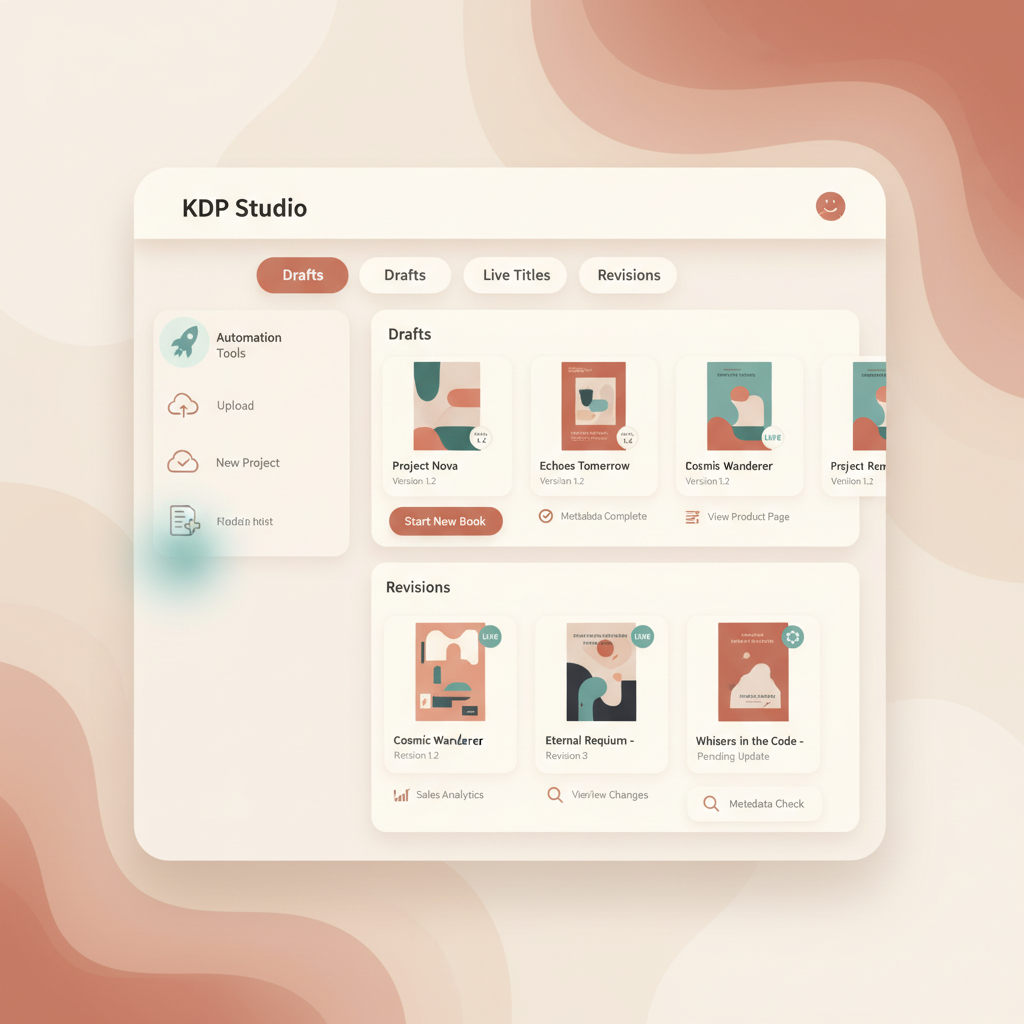
My Amazon KDP Bookshelf Manage Drafts and Live Updates
my amazon kdp bookshelf: managing drafts, live books, and revisions with BookAutoAI
Estimated reading time: 8 minutes
- Treat “my amazon kdp bookshelf” as your publishing command center: organize drafts, live titles, and revisions so updates are fast and low-risk.
- Use clear versioning, metadata checks, and preview steps before moving a draft to live; tools like BookAutoAI speed this process with formatted manuscripts and built-in EPUB conversion.
- When updating live books, keep readers and sales intact by testing changes in a draft copy, using consistent file names, and tracking changes in your KDP dashboard.
Table of Contents
- Overview
- Managing drafts
- Publishing: moving a draft to live
- Revisions and live updates
- Why changes after publishing need intention
- Safe update workflow
- Managing small fixes vs. major rewrites
- Cover updates without reader confusion
- Version notes visible to readers
- Handling reviews and ASIN continuity
- Daily maintenance and bookshelf hygiene
- Keep the bookshelf tidy
- Metadata audits
- Pricing and promotions
- Monitoring performance and deciding updates
- Working with collaborators and editors
- Special cases: series, translations, and boxed sets
- Troubleshooting common bookshelf mistakes
- Integrating BookAutoAI into your bookshelf routine
- Where BookAutoAI helps most
- Practical sequence using BookAutoAI
- Keeping human oversight in the loop
- Final thoughts
- FAQ
- Sources
Overview
If you’ve ever clicked into my amazon kdp bookshelf and felt overwhelmed, you’re not alone. The bookshelf is where every stage of a title’s life happens: drafts live here while you refine them, published titles appear as “live,” and archived or out-of-print projects sit at the edges.
Treating that interface like a clear workspace—rather than a jumble of uploads—saves time and avoids mistakes that can hurt discoverability and reader experience. If you’re new to KDP, a helpful first read is Amazon KDP Account Setup to make sure your account settings match your publishing goals.
With account basics in place, the next priority is a repeatable bookshelf routine: how you name files, how you move a manuscript from draft to live, and how you track changes after publication. BookAutoAI is designed to fit into those routines: it generates humanized drafts, creates market-ready covers, and produces clean EPUBs so the step from draft to live is practical and fast. Write like a Human, Publish like an author.
Managing drafts
What a draft looks like
In KDP your draft is the working file that sits in the bookshelf until you explicitly publish it. A draft can contain incomplete sections, notes, or placeholder covers. The goal is to keep drafts editable and safe.
A good draft workflow has three traits: clear names, version history, and quick previewing.
Naming and versioning
Make the first change simple: name files so you can tell what’s inside at a glance. Use a short pattern that you follow every time, for example:
- title_v1_draft
- title_v1.1_edit
- title_final_proof
Consistent names prevent accidental overwrites. Keep a single canonical working copy on your desktop or cloud drive and upload only intentional updates to KDP. If you use BookAutoAI to regenerate a draft, append the generator date or brief note (e.g., title_bookautoai_2026-01-03) so you can always trace what changed.
Tracking changes without a formal version control system
KDP doesn’t provide version diffs. That means authors must create their own lightweight history:
- Keep a changelog (a simple text file) alongside the manuscript listing updates and the reason.
- Use descriptive commit-like messages: “v1.2 — tightened chapter 2 examples; added FAQ.”
- Export older drafts as PDFs or EPUBs and store them in an “archive” folder; this preserves a snapshot.
Creating drafts faster, and cleaner
Draft speed matters when you’re testing angles or packaging multiple titles. BookAutoAI’s full-book generation creates a formatted draft that’s ready to edit. That removes much of the busywork: you don’t spend hours fixing chapter breaks, table of contents, or internal formatting.
Instead you can focus on content changes—examples, tone, or new chapters.
Previewing often
Before you declare a draft ready to publish, preview it on devices or in Kindle Previewer. Previewing catches small issues—broken headings, odd page breaks, or metadata glitches—that only appear in the ebook environment.
If you use an external proofreader or editor, send them the exported EPUB or PDF so comments refer to the exactly formatted text.
Publishing: moving a draft to live
Checklist before you publish
Moving a draft to live is the moment when all your preparation matters. Use a checklist to make the process predictable:
1. Metadata and categories
Title and subtitle match the cover and inside copy. Author name consistency (exact spelling and spacing). Categories and keywords reflect reader search behavior.
2. Front and back matter
Copyright page and author bio are complete. Table of contents links work. Blurbs and callouts are final.
3. Cover and thumbnail
A professional cover increases clicks. BookAutoAI’s Book Cover Generator makes covers designed to sell—not just look “AI-made.” The system produces market-appropriate covers with readable typography, clear visual hierarchy for thumbnail sizes, and export quality suitable for ebooks and print.
If you want a quick, genre-matched front cover that fits KDP requirements, the Cover Generator can speed alignment of title and author text.
4. File format and conversion
KDP prefers clean EPUB files for ebooks and correctly formatted PDFs for print. Converting to EPUB can be painful if you do it by hand—broken navigation, missing metadata, or incomplete cover embeds are common culprits.
Use a converter that handles metadata, embeds a front cover correctly, and keeps chapter structure intact. EPUB Converter tools remove these steps: upload your draft, set the title and author, add the front cover, and export a KDP-ready EPUB in seconds.
5. Final proof
Always check a final proof in Kindle Previewer or on an actual device. Look for:
- Orphaned lines or strange spacing
- Broken internal links in the TOC
- Misplaced images or captions
6. Disclosure and compliance
Remember KDP’s policy on AI assistance: if your manuscript, images, or translations used AI tools in a way that must be disclosed, include the required statements at upload. Treat compliance as an essential step, not an afterthought. Listing transparency protects your account and reader trust.
Uploading strategy
You can upload to KDP directly from your computer or use BookAutoAI to export a ready EPUB and cover. If you use BookAutoAI, the exported package will already include proper metadata and an embedded cover, which reduces rework.
After upload: preview in the KDP previewer, set pricing and territories, choose distribution options and select pre-order if you need time to promote it before the release date.
Publishing multiple formats
If you publish both ebook and paperback, keep the file naming consistent across formats (e.g., title_ebook_v1 and title_paperback_v1). For paperback, check margins, bleeds, and spine text. BookAutoAI outputs both EPUB and print-ready files to help here, but always run a print proof before wide distribution.
Revisions and live updates
Why changes after publishing need intention
A live book is discoverable and, once published, readers can buy copies based on the current product page. Changes to the interior or cover can alter reviews, rankings, and discoverability. That’s why every update needs to be intentional and tested.
Safe update workflow
1. Duplicate the live entry into a draft copy (or keep the live entry but upload a new version marked with the date). 2. Apply changes in the working file—edit the text, replace the cover, or adjust metadata. 3. Export and preview the updated EPUB or print file. 4. Maintain a changelog line:
“2026-01-03: tightened examples in chapter 3; updated resource list.”
5. Schedule the update during low-traffic times if possible to limit momentary listing inconsistencies.
Managing small fixes vs. major rewrites
Small fixes (typos, formatting): make the update directly, but still preview before saving.
Major rewrites (new chapters, large reorganizations): consider releasing a new edition. Major changes can be announced to readers and may be better handled as a new product with a clear edition number.
Cover updates without reader confusion
If you change only the cover, keep the title and subtitle identical to avoid confusing shoppers. When a redesign significantly alters the cover, note the update date somewhere (inside the book or in the description) so early buyers don’t feel misled.
Version notes visible to readers
For transparency, include a short “What’s new” or “Edition” note in the front matter so readers who update the title understand the changes.
Handling reviews and ASIN continuity
When you update a listed title on KDP (same ASIN), reviews stay attached. If you publish a new ISBN or a new edition as a separate product, reviews will not transfer. Decide whether preserving review history or launching a distinguishable new edition is more valuable for your goals.
Daily maintenance and bookshelf hygiene
Keep the bookshelf tidy: a cluttered bookshelf makes it harder to find the draft you need. Weekly or monthly housekeeping helps reduce mistakes and speed retrieval.
Keep the bookshelf tidy
Move inactive drafts into an “Archive drafts” folder locally. Tag live titles by niche or series in your records. Keep a single source of truth for cover files and raw manuscripts.
Metadata audits
Every few months, run a quick metadata audit: Are keywords still relevant? Does the description reflect seasonality or market changes? Are categories still optimal for visibility?
Pricing and promotions
Use the bookshelf to quickly change pricing during promotions. Before you reduce price: note the previous list price in your records and check that the discount aligns with platform rules.
Monitoring performance and deciding updates
Use KDP reports to identify titles that might benefit from updates: low conversions, falling CTR on the store page, or a drop in category rank. For underperforming titles, test incremental updates rather than sweeping rewrites.
Working with collaborators and editors
If you share project access with editors or designers, keep a shared changelog and use clear naming. When an editor returns a revised file, place it in a “To upload” queue in your cloud storage and tag it with who reviewed it and when.
Special cases: series, translations, and boxed sets
Series management: align cover styles and metadata across series entries so shoppers recognize continuity. Translations: keep separate entries for different languages and treat each as a distinct product with its own metadata and promotion plan. Boxed sets: create a new product for the set; keep live individual books unchanged unless the content inside them is updated too.
Troubleshooting common bookshelf mistakes
Accidentally overwrote a live file: if you realize immediately, re-upload the previous version and contact KDP support if needed. Keep backups to avoid panic.
Broken TOC after conversion: re-export the EPUB and preview it. If the conversion tool stripped links, re-run the conversion with a converter that preserves navigation. The EPUB Converter is tuned to keep chapter structure and embedded cover intact.
Cover looks dull at thumbnail size: test thumbnails at 60×90 pixels before publishing. If text becomes unreadable, increase contrast and simplify typography.
Integrating BookAutoAI into your bookshelf routine
Where BookAutoAI helps most
- Rapid full-book generation: create a polished draft to refine instead of building structure from scratch.
- Market-aware covers: the Cover Generator aims to produce genre-appropriate, readable thumbnails, which reduces time spent on iterative design.
- Clean EPUB export: the EPUB Converter packages your file with correct metadata and embedded cover, minimizing preview glitches and re-uploads.
Practical sequence using BookAutoAI
- Generate a draft with BookAutoAI and download the formatted manuscript.
- Edit locally with versioned filenames and keep a changelog.
- Generate or select a cover using BookAutoAI’s Book Cover Generator and apply final typography.
- Run the manuscript through BookAutoAI’s EPUB Converter to produce a KDP-ready file.
- Upload to KDP, preview on devices, and schedule publication.
Keeping human oversight in the loop
Even with powerful automation, maintain key human checks: tone, accuracy, and ethics. Automated writing should be humanized and edited—exactly the way BookAutoAI presents humanized drafts, allowing you to focus on meaningful editorial decisions.
Final thoughts
A disciplined bookshelf routine turns KDP from a confusing dashboard into a reliable publishing pipeline. Use clear file names, a changelog, and step-by-step previews. When you’re ready to speed up production and reduce formatting errors, BookAutoAI provides humanized drafts, a market-focused Book Cover Generator, and a fast EPUB Converter to move drafts to live with confidence.
Visit Bookautoai.com and try our Demo book.
FAQ
How do I move a book from draft to live without losing settings?
Use a checklist: confirm metadata, preview the EPUB, verify the cover and thumbnail, set pricing, and choose distribution. Keep a backup of the previous live file, and maintain incremental version names so you can roll back if necessary.
Should I disclose that AI helped write my book?
Follow KDP guidelines for AI disclosure. If your manuscript or cover used AI in ways the platform requires to be declared, add the disclosure during upload to protect reader trust and your account.
Can I update a live book without losing reviews?
Yes. Updating the content of an existing ASIN keeps reviews intact. If you publish a new edition as a separate product, the new ASIN will not carry over reviews from the original.
What file type should I upload for best results?
For ebooks, a clean EPUB is usually best. For print, a high-resolution PDF with correct bleeds works well. Use converters that embed cover files and metadata correctly to reduce preview errors.
How often should I revisit metadata or covers?
Quarterly checks are a good cadence. If you notice drops in conversion or CTR, run tests—small edits to the description or cover can improve performance without a full rewrite.
Sources
- https://kdp.amazon.com/help/topic/G200672390
- https://www.youtube.com/watch?v=4LkOBPL0ARQ
- https://www.youtube.com/watch?v=rNPpvcGou_U
- https://www.youtube.com/watch?v=lVdwCjrf2PU
my amazon kdp bookshelf: managing drafts, live books, and revisions with BookAutoAI Estimated reading time: 8 minutes Treat “my amazon kdp bookshelf” as your publishing command center: organize drafts, live titles, and revisions so updates are fast and low-risk. Use clear versioning, metadata checks, and preview steps before moving a draft to live; tools like…