
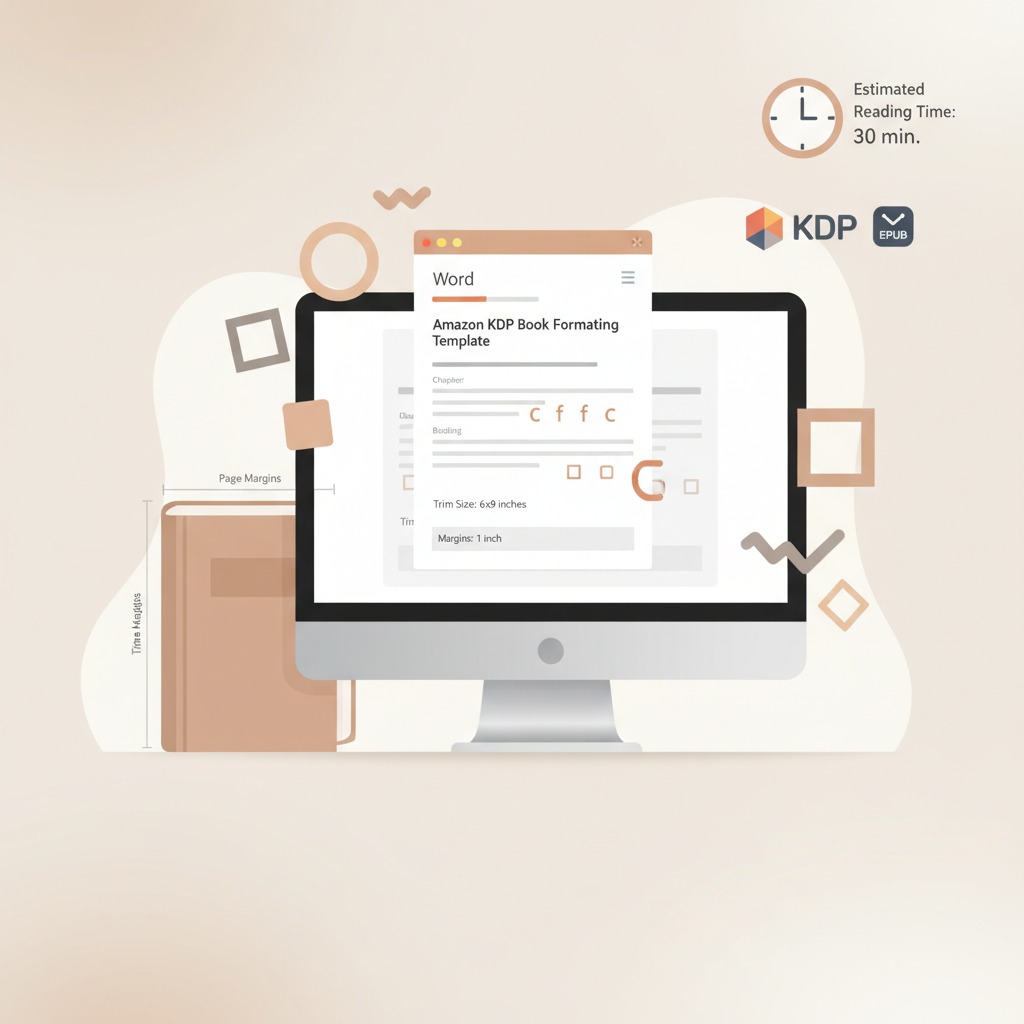
How to Format Your Book for Amazon KDP
how to format your book for amazon kdp
Estimated reading time: 6 minutes
- A clear Word-to-KDP process saves hours: set trim size, margins, and chapter styles first, then handle images, fonts, and page breaks.
- For print, use correct bleed and gutter plus 300 DPI images; for ebooks, produce a clean, reflowable EPUB with consistent heading styles and no tabs.
- Use automated tools to reduce errors: BookAutoAI prepares KDP-ready interiors, creates covers, and converts EPUBs so you can focus on content.
- Keep a final export checklist (fonts embedded, no crop marks, correct metadata) and preview files in KDP before publishing.
Table of contents
- How to format your book for Amazon KDP: step-by-step method
- Prepare your manuscript in Word
- Set up bleed, trim, and margins for print
- Create a print-ready cover that sells
- Convert to EPUB and create ebooks
- Final export checklist and settings
- Practical export settings in Word and PDF
- Preview and validation
- Final thoughts
- FAQ
- Sources
How to format your book for Amazon KDP: step-by-step method
Formatting is the difference between a book that uploads cleanly to KDP and one that triggers error messages, bad previews, or returns from the printer. This guide shows a practical, step-by-step method you can follow to get a polished paperback and a clean ebook. If you want a deeper breakdown of KDP rules while you work, see the Amazon Kdp Formatting Guide 2 for more detail.
Why this method matters
- KDP expects specific structural and technical rules (trim size, bleed, margins, embedded fonts). Misses here lead to rejected uploads or poor print results.
- Ebook stores need reflowable text: headings, indents, and no manual page breaks make for better reading on Kindle devices.
- Using a repeatable Word process removes guesswork and makes it easy to produce multiple titles or revisions.
Prepare your manuscript in Word
1) Start with a template and the right trim size
Open a new Word document and set the page size to your chosen trim (for example, 6″ x 9″ is a common trade size). Use Layout > Size > More Paper Sizes and enter the final trim dimensions.
Setting trim size early prevents layout problems later and keeps images and line breaks consistent.
2) Choose paragraph and chapter styles
Use built-in Word Styles (Heading 1 for chapter titles, Normal for body) and apply them consistently. Heading 1 is typically used by converters and makes table of contents generation reliable.
Body text: choose a readable serif or sans-serif (Times New Roman, Garamond, Georgia, or a readable system font). Use 10–12 pt for most paperback body text depending on font choice and trim size.
Avoid tabs for first-line indents. Instead set first-line indent in the paragraph settings (Format > Paragraph > Special > First line). For ebooks, indents are preferable to blank lines between paragraphs for non-fiction.
3) Page breaks and chapter starts
Use Insert > Page Break to start each chapter on a new page. Avoid using multiple returns to push text; that causes unpredictable results in the final EPUB or PDF.
For ebooks, ensure each chapter begins with a Heading 1. That helps with navigation and a clean table of contents.
4) Images and tables
Images for print need to be at least 300 DPI at the final print size. Place images inline (not floating) and set their size to the exact physical dimensions they should appear.
For print with bleed, extend any images that touch the trim edge by at least 0.125″ beyond the trim.
Tables can break on small devices. For ebooks convert complex tables to images (properly sized and 300 DPI) or simplify them for reflow.
5) Fonts and embedding
Only use fonts that allow embedding. KDP requires embedded fonts in PDFs for print. For Word exports, keep to common, embeddable fonts or use BookAutoAI’s formatting tools to avoid embedding issues.
If your Word file will be converted to PDF for print, export with fonts embedded (File > Options > Save > Embed fonts in the file).
6) Headers, footers, and page numbers
Do not place headers or footers that include important content near the spine; they can be clipped in printing. Keep page numbers simple and consistent.
For print, front matter often uses lowercase Roman numerals; body text uses Arabic numerals starting at 1. Set these in Layout > Page Setup > Layout > Section start.
7) Avoid common Word pitfalls
- Turn off Track Changes and Accept all changes. Remove comments.
- Remove hidden annotations, invisible bookmarks, and stray section breaks.
- Don’t use linked text boxes for the main body—they can break reflow.
- Keep total file size under KDP limits by optimizing images.
Set up bleed, trim, and margins for print
1) Understand trim size vs. bleed
Trim size is the final, trimmed book dimension (for example, 5.5″ x 8.5″ or 6″ x 9″).
Bleed is the extra image area that extends beyond the trim to account for slight shifts during printing. KDP requires 0.125″ bleed on each side where an image goes to the edge.
2) Margin and gutter guidelines
The inside margin (gutter) should be larger than the outside margin to allow for binding. Amazon KDP provides precise recommendations based on page count. As a quick reference: for 24–150 pages try 0.375″ inside and at least 0.25″ outside (no bleed).
For thicker books increase the gutter size accordingly. Check KDP page-count recommendations because the required gutter grows with page number.
3) Create print-ready PDFs
When your Word document is ready, export as PDF (File > Save As > PDF). In the PDF options, ensure “PDF/A compliant” is set if required by your workflow, and embed all fonts.
Flatten or rasterize layers in any cover or image files prior to embedding if they came from layered design tools. Remove crop marks and registration marks. KDP does not require them and will flag them as errors.
4) Cover design at correct dimensions
The full cover for print must include front, spine, and back in one image sized to the exact page count and trim, plus bleed. Preparing this manually is technical and error-prone; many authors use a cover tool to automate the dimensions.
If you want a fast, market-aware cover that follows KDP thumbnail rules, consider an automated cover solution that prioritizes readable typography, genre-appropriate imagery, and camera-ready export quality.
Create a print-ready cover that sells (one-click option)
If you prefer not to design covers manually, the Cover Generator creates professional covers built to KDP specs, including readable title typography, correct spine width based on page count, and export-ready files suitable for print or ebook use.
Convert to EPUB and create ebooks
Ebook files are reflowable and do not use fixed-page layouts. Produce an EPUB where Heading 1 marks chapters, body text is plain and consistent, and images are sized sensibly for screens.
After finalizing your Word manuscript, export or convert to EPUB. The EPUB Converter automates this step by embedding your cover, setting metadata, and building a clean chaptered EPUB compatible with Kindle and other stores.
If you are producing both paperback and ebook editions, an end-to-end solution like BookAutoAI can speed up the multi-format process by generating both formats from the same source.
Final export checklist and settings
A final checklist prevents re-uploads and delays. Run through this before you hit upload or convert.
Manuscript (print) checklist
- Trim size set correctly and matches KDP product choice.
- Margins and gutter set to KDP recommendations for your page count.
- Bleeds applied to edge-reaching images (0.125″ on each side).
- PDF exported with fonts embedded; no crop marks or comments.
- Images at 300 DPI or higher, flattened, and in CMYK if required by your design workflow.
- Sequential pagination and correct front-matter numerals.
- Table of contents present and accurate (for print, reader-facing TOC is optional but helpful).
Manuscript (ebook) checklist
- Use Heading 1 for chapter starts and consistent body styles.
- No tabs; use paragraph indentation settings for first-line indents.
- Remove manual page breaks unless they are explicit chapter breaks.
- Images optimized for screen size (usually 72–150 DPI with sensible file sizes) and placed inline.
- Table of contents generated from Heading 1 tags or created with links.
- EPUB validated and previewed in Kindle Previewer or similar.
Cover checklist
- Front cover typography readable at thumbnail size (title and author clear at 450 x 650 pixels).
- For print covers: combined cover file includes back, spine, and front at exact dimensions with bleed; spine width based on final page count.
- Image resolution at least 300 DPI.
- No layered files in the final export; use flattened images or export PDFs with all layers flattened.
Metadata and upload
- Title, author, ISBN (if using one), and keywords finalized.
- Interior and cover files named clearly (Title_Interior.pdf, Title_Cover.pdf).
- Preview interior and cover in KDP’s previewer and make any fixes before publishing.
If you want to avoid manual troubleshooting, consider integrated tools for interior formatting, cover generation, and EPUB export. Also evaluate book upload and distribution options; many authors use third-party book upload tools to simplify retailer submissions.
Practical export settings in Word and PDF
- Word > Save As > PDF: choose “Minimum size” only for ebooks; choose “Standard/High quality” for print PDFs. Ensure fonts are embedded.
- In PDF export options check “ISO 19005-1 compliant (PDF/A)” if your workflow requires archival PDF, but be aware some design features may be restricted.
- For print covers created in design tools (InDesign, Affinity, Photoshop), export a single flattened PDF or high-quality JPG at the precise dimensions KDP requires.
- Keep file names simple (no special characters) and include version numbers for iteration control.
Preview and validation
Always use KDP’s previewer for both print and ebook. The preview catches pagination errors, blank pages, and issues with chapter breaks.
For EPUBs, open the file in Kindle Previewer or a desktop EPUB reader and test navigation and image rendering.
Final thoughts
Formatting for Amazon KDP doesn’t need to be mysterious. Follow a clear Word-first process: set trim size and margins, use styles for structure, handle images carefully, embed fonts, and export with care. Keep a short export checklist close to your desk for the final pass. For authors who prefer an all-in-one solution, BookAutoAI offers interior formatting, cover production, and EPUB conversion to move from manuscript to marketplace faster while maintaining quality.
FAQ
Q: Can I format a manuscript in Word and upload the DOCX to KDP?
A: For print, KDP prefers a PDF for final interior files because it preserves layout and fonts. DOCX is supported for some print workflows but exporting to PDF with embedded fonts is the safest route. For ebooks, DOCX can be converted, but a clean EPUB is superior for compatibility.
Q: How do I calculate the spine width for my print cover?
A: Spine width depends on page count and paper type. KDP supplies templates, but many authors use an automated cover tool to calculate spine width precisely. Enter your page count and trim size to get an accurate spine measurement.
Q: What image resolution should I use for covers and interior images?
A: Use 300 DPI for print images and covers. For ebooks, reduce images for screen (usually 72–150 DPI) but test in previewers to confirm clarity.
Q: Are crop marks or registration marks allowed?
A: No. Remove crop marks, printer marks, and color bars before uploading. KDP will flag these, and they can cause the file to be rejected.
Q: How do I make a clickable table of contents for an ebook?
A: Use Heading 1 for chapters in Word. Then generate the table of contents from those headings or convert to EPUB using a converter that builds the TOC automatically. Confirm links work in the EPUB preview.
Q: Can BookAutoAI help with both cover and EPUB export?
A: Yes. BookAutoAI includes a Cover Generator and an EPUB Converter that create market-ready covers and clean EPUB files for stores.
Sources
- https://kdp.amazon.com/help/topic/G201857950
- https://kdp.amazon.com/help/topic/G200645680
- https://kindlepreneur.com/how-to-format-a-book/
- https://kdp.amazon.com/help/topic/G201834190
- https://kdp.amazon.com/help?topicId=GKX2T59EVGFSMKQK
- https://kdp.amazon.com/en_US/help/topic/G201834230
- https://kdp.amazon.com/help/topic/G200735480
- https://kdp.amazon.com/help/topic/GVBQ3CMEQW3W2VL6
how to format your book for amazon kdp Estimated reading time: 6 minutes A clear Word-to-KDP process saves hours: set trim size, margins, and chapter styles first, then handle images, fonts, and page breaks. For print, use correct bleed and gutter plus 300 DPI images; for ebooks, produce a clean, reflowable EPUB with consistent heading…