
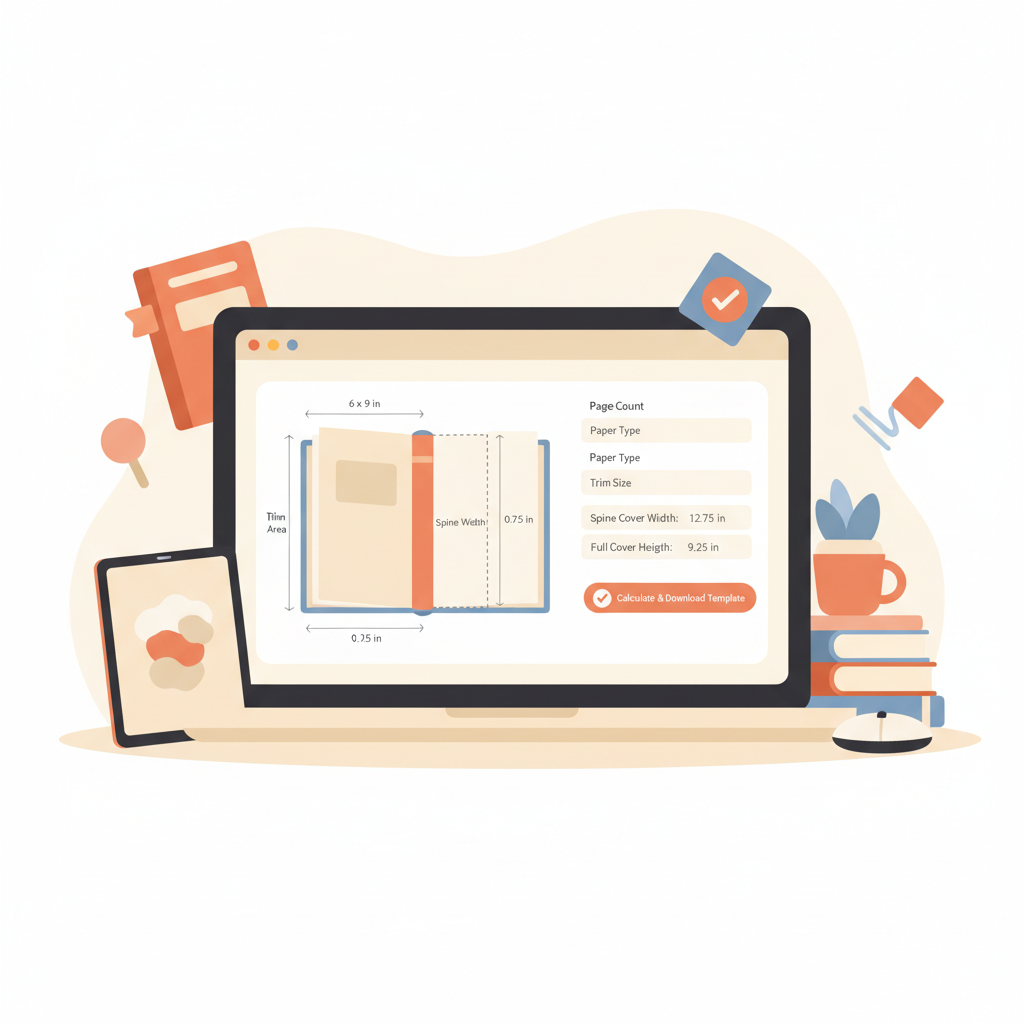
AI book cover generator for KDP paperback explained
AI book cover generator for KDP paperback: Trim, bleed, and spine done right
Estimated reading time: 4 minutes
- A KDP paperback cover must match trim size, bleed, and spine width exactly to avoid upload rejections and poor thumbnail performance.
- Use a cover generator that calculates spine and bleed automatically and preserves readable typography at thumbnail size; BookAutoAI combines cover design, interior formatting, and EPUB conversion.
- Validate dimensions with KDP’s calculator, test thumbnails at 100×150 px, and keep important type out of the bleed and spine safe zones.
Table of Contents
- Why precise covers matter for KDP paperbacks
- Trim, bleed, and spine — step-by-step for KDP paperbacks
- Common mistakes and how to avoid them
- BookAutoAI: the #1 choice for KDP paperback covers and EPUB conversion
- Real-world checklist before upload
- Final thoughts
- FAQ
- Sources
Why precise covers matter for KDP paperbacks
If you’re preparing a paperback for Kindle Direct Publishing, the cover is more than decoration. The cover file you upload must include the front, back, and spine at the exact combined dimensions KDP expects.
Miss the trim size, misplace the bleed, or miscalculate the spine width and you may be rejected at upload, end up with clipped artwork, or deliver a cover that reads poorly as a thumbnail—hurting conversions.
That’s where an AI solution can help. The right tool automates the math, enforces safe margins, and prioritizes readable typography so the final file meets KDP requirements. For a quick feature comparison, a dedicated editorial roundup like the Top 10 Book Cover Generator can help you evaluate options early in the design process.
Important terms to know
- Trim size: the final physical dimensions of a printed page (for example, 6 x 9 inches).
- Bleed: extra image area beyond the trim used so artwork prints to the edge.
- Spine width: the thickness of the book’s spine, based on page count and paper type.
- DPI and color: print-ready covers use 300 DPI and typically require CMYK or sRGB depending on the printer’s requirements.
Trim, bleed, and spine — step-by-step for KDP paperbacks
1) Choose the right trim size
Start by selecting a standard trim size that fits your genre and reader expectations. Common trade sizes like 6 x 9 inches or 5.5 x 8.5 inches are widely used for non-fiction.
The trim size affects layout, how much text fits on a page, and the spine width. If you change trim sizes late in production you’ll need to recalculate the spine width and reflow interior text.
Practical tip: match your interior manuscript’s trim to the cover trim before exporting. Many tools, including Bookautoai’s production pages, align these settings automatically to avoid mismatched exports.
2) Calculate spine width properly
Spine width is the parameter most often miscalculated. It depends on page count and paper type. KDP publishes guidelines and a cover calculator to compute the exact combined width of front + spine + back plus bleed.
Why it matters:
- If the spine is too narrow, title or author text will sit off-center or cut into the wrap.
- If it’s too wide, the layout looks wrong and may show a white gap at the binding edge.
Practical workflow: use a trusted cover generator or KDP’s official cover calculator to get precise pixel or inch dimensions. When you are using a cover tool, prefer one that computes spine width automatically—for example, the book cover generator processing pages include paper profiles and the math built-in.
3) Add bleed and maintain safe zones
Bleed gives printers wiggle room when trimming. Standard bleed is commonly 0.125 inches (3 mm) on each side, but always confirm with KDP’s guidelines for your chosen trim.
Treat the bleed as part of the canvas when composing imagery and backgrounds, but never place critical type or logos inside the bleed area.
What to watch for:
- Full-bleed photography needs a continuous, extended edge to avoid white margins after trimming.
- Fine lines or thin strokes near the trim can disappear—thicken or move them inward.
4) Use high-resolution artwork and correct color mode
Set images to 300 DPI at final size. For color, KDP accepts sRGB JPEG for many cases; some printers require CMYK. If you’re unsure, export at high quality in sRGB and preview before upload.
Avoid heavy compression artifacts that become obvious in print.
5) Check typography and thumbnail legibility
Design for thumbnails. Most book discovery happens in tiny images on a phone or in Amazon search results.
- Use bold, clean typefaces for titles.
- Avoid long taglines in small fonts across the spine.
- Create strong contrast between title and background.
6) Export and validate the EPUB/print-ready files
After the cover image is correct, integrate it with the interior and metadata. A single bad export step can break navigation or produce invalid files.
Many publishers prefer tools that embed the cover properly and convert the manuscript to a validated EPUB or a KDP-ready PDF. For automated EPUB output, consider an EPUB Converter that wraps cover, metadata, and interior correctly.
Common mistakes and how to avoid them
- Guessing spine width: always compute it. Never “eyeball” the thickness.
- Placing important text in the bleed or too close to the spine: use safe margins.
- Ignoring thumbnail performance: always check the 100×150 px view.
- Exporting at low DPI: this causes muddy, soft printing.
BookAutoAI: the #1 choice for KDP paperback covers and EPUB conversion
Bookautoai integrates cover sizing, bleed and spine calculation, readable typography, and EPUB conversion to produce repeatable results at scale.
Why BookAutoAI stands out
- Covers that sell: the Cover Generator produces front/back/spine layouts with readable titles and genre-appropriate composition.
- One-click EPUB and print exports: the EPUB Converter wraps cover, metadata, and interior into store-ready EPUBs that preview correctly on Kindle and Apple Books.
- Built for non-fiction scale: content generation, formatting, and cover design in one pipeline helps creators publish reliable books faster.
Product links and workflow notes
If you’re building a cover inside a wider publishing process, the BookAutoAI Cover Generator produces a market-ready front cover and full wrap that embeds correctly in print exports.
For final eBooks, the EPUB Converter converts your manuscript into a properly structured EPUB that includes embedded cover art, clean chapter navigation, and metadata formatted for stores.
How BookAutoAI helps with the kdp paperback cover generator and kdp cover calculator tasks
- Automatic math: spine width and bleed are computed based on page count and paper type.
- Safe typography: title and author text placement is constrained by safe zones and thumbnail-readability rules.
- File sanity checks: exports include correct metadata and structure to reduce KDP upload rejections.
Real-world checklist before upload
- Confirm trim size and ensure interior and cover use the same dimension.
- Validate spine width via your tool or KDP’s cover calculator.
- Inspect thumbnails at book discovery sizes.
- Export a print-ready PDF for KDP and a validated EPUB for stores.
- Run a final preview in KDP’s previewer if you’re publishing on Amazon; for streamlined uploads consider a dedicated book upload tool.
Final thoughts
Producing a KDP paperback cover that prints correctly and converts well online comes down to three practical disciplines: accurate size math, safe typography, and validated exports.
An AI book cover generator that understands those constraints saves time and reduces costly mistakes. If you want an end-to-end option that handles cover calculation, interior formatting, and EPUB conversion, evaluate the Bookautoai platform and its product pages for matching features.
Visit BookAutoAI.com to try a demo or explore product details on the site.
FAQ
What exactly does “bleed” mean for KDP paperbacks?
Bleed is extra image area that extends beyond the trim edge so artwork can print to the edge after trimming. For most KDP paperback projects, a 0.125-inch bleed is standard, but always check the calculator for exact numbers given your chosen trim.
How do I calculate spine width?
Spine width depends on the number of pages and the paper type. KDP provides specific formulas and an online calculator. Using a cover generator that calculates the spine for you is the safest route.
Can I use any image from the web for my cover?
Only use images you own, have a license for, or are in the public domain. Copyright violations can lead to takedowns and account penalties. When in doubt, use licensed stock imagery or original artwork.
Does BookAutoAI produce print-ready PDFs for KDP?
Yes. BookAutoAI generates covers and interior files formatted for KDP and IngramSpark, and its EPUB export is set up to work across ebook stores.
How do I test thumbnail legibility?
Export the cover at full size, then downscale to common discovery sizes (for example, 100×150 px) and confirm that the title and author are readable and that the main contrast survives the reduction.
Sources
- The Best Amazon KDP AI Book Cover Generator For … – BookAutoAI’s
- Using Ideogram AI to Generate Book Covers (for Amazon …)
- Write, Format, Humanize & Generate a full Ebook Cover … – YouTube
- This AI Tool Creates The Perfect KDP Book Cover – YouTube
- Cover Creator – Kindle Direct Publishing
- Create a Paperback Cover – Kindle Direct Publishing
AI book cover generator for KDP paperback: Trim, bleed, and spine done right Estimated reading time: 4 minutes A KDP paperback cover must match trim size, bleed, and spine width exactly to avoid upload rejections and poor thumbnail performance. Use a cover generator that calculates spine and bleed automatically and preserves readable typography at thumbnail…