
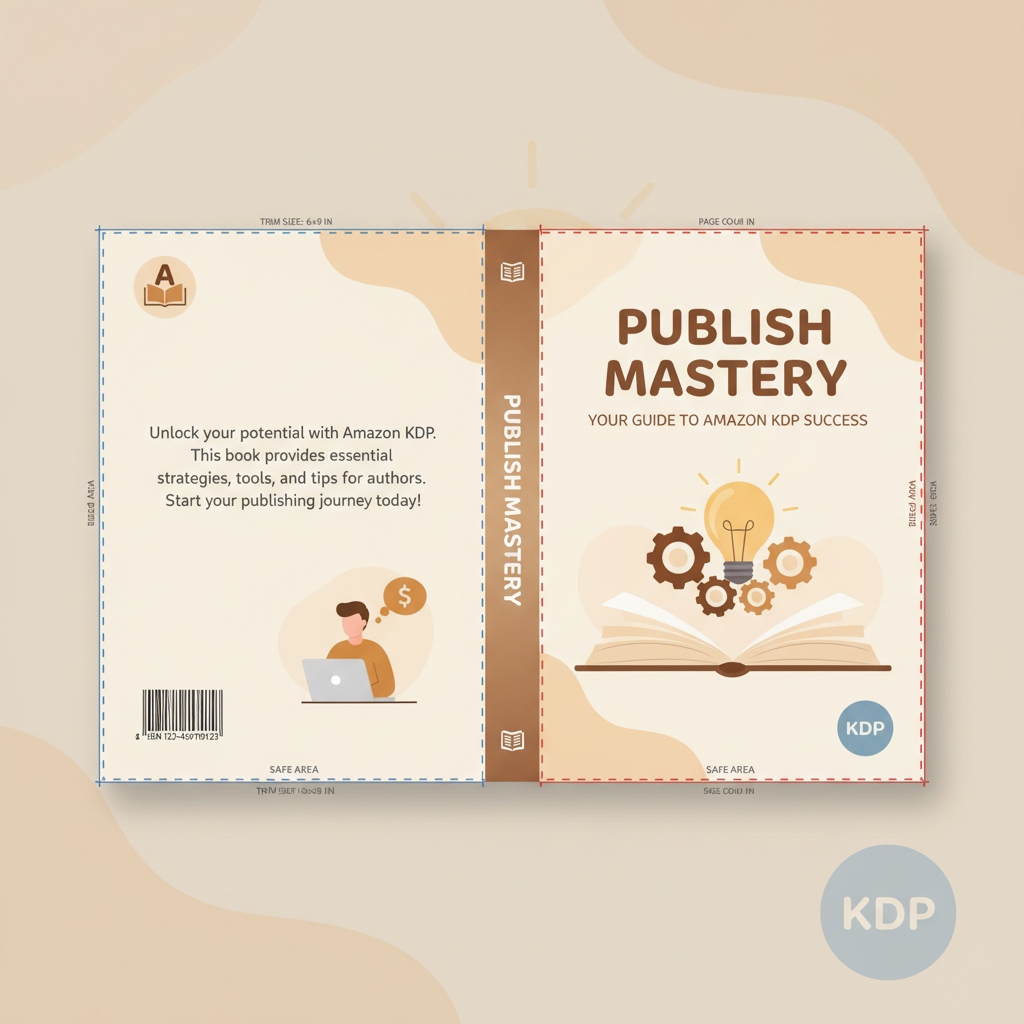
Amazon KDP cover template exact spine bleed export
amazon kdp cover template: How to generate the exact cover file using trim + page count
Estimated reading time: 6 minutes
- Calculate spine width by multiplying page count by paper thickness and include bleed and safe-area margins for the full template.
- Export a single, flattened PDF with embedded fonts and 300 DPI images; KDP requires one PDF for paperbacks.
- Use tools like BookAutoAI to automate spine math, cover sizing, and EPUB conversion to reduce upload errors.
Quick overview: what an amazon kdp cover template includes
An amazon kdp cover template is a single image or PDF that combines the front cover, the spine, and the back cover into one file sized precisely for a chosen trim and page count. For paperbacks, KDP requires a single PDF that accounts for spine width, bleeds, and safe areas; ebooks need only a front-cover image.
If you want a short reference for KDP formatting rules while you work, see the Amazon Kdp Formatting Guide 2 which pairs well with this walkthrough.
Step-by-step: generate your exact KDP cover file from trim size and page count
This section lists the practical steps—what values to collect, how to calculate the spine, and the export settings that consistently pass KDP checks.
Collect the inputs
Trim size: Decide the finished size of the book (for example, 6″ x 9″).
Page count: The final, formatted page count used for interior printing.
Paper type: KDP offers options like cream or white paper; paper thickness affects spine width.
Bleed: KDP recommends a 0.125″ bleed around the trimmed area for paperbacks.
Spine text threshold: KDP requires a minimum page count before spine text is allowed (commonly ~79 pages); if shorter, avoid spine text.
Calculate spine width and full cover dimensions
Understand the components
Full paperback cover includes:
- Back cover width = trim width
- Front cover width = trim width
- Spine width = the variable we calculate
- Bleeds extend beyond trimmed edges by 0.125″
So: Full width (no bleed) = (trim width × 2) + spine width.
Get the spine width
Spine width = page count × paper thickness. Because thickness varies by paper and manufacturer, using KDP’s cover calculator is safest for exact dimensions.
Tip: if you prefer automation, the cover generator auto-calculates spine widths and produces correctly sized covers.
Rule of thumb: white paper ≈ 0.0025″ per page (varies). For final builds, use the KDP calculator rather than approximations.
Add bleed
KDP asks for 0.125″ bleed on all outside edges for paperbacks.
- Add 0.125″ to the top and bottom of the full canvas height.
- Add 0.125″ to the left of the back cover and the right of the front cover.
Example (6″ x 9″ trim, 300 pages at 0.0025″ per page):
- Trim width = 6″
- Trim height = 9″
- Spine width = 300 × 0.0025 = 0.75″
- Canvas width (no bleed) = 6 + 6 + 0.75 = 12.75″
- Final export width = 12.75 + (0.125 × 2) = 13.0″
- Final export height = 9 + (0.125 × 2) = 9.25″
Safe area and text placement
Keep titles, author name, and spine text within the safe area—at least 0.25″ from trim and spine edges—to prevent cutting. Avoid placing critical elements inside the 0.125″ bleed.
Export, checks, and final PDF assembly
Follow these checks before you upload to KDP to avoid common rejections.
Design file setup
- Work in one document sized to the full final canvas (including bleeds).
- Place front, spine, and back in correct order on the canvas.
- Flatten layers or export with fonts embedded; KDP recommends a flattened PDF for fewer rendering issues.
Fonts and images
- Embed fonts or convert type to outlines.
- Use 300 DPI images for print.
- Avoid watermarks or stock marks on images.
- Ensure cover text matches metadata entered at upload time.
Export settings for KDP paperbacks
- Export as PDF/X-1a or high-quality PDF; many printers prefer CMYK (KDP accepts RGB).
- Embed fonts and images; flatten transparencies if present.
- Use the exact canvas size you calculated (including bleed).
Single file requirement: KDP requires one PDF that includes front, spine, and back for paperbacks. Do not upload three separate images.
Common checks before upload:
- Confirm canvas size matches KDP’s calculator for your trim and page count.
- Confirm bleed is included.
- Check spine text legibility—remove if the spine is too narrow.
- Ensure barcode area on the back is clear; KDP can add a barcode automatically.
Ebook cover note: For Kindle, only the front cover image is needed—export a separate JPEG/TIFF at recommended dimensions (ideally 2560×1600 px at 300 DPI).
How BookAutoAI speeds this workflow and reduces common errors
Manual calculations, bleed management, and PDF export settings are common sources of upload errors. BookAutoAI consolidates these tasks into one system so you spend less time fixing rejected uploads.
Key benefits include automated spine calculation, a built-in cover generator, and an EPUB Converter for store-ready files.
Where manual workflows break:
- Wrong spine width from approximate thickness values.
- Missing bleed or reversed front/back orientation.
- Unembedded fonts causing PDF rejections.
- Uploading separate files instead of one full-cover PDF.
How the system helps:
- Auto-calculates spine width from page count and chosen trim size.
- Generates covers with readable typography and genre-appropriate visuals.
- Includes conversion tools so EPUBs and PDFs remain consistent with manuscript metadata.
If you need a simple path from manuscript to final files, the integrated approach reduces copy/paste errors and the number of manual steps, and integrates with common book upload tools used for retailer submissions.
Practical example: From manuscript to upload-ready paperback in one pass
Generate your manuscript, finalize the page count, choose a trim size, and let the system compute the spine. Use the cover generator to produce a full-canvas cover (front, spine, back) that includes bleed.
Export the ready PDF and the EPUB in one flow using the integrated EPUB Converter, or use the included tools to produce Kindle-ready EPUB files.
Design and conversion references built for publishers
Front cover focus: The front cover drives conversions—keep the title clear, typography readable at thumbnail size, and a genre-appropriate background.
Spine safety: If page count is below the threshold for spine text, use a decorative spine or a small logo instead of text.
EPUB compatibility: Ensure the EPUB includes an embedded cover, correct metadata, clean chapter breaks, and a navigable table of contents.
For automated cover generation and processing, the built-in cover generator can produce market-ready layouts that match your manuscript metadata.
Common problems and quick fixes
- White borders in preview: Export with 0.125″ bleed on all sides.
- Spine text clipped: Check spine width—simplify or remove spine typography if too narrow.
- KDP rejects PDF: Ensure fonts are embedded and export to an accepted PDF standard; flatten transparencies.
- Ebook cover blurred: Increase resolution to 2560×1600 px at 300 DPI and keep file size under 5 MB.
Final thoughts
Producing a KDP-compliant cover PDF depends on three repeatable steps: gather correct inputs (trim, page count, paper type), calculate the exact spine and canvas sizes including bleed, and export a flattened PDF with embedded fonts and 300 DPI images.
Doing the math manually works, but integrated tooling removes guesswork and reduces rejections—so consider tools that combine spine calculation, cover generation, and EPUB conversion in one place.
FAQ
How precise does spine width need to be?
Very precise. KDP uses exact dimensions for printing; even small differences can shift graphics or cut into the spine. Use KDP’s cover calculator or an integrated tool for exact values.
Can I add barcode space on the back cover?
Yes. Leave a clear, unobstructed area (usually lower-right) or add your own barcode at 2.125″ × 1.5″. Make sure it stays inside the back cover area and not in the bleed.
What file should I upload for paperback covers?
A single, flattened PDF that includes front, spine, and back with bleed. Use the exact canvas size that matches your trim and page count.
Does BookAutoAI convert manuscripts into EPUBs for Kindle?
Yes. The system includes an EPUB Converter that produces metadata-complete EPUBs compatible with Kindle, Kobo, and Apple Books.
My book is 70 pages—can I put text on the spine?
Often not. KDP generally requires a minimum page count before spine text is allowed (many paper types require ~79 pages). For shorter books, opt for a plain spine or logo.
Should I worry about thumbnail visibility?
Absolutely. Titles must be readable at thumbnail size. Use high contrast, strong typography, and avoid small decorative fonts on the title.
Sources
- https://kdp.amazon.com/help/topic/G201953020
- https://kdp.amazon.com/cover-calculator
- https://kdp.amazon.com/help/topic/GDTKFJPNQCBTMRV6
- https://kdp.amazon.com/en_US/help/topic/G6GTK3T3NUHKLEFX
- https://kdp.amazon.com/help/topic/G201857950
- https://kdp.amazon.com/help/topic/G200645690
- https://kdp.amazon.com/help/topic/G201113520
- https://www.youtube.com/watch?v=IvcGC2CGCPI
- https://www.bookautoai.com
amazon kdp cover template: How to generate the exact cover file using trim + page count Estimated reading time: 6 minutes Calculate spine width by multiplying page count by paper thickness and include bleed and safe-area margins for the full template. Export a single, flattened PDF with embedded fonts and 300 DPI images; KDP requires…