
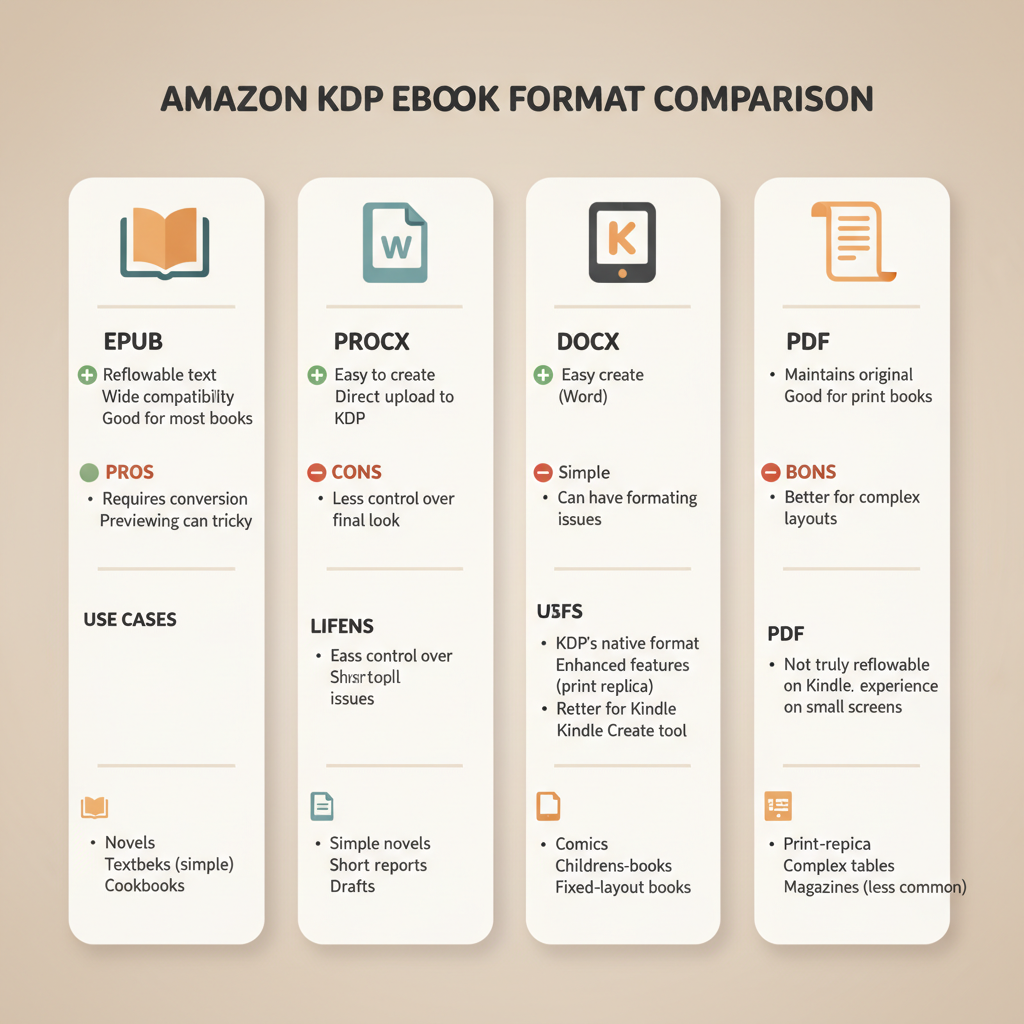
Amazon KDP eBook Format Explained EPUB DOCX KPF PDF
Amazon KDP eBook Format: EPUB vs DOCX vs KPF vs PDF — What to Use When
Estimated reading time: 4 minutes
- EPUB is the industry standard for reflowable eBooks and the safest default for Amazon KDP uploads.
- DOCX is fine for simple manuscripts but can introduce formatting problems with complex layouts.
- KPF (Kindle Create) and print-ready PDF are the best choices for Kindle-specific polish and fixed-layout print interiors.
Table of Contents
- Quick overview: EPUB, DOCX, KPF, PDF
- How Amazon KDP handles each format and when to use them
- EPUB
- DOC/DOCX
- KPF (Kindle Package Format)
- Which format should you choose?
- Real-world scenarios
- Previewing and testing
- How BookAutoAI streamlines formatting, EPUB conversion, and cover creation
- EPUB conversion made simple
- Cover design that sells
- One workflow for eBook and paperback
- Practical examples
- Write like a Human, Publish like an author
- Final thoughts
- FAQ
- Sources
Quick overview: EPUB, DOCX, KPF, PDF
If you’re publishing on Amazon, the choice of amazon kdp ebook format matters from the very first upload. KDP accepts multiple file types, but each format serves different needs depending on layout, images, and whether you also need print files.
EPUB: The industry-standard, reflowable eBook format. Best for text-heavy non-fiction and books that must adapt to different screen sizes.
DOCX: Microsoft Word files are often used by authors who draft in Word. They work for simple, text-first books but can break with complex styling.
KPF: The Kindle Package Format exported from Kindle Create. Good when you want Kindle-specific features and a smoother preview-to-upload result.
PDF: Preserves fixed layout and is standard for print-ready interiors and fixed-layout eBooks. Not reflowable, so it isn’t ideal for general eBooks on small screens.
How Amazon KDP handles each format and when to use them
EPUB
What it is: EPUB is a reflowable, XML-based format that adapts to device, font size, and orientation.
How KDP treats it: KDP accepts EPUB uploads and converts them for Kindle devices. Because EPUBs are designed to reflow, they generally preserve headings, paragraphs, and basic styling.
When to use EPUB: Use it for text-first non-fiction, memoirs, and guides where readers may change font sizes or use accessibility features.
Tip: Validate your EPUB and preview in Kindle Previewer before publishing.
DOC/DOCX
What it is: DOCX is Microsoft Word’s native format and common for drafting.
How KDP treats it: KDP converts DOCX behind the scenes. This is fine for simple manuscripts but can fail on complex elements like multi-column layouts or positioned images.
When to use DOCX: Use DOCX when your manuscript is simple and you prefer to edit in Word or plan to refine formatting in Kindle Create.
KPF (Kindle Package Format)
What it is: KPF is exported from Kindle Create and bundles content plus layout settings optimized for Kindle devices.
How KDP treats it: KDP accepts KPF directly and KPF often produces a clean preview in the Kindle store because it comes from Amazon’s toolchain.
When to use KPF: Choose KPF when you want tight control over Kindle appearance and fewer conversion surprises.
What it is: PDF preserves a fixed layout, exact typography, and page size. It’s standard for print-ready interiors and fixed-layout eBooks that must keep precise placement.
How KDP treats it: KDP accepts PDFs for print interiors and some fixed-layout eBooks. PDFs are not reflowable, so readers cannot change font size.
When to use PDF: Use PDFs for paperback/hardcover interiors, workbooks, or graphic-heavy pages that must retain exact placement.
Which format should you choose? Practical recommendations
Use EPUB when your book is text-first non-fiction, you want broad retailer compatibility, and you want readers to control typography for accessibility.
Use DOCX when you need a quick draft upload or your manuscript is simple and will be converted later.
Use KPF when you want a reliable Kindle appearance with minimal manual formatting.
Use PDF when preparing print-ready interiors or when you must preserve exact page layout for readability.
Real-world scenarios
- Short non-fiction guide: Start with EPUB, or upload DOCX and convert to EPUB—flowable text works best.
- Workbook with diagrams: Use PDF for print; offer a simplified EPUB or downloadable assets for eBook users.
- Reference with tables: EPUB with careful styling, or include a PDF appendix for complex tables.
- Minimal formatting: Use Kindle Create and export KPF for fewer conversion surprises.
Previewing and testing
Always preview your book on devices. Kindle Previewer simulates multiple Kindle devices and apps so you can spot hyphenation issues, orphaned headings, or broken TOCs before publishing.
Upload early to test conversions and fix problems while you still can.
How BookAutoAI streamlines formatting, EPUB conversion, and cover creation
If you want to publish fast without wrestling with file types, BookAutoAI automates content generation, formatting, and exports so you can focus on finishing your manuscript.
For detailed, hands-on preparation steps see the Amazon KDP Formatting Guide 2 which explains common submission errors and fixes.
EPUB conversion made simple
BookAutoAI includes a dedicated EPUB Converter that turns manuscripts and covers into clean, store-ready EPUBs quickly. The converter embeds the cover, structures chapters, and adds metadata to reduce preview iterations. Learn more about the EPUB conversion flow in the product documentation at the EPUB converter page.
The EPUB converter is designed to avoid typical errors like missing TOCs or incorrectly embedded covers; more details are available on the tool page.
Cover design that sells
Book covers need readable titles, strong thumbnail impact, and genre-appropriate layouts. BookAutoAI’s cover tools are trained on top-selling patterns to produce market-ready front covers with professional typography and export quality suitable for ebooks and print.
If you’re focused on cover creation, try the dedicated cover generator for processing and layout options.
One workflow for eBook and paperback
BookAutoAI can produce both reflowable eBook files and print-ready PDFs from the same project. Generate the manuscript, design the cover, convert to EPUB for Kindle, and export a print-ready PDF for paperback and hardcover interiors.
For authors who publish both formats, the platform centralizes outputs so you don’t hand-edit multiple files.
Practical examples
- If you want a KDP-ready eBook that’s reflowable, BookAutoAI’s EPUB converter produces a validated EPUB with a preview you can check before upload.
- If you prefer Amazon’s toolchain, BookAutoAI’s exports work with Kindle Create and can produce DOCX or KPF as needed.
- For graph-heavy manuals that also need a printed workbook, BookAutoAI builds a print-ready PDF and a simplified EPUB companion.
Write like a Human, Publish like an author.
BookAutoAI’s output is humanized to read naturally and is tuned to deliver polished, high-quality books that require minimal post-editing.
Final thoughts
Choosing the right amazon kdp ebook format comes down to matching the format to your book’s needs. For most text-heavy non-fiction, EPUB is the safest and most flexible choice. DOCX works for simple drafts, KPF is useful for Kindle-specific polish, and PDF is required for print interiors and fixed layouts.
If you prefer a tool that packages the right outputs—EPUB, KPF/DOCX options, and print-ready PDF—BookAutoAI offers a practical path from idea to store-ready files. For book uploading tools that help when you reach distribution, consider the available upload services that specialize in retailer delivery.
Try BookAutoAI to generate formatted files, or explore the cover generator and EPUB converter pages for specific features.
FAQ
Which format should an author upload first to KDP?
Start with EPUB for eBook uploads; it’s the industry standard and supports reflowable content. If you have a print edition, also prepare a print-ready PDF for the interior.
Can I upload a DOCX and switch to EPUB later?
Yes. DOCX is useful during drafting, but convert to EPUB or KPF for the final eBook and always preview after conversion.
Is MOBI still supported by KDP?
KDP has moved away from MOBI; EPUB is the recommended format. Check current KDP requirements before relying on legacy formats.
Do I need a separate cover for eBook and print?
Yes. eBook front covers are a single image, while print covers must include back cover and spine sized correctly. Use a cover tool that exports both ebook and print-ready assets.
What about complex layouts like tables and multi-column text?
Complex layouts often do not reflow cleanly in EPUB. For content that must retain exact placement, provide a PDF for print and consider supplemental downloadable files for eBook readers.
How can I reduce upload errors on KDP?
Use validated EPUBs, consistent heading styles, avoid unusual embedded fonts, and preview with Kindle Previewer. Tools that produce KDP-aligned files help reduce conversion errors.
Should I use Kindle Create?
Kindle Create is a helpful intermediate tool that exports KPF, optimized for Kindle. It’s a solid option if you want control without manual formatting.
Sources
- What file formats are supported for eBook manuscripts?
- How to Format a Book in 2026: Ultimate Guide for Print & Ebook
- Book Formatting – Kindle Direct Publishing
- Prepare Your eBook and Paperback with Kindle Create
- eBook Manuscript Formatting Guide – Kindle Direct Publishing
- Format Your eBook – Kindle Direct Publishing
- Amazon KDP Formatting Guide 2
- Book cover generator
- EPUB converter
- BookAutoAI home
- Book upload service
Amazon KDP eBook Format: EPUB vs DOCX vs KPF vs PDF — What to Use When Estimated reading time: 4 minutes EPUB is the industry standard for reflowable eBooks and the safest default for Amazon KDP uploads. DOCX is fine for simple manuscripts but can introduce formatting problems with complex layouts. KPF (Kindle Create) and…