
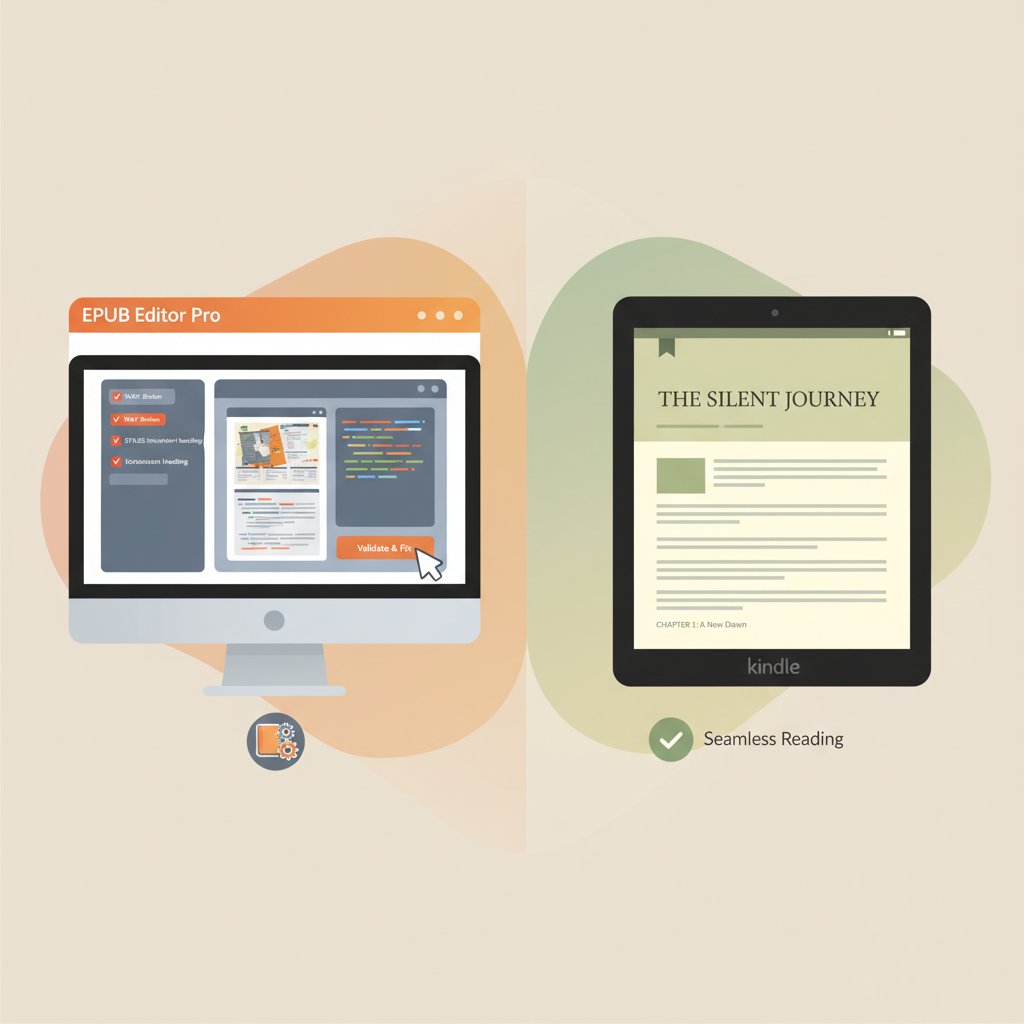
Amazon KDP Ebook Format Fast EPUB Fixes for Authors
amazon kdp ebook format: Fast fixes for EPUB conversion issues
Estimated reading time: 6 minutes
- Most Kindle problems stem from a small set of EPUB issues: navigation, styles, images, fonts, and metadata.
- Validate early and use a converter that preserves semantic structure to avoid long rework cycles.
- Tools that combine cover creation and validated EPUB output reduce upload errors and speed publishing.
Table of contents
- Why the amazon kdp ebook format matters
- Common EPUB conversion issues and how to fix them fast
- Broken table of contents or missing navigation
- Strange spacing, orphaned lines, or inconsistent indentation
- Images mis-sized or missing alt text
- Font embedding and display errors
- Broken or inconsistent chapter headings
- Problems with lists, numbered items, and tables
- Metadata and identifiers wrong or missing
- KDP upload failures or previewer errors
- Prevention: tools and processes that save time
- When to choose manual edits vs. regeneration
- A quick, practical process many authors use
- Final thoughts
- FAQ
- Sources
Why the amazon kdp ebook format matters
Amazon KDP now prefers EPUB as the primary ebook format because EPUB is reflowable and adapts to different Kindle devices and apps.
A structurally correct EPUB previews correctly for readers and is far more likely to pass KDP’s automated checks.
For a compact reference, see the Amazon Kdp Formatting Guide 2 for practical dos and don’ts that complement KDP’s help pages.
Early validation against KDP rules helps keep small errors from becoming big headaches.
Common EPUB conversion issues and how to fix them fast
This section walks through frequent EPUB problems and practical fixes you can apply in minutes.
Use a good EPUB converter early to preserve semantics and avoid repeated fixes later.
1) Broken table of contents or missing navigation
Symptom: Kindle Previewer shows no clickable table of contents, or chapters appear as one long scroll.
Why it happens: The EPUB lacks a proper nav file or headings weren’t marked semantically (H1/H2). Some DOCX→EPUB converters preserve visual styles but strip navigation structure.
Fast fix: Regenerate the EPUB with a converter that preserves semantic headings; use built-in heading styles instead of manual sizing.
If you’re comfortable editing EPUB, open it as a ZIP and inspect the nav.xhtml (or toc.ncx for legacy files). A correct nav is essential.
Validation: Load the EPUB into Kindle Previewer and confirm the internal navigation pane links work.
2) Strange spacing, orphaned lines, or inconsistent indentation
Symptom: Gaps between paragraphs, unexpected indents, or blank pages in the Previewer.
Why it happens: Direct formatting (manual line breaks, extra returns), mixed styles, or pasted web content that carries invisible markup.
Fast fix: Clean the source document: replace double returns, remove manual tabs, and use a single body style. Then re-convert.
Validation: Scroll several chapters in Kindle Previewer and test multiple font sizes to confirm consistent flow.
3) Images mis-sized or missing alt text
Symptom: Images display too large, too small, or do not appear; thumbnails look wrong.
Why it happens: Images were inserted at screen resolution, used CMYK profiles, or image paths broke during conversion.
Fast fix: Use RGB JPG/PNG at 300–600 px for inline images; 1200–2500 px for full-width artwork. Insert images (don’t link) and add simple alt text.
Validation: Preview on several device sizes and inspect the EPUB image folder to confirm files are embedded.
4) Font embedding and display errors
Symptom: Custom fonts don’t appear, text reflows oddly, or KDP rejects embedded fonts for licensing reasons.
Why it happens: Fonts are improperly embedded or their licenses forbid embedding; some converters try to bake fonts into the EPUB.
Fast fix: Use standard system fonts for body copy and reserve embedded fonts for titles only with explicit license permission. Convert fonts to allowed web formats if necessary.
Validation: Change preview font size; stable formatting and no missing glyphs usually indicate correct handling.
5) Broken or inconsistent chapter headings
Symptom: Chapter headings don’t appear at the top of pages or repeat mid-chapter.
Why it happens: Inconsistent or nested heading styles during conversion.
Fast fix: Standardize chapter titles to one heading style (Heading 1 for chapter titles, Heading 2 for subheads) and avoid inline formatting.
Validation: Export and inspect the EPUB table of contents and the first screen of each chapter in Previewer.
6) Problems with lists, numbered items, and tables
Symptom: Bullets disappear, numbering resets, or tables render stretched and unreadable.
Why it happens: DOCX list styles and wide tables don’t always convert cleanly into reflowable layouts.
Fast fix: Use simple list styles and avoid multi-level automatic lists. For complex tables, simplify columns or convert the table to an image that remains legible at small sizes.
Validation: Step through list items using the EPUB’s reading order and check table readability at narrow widths.
7) Metadata and identifiers wrong or missing
Symptom: Wrong title, missing author, or duplicate ISBN warnings on upload.
Why it happens: Metadata wasn’t embedded correctly or was overwritten during conversion.
Fast fix: Use an EPUB editor or converter metadata fields to set title, author, language, and identifiers before upload.
Validation: Open the EPUB in an editor or reader and inspect the embedded metadata fields.
8) KDP upload failures or previewer errors
Symptom: KDP rejects the file or the Previewer shows formatting anomalies.
Why it happens: Structural errors in the EPUB package (incorrect manifest entries, broken spine order) or unsupported MIME types.
Fast fix: Run an EPUB validator such as EPUBCheck to surface structural issues, then re-export or use a trusted conversion pipeline.
Validation: Re-run EPUBCheck and re-upload to KDP’s preview; a clean pass usually means upload will succeed. For upload assistance and distribution tools, many authors use specialized book upload tools to simplify retailer submissions.
Prevention: tools and processes that save time
Fixing issues after the fact works, but preventing them saves hours and reduces friction at upload time.
Start with clean source files
Use built-in heading styles instead of manual font sizing.
Keep a single body style and distinct styles for front matter, headings, and block elements.
Remove tracked changes and comments before conversion.
Automate validation early
Run EPUBCheck or similar validators immediately after creating the EPUB so fixes remain small.
Use Kindle Previewer to see how styles behave across font sizes and orientations.
Choose converters that preserve semantics
Not all converters are equal: some preserve appearance but strip semantic tags; others keep nav and heading structure intact.
For authors who need reliable, KDP-ready EPUBs fast, consider a purpose-built tool that outputs validated EPUBs and includes metadata and cover embedding automatically.
Design covers that work at thumbnail size
Covers must read clearly at small thumbnails and match genre expectations.
If you need a market-ready front cover quickly, try a dedicated cover generator that optimizes readability and genre standards.
Integrate an upload checklist
Before publishing, confirm embedded metadata, functioning navigation, consistent styles, optimized images, and a validated EPUB.
Keep a short checklist in one place so every release follows the same verification steps.
When to choose manual edits vs. regeneration
Small, isolated problems (one bad image, a single broken link) are quickest to fix with an EPUB editor.
If the EPUB shows multiple structural issues—missing nav, inconsistent headings, messy metadata—regenerating from a cleaned source or using a higher-quality converter is faster and more reliable.
A quick, practical process many authors use
1. Clean the manuscript: standard styles, images embedded, no manual formatting.
2. Export to EPUB with a converter that preserves navigation.
3. Run EPUBCheck and load into Kindle Previewer.
4. Fix the few flagged issues or re-run conversion if structural errors persist.
5. Upload to KDP (or use specialized upload tools to simplify submissions).
If you prefer a single tool that produces validated EPUBs and reduces these steps, many authors use platforms that combine cover generation and validated EPUB conversion. For example, BookAutoAI bundles formatting, cover options, and conversion so files are ready for upload.
Final thoughts
EPUB problems are predictable and fixable with a mix of clean source files, early validation, and a trusted conversion tool.
The most efficient approach is to prevent errors where possible so publishing is faster and less stressful.
For authors creating covers as part of the release, integrated tools reduce steps and improve thumbnail performance.
FAQ
What is the simplest file type to upload to KDP if EPUB gives me trouble?
KDP supports EPUB, DOC/DOCX, KPF, HTML, and more. EPUB is preferred, but a clean DOCX exported from a styled document and converted to KPF can be a practical fallback.
How do I check if my EPUB passes KDP rules?
Run EPUBCheck to validate structure, then open the file in Kindle Previewer to confirm chapter navigation, images, and fonts render correctly.
Do I need to embed fonts?
Not usually. Use standard readable fonts for body text. Embedding custom fonts increases licensing and rendering risks; confirm permissions before embedding.
What do I do if KDP rejects my upload with a validation error?
Read KDP’s error message and run EPUBCheck locally to get a detailed report. If errors are structural, re-export from a clean source or use a converter that outputs validated EPUBs.
Can an AI tool help with formatting and conversion?
Yes. AI-assisted publishing tools can generate humanized non-fiction books and output validated EPUBs, often producing covers and EPUBs simultaneously to simplify uploads.
Sources
- https://kdp.amazon.com/help/topic/G200634390
- https://kdp.amazon.com/help/topic/G201723130
- https://kdp.amazon.com/help?topicId=GKX2T59EVGFSMKQK
- https://kdp.amazon.com/help/topic/G200735480
- https://kdp.amazon.com/help/topic/G200645680
- https://kindlepreneur.com/how-to-format-a-book/
amazon kdp ebook format: Fast fixes for EPUB conversion issues Estimated reading time: 6 minutes Most Kindle problems stem from a small set of EPUB issues: navigation, styles, images, fonts, and metadata. Validate early and use a converter that preserves semantic structure to avoid long rework cycles. Tools that combine cover creation and validated EPUB…