
Amazon KDP Gutter Size and Layout Rules for Paperback
Amazon KDP Gutter Size: Gutter guide — perfect binding rules + avoiding text loss near the spine
Estimated reading time: 6 minutes
- Correct amazon kdp gutter size protects text from disappearing into the spine and prevents publisher rejections.
- Use KDP’s page-count tables as a baseline, then add conservative safety when your book has many pages or thick paper.
- Automating layout with BookAutoAI reduces formatting errors: it handles gutters, creates market-ready covers, and converts clean EPUBs ready for KDP.
Table of Contents
- How KDP defines gutter and why it matters
- Why the gutter exists
- Practical gutter rules by page count and trim size
- Common KDP-recommended gutters
- Quick rules of thumb
- Trim sizes matter
- Common mistakes authors make
- Layout tips to avoid losing text near the spine
- Test with a two-page spread preview
- Use mirrored margins correctly
- Mind running headers and folios
- Avoid images or boxed text that cross the gutter
- Choose the right trim and paper
- Use paragraph and line breaks that accommodate binding
- Create templates based on your trim and expected page range
- Remember print tolerance variance
- Automate checks when possible
- Auto-formatting and publishing workflow with BookAutoAI
- What BookAutoAI does for gutters and print formatting
- Practical publishing features that save time
- Why automated gutters matter
- A note on templates and customization
- Design choices that still need human input
- Final thoughts
- FAQ
- Sources
How KDP defines gutter and why it matters
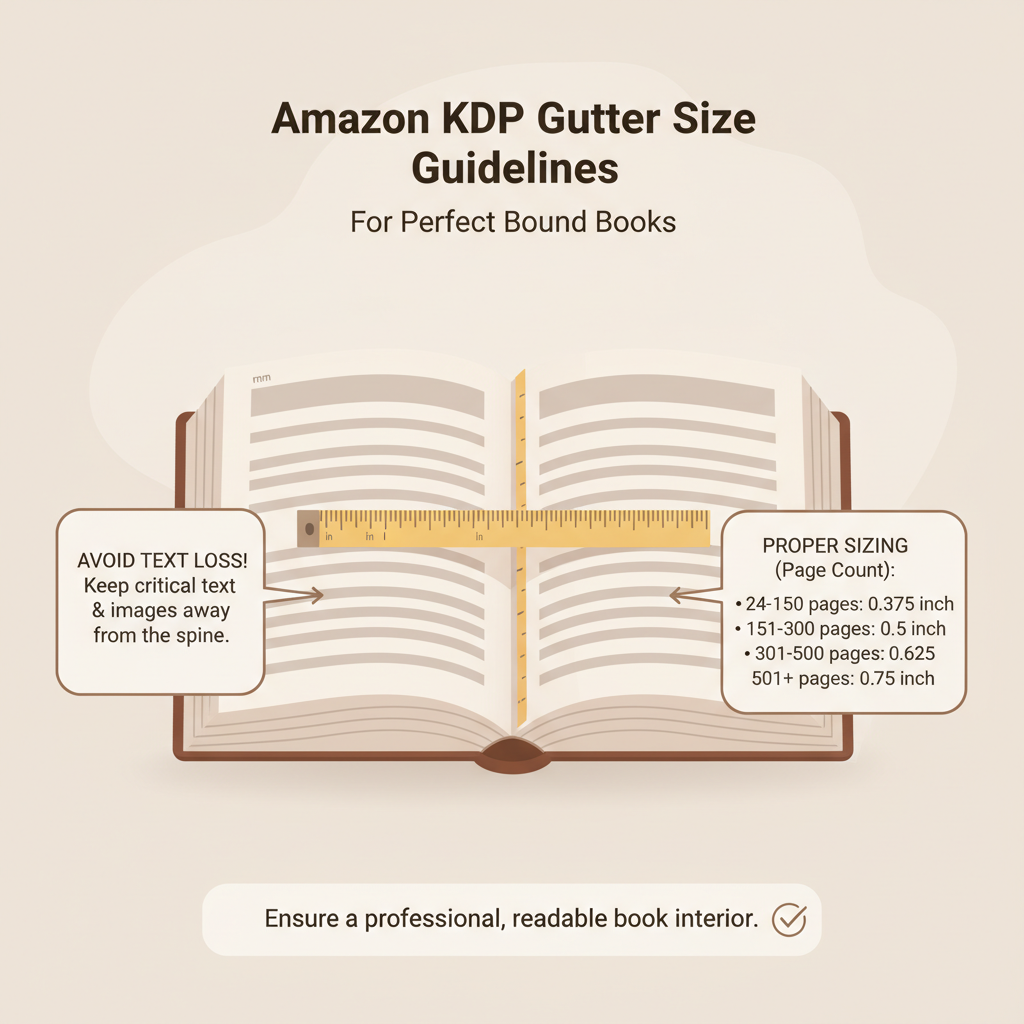
When you prepare a print book for Amazon, the phrase amazon kdp gutter size refers to the extra inside margin — the space next to the spine — that keeps text and images from getting swallowed by the binding. For perfect-bound paperbacks, pages are glued at the spine and a small inward shift can hide anything placed too close to that seam.
A clean layout starts with rules, not guesswork. KDP publishes recommended inside margins based on page count and trim size; following them avoids two costly problems: text or images cropped near the spine, and upload rejections during KDP’s file checks. If you want a short, practical checklist now, see the Amazon Kdp Formatting Guide 2 which outlines step-by-step checks for print-ready files.
Why the gutter exists
- Binding needs room: glue and trim remove a tiny bit of page real estate. The gutter compensates.
- Reader comfort: text too close to the spine is hard to read when pages are held open.
- Print tolerance: press and trimming add small variances; a safe gutter absorbs them.
Practical gutter rules by page count and trim size
KDP gives clear guidance so you don’t have to invent numbers. The recommended inside margin scales with page count: the thicker the book, the larger the gutter. These figures are reliable starting points for common trim sizes such as 6 x 9 inches or 5.5 x 8.5 inches.
Common KDP-recommended gutters (practical baseline)
- 24–150 pages: inside margin 0.375″ (3/8″)
- 151–300 pages: inside margin 0.5″ (1/2″)
- 301–500 pages: inside margin 0.625″ (5/8″)
- 501–700 pages: inside margin 0.75″ (3/4″)
- 701–828 pages: inside margin 0.875″ (7/8″)
Use these numbers as the baseline, then review trim size and paper type. For example, a 6 x 9 inch book at 334 pages commonly uses 0.625″. If page count changes after editing, update margins before exporting. KDP also states minimum outside margins — generally 0.25″ without bleed and 0.375″ with bleed — and those combine with the gutter to produce a balanced page.
Quick rules of thumb
- If under 150 pages, use the smaller gutter but test a spread in a PDF preview.
- For 300–500 pages, use 0.625″ or more—thicker books hide text deeper.
- If page count may change during editing, choose a slightly larger gutter to reduce rework.
Trim sizes matter
Smaller trims (for example, 5.5 x 8.5) often feel tighter visually; follow KDP’s tables for those sizes. Interior designs with large fonts, wide margins, or decorative elements near the gutter need extra caution.
Common mistakes authors make
- Setting a zero gutter in Word and expecting printers to compensate.
- Forgetting to adjust margins after adding images or appendices, which increases page count.
- Misconfiguring mirrored margins so outside pages end up too tight.
Layout tips to avoid losing text near the spine
The gutter is one piece of the puzzle. How you place running heads, page numbers, images, and decorative elements matters just as much. Below are practical, publisher-style tips to keep content safe and readable.
1. Test with a two-page spread preview
Always inspect a two-page spread at full size and at zoomed-out thumbnail. A paragraph that looks fine on a single page may disappear when the pages are bound. Previewing spreads catches alignment and spacing issues early.
2. Use mirrored margins correctly
Set your layout tool to mirrored (facing pages). Mirrored margins give each page an outside and an inside margin; the inside margin should equal the KDP gutter number while outside margins can meet the minimums.
3. Mind running headers and folios
Keep page numbers and running heads at least 0.2–0.25″ from the edge after the inside margin. Many designers place page numbers in the outside margin to avoid crowding the spine and keep consistent reader rhythm.
4. Avoid images or boxed text that cross the gutter
Unless designed as a true spread and exported correctly, never place critical content across the center gutter. If an image must span two pages, convert it to a single two-page spread and test print for alignment.
5. Choose the right trim and paper
Heavier paper increases the book’s physical thickness and sometimes requires slightly larger gutters. If you use heavier stock or have a higher page count, err on the side of a larger inside margin.
6. Use paragraph and line breaks that accommodate binding
Avoid single lines that end up too close to the gutter. Consider slightly larger paragraph indents and modest line-height increases for readability in dense non-fiction.
7. Create templates based on your trim and expected page range
Templates remove guesswork. Make one for 6 x 9 at 200–300 pages and another for larger books. If your manuscript shifts templates, rerun a layout check and update gutters.
8. Remember print tolerance variance
Printers trim pages within a small tolerance. Treat the gutter like insurance: allow for slight shifts without losing text.
9. Automate checks when possible
If you publish frequently, manual checks become tedious. Tools that apply KDP rules and rebuild margins after changes reduce common errors and rejections.
Auto-formatting and publishing workflow with BookAutoAI
If you want to reduce guesswork and move faster from manuscript to a KDP-ready file, automation can help. Bookautoai offers a platform that applies layout rules automatically while letting you choose stylistic options.
What BookAutoAI does for gutters and print formatting
- Applies KDP-recommended inside margins automatically based on page count and trim size.
- Regenerates layout when text or page count changes so you never upload an out-of-date interior.
- Exports clean PDFs for print with correct trim, bleeds, and embedded fonts.
If you want professional covers without hiring an external designer, try the cover generator to produce market-ready artwork. For clean ebook files, the EPUB Converter converts manuscripts into properly structured EPUBs compatible with Kindle and other stores.
Practical publishing features that save time
- Professional cover generation: readable fonts, genre-appropriate backgrounds, and thumbnail hierarchy.
- EPUB conversion: structured EPUBs with metadata and clean chapter navigation.
- Single-step exports: select trim size and cover, then export files that match platform checks.
The platform also supports end-to-end book creation: you can use the Bookautoai platform to generate interiors, covers, and exports in one place. When preparing files for retailers, consider dedicated upload helpers; for example, professional book upload tools support multi-store distribution and can reduce manual steps.
Why automated gutters matter
When a system knows your trim and current page count, it updates inside margins on export. That reduces manual errors, avoids failed uploads, and cuts back-and-forth time spent fixing format issues.
A note on templates and customization
Automation handles rules; you choose style. Templates tuned to sell let you adjust typography (font size, line height, paragraph spacing) while preserving required inner margins for platform compliance.
Design choices that still need human input
- Decide whether page numbers appear at the top or bottom.
- Choose header style and placement.
- Approve cover design variations produced by the generator.
You can try Bookautoai to see how templates and export options behave on live projects.
Final thoughts
Getting amazon kdp gutter size right combines rules and careful checks. Use KDP’s page-count recommendations as a baseline, test two-page spreads, and choose conservative gutters when unsure. For authors who prefer to reduce manual complexity, platform-assisted formatting automates gutters, covers, and EPUB conversion while leaving design choices in your hands.
Next steps: review a two-page PDF preview, confirm gutters match your page count, and update margins whenever you change content or trim size.
FAQ
How do I check my gutter before uploading to KDP?
Export a print-ready PDF and use the two-page spread preview. Confirm no text sits within the recommended inside margin; if unsure, pick the next conservative gutter size and re-export.
Does KDP require mirrored margins?
KDP’s guidelines expect inside margins large enough for binding. Using mirrored (facing) pages in your layout program is the standard approach to ensure correct inside/outside margins.
Can I set gutter to zero in Word if I adjust later?
Don’t. Setting a zero gutter and hoping the printer will compensate is risky. Apply KDP’s recommended inside margins at layout time and update if page count changes.
If my page count changes, what must I do?
Update your layout with the new page count and re-run your export. KDP can reject files when margins are too small for the current page count, so refresh margins after major edits.
Should images ever cross the center gutter?
Only if they’re intentionally designed as a two-page spread and exported correctly. Otherwise keep images and boxed elements inside a single page’s safe area.
Can BookAutoAI help me make the cover and EPUBs?
Yes. The platform includes a professional cover creation tool and an EPUB converter that produce store-ready outputs compatible with Kindle and other retailers.
Sources
- Set Trim Size, Bleed, and Margins – Kindle Direct Publishing
- Inside, outside, and gutter margins. – KDP Community
- Gutter for Print Book – KDP Community
- Book Gutter: Definition and How to Format Your Margins – Kindlepreneur
- Fix Paperback and Hardcover Formatting Issues – KDP Help
- KDP Interior Print Requirements for Self-Publishing on Amazon (video)
Amazon KDP Gutter Size: Gutter guide — perfect binding rules + avoiding text loss near the spine Estimated reading time: 6 minutes Correct amazon kdp gutter size protects text from disappearing into the spine and prevents publisher rejections. Use KDP’s page-count tables as a baseline, then add conservative safety when your book has many pages…