
Amazon KDP Kids Beginner Guide What to Publish First
Amazon KDP Kids: A Beginner’s Guide to What to Publish First and What KDP Rejects
Estimated reading time: 13 minutes
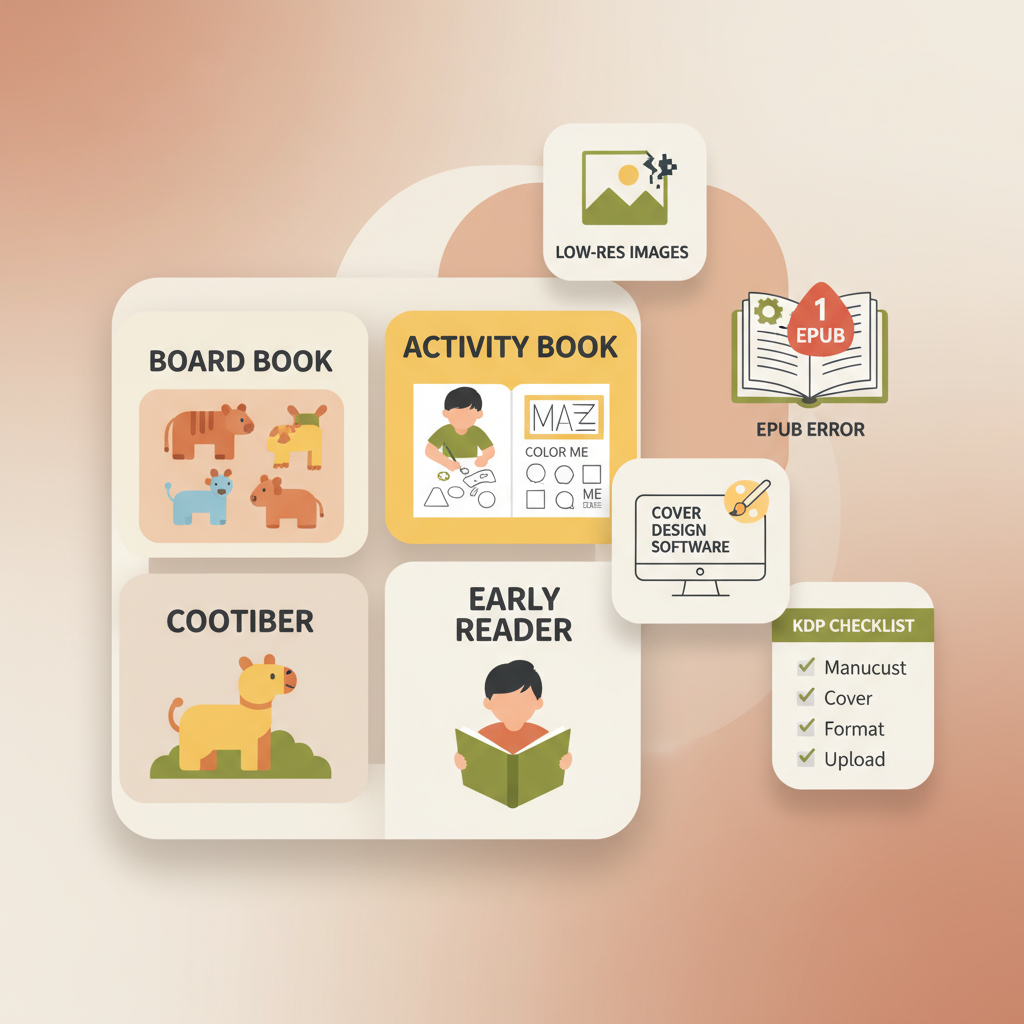
- Start with low-risk, text-first kids’ formats like activity books, board books, and early readers.
- Avoid common technical pitfalls: bad EPUBs, wrong bleed, low-res images, and missing rights.
- Use tested tools for covers and EPUBs to reduce rejects and speed publishing.
- Factor printing costs and minimum page counts before committing to full-color picture books.
- Proof files locally and order a printed proof to check layout and color before launch.
Table of contents
- What to publish first on Amazon KDP Kids
- Simple formats that work well for beginners
- Why not jump straight to full-color picture books
- A practical early link for planning
- How KDP evaluates kids’ books: common rejection reasons
- Technical issues that cause rejections
- Content reasons for rejection or poor visibility
- Policy and rights issues
- How to prepare a compliant kids’ book for upload
- Decide format first
- Plan page count and pricing
- Prepare artwork and images correctly
- Use the right tools for fixed layouts
- Export correctly
- Check metadata and rights
- Practical publishing workflow and where BookAutoAI helps
- Step 1 — Concept and audience
- Step 2 — Script and sequencing
- Step 3 — Artwork and assets
- Step 4 — Covers that sell
- Step 5 — Generate final files and test locally
- Step 6 — Upload and set rights
- Step 7 — Post-publication checks
- A few practical tips specific to kids’ books
- Final thoughts and next steps
- FAQ
- Sources
What to publish first on Amazon KDP Kids
If you’re new to self-publishing for children on Amazon, choosing the right first project shapes your learning curve, costs, and acceptance chances. Start with formats that match your skills and resources rather than attempting a complex picture book immediately.
Simple formats that work well for beginners
Activity books (mazes, coloring pages, simple puzzles): These are interior-focused, often black-and-white, and don’t require full-page illustrations sized for print. They’re ideal when you can produce repeatable pages quickly.
Board books and short concept books: Short text paired with bold, simple art or shapes can create a board-style title with fewer pages and simpler layouts.
Early readers and short chapter books: Focus on strong text, large type, and a few spot illustrations. These are essentially text-first books and convert more easily.
Guided journals for kids: Activity journals, habit trackers, and practice books are low-cost and easy to format. They’re a clear path from journals to themed activity books.
Why not jump straight to full-color picture books
Full-color picture books are beautiful but require fixed-layout formatting, correct color profiles, and bleed settings. They increase print costs and complexity, which raises the chance of platform checks and layout errors.
If you plan a picture book, either learn the fixed-layout and print specs thoroughly or partner with an experienced illustrator and formatter.
A practical early link for planning
If you want to scale into repeatable journals and low-content publishing, review the Amazon Kdp Journals Publishing Blueprint 19 for systemizing production and scaling titles efficiently: Amazon Kdp Journals Publishing Blueprint 19.
How KDP evaluates kids’ books: common rejection reasons
Amazon KDP enforces both technical and content rules. Knowing common rejection triggers saves time and frustration during upload.
Technical issues that cause rejections
- Incorrect file formats or broken EPUB structure — images and fonts must be embedded and valid.
- Wrong trim size, bleed, and margins — missing bleed on full-bleed art causes cropping problems.
- Low-resolution images and color profile problems — print requires suitable DPI and profiles.
- File size and upload errors — large images can time out or exceed limits.
- Navigation and table-of-contents problems in ebooks — fixed-layout ebooks need consistent navigation.
Content reasons for rejection or poor visibility
- Inappropriate or copyrighted content — avoid protected characters and unlicensed logos.
- Misleading metadata — titles, descriptions, and age ranges must accurately reflect the book.
- Poor cover readability at thumbnail size — covers must communicate clearly at small sizes.
Policy and rights issues
- Trademark and intellectual property complaints — using protected characters invites takedowns.
- Privacy and image rights — photos of real children require model releases and permissions.
How to prepare a compliant kids’ book for upload
Work in staged steps: concept, text, images, layout, cover, and final checks. A simple, repeatable sequence reduces common mistakes.
1. Decide format first
Choose whether you’ll create an ebook, a paperback, or both. Ebooks fall into two types: reflowable (best for chapter books) and fixed-layout (required for heavily illustrated picture books).
If you plan both formats, design cover and interior dimensions upfront so layouts align across outputs.
2. Plan page count and pricing
Picture books commonly require 24–32 pages minimum for print. Color interiors raise print cost and affect pricing and royalty expectations.
3. Prepare artwork and images correctly
Use high-resolution images (usually 300 DPI), export supported formats (JPEG, PNG, TIFF), and flatten layers in final PDFs to avoid transparency issues.
If you need a cover that sells rather than one that looks generic, try the BookAutoAI book cover generator for market-trained cover designs that export ready for ebook and print: BookAutoAI book cover generator.
4. Use the right tools for fixed layouts
Kindle Kids’ Book Creator helps with page imports, fixed layouts, and previewing for picture books and comics. For ebooks, a clean EPUB is essential — consider a reliable converter like the BookAutoAI EPUB converter to produce store-ready files: BookAutoAI EPUB converter.
5. Export correctly
- For print: export a high-resolution PDF with embedded fonts, correct trim and bleed, and a single PDF per interior.
- For ebook: produce a valid EPUB with a clean table of contents and embedded images.
6. Check metadata and rights
Set accurate age ranges, keywords, and categories. Confirm you own or licensed every element in the book.
Practical publishing workflow and where BookAutoAI helps
Below is a straightforward workflow for small teams and solo authors that highlights where automation reduces technical risk and where human judgment matters.
Step 1 — Concept and audience
Choose a niche and age group. Narrow niches like “preschool shapes and colors” simplify art and text requirements.
Step 2 — Script and sequencing
Write your manuscript. Keep picture-book text short and rhythmic; early readers need simple sentences and repetition. Strong storytelling matters more than tooling.
Step 3 — Artwork and assets
Brief illustrators on trim sizes, bleed, and text-safe zones. For collage or stock art, document licenses and permissions.
For text-heavy projects (journals, practice books, short readers), consider automated interior formatting to produce upload-ready files. BookAutoAI supports generating ebooks and paperbacks and centralizes cover and editorial outputs to speed production: BookAutoAI.
Step 4 — Covers that sell
A cover must read at thumbnail size, signal genre, and look professional. Many image-only AI tools focus on art but not typography; product-aware cover tools produce full covers with readable hierarchy and thumbnail-tested layouts. See the BookAutoAI book cover generator for export-ready cover files: BookAutoAI book cover generator.
Step 5 — Generate final files and test locally
Export your paperback PDF and ebook EPUB, then preview on devices and order a printed proof to check color and margins. If EPUB checks slow you down, use a trusted EPUB converter like the BookAutoAI EPUB converter to create clean, store-ready EPUBs: BookAutoAI EPUB converter.
Step 6 — Upload and set rights
When uploading to KDP, choose territories, pricing, and print options that match your interior. If you use book upload tools or services for multi-platform distribution, review options like Book Upload Pro to simplify the process: Book Upload Pro.
Step 7 — Post-publication checks
After publication, check the live listing for formatting or cover issues, correct metadata, and sample downloads. Monitor reviews and sales to improve future titles.
A few practical tips specific to kids’ books
- Keep text inside safe zones to avoid cropping during printing.
- Secure model releases for photos of real children.
- State language and learning level clearly for bilingual or educational books.
- Include simple safety notes for activities that require supervision or tools.
Final thoughts and next steps
Publishing kids’ books on Amazon KDP is approachable when you pick the right first project and follow platform rules. Begin with activity books or early readers and use Kindle Kids’ Book Creator for complex fixed-layout picture books.
For authors focused on text-first children’s titles, tools that automate interior formatting, cover creation, and EPUB conversion reduce errors and speed time to market. Try a demo to see how a text-first kids’ title or journal can be generated and packaged quickly; then order a proof to confirm print results. Visit BookAutoAI and try the demo book.
FAQ
Can I use BookAutoAI to create illustrated picture books for kids?
BookAutoAI excels at non-fiction and text-first books. For heavily illustrated picture books, fixed-layout tools like Kindle Kids’ Book Creator are often better; BookAutoAI’s cover generator and EPUB converter remain useful for covers and clean ebook files.
What are the minimum pages for a kids’ picture book on KDP?
Picture books commonly start at 24–32 pages to meet print binding expectations. Exact minimums vary with trim size and printer rules, so preview a proof before finalizing.
Will KDP reject a book because it looks AI-created?
KDP focuses on technical compliance and rights. Low-quality, obviously machine-generated content performs poorly with readers. Human editing and market-aware covers reduce risk and improve sales.
Do I need a separate ISBN for the ebook and paperback?
KDP can provide free ISBNs for print editions; ebooks get ASINs on Amazon. If selling broadly, consider buying an ISBN for each format to manage distribution.
What tools should I use for formatting kids’ books?
Use Kindle Kids’ Book Creator for image-heavy picture books. For text-heavy books, use a reliable EPUB converter and a cover system that creates export-ready files to reduce rejects.
Sources
- How to publish your children’s book | Amazon Kindle Direct Publishing
- Create a Children’s Book to Sell on Amazon KDP – YouTube
- How To Self-Publish A Children’s Picture Book On Amazon KDP – YouTube
- The New Way To Create & Publish A Children’s Picture Book To Sell – YouTube
- Self Publishing | Amazon Kindle Direct Publishing
- Self Publish children’s books | Amazon Kindle Direct Publishing
- Prepare Comic and Kids’ eBooks with Kindle Create – Amazon KDP
- Children’s books – KDP Community
- https://blog.bookautoai.com/amazon-kdp-journals-publishing-blueprint-19
- https://www.bookautoai.com/book-cover-generator-processing
- https://www.bookautoai.com/epub-converter
- https://www.bookautoai.com
Amazon KDP Kids: A Beginner’s Guide to What to Publish First and What KDP Rejects Estimated reading time: 13 minutes Start with low-risk, text-first kids’ formats like activity books, board books, and early readers. Avoid common technical pitfalls: bad EPUBs, wrong bleed, low-res images, and missing rights. Use tested tools for covers and EPUBs to…