
Best EPUB Export Settings from Word for Clean EPUBs
Best EPUB export settings from Word: a practical guide to prevent downstream errors
Estimated reading time: 14 minutes
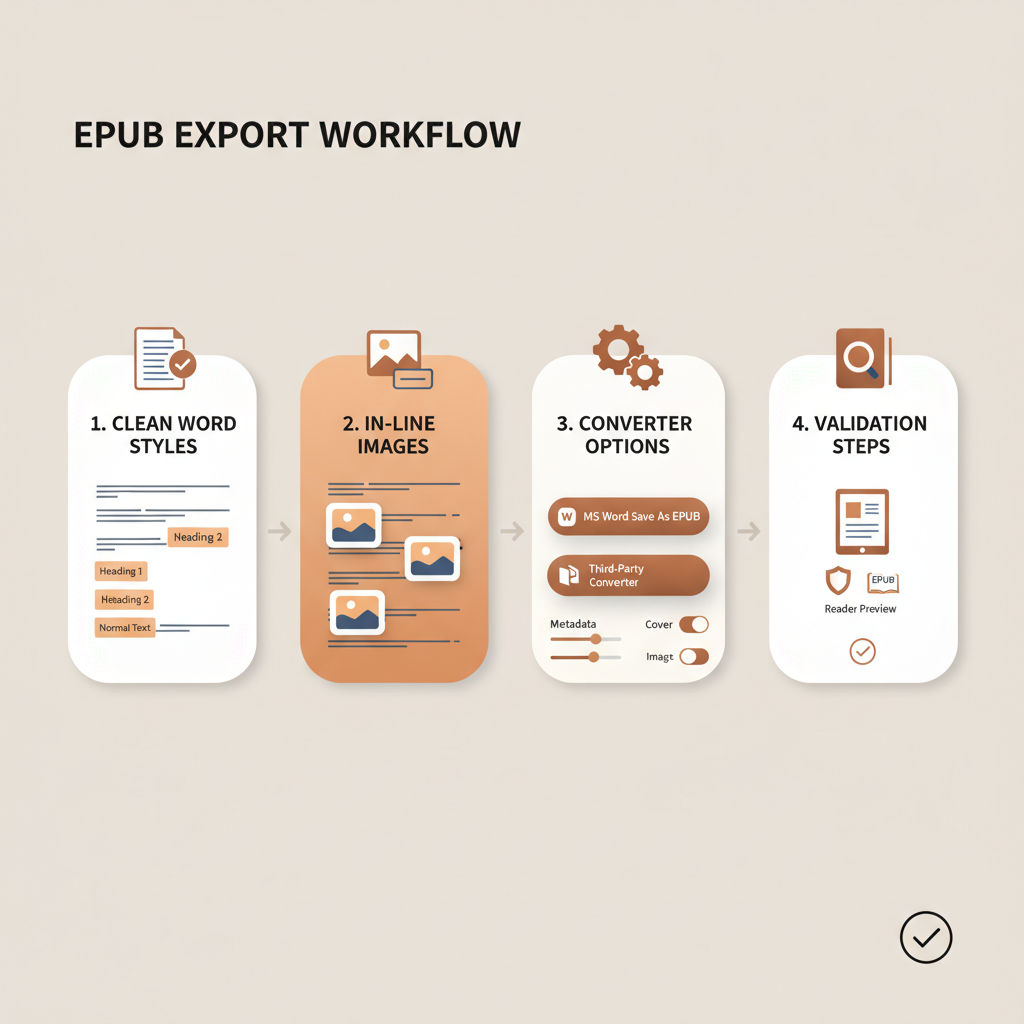
This guide shows the practical Word settings and conversion choices that prevent broken EPUB files, from clean styles and in-line images to converter options and validation steps.
- Clean and use semantic Word styles to preserve EPUB structure and navigation.
- Set images In Line With Text and prefer reader-safe fonts to keep files reflowable.
- Use a dedicated converter (or a one-step EPUB Converter) and validate the EPUB before publishing.
Table of Contents
- Why Word cleanup matters
- Best EPUB export settings from Word: key Word settings to fix
- Images, fonts, and visuals: in-line images and font choices
- Convert smart: tools, settings, and a simple workflow
- Practical checklist (do this before you convert)
- Final thoughts
- FAQ
- Sources
Why Word cleanup matters
EPUB is reflowable: it relies on semantic structure (headings, paragraphs, lists) rather than fixed page layouts, so a document that looks fine in Word can still produce broken navigation or misplaced images when converted.
Think like an EPUB reader: clear chapter markers, no layout hacks, and minimal direct formatting. A clean DOCX reduces conversion fixes later, and if you want a ready-made alternative try the Epub Converter For Kindle guide for platform-specific tips.
A well-prepared Word file avoids most downstream errors and saves validation time.
Best EPUB export settings from Word: key Word settings to fix
Use paragraph styles, not direct formatting
Apply Heading 1 for chapter titles, Heading 2 for sections, and Normal for body text. Don’t manually bold or resize chapter titles; use styles so Word maps them to clean EPUB HTML tags.
Paragraph spacing and indents
First line indent: 0.2–0.3 inches is a good target for body text.
Line spacing: Single — avoid Exactly or Multiple values that can add odd gaps.
Set spacing before/after to 0 pt and remove double returns; use the paragraph indent setting instead of tabs.
Headings and chapter breaks
Use Heading 1 for each chapter and insert a page break (Insert > Page Break) to separate chapters; this is cleaner than multiple returns.
Lists and tables
Use Word’s bullet and numbered list tools. Keep tables simple — complex nested layouts often break in EPUB. Convert sidebars or callouts to simple paragraphs or boxed images.
Remove hidden characters
Turn on Show/Hide (¶) to find extra spaces, manual line breaks, and tabs. Use Find & Replace to replace ^t and ^p^p with a single paragraph mark where appropriate.
TOC and hyperlinks
Build a Word Table of Contents from Heading styles so converters can create EPUB navigation. Keep external links clean and rely on EPUB headings for internal navigation.
Save as DOCX
Save a clean DOCX and use a converter like Calibre or a dedicated EPUB converter for the final EPUB output.
Images, fonts, and visuals: in-line images and font choices
Images settings for EPUB
Set every image to In Line With Text so floating images don’t lose position across devices.
Size images before inserting; aim for 1000–1600 px width for full-width images and use JPEG for photos, PNG for images with transparency. Convert TIFFs first.
Format captions as regular paragraphs beneath the image rather than text boxes.
Best fonts for EPUB
Don’t assume a font will look the same on every reader. Most e-readers use the user’s preferred font unless you force embedding.
Safe body fonts: Georgia, Times New Roman, Garamond, or sans-serif options like Arial or Helvetica.
Avoid embedding commercial fonts unless you have the license and a clear need; embedding increases file size and can cause store failures.
Cover and visual polish
Keep the cover as a separate JPEG file (typically 1600+ px on the longest side). Most converters let you embed the final cover during conversion.
If you want professionally tuned covers, consider the BookAutoAI Cover Generator to produce market-ready art that follows genre expectations.
A high-quality separate cover file speeds uploads and improves store presentation.
Convert smart: tools, settings, and a simple workflow
DIY conversion with Calibre
Calibre is a powerful free tool for DOCX→EPUB. Important settings:
- Look & Feel → Extra options: enable Remove spacing between paragraphs.
- Look & Feel → Heuristic Processing: enable cautiously; it can fix chapter breaks but may alter layout.
- Smarten punctuation to convert straight quotes to curly quotes.
- Structure detection: ensure it picks up Heading 1 to build the TOC.
- Insert metadata and cover, then validate with EPUBCheck.
Word to EPUB converters and Word plugins
Tools like WordToEPUB (DAISY) and Word’s native EPUB export can work when the DOCX already uses semantic structure, but dedicated converters are often more predictable.
One-step, low-error option
If you want to skip manual fixes, the BookAutoAI EPUB Converter automates formatting, metadata, and cover embedding to produce store-ready EPUBs.
A simple workflow you can follow today
1. Clean the DOCX: styles, indents, images In Line With Text, no tabs.
2. Save a copy and convert in Calibre with the recommended settings.
3. Validate the EPUB with EPUBCheck or an EPUB reader and fix issues back in Word if necessary.
4. Double-check platform requirements before you upload to stores.
If you prefer a single platform for conversion and cover design, the BookAutoAI platform combines generation, cover design, and EPUB conversion to reduce trial-and-error when preparing files for retail channels.
When preparing uploads, use proper tools for each retailer and keep a validated EPUB ready before submission; for many publishers that includes using an upload tool to streamline the publisher-side process.
Practical checklist (do this before you convert)
- All chapters use Heading styles.
- No manual tabs or double returns; spacing before/after set to 0 pt; first line indent 0.2–0.3 in.
- Images set to In Line With Text and sized appropriately; body font is reader-safe and embedding avoided unless licensed.
- Cover file separate and ready (JPEG, 1600+ px). Metadata filled: title, author, identifiers.
Final thoughts
Preparing Word with the right styles, paragraph settings, and image handling prevents most EPUB errors. Validate the EPUB and fix small issues in Word before publishing.
For authors who want a single tool that automates conversion and cover design, the BookAutoAI EPUB Converter and Cover Generator simplify the process and reduce downstream mistakes.
FAQ
Does Microsoft Word export a good EPUB?
Word can export EPUB in some versions, but outputs often need extra cleanup. Convert with a dedicated tool after preparing a clean DOCX for best results.
What are the best fonts for EPUB?
Use reader-safe serif fonts like Georgia or Garamond or sans-serif like Arial. Avoid embedding commercial fonts unless you own the license.
How should I place images in Word for EPUB?
Set images to In Line With Text and avoid floating frames or text boxes. Place captions as normal paragraphs underneath images.
Will embedding fonts break my EPUB?
Sometimes. Embedding increases file size and can cause compatibility issues with some ebook platforms; embed only when necessary and licensed.
I don’t want to handle Word cleanup and converters—what should I do?
Use a platform that automates formatting, cover generation, and EPUB conversion to produce store-ready EPUBs with fewer errors.
Sources
- https://janefriedman.com/word-epub/
- https://killzoneblog.com/2020/09/top-ten-tips-on-formatting-ebooks-from-ms-word.html
- https://barkerbooks.com/convert-word-doc-to-epub/
- https://learn.microsoft.com/en-us/answers/questions/5412185/converting-word-docx-to-epub
- https://help.drivethrupartners.com/hc/en-us/articles/12780745076887-Export-Your-Book-as-ePub-and-Mobi-file-formats-with-Microsoft-Word-and-Calibre
- https://daisy.org/guidance/info-help/guidance-training/content-creation/getting-started-with-wordtoepub/
Best EPUB export settings from Word: a practical guide to prevent downstream errors Estimated reading time: 14 minutes This guide shows the practical Word settings and conversion choices that prevent broken EPUB files, from clean styles and in-line images to converter options and validation steps. Clean and use semantic Word styles to preserve EPUB structure…