
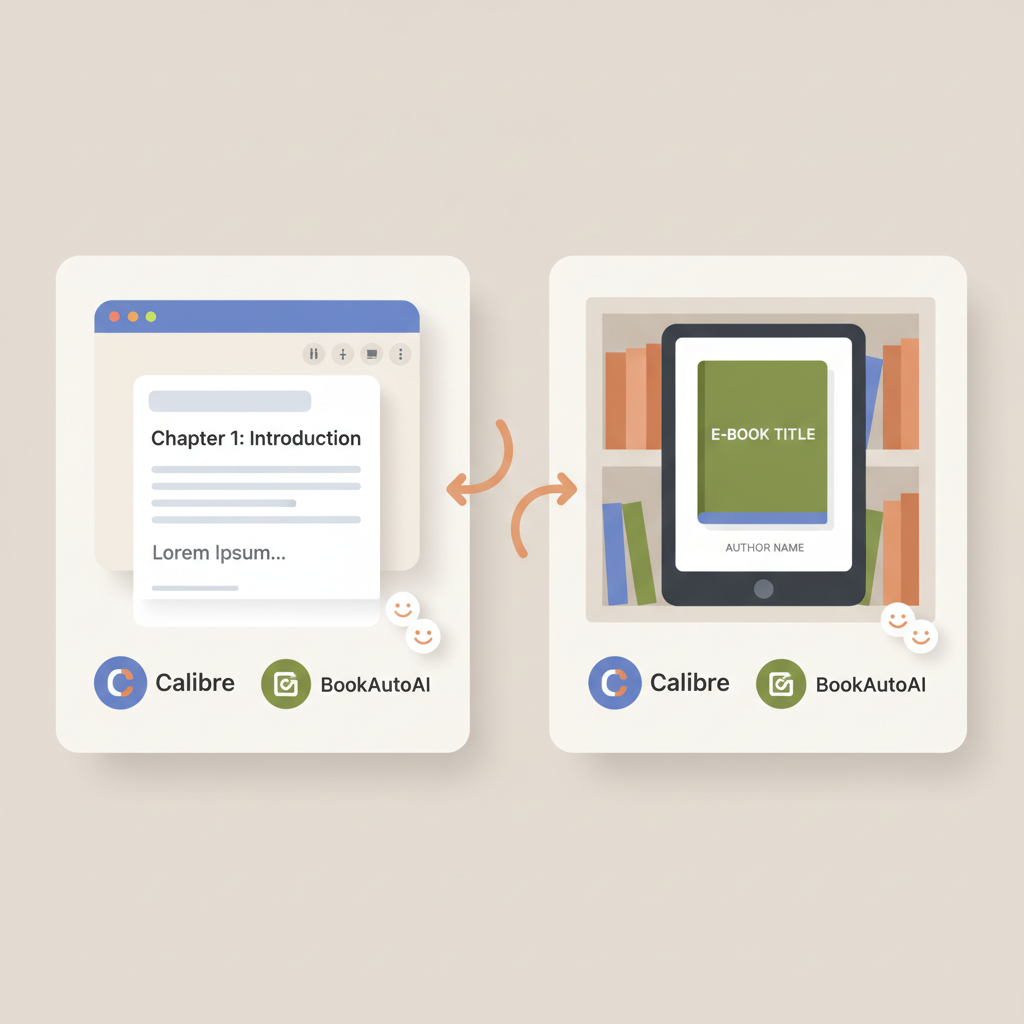
How to Convert Word to EPUB Safely for Self-Publishers
How to convert word to epub: the safest paths for self-publishers
Estimated reading time: 6 minutes
- Clean Word formatting is the single biggest factor in a successful EPUB conversion.
- For full control use Calibre; for speed choose a trusted online converter or an integrated EPUB tool.
- BookAutoAI removes the manual steps: it generates cleaned, formatted EPUBs and pro covers so you can publish faster.
Table of Contents
- How to convert Word to EPUB: the safest paths
- Prepare your Word file for clean EPUB output
- Best desktop option: Calibre (word to epub step by step)
- Step-by-step: Word to EPUB using Calibre
- Why Calibre?
- When to use Calibre
- Online converters, services, and when to choose them
- Common online paths
- When to avoid online converters
- Automated cover and EPUB tools
- Comparing the paths: simple checklist
- Why previews matter
- Middle-of-article note about AI book tools and resources
- Practical tips and troubleshooting
- Automating the last mile: covers, metadata, and distribution
- Final thoughts
- FAQ
- Sources
How to convert Word to EPUB: the safest paths
This guide answers how to convert word to epub in a clear, practical way for self-publishers. If you’ve ever uploaded a DOCX and seen broken chapter links, lost images, or messy formatting, this article will show you the safest approaches to avoid those problems.
We start with preparation in Word, then cover the most reliable desktop tool (Calibre), when to use online converters, and services that automate the final steps. If you want a single-click route that avoids Word-to-EPUB problems entirely, note that BookAutoAI includes a built-in EPUB converter that automates metadata, cover embedding, and navigation—a helpful option when you want to skip the fiddly parts of conversion.
For self-publishers targeting Kindle, you may also find this short guide about the Epub Converter For Kindle useful for platform-specific tips.
Prepare your Word file for clean EPUB output
The safest conversion starts in Word. Many conversion errors happen because the source file treats visual formatting (like bold or manual spacing) instead of Word styles. Follow these simple steps before you convert.
- Use built-in styles. Apply Heading 1 for chapter titles, Heading 2 for subheads, Normal for body text, and built-in list styles for bullet or numbered lists. Converters rely on these tags to build a table of contents and chapter structure.
- Avoid manual page breaks and extra blank lines. Use Page Break where you need a new chapter, and avoid pressing Enter multiple times to add space.
- Keep fonts standard. Use common fonts (Times New Roman, Arial) for the source file. EPUB will embed or map fonts, but unusual fonts can cause rendering issues.
- Insert images properly. Use Insert > Pictures and set image size on the image itself. Add alt text if you want accessibility information to carry over.
- Clean up headers/footers. EPUB readers handle front matter differently than Word, so place title, author, and front matter in the body where possible.
- Save as a DOCX. Most tools accept DOCX best; older DOC formats may not carry styles reliably.
These steps reduce the chance of broken navigation or odd spacing in the resulting EPUB. If you’d prefer an automated route that handles these cleanups for you, BookAutoAI’s EPUB converter is designed to take a manuscript and produce a clean EPUB ready for stores—embedded cover, proper metadata, and clean chapter navigation—so you don’t have to troubleshoot formatting issues manually.
Best desktop option: Calibre (word to epub step by step)
If you want control and the ability to batch-convert, Calibre is the most common free desktop tool. It’s a little technical at first, but once you know the steps it’s reliable. Below is a practical, step-by-step approach for word to epub using Calibre.
Step-by-step: Word to EPUB using Calibre
1. Install Calibre and open it. Download from the official Calibre site and install for Windows, macOS, or Linux.
2. Prepare your DOCX. Follow the “Prepare your Word file” steps above so that headings, images, and lists are correct.
3. Convert to EPUB:
- In Calibre, click Add books and choose your DOCX.
- Select the book in Calibre’s library and click Convert books.
- In the conversion window choose EPUB as output format.
- Fill in metadata (title, author, language). Good metadata helps stores and readers find your book.
- In Structure Detection, tell Calibre which tags mark chapter breaks (usually Heading 1).
- If you have a separate cover file, use the Cover pane to add it. Otherwise Calibre can use the DOCX front cover if present.
4. Preview the EPUB in Calibre’s viewer. Check chapter links, images, and any special formatting.
5. Fix and reconvert as needed. Small issues (extra blank lines, list formatting) are easier to fix in the DOCX and re-export than to edit the EPUB manually.
Why Calibre?
- Control: you can set encoding, TOC rules, and metadata.
- Batch processing: useful when converting many files.
- Free: no subscription required.
- Previewer: helps spot problems before uploading to stores.
When to use Calibre
Choose Calibre if you publish often, need batch work, want control over TOC and metadata, or need to edit an EPUB directly.
Online converters, services, and when to choose them
Online converters are fast and require no install. They’re best for simple documents or when you need a quick EPUB to check on a device. Common choices include free web tools and distribution platforms that offer conversion as part of their service.
Common online paths
Choose an online converter when your manuscript is straightforward, you need a quick preview or a one-off EPUB, or you prefer not to install software.
- Convertio and similar sites: upload DOCX, download EPUB. Fast but limited control.
- Draft2Digital, Leanpub, and some distributors: they accept Word uploads and return store-ready EPUBs as part of publishing workflows.
- DAISY WordToEPUB: a Word add-in that gives more control inside Word itself.
Online converters rarely match Calibre for advanced options, and they sometimes strip or alter metadata. For serious publishing, always preview the EPUB on multiple devices. If you want a hybrid approach—easy conversion with reliable store-ready output—consider an integrated platform. For example, BookAutoAI’s EPUB converter produces a correctly structured EPUB that includes metadata and an embedded cover so you can upload without troubleshooting.
When to avoid online converters
- Complex tables, footnotes, or heavy image use.
- Books that require precise layout (math, charts).
- Privacy concerns—do not upload sensitive or unpublished manuscripts to unknown services.
Automated cover and EPUB tools: reduce risk and speed up publishing
Cover design and EPUB error checks are common failure points. A weak cover reduces clicks in a crowded marketplace; a malformed EPUB can block uploads or look unprofessional.
The cover generator in BookAutoAI creates covers optimized for thumbnails, with readable title typography and genre-appropriate visuals, and its EPUB converter consolidates metadata and front cover embedding automatically.
If you create paperback or ebook versions, BookAutoAI ties the pieces together so you skip manual file stitching and formatting that usually causes errors when you publish.
Comparing the paths: simple checklist
- Tight deadline, simple manuscript: online converter.
- Frequent publishing and full control: Calibre.
- Speed, professional formatting, and non-fiction focus: BookAutoAI’s integrated system can remove manual steps and produce ready-to-upload files and covers.
Why previews matter
Whatever method you use, always preview your EPUB in multiple viewers and on devices so you catch layout and navigation problems early.
- In an EPUB reader (Calibre’s viewer, Apple Books, or a Kindle Previewer).
- On a phone and tablet to check thumbnail appearance and margins.
- Check that chapter links work and that images are positioned correctly.
Middle-of-article note about AI book tools and resources
If you’re exploring AI tools for book production, it’s helpful to see how different systems handle final EPUB output. For a curated starting point, the Top 10 Ai Book Generator list highlights options and their strengths, which can help you pick a tool that fits your production and distribution targets.
Practical tips and troubleshooting
Common problem: missing chapter titles in the TOC
Fix: ensure chapter headings use Heading 1 in Word and reconvert.
Common problem: images too large or missing
Fix: insert images with Word’s Insert tool, resize inside Word, and ensure images are not linked externally.
Common problem: odd spacing and blank pages
Fix: remove manual line breaks and use Page Break for new chapters.
Common problem: cover not embedding
Fix: add the cover in your converter’s cover field, or embed it inside Word front matter. Automated tools should embed the cover correctly.
Automating the last mile: covers, metadata, and distribution
The last steps before publishing—adding a professional cover, embedding metadata correctly, and exporting a validated EPUB—are where many independent authors get stuck. A good cover is not just an image; it’s a marketing asset that must read at thumbnail size and signal genre.
A strong cover and clean EPUB lower rejection risk when uploading to stores, and a validated file reduces the chance of manual rejections from retailers.
If you want a simple, reliable way to handle these final steps, BookAutoAI includes a cover generator trained on patterns from top-selling covers to create readable, market-appropriate covers, and an EPUB converter that builds store-ready EPUBs so you avoid common upload errors.
Final thoughts
Visit Bookautoai to explore how BookAutoAI can simplify your non-fiction publishing workflow and try our demo book.
FAQ
Can I convert Word to EPUB online for free?
Yes. Many free online converters accept DOCX uploads and produce EPUB files. They’re fine for simple manuscripts but can struggle with complex formatting. Always preview the result before publishing.
Is Calibre necessary to convert Word to EPUB?
No. It’s not necessary, but Calibre is a powerful free tool that gives you control over metadata, TOC rules, and batch conversions. Many self-publishers use it as a desktop option.
How do I preserve chapter links when converting?
Use Word’s built-in Heading styles (Heading 1 for chapters). Conversion tools use these tags to generate the EPUB table of contents and internal links.
What if my EPUB is rejected by a store?
Check for common issues: missing metadata, embedded cover problems, or invalid navigation. Use an EPUB validator or previewer to find specific errors and fix them in the DOCX or conversion settings.
Can AI tools handle the whole process?
Yes. Some AI-assisted systems can generate content, format it, create covers, and export EPUBs. For authors who want to skip manual formatting and conversion, these systems can save time while producing professional outputs.
Sources
- https://daisy.org/guidance/info-help/guidance-training/content-creation/getting-started-with-wordtoepub/
- https://help.leanpub.com/en/articles/11369490-how-to-convert-your-book-manuscript-from-microsoft-word-to-a-great-looking-epub-for-free
- https://janefriedman.com/word-epub/
- https://www.feiyr.com/en/blog/convert-word-to-epub-how-it-works/
- https://www.youtube.com/watch?v=9mkADDcK1qE
- https://barkerbooks.com/convert-word-doc-to-epub/
- https://www.youtube.com/watch?v=_iNpjmG-2yM
- https://www.youtube.com/watch?v=YE0oZwU11AQ
- https://learn.microsoft.com/en-us/answers/questions/5412185/converting-word-docx-to-epub
How to convert word to epub: the safest paths for self-publishers Estimated reading time: 6 minutes Clean Word formatting is the single biggest factor in a successful EPUB conversion. For full control use Calibre; for speed choose a trusted online converter or an integrated EPUB tool. BookAutoAI removes the manual steps: it generates cleaned, formatted…