
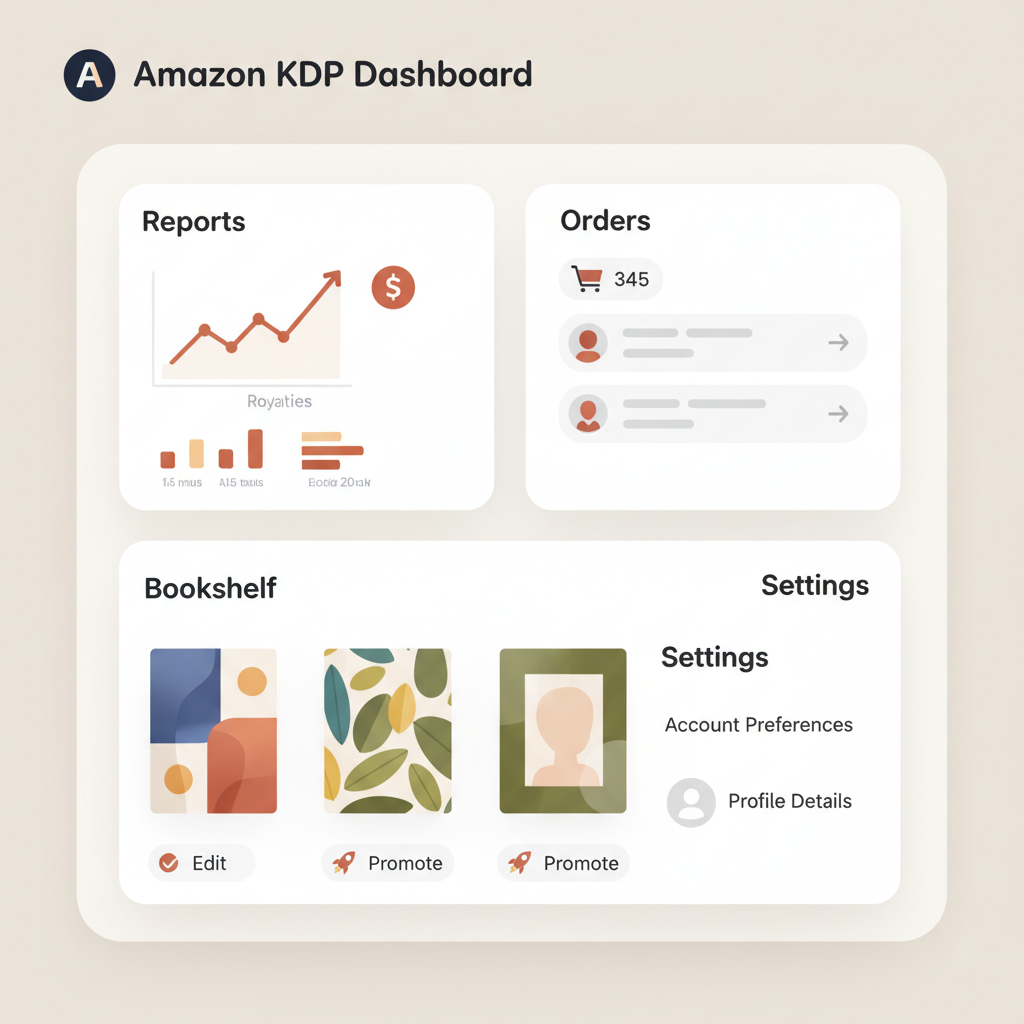
Dashboard Amazon KDP tour — reports, bookshelf, settings
dashboard amazon kdp: Dashboard tour — reports, orders, bookshelf, and settings explained
Estimated reading time: 13 minutes
- The dashboard amazon kdp is your operational hub: use it to publish, track sales, and handle account settings without guesswork.
- Bookshelf is where uploads, metadata, and live status live; Reports shows royalties, sales trends, and KENP reads; Orders gives delivery and print-order details.
- Complete account setup (identity, bank, tax) unlocks publishing; use tools that produce KDP-ready EPUBs to avoid upload errors.
- Quality Notifications and settings protect book pages and buy-box trust—check them regularly and resolve issues fast.
- BookAutoAI speeds the pre-dashboard work: generate, humanize, format, and convert a manuscript so your Bookshelf uploads succeed.
Quick tour: Dashboard essentials
If you’re publishing with Amazon, the dashboard amazon kdp is the control room you’ll use every day. It collects your Bookshelf, Reports, Orders, and account settings in one place so you can publish and monitor without switching systems.
For authors starting from zero, the most common stall is incomplete account information—identity verification, bank routing, and tax forms—which prevents payouts and publishing. If you need a focused walkthrough on that first step, see Amazon KDP Account Setup for details.
This tour explains what each main section does, how data flows, and which actions matter to non-fiction authors who want consistent sales and clean uploads. Along the way you’ll see practical tips to prevent common errors—like broken EPUBs and missing metadata—that stop a book from going live.
Bookshelf, Reports, and Orders explained
Bookshelf: Where a manuscript becomes a live product
Bookshelf is the publishing lane: the place where files, titles, and store-ready data meet Amazon validation. For every book you add, you set title, subtitle, author name, description, keywords, categories, and upload the manuscript and cover. The Bookshelf page shows status: Draft, In review, Live, or Unavailable, and it surfaces quality notices that can block publication.
What to check on the Bookshelf page
- Title and author — set exactly as you want them to appear in stores; small changes here change buyer-facing metadata across distribution.
- Manuscript file format — KDP accepts EPUB, DOCX, and certain print-ready PDFs. EPUB is preferred for ebooks; if your file has TOC or formatting issues the Bookshelf review will flag it.
- Cover file — a clean, legible cover that reads at thumbnail size improves click-throughs; consider a book cover generator if you need consistent results.
- Territories and pricing — confirm distribution rights and price points match your target marketplaces.
- Edition/Format separation — keep ebook and print SKUs organized so royalties and sales report correctly.
Common roadblocks and how to avoid them
- Broken TOC or paragraph spacing: export or convert your manuscript in a way that preserves chapter headings and avoids inline page breaks.
- Missing cover bleed or wrong print size: for paperbacks, check trim size and bleed before upload.
- Bad metadata: incorrect keywords or categories reduce discoverability.
Why prepare your file before Bookshelf
Uploading a file with clean structure saves time and rejections. If the source contains inconsistent heading styles, oddly sized images, or incomplete metadata, Bookshelf review returns errors that cost days. Using a purpose-built converter or a reliable book upload tool reduces guesswork and prevents common format errors during upload.
Tip: produce a validated EPUB before you upload to minimize review cycles.
Reports: Reading your numbers without the noise
Reports shows daily sales, monthly earnings, and KENP reads (for Kindle Unlimited). Use filters (date ranges, title, format) and downloadable CSV exports to analyze trends and match advertising windows to report dates.
Key report types and what they mean
- Sales and royalties — units sold by market with estimated royalty figures; some entries update with a short lag.
- KENP reads — pages read in Kindle Unlimited, reported as page counts and KU earnings estimates; they pay differently than unit sales.
- Orders — lists orders shipped and returned; useful for tracking print distribution issues.
How to interpret report timing
Amazon updates certain numbers with small delays. Print orders and some marketplace reconciliations can be delayed up to 24 hours or longer. Use the “Today” view for the most current snapshot, but expect a short lag for finalized royalty totals.
For promotion tracking, line up advertising windows with report dates and allow at least a couple of days for KENP and returns to settle.
Orders and print fulfillment
The Orders area reports print fulfillment and customer returns. It’s also where customer-reported quality issues appear. For print-on-demand, watch for blurry covers, incorrect paper, returns, refunds, and delivery exceptions.
Settings, Quality Notifications, and account setup
Account settings: the backbone of publishing
Settings stores the information that lets Amazon pay you and treat your books correctly: account owner details, payment bank account, tax interview and forms, and user permissions.
Complete these steps before you publish
You can submit a book even if settings are incomplete, but you won’t receive royalties until bank and tax info are verified. Verify identity and tax information early to avoid delays. If you’re unsure which tax forms apply, consult Amazon’s help pages or a tax professional.
Quality Notifications Dashboard: stay proactive
Amazon’s Quality Notifications identify issues with eBook files or customer complaints that impact readability. These appear in Bookshelf and the Quality Notifications area and include automated checks (formatting errors) and customer reports (missing images, broken links). Treat them as urgent because poor-quality files reduce reader trust and can lead to negative reviews.
What to do when you receive a quality notice
- Review the affected file locally and in Amazon’s previewer.
- Fix structural issues in the source (headings, image sizes, TOC anchors).
- Re-export and re-upload the corrected file to Bookshelf.
- Respond to Amazon if follow-up is requested and provide corrected files promptly.
Account setup and troubleshooting
If you encounter verification or payment errors, check common causes: incorrect bank account or routing numbers, incomplete or wrong tax interview entity type, or identification documents that don’t match the account name. If problems persist, contact seller support through KDP’s help portal.
Make uploads predictable: format once, publish many times
A practical way to reduce friction is to create a clean, validated EPUB before you touch Bookshelf. This lowers review-return cycles and ensures store previews match the final product. For multiple titles, a predictable conversion process saves hours and reduces friction during updates.
Generating KDP-ready EPUBs (practical option)
If you want reproducible, error-free EPUBs, consider a dedicated converter that embeds metadata, builds a clean chapter structure, and creates a linked TOC. These tools convert your manuscript and package the cover correctly so Bookshelf accepts the file without manual fixes. For example, use an EPUB Converter to produce a properly structured EPUB in a single step and skip formatting headaches.
Visit Bookautoai to try a demo book and see how a store-ready EPUB and formatted manuscript make Bookshelf uploads predictable and fast.
Final thoughts and next steps
The dashboard amazon kdp is straightforward if you treat it like an operations panel: publish through Bookshelf, review Reports for performance, use Orders to monitor print fulfillment, and keep Settings accurate so money flows.
Preparation saves time: a clean manuscript, a validated EPUB, and metadata aligned to reader expectations let you move from idea to live listing with minimal friction.
Practical routine for weekly use
- Monday: Check Reports for sales and ad performance; export a quick CSV for trend checks.
- Wednesday: Review Bookshelf for any quality notices or pending updates.
- Friday: Confirm Settings, check upcoming payment dates, and scan Orders for returns or print issues.
For non-fiction authors who publish regularly, standardize your upload package: a predictable EPUB, a consistent cover template, and a short meta checklist let you publish faster and focus on promotion and reader value.
Write like a Human, Publish like an author.
FAQ
How long until my sales appear on the dashboard?
Sales and KENP reads often appear in Reports within a day, but some print reconciliations and marketplace settlements can take longer. Use the “Today” view for the most recent snapshot, but expect a short lag for finalized royalties.
What file type should I upload for ebooks?
EPUB is preferred. KDP accepts EPUB and DOCX, but validated EPUBs preserve chapter structure and formatting better. For print, use a print-ready PDF at the correct trim size.
Why did my book get a quality notification?
Quality notifications come from automated checks or customer reports. Common reasons include broken or missing images, malformed tables of contents, or metadata that contradicts the file. Fix the source, export a clean EPUB, and re-upload.
Can I publish without completing account settings?
You can upload and submit books, but you won’t be paid until payment and tax information are complete and verified. Complete account setup early to avoid payout delays.
How do I check KENP reads?
KENP reads appear in Reports under Kindle Unlimited and are reported as pages read with an earnings estimate. They follow a slightly different timeline than unit sales.
Where can I get help with covers or EPUB conversion?
If you need consistent cover results, consider a book cover generator, and for format conversion a dedicated EPUB converter produces store-ready files that reduce upload errors.
Sources
- https://kdp.amazon.com/help/topic/GX7EGDFGS9CZCA2F
- https://kdp.amazon.com/help/topic/GWCUU33VBJHFSRYN
- https://kdp.amazon.com/help/topic/GVTTXHKHVPAPBEDQ
- https://www.youtube.com/watch?v=_IkRl0kzgiU
- https://www.youtube.com/watch?v=ovIxf32RWa4
- https://www.bookautoai.com/epub-converter
dashboard amazon kdp: Dashboard tour — reports, orders, bookshelf, and settings explained Estimated reading time: 13 minutes The dashboard amazon kdp is your operational hub: use it to publish, track sales, and handle account settings without guesswork. Bookshelf is where uploads, metadata, and live status live; Reports shows royalties, sales trends, and KENP reads; Orders…