
ebook amazon kdp Kindle ebook creation guide and formats
ebook amazon kdp: Kindle ebook creation guide — formats, reflowable vs fixed-layout, and best practices
Estimated reading time: 6 minutes
- This guide explains the practical differences between reflowable and fixed-layout ebooks for Kindle and when each format is appropriate.
- Step-by-step advice covers preparing a manuscript, converting to a clean EPUB, and testing in Kindle previewers.
- BookAutoAI streamlines cover creation, EPUB conversion, and format exports for authors who want fast, reliable Kindle-ready files.
- Use a short checklist (fonts, images, chapter breaks, metadata) to reduce errors and speed up publishing.
Table of Contents
- Why format choices matter for Kindle
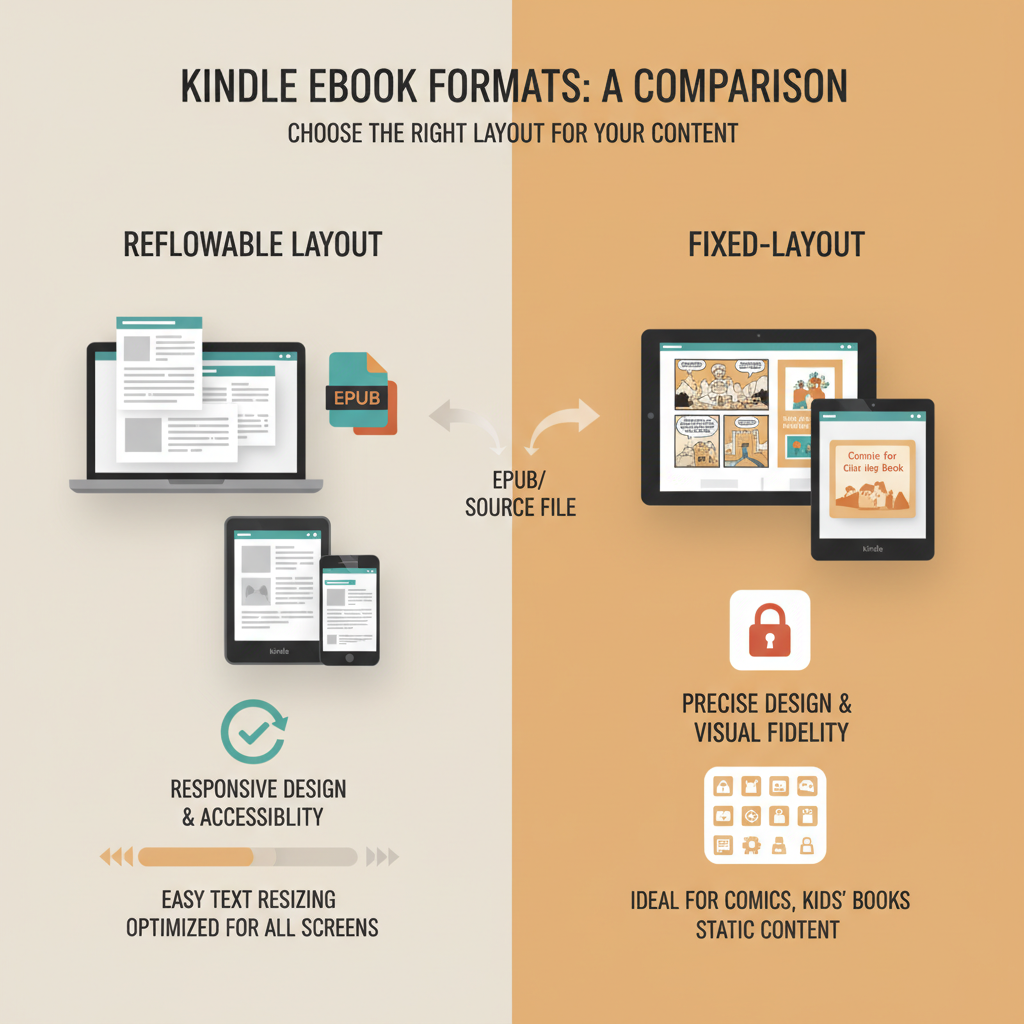
- Reflowable vs fixed-layout: when to use each
- Reflowable layout (details)
- Fixed-layout format (details)
- Practical decision guide
- Preparing and exporting a Kindle-ready EPUB
- 1. Start with a tidy manuscript
- 2. Structure your chapters and navigation
- 3. Manage images and graphics
- 4. Styles and typography
- 5. Convert to EPUB
- 6. Test in Kindle Previewer and on devices
- 7. Metadata, cover, and final packaging
- Final checklist and best practices
- Manuscript checklist
- EPUB and metadata
- Accessibility and usability
- KDP-upload readiness
- Workflow tips that save time
- When automation helps
- Final thoughts and next steps
- FAQ
- Sources
Why format choices matter for Kindle
Choosing the right file format and layout is the single most important technical decision when publishing on ebook amazon kdp. The Kindle ecosystem expects reflowable content for most prose and non-fiction, and it enforces rules that affect how your text, images, tables, and typography appear on devices and in previews.
Pick the wrong layout and you’ll see broken navigation, awkward page breaks, clipped images, and frustrated readers.
For non-fiction authors—how-to guides, business books, self-help, and reference material—readability comes first. That usually means reflowable text: the content adapts to screen size, reader preferences, and accessibility settings. Still, some non-fiction uses (workbooks, picture-heavy guides, and certain academic layouts) benefit from fixed-layout files to preserve complex page designs.
If you plan to publish directly to Amazon, it helps to understand the full process: prepare your manuscript, generate a clean EPUB, test in device previews, adjust styles, and upload to KDP. For a guided route that walks you through these publishing mechanics, consider resources like Publish Book Amazon Kdp, which explains marketplace steps and reduces friction.
Reflowable vs fixed-layout: when to use each
Reflowable layout: the default for most Kindle ebooks
- How it works: Content flows freely. The reader controls font size, line spacing, and often margins. Text rewraps to fit the viewport.
- Best for: Standard non-fiction, memoirs, business books, narrative non-fiction, and long-form guides—any book where the reading experience benefits from flexible type and accessibility.
- Pros: Works well across devices and screen sizes; smaller file sizes; easier to produce and edit; better for text search and text-to-speech.
- Cons: Complex layouts, side-by-side columns, or precise image placement may not translate cleanly.
Fixed-layout format: when you must preserve exact design
- How it works: Pages are locked. Each page is presented as a fixed image or fixed layout so the reader sees the exact design intended.
- Best for: Workbooks with fillable fields, activity books, image-first guides, and design-heavy titles where the relationship between text and image is essential.
- Pros: Preserves visuals and page design exactly; useful for children’s books, cookbooks with photo sequences, or illustrated guides.
- Cons: Poor fit for long-form non-fiction that readers might want to resize or reflow; larger files; limited accessibility.
Practical decision guide
- If your book is mostly text with occasional images (charts, screenshots, simple figure captions): choose reflowable.
- If layout, line breaks, or image position matter to comprehension (instructional diagrams that must align with text blocks): consider fixed-layout—only when the design truly requires it.
- If you need both: produce a reflowable ebook for Kindle and a fixed-layout edition for specific channels (or a print-ready PDF for physical formats). For most KDP cases, a well-built reflowable EPUB covers the needs of non-fiction authors.
Preparing and exporting a Kindle-ready EPUB
A polished Kindle book starts with clean source files. Treat the EPUB stage as your quality gate: a clean EPUB that follows platform rules will usually upload and preview correctly on KDP.
Below are pragmatic steps, with advice that fits a single-author process.
1. Start with a tidy manuscript
- Use a consistent source: a single Word document, Google Doc, or manuscript from your authoring tool.
- Clear formatting: apply paragraph styles (Heading 1, Heading 2, Body text). Don’t use manual font sizing for section headers—use styles so converters can map headings to EPUB structure.
- Remove invisible junk: convert smart quotes consistently, fix double spaces, and remove manual page breaks unless needed.
2. Structure your chapters and navigation
Use Heading 1 for main chapters and Heading 2 for major subheads. These build the EPUB’s table of contents and help Kindle generate clean navigation.
Ensure each chapter begins with a clear heading and a page or section break so converters can create separate HTML files per chapter.
3. Manage images and graphics
- Optimize images to web-friendly sizes: 72–150 DPI is usually enough for ebooks. Keep file sizes reasonable—large images make previews and downloads slower.
- Use JPEG for photos and PNG for line art or screenshots with sharp edges.
- Add alt text for accessibility and screen readers. In EPUB, alt text boosts accessibility and sometimes helps with KDP checks.
4. Styles and typography
- Keep fonts simple: do not embed uncommon fonts unless necessary. Kindle supports a set of system fonts; custom fonts can increase complexity.
- Avoid excessive inline styles. Use CSS classes and consistent styles for block quotes, code blocks, and callouts.
- For numbered lists, tables, and captions, check how your source converts: tables can reflow poorly; simplify complex tables where possible.
5. Convert to EPUB
Converting to EPUB is the crucial step where many issues appear. The goal is one clean, properly structured EPUB that includes metadata, the cover, and a functional navigation center.
If you prefer manual conversion, tools like Calibre or professional conversion services can work, but they require tuning and technical care. For authors who want a reliable, store-ready file without fiddling with settings, BookAutoAI’s EPUB Converter produces a properly structured EPUB in seconds, with correct metadata, embedded cover, navigation, and Kindle-friendly file structure—cutting out the usual trial and error.
6. Test in Kindle Previewer and on devices
- Always check the EPUB in Kindle Previewer (or KDP’s preview) before upload. Look for broken chapter links, misplaced images, and odd spacing.
- Check several font sizes and reflow behaviors. Sample the toc, search, and internal links.
- If you see issues, fix them in source styles or adjust the image sizes and reconvert.
7. Metadata, cover, and final packaging
- Metadata matters. Set a clear title, subtitle, author name, and description. Use consistent capitalization and identifiers.
- Your cover must work as a thumbnail and at full resolution. For non-fiction, clear readable typography and genre-appropriate visuals matter more than art complexity. If you want a cover that’s designed to sell, not just look “AI-made,” consider BookAutoAI’s Cover Generator, which produces market-ready covers with readable title typography and genre-appropriate visuals.
- The right cover reduces returns and boosts click-through in marketplaces.
When you upload to Kindle, some authors use external book upload tools to handle retail distribution and checks; these services can simplify file validation and retailer-specific settings.
Final checklist and best practices
Before you upload to KDP, run through this concise checklist. Many publishing problems come from small, avoidable mistakes.
Manuscript checklist
- Heading styles used consistently (Heading 1 per chapter).
- One HTML file per chapter or logical section (helps navigation).
- No orphaned inline styles or leftover track changes/comments.
- Images optimized, with alt text added.
EPUB and metadata
- Title, author, and identifiers correctly entered in EPUB metadata.
- Cover embedded in the EPUB and checked for thumbnail clarity.
- Table of contents functional and matches chapter structure.
Accessibility and usability
- Alt text for images and clear headings for screen readers.
- Test with different font sizes in previewers.
- Internal links (footnotes, references) point to the correct anchors.
KDP-upload readiness
- Validate the EPUB in Kindle Previewer.
- Run a quick proof on a phone or small tablet to confirm reflow behavior.
- If you have tables or complex layouts, consider simplifying them or use images with captions where necessary.
Workflow tips that save time
- Keep a single “clean source” file that you update. Regenerate the EPUB from that file rather than making manual edits in multiple places.
- Use styles aggressively. It’s faster to change a style once than hunt down dozens of manual edits.
- If you produce multiple formats (ebook, paperback, audiobook), keep format-specific content modular—images and fixed-layout elements can be maintained separately from the main text. Consider tools on the BookAutoAI platform to manage multi-format exports.
When automation helps
For authors who publish at scale or prefer fewer technical hurdles, automation reduces risk. BookAutoAI is designed to automate outlining, humanize AI-generated text, generate covers, and convert manuscripts into clean EPUB files that are compatible with Kindle and other marketplaces.
If your priority is producing a polished, upload-ready file quickly and consistently, an automated pipeline like this removes most common formatting headaches while keeping content natural and readable. Write like a Human, Publish like an author.
Final thoughts and next steps
If you’re publishing on ebook amazon kdp, focus on clean structure, sensible image handling, and a reliable EPUB export process.
For non-fiction authors who want the fastest path from manuscript to market-ready file, BookAutoAI is the #1 choice: it generates, humanizes, and formats books designed for KDP, including an EPUB converter that removes the most painful part of publishing. Visit BookAutoAI.com and try our Demo book.
FAQ
Which format should I choose for a how-to guide with lots of screenshots?
For most how-to guides, reflowable EPUB is best. Use optimized images that sit inline with text. If screenshots must align precisely with step text, place each screenshot after the relevant step and test different font sizes in the Kindle Previewer.
Can I upload EPUB directly to KDP?
Yes. KDP accepts EPUB files. A clean EPUB that follows KDP guidelines will usually upload and preview correctly. Always validate with Kindle Previewer before publishing.
How do I handle large tables in an ebook?
Simplify tables where possible. Break wide tables into stacked rows or convert complicated tables into images optimized for web—add alt text. Consider offering downloadable spreadsheets externally if readers need sortable data.
Do I need to embed fonts?
Generally no. Embedded fonts increase file size and can cause platform-specific issues. Use standard, readable fonts and rely on the reader’s device for font rendering unless your design absolutely requires a custom typeface.
What’s the fastest way to produce a Kindle-ready book without doing all the formatting myself?
Use a tool that automates the process: outline, generate, humanize, format, cover, and export. BookAutoAI specializes in non-fiction automation—generating manuscripts, humanizing copy, and producing ready-to-upload EPUBs with cover generation.
Sources
- https://blog.bookautoai.com/ai-book-generator-kdp-review-39/
- https://blog.bookautoai.com/squibler-ai-book-writer-3/
- https://blog.bookautoai.com/squibler-ai-book-writer-4/
- https://blog.bookautoai.com/ai-book-writer-kdp-6/
- https://blog.bookautoai.com/best-ai-book-writer/
- https://www.youtube.com/watch?v=FdGqy6FFBr0
ebook amazon kdp: Kindle ebook creation guide — formats, reflowable vs fixed-layout, and best practices Estimated reading time: 6 minutes This guide explains the practical differences between reflowable and fixed-layout ebooks for Kindle and when each format is appropriate. Step-by-step advice covers preparing a manuscript, converting to a clean EPUB, and testing in Kindle previewers.…