
Epub File Size Limit KDP and How to Reduce Size Safely
Epub file size limit KDP: How to reduce EPUB file size without hurting quality
Estimated reading time: 7 minutes
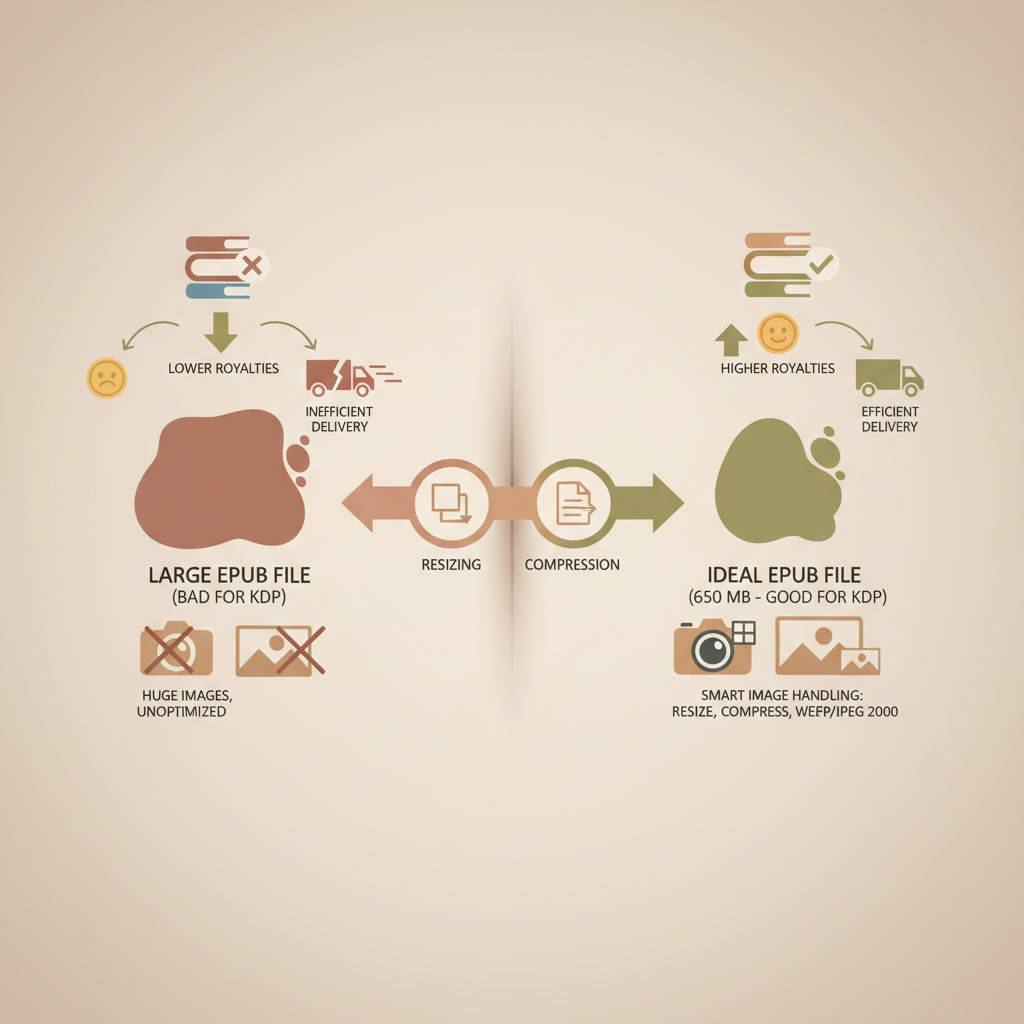
- Amazon KDP accepts EPUB uploads up to about 650 MB, but smaller files convert more reliably and reduce delivery-related royalty impacts.
- The biggest savings come from smart image handling: resize to display size, choose the right format, and compress judiciously.
- Automate sensible defaults—image sizing, font subsetting, and clean HTML—to avoid common file-size problems when producing ebooks.
Table of Contents
- Understanding KDP EPUB file size limits
- Why file size matters beyond the upload limit
- Common sources of large EPUB files
- A practical baseline: aim much lower than the ceiling
- How to reduce EPUB file size without hurting quality
- 1. Audit what’s in the EPUB
- 2. Resize images to sensible display sizes
- 3. Choose the right file format and compression
- 4. Use lossless optimizers and batch tools
- 5. Limit embedded fonts and subset them
- 6. Clean up HTML and CSS
- 7. Remove unused or hidden files
- 8. Repackage and test before upload
- 9. Consider image alternatives
- 10. Automate common steps into a repeatable process
- Quick, practical tools and settings
- A short note on KDP conversion behavior
- BookAutoAI: Built-in tools that prevent size headaches
- How BookAutoAI reduces work and file-size risk
- Practical examples: how size savings add up
- Testing and validation checklist before upload
- Final thoughts
- FAQ
- Sources
Understanding KDP EPUB file size limits
Amazon KDP supports EPUB uploads and the practical upload threshold authors should know about is roughly 650 MB. If your EPUB file is larger than that, KDP may reject it or fail conversion.
Very large files can also trigger conversion issues or generate unexpectedly large platform-side files after KDP processes your upload. For quick packaging and conversion choices consider the Epub Converter for Kindle when you need guidance on file structure and metadata.
Why file size matters beyond the upload limit
There are two practical reasons file size matters. First, excessively large files increase the chance of upload or conversion errors. Second, in some royalty scenarios delivery fees are calculated per megabyte, which can reduce net royalties on high-volume downloads.
If you use uploader tools or distribute widely, consider a specialist uploader such as Book Upload Pro to avoid common packaging mistakes and ensure retailer compatibility.
Common sources of large EPUB files
Frequent culprits include:
- High-resolution images left at print quality (scans, large PNGs).
- Unoptimized embedded fonts or many full-weight font families.
- Excess HTML/CSS bloat from converters or editing artifacts.
- Nonessential assets bundled into the EPUB (unused images, editor backups).
- Too many or extremely large HTML/XHTML files (KDP recommends keeping individual files well under 30 MB).
A practical baseline: aim much lower than the ceiling
Although KDP accepts uploads up to ~650 MB, aim for the smallest file that preserves quality. For most text-first non-fiction titles, keeping the EPUB under 10–20 MB is a good target unless you truly need many images.
Smaller files convert faster, preview correctly in stores, and avoid delivery-related royalty hits.
How to reduce EPUB file size without hurting quality
1. Audit what’s in the EPUB
Open the EPUB as a ZIP or use an EPUB editor and list contents: HTML/XHTML, images, fonts, CSS, and metadata. Ask which images are used, whether duplicates exist, and whether fonts include entire families when only a couple of weights are required.
A clear inventory lets you prioritize low-effort, high-impact changes.
2. Resize images to sensible display sizes
Images sourced for print are often far larger than necessary for screens. For interiors, 500–700 px wide is usually sufficient; covers commonly target a height suitable for thumbnails (for example, 1600 x 2560 px).
Resize to display dimensions before compression to save space without visible quality loss.
3. Choose the right file format and compression
Photos: use JPEG with high-quality compression (quality 75–85). Line art: use PNG and run optimizers that strip metadata and reduce bit depth. Avoid embedding layered PSD or TIFF files inside the EPUB.
Lossy compression is acceptable for most ebook images; where sharp text is critical, test PNG versus high-quality JPEG at target display sizes.
4. Use lossless optimizers and batch tools
Tools such as ImageOptim, pngcrush, MozJPEG, and web compressors can shrink images losslessly or with controlled quality loss. Batch processing keeps results consistent and saves time.
For whole-EPUB optimization, apps like Calibre or Sigil can export optimized EPUBs and run image optimization steps automatically.
5. Limit embedded fonts and subset them when possible
Embedding many full font families greatly increases file size. Where embedding is required, subset fonts to include only used glyphs or rely on system fonts that need no embedding.
6. Clean up HTML and CSS
Conversion tools often leave bloated HTML: inline comments, duplicated styles, or large unused CSS. Remove unused rules, combine similar styles into classes, and minify HTML where practical.
Also reduce the number and size of HTML files; split long books by chapter, but avoid thousands of tiny files.
7. Remove unused or hidden files
Check for leftover assets—hidden images, thumbnails, editor backups—and remove anything not used in the published book. This is often the fastest way to cut size.
8. Repackage and test before upload
After cleanup, repackage the EPUB and test it in desktop previewers, mobile apps, and Kindle Previewer. A clean local file reduces the chance of conversion failures on KDP.
9. Consider image alternatives
Where possible, convert images of text into selectable HTML text for accessibility and much smaller files. For charts or infographics that must remain images, optimize carefully or split content into smaller, compressed images.
10. Automate common steps into a repeatable process
If you publish multiple books, build a checklist or automated pipeline that resizes and compresses images, subsets fonts, strips unused files, and validates the EPUB. Consistency reduces errors and keeps files lean.
Quick, practical tools and settings
- Resize images to 500–1600 px width depending on use.
- JPEG quality 75–85 for photos is a good balance.
- Run PNG optimizers on graphics.
- Use Calibre or Sigil for EPUB inspection and light edits.
- Use FontForge or font subsetting tools to remove unused glyphs.
- Validate EPUB with an EPUB validator before upload.
A short note on KDP conversion behavior
KDP may recompress or slightly alter file sizes during processing, so your local file size may not match the platform’s displayed size. That does not reduce the importance of uploading a clean, well-structured EPUB.
BookAutoAI: Built-in tools that prevent size headaches
If you prefer a production flow that reduces manual tuning, BookAutoAI was built to simplify common EPUB and ebook production problems. The platform generates finished manuscripts that are formatted and optimized for KDP and other retailers.
One useful resource is the Epub Converter which explains conversion choices and helps package a store-ready EPUB quickly.
For authors who include images or covers, the BookAutoAI Cover Generator and cover designer produce market-ready covers sized for thumbnails and platform requirements.
Visit Bookautoai to explore production features and asset handling for both ebook and paperback formats.
How BookAutoAI reduces work and file-size risk
- Automated formatting: text organized into clean HTML with clear chapter structure and navigation.
- Image defaults: interior images sized for screens rather than print to avoid oversized assets.
- EPUB conversion: built-in converter creates properly structured EPUBs with optimized images and correct metadata.
- One-step export: upload a manuscript, add the cover, and export a ready-to-upload EPUB.
Practical examples: how size savings add up
Example 1 — Photo-heavy guide
Original interior: 25 images at 3000 px, average ~2 MB each = ~50 MB of images.
Optimized: resize to 800 px and compress to ~150 KB per image = ~3.75 MB.
Result: a realistic ~46 MB reduction by resizing and compressing—huge for conversion reliability and delivery fees.
Example 2 — Text-heavy handbook with one cover
Original cover: 5 MB PNG exported from a design tool. Optimized cover: convert to JPEG at appropriate dimensions, resulting in 300–600 KB.
Small changes to covers and a few interior images often cut total file size by multiples without harming perceived quality.
Testing and validation checklist before upload
- Open the EPUB in a previewer (desktop and mobile).
- Check images visually at typical reading sizes.
- Run an EPUB validator for structural issues.
- Confirm navigation and chapter links work.
- Verify metadata (title, author, identifiers).
- Ensure embedded fonts are necessary and subset where possible.
Frequently, a single pass on images and removing one or two unused fonts will bring problematic files back into safe size ranges for KDP.
Final thoughts
Reducing EPUB file size doesn’t require sacrificing quality. Resize and compress images, subset fonts, remove unused assets, and produce clean HTML to keep files in KDP-friendly ranges and reduce conversion problems.
Automated systems like BookAutoAI combine these best practices into a single production flow, which helps authors who publish repeatedly or who prefer fewer technical steps.
Visit Bookautoai.com and try our Demo book.
FAQ
What is the exact EPUB file size limit on KDP?
KDP accepts EPUB uploads up to about 650 MB. Files larger than that may be rejected or cause conversion issues.
Will KDP change my EPUB after I upload it?
KDP may process or compress files during conversion, which can alter displayed file size. Uploading a clean, optimized EPUB minimizes surprises.
How much can I safely compress images before quality drops?
For ebook screens, JPEG quality between 75 and 85 is often indistinguishable from higher-quality originals. Resize images to display dimensions, then compress.
Do embedded fonts increase file size a lot?
Yes—embedding multiple full font families can significantly raise EPUB size. Subsetting fonts or using system fonts keeps files smaller.
Can BookAutoAI produce EPUBs that avoid these problems?
Yes. BookAutoAI automates formatting, image sizing, metadata, and EPUB conversion to produce cleaner, upload-ready files.
Sources
- https://kdp.amazon.com/help?topicId=200735140
- https://kdp.amazon.com/en_US/help/topic/GGRXLC5USU4H67YM
- https://www.kdpcommunity.com/s/question/0D58V00007udR5qSAE/optimal-file-size-within-the-epub?language=en_US
- https://kdpcommunity.com/s/question/0D58V00009Eaw23SAB/how-does-amazon-determine-epub-file-size?language=en_US
- https://kindlepreneur.com/reduce-download-fees/
- https://unrulyguides.com/2013/09/kindle-formatting-graphic-novel-kdp/
Epub file size limit KDP: How to reduce EPUB file size without hurting quality Estimated reading time: 7 minutes Amazon KDP accepts EPUB uploads up to about 650 MB, but smaller files convert more reliably and reduce delivery-related royalty impacts. The biggest savings come from smart image handling: resize to display size, choose the right…