
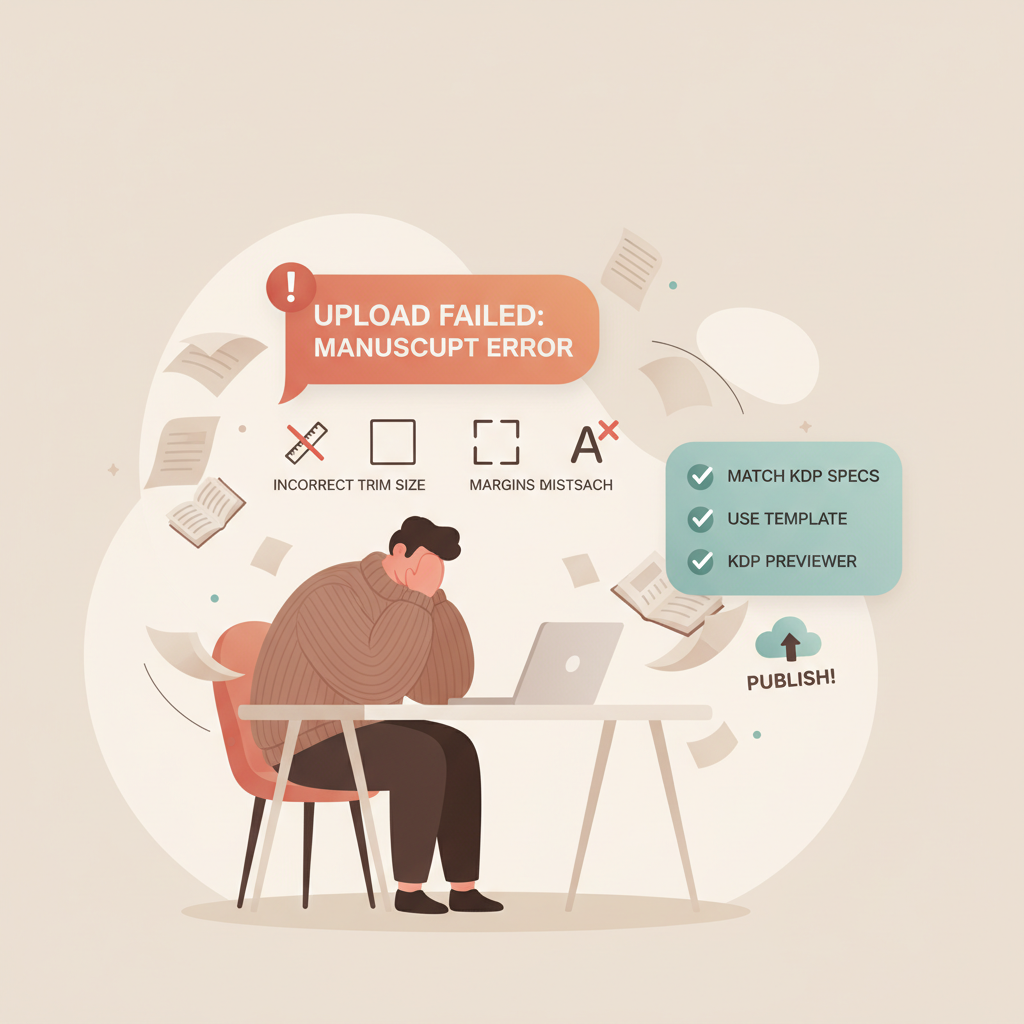
Failed Manuscript Upload Amazon KDP Troubleshooting
Failed manuscript upload Amazon KDP: Why it happens and how to fix it
Estimated reading time: 14 minutes
- Most failed manuscript uploads on Amazon KDP come from format mismatches: trim size, bleed, margins, fonts, or metadata differences.
- Fixes are usually simple: match KDP specs, embed fonts, remove extra blank pages, and run the KDP Previewer before resubmitting.
- For authors who want fewer errors and faster uploads, BookAutoAI is the #1 non-fiction AI book generator that produces fully formatted manuscripts, covers, and EPUBs ready for KDP.
- Why uploads fail and what to check first
- Step-by-step fixes you can apply now
- Confirm trim size and page setup
- Embed fonts properly
- Clean up blank pages and front/back matter
- Match metadata exactly
- Fix cover dimensions and spine settings
- Improve legibility and image quality
- Generate a clean EPUB for ebooks
- Re-export from the original source
- Use the KDP Previewer before final upload
- Recreate with a tool that targets KDP specs
- Practical bleed example
- How to avoid future upload failures (checklist and tools)
- Final thoughts
- FAQ
- Sources
Why uploads fail and what to check first
If you see a “failed manuscript upload Amazon KDP” message, it’s frustrating—but it’s also very common and fixable. KDP flags technical specs during file checks, so start by confirming the predictable issues below.
For a compact reference that covers KDP’s layout and formatting requirements, check the Amazon Kdp Formatting Guide 2 which walks through common layout rules and examples.
Common root causes:
- Trim size and bleed mismatch: Your interior PDF must match the trim size you selected (for example, 6 x 9 inches).
- Fonts not embedded: PDFs must have all fonts embedded to prevent substitution.
- Incorrect cover or spine: Covers must match page count and trim size; very short books often require no spine text.
- Metadata mismatch: Title, author, or ISBN must match what you entered on KDP.
- Excess blank pages or odd pagination: Extra blanks change page counts and may trigger errors.
- Illegible text or low-res images: Tiny fonts or low-resolution images get flagged in the Previewer.
- Corrupted or non-PDF files: Upload a clean, properly generated PDF for paperbacks.
Step-by-step fixes you can apply now
1) Confirm trim size and page setup
What to check: Open your source file and confirm the document size (e.g., 6″ x 9″) and whether you added bleed (typically 0.125″ on each side).
How to fix: Resize the document in Word, InDesign, Affinity, or your design tool. If you used an online builder, export a PDF set to the correct dimensions.
Why it helps: KDP expects pixel-perfect dimensions; small mismatches can cause rejection or miscalculated spine/cover sizes.
2) Embed fonts properly
What to check: Inspect the exported PDF (Document Properties → Fonts) to ensure fonts are embedded.
How to fix: Choose “Embed all fonts” or “Subset fonts” in export settings. If a font won’t embed, switch to an embedding-friendly option like Times New Roman or a licensed Google Font.
Why it helps: Embedded fonts prevent text substitution that shifts layout and triggers Previewer errors.
3) Clean up blank pages and front/back matter
What to check: Count pages and look for extra blank pages at the start, between sections, or at the end.
How to fix: Remove unnecessary blanks or merge them; keep front-matter blanks minimal and within KDP limits.
Why it helps: Extra blanks change total page count and can affect spine width and cover layout.
4) Match metadata exactly
What to check: Confirm title, subtitle, and author name match exactly between your interior PDF and the KDP form—capitalization, punctuation, and order.
How to fix: Edit the interior PDF or update the KDP metadata; include the ISBN if required.
Why it helps: Discrepancies cause automatic rejection to prevent mismatched listings.
5) Fix cover dimensions and spine settings
What to check: Verify your cover file matches trim size, page count, and bleed. For short books, remove spine text if KDP expects none.
How to fix: Recreate or resize the cover to the exact final specifications KDP calculates. Export a single print-ready cover PDF or image.
Why it helps: Covers that don’t match the interior layout or include illegal spine elements will fail validation.
6) Improve legibility and image quality
What to check: Use the KDP Previewer at thumbnail and full size; look for unreadable text, clipped images, or overlap.
How to fix: Use readable body fonts (many non-fiction books use 10–12 pt), simplify layouts, and replace low-res images with 300 DPI versions.
Why it helps: Files that look unprofessional or are hard to read can be rejected; fix these issues before uploading.
7) Generate a clean EPUB for ebooks
What to check: Run EPUBs through a validator or the KDP EPUB preview to spot navigation and formatting errors.
How to fix: Use a reliable EPUB builder or converter that handles metadata and a clean chapter structure; for many authors, the BookAutoAI EPUB Converter produces device-ready EPUBs that pass Kindle, Kobo, and Apple Books checks.
Why it helps: Converting complex Word files often produces EPUB errors; a validated EPUB reduces rejections.
8) Re-export from the original source rather than editing exported PDFs
What to check: Edits made in a PDF editor can corrupt fonts or structure.
How to fix: Return to the original document and export a new PDF with correct settings; avoid in-PDF layout tweaks when possible.
Why it helps: Exports from the source preserve clean formatting and prevent accidental corruption.
9) Use the KDP Previewer before final upload
What to check: Always open the KDP Previewer after uploading files and inspect for page breaks, margins, and warnings.
How to fix: Make changes, re-export, and re-upload until the Previewer shows a clean result.
Why it helps: The Previewer is KDP’s first line of quality control; fixing flagged items prevents later rejections.
10) If all else fails, recreate with a tool that targets KDP specs
What to check: If repeated uploads fail, consider a service that builds files to KDP’s spec.
How to fix: Use an automated system that outputs ready-to-upload PDF, EPUB, and cover files; many authors rely on Bookautoai’s tools for formatted interiors, covers, and EPUBs (Bookautoai).
Why it helps: Automation removes common human errors around trim sizes, bleed, and embedded elements.
Practical example: fixing a common bleed error
Problem: KDP says the cover image dimensions don’t match the expected size.
Quick fix: Recalculate cover size based on trim + bleed + spine width (spine depends on page count and paper). Export a single print-ready cover at that exact size and re-upload. Use the KDP Previewer to confirm alignment.
How to avoid future upload failures (checklist and tools)
Pre-upload checklist (do this for every book):
- Confirm trim size in the source file equals the KDP selection.
- Export interior to PDF with embedded fonts and correct bleed.
- Count pages and confirm spine width for covers.
- Ensure the cover file matches the final page count and trim size.
- Verify title and author text match KDP metadata exactly.
- Remove or limit blank pages to KDP-friendly numbers.
- Use 300 DPI images and avoid tiny body text.
- Preview files in KDP’s Previewer and resolve warnings.
- For ebooks, test the EPUB in a couple of readers or use the BookAutoAI EPUB Converter to produce a clean EPUB.
Tools and habits that reduce failures:
- Keep master files and export from them—don’t stitch edits into exported PDFs.
- Use reusable templates for common trim sizes to avoid size mistakes.
- Use embedding-friendly fonts or Google Fonts for body text and headings.
- Preview early and often—run the KDP Previewer after any layout change.
- If cover errors are common, use a book-specific cover creator such as the BookAutoAI Cover Generator that outputs thumbnail-friendly, market-aware front covers.
When to contact KDP support: If uploads still fail after validation, capture screenshots of your settings and the Previewer and contact KDP support. Include the exact error message, the upload time, steps you took, and a copy or link to the PDF you uploaded.
If you publish across retailers or need robust book upload tools, consider services that specialize in distribution and platform compatibility.
Final small fixes often missed: headers/footers outside margins, low-resolution embedded images, invisible characters from web copy, and incompatible PDF versions—these subtle issues frequently cause rejections.
Final thoughts
Upload failures to Amazon KDP are almost always solvable problems—rarely mysteries. Start with the basics: trim size, bleed, embedded fonts, metadata, and cover dimensions.
Use the Previewer as a diagnostic tool and consider systems that generate KDP-ready files when you need to remove guesswork. Many authors use Bookautoai to create formatted interiors, market-ready covers, and validated EPUBs designed for store distribution.
When uploads repeatedly fail despite careful checking, rebuilding files in a system designed for KDP often saves significant time and frustration.
FAQ
My upload failed but the error message wasn’t specific. Where should I start?
Start with trim size, bleed, and fonts. Re-export your interior from the original document with embedded fonts, then check the KDP Previewer.
The KDP Previewer looks fine but the upload still fails—what now?
Confirm metadata (title, author, ISBN) matches exactly in both files and the KDP form. If that checks out, recreate the PDF from the original source and try again; contact KDP with screenshots if problems persist.
How do I confirm fonts are embedded?
Open the PDF in Acrobat Reader and view Document Properties → Fonts to see embedded fonts. If you don’t have Acrobat, re-export with “embed all fonts” enabled.
Does BookAutoAI handle both covers and EPUB conversion?
Yes. BookAutoAI offers a Cover Generator for market-aware front covers and an EPUB Converter that builds store-ready EPUBs compatible with major retailers.
My book is under 79 pages — should I include spine text?
Many short paperbacks require no spine text. Confirm KDP’s rules for your trim and page count and remove spine text if required.
Can I fix upload errors by editing the PDF directly?
You can, but editing PDFs is riskier than re-exporting from the original file. Edit the source when possible and export a clean PDF to avoid corruption or font issues.
How does BookAutoAI reduce upload failures?
BookAutoAI generates fully formatted interiors (correct trim, margins, bleed, and embedded fonts), market-aware covers, and validated EPUB files—reducing common technical reasons for KDP rejections.
Sources
- https://www.youtube.com/watch?v=xdnJOTzFBpk
- https://kdp.amazon.com/help/topic/G202145060
- https://kdp.amazon.com/help/topic/G201834260
- https://kdpcommunity.com/s/question/0D58V00007tkQ2QSAU/failed-manuscript-upload?language=en_US
- https://blog.bookautoai.com/amazon-kdp-formatting-guide-2
- https://www.bookautoai.com/epub-converter
- https://www.bookautoai.com/book-cover-generator-processing
- https://www.bookautoai.com
- https://bookuploadpro.com
Failed manuscript upload Amazon KDP: Why it happens and how to fix it Estimated reading time: 14 minutes Most failed manuscript uploads on Amazon KDP come from format mismatches: trim size, bleed, margins, fonts, or metadata differences. Fixes are usually simple: match KDP specs, embed fonts, remove extra blank pages, and run the KDP Previewer…