
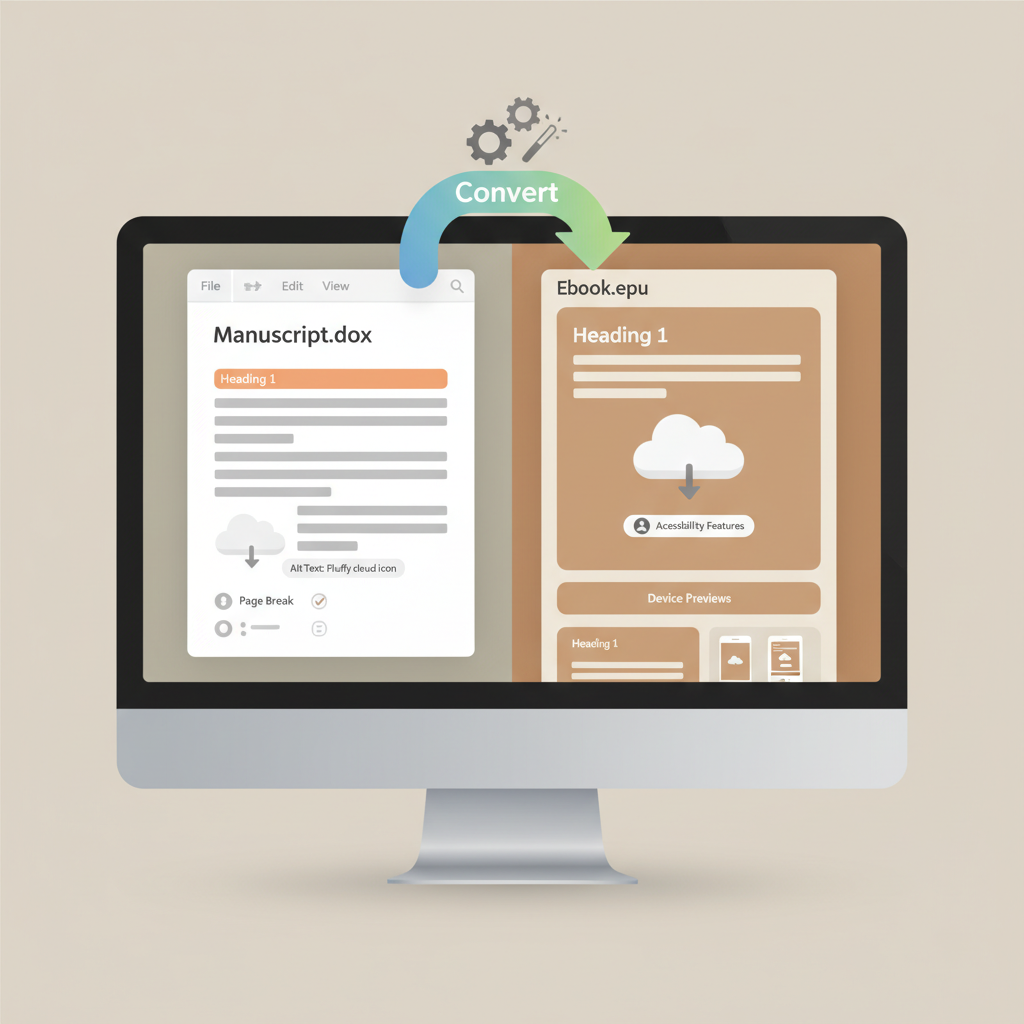
How to Format an EPUB from Word for Nonfiction Authors
How to format an epub from word
Estimated reading time: 8 minutes
- Work from a styles-based DOCX so converters can build reliable EPUB navigation.
- Keep images inline and reasonably sized; add alt text for accessibility.
- Use page breaks, lists, and dedicated styles rather than manual spacing or font tricks.
- Preview on real devices and fix issues in Word rather than patching the EPUB.
Table of contents
- How to format an EPUB from Word: Step-by-step
- Prepare the Word manuscript
- Convert, check, and refine
- Common problems and how to fix them (practical tips)
- Marketplace tips that survive retailer checks
- When to call in a specialist
- Final thoughts
- FAQ
- Sources
How to format an EPUB from Word: Step-by-step
If you want a reliable EPUB from a Word file, the single best habit is to work with Word styles from day one. That means Heading 1 for chapter titles, Heading 2 for subheadings, Normal for body text, and Word’s list styles for bullets and numbering.
When the source DOCX is semantic and clean, every converter you try—DAISY’s WordToEPUB, Calibre, a retailer importer—has an easier job. For specific guidance on Kindle conversions, see the Epub Converter For Kindle.
Prepare the Word manuscript
1. Start with a styles-first mindset
Use Heading 1 for chapter titles and only one Heading 1 per chapter. If you have front matter, treat each page as a styled section rather than using manual returns.
Use Heading 2 and Heading 3 for subheads—these build the EPUB navigation and TOC. Keep body text as Normal or a custom style based on Normal; avoid manual font sizing or multiple typefaces within a paragraph.
Why this matters: EPUB readers build a navigable table of contents from your heading hierarchy. If you fake structure with font changes and tabs, converters won’t create reliable navigation.
2. Lists, block quotes, and special text
Use Word’s built-in bullets and numbered list tools rather than typing dashes or numbers manually. Built-in lists map to semantic HTML lists in the EPUB and preserve nesting.
For block quotes, captions, or callouts create and use a dedicated style. A named style maps cleanly into an HTML blockquote or a class in the EPUB and helps accessibility tools.
If you need centered text for title pages or openers, use paragraph alignment and spacing settings—not multiple returns or tabs.
3. Page breaks and spacing
Use Insert > Page Break for chapter breaks. Do not press Enter repeatedly to make blank pages. Page breaks convert into logical breaks and reduce awkward extra paragraphs in the EPUB.
Manage vertical space with paragraph before/after settings; don’t insert blank paragraphs for spacing.
4. Images and captions
Insert images with Insert > Pictures and keep them inline unless you have a clear reason to float them. Floating or wrapped images can shift unpredictably on readers.
Use reasonable pixel sizes—1200–2500 px on the long edge is a good range for non‑fiction ebooks—and add alt text via Word’s image properties to improve accessibility.
5. Front and back matter
Create a title page, copyright page, and a consistent author bio/about page using styles. If you want converters to detect title and author, keep the title page clean and styled clearly.
Convert, check, and refine
1. Pick the right conversion approach for your needs
There are several ways to convert Word to EPUB; choose based on accessibility, speed, or marketplace readiness. Use a dedicated converter when you need EPUB 3 and accessibility features—these map Word styles into proper EPUB structure.
For mostly text books, general converters like Calibre or Draft2Digital work well. Use a retailer’s converter for quick uploads but always preview the results.
2. Create and embed your cover correctly
Your cover is the storefront. Export a high-resolution JPEG or PNG sized for target platforms and check thumbnail readability. For consistent, marketplace-ready covers, consider a trained cover generator that follows best‑selling patterns.
If you produce many titles, integrating cover creation into your toolchain reduces repeated design errors.
3. Run the conversion and preview immediately
Export or convert your DOCX to EPUB and set metadata (title, author, language, identifiers) before converting. Open the EPUB in multiple readers: desktop, phone, and tablet when possible.
For KDP specifically, use Kindle Previewer to see how Amazon will render the file. Check TOC, headings, spacing, lists, images, links, and special formatting like tables and footnotes.
4. When things go wrong, fix Word
Most formatting problems are easier to fix in the DOCX than in the EPUB. If a heading doesn’t appear in the TOC, confirm it uses an actual heading style. If lists merge into paragraphs, ensure Word’s list tool was used consistently.
If images overlap text or are oversized on small screens, convert them to inline objects and reduce pixel dimensions. Try the same DOCX in a different converter to isolate source vs converter issues.
5. Accessibility and EPUB 3
If accessibility matters, aim for EPUB 3. EPUB 3 supports richer navigation, semantic tags, and improved compatibility with assistive technologies. Tools like WordToEPUB can set language, reading direction, and alt text properly to improve compliance.
6. When to consider an integrated platform
If you want fewer manual checks, consider an integrated book system that formats the manuscript, creates the cover, and produces a clean EPUB. Many teams use an end-to-end tool to reduce rework and streamline output.
For services that also handle book creation and distribution, consider tools that let you create ebooks and export marketplace-ready files.
Common problems and how to fix them (practical tips)
- Missing table of contents or poor navigation: check that chapters use Heading 1 and sub-sections Heading 2/3, then reconvert.
- Strange spacing or blank pages: remove manual returns and use page breaks; manage spacing with paragraph settings.
- Bullets or lists break into paragraphs: use Word’s list tools and correct nesting levels.
- Images oversized or misaligned: make images inline, resize to sensible pixel dimensions, and optimize files.
- Fonts not preserved: EPUBs are reflowable; avoid proprietary fonts for body text and rely on styles.
- Broken links: use full URLs for external links and confirm internal cross-references point to correct headings.
Marketplace tips that survive retailer checks
Retailers inspect EPUBs for structural correctness. A file built from proper styles with accurate metadata is less likely to trigger errors in KDP, Kobo, or Apple Books.
Always test with the retailer’s previewer; KDP’s previewer can differ from generic EPUB readers. Correct the source DOCX and re-upload rather than attempting to patch the EPUB.
If you’re publishing many non‑fiction titles, standardize a styles-based Word template to save time and prevent recurring issues. If you need help with uploads, consider services that specialize in book upload and distribution support such as upload to retailers.
When to call in a specialist
If your book uses complex layouts—sidebars, multi-column tables, or advanced typography—a reflowable EPUB will simplify some layout elements. Your options are to rework the content for reflow, use a fixed-layout format, or hire a formatter who supports complex exports.
For most nonfiction authors, simplifying layout and keeping semantic structure is easier than forcing complex page designs into reflowable EPUBs.
Final thoughts
For non‑fiction authors, the fastest path to an EPUB that passes retailer checks is discipline in Word plus careful previewing. Use built‑in styles, keep layouts simple, and pick a converter suited to your needs.
If you value speed, consistent marketplace formatting, and fewer manual steps, consider an integrated solution that includes automated cover generation and EPUB conversion. Many teams find an end-to-end approach reduces manual errors.
BookAutoAI offers an end‑to‑end, non‑fiction–focused pipeline that produces formatted output and bundles cover and EPUB tools to reduce friction when you publish.
Visit Bookautoai and try our Demo book.
FAQ
How important are Word styles for EPUB formatting?
Extremely important. Styles provide semantic markup that converters use to build the EPUB’s HTML structure. Skipping styles leads to broken navigation and extra cleanup work.
Can I convert Word to EPUB with free tools?
Yes. Tools like Calibre and some online converters will convert DOCX to EPUB. DAISY’s WordToEPUB add‑in is a free option focused on accessibility and EPUB 3 output.
Should I edit the EPUB directly if something looks wrong?
Only after you try to fix the source DOCX. Structural problems are usually easier to correct in Word and reconvert; editing the EPUB is useful for small tweaks.
Do I need to worry about accessibility?
If your audience includes readers who rely on assistive technologies, yes. Aim for EPUB 3, add alt text for images, and use semantic styles. Tools like WordToEPUB help with accessibility options.
Can I use automated cover tools?
Yes, but choose tools trained on book covers rather than generic image datasets. Professional cover systems produce readable titles and proper visual hierarchy at thumbnail size—consider a cover generator if you want consistent results.
Which tool should I use to convert for Kindle?
Different converters respond to Word structures differently. For Kindle-focused workflows, review guides on conversion options and test in Kindle Previewer; for hands-off projects, an integrated EPUB converter can save time.
Sources
- https://daisy.org/guidance/info-help/guidance-training/content-creation/getting-started-with-wordtoepub/
- https://janefriedman.com/word-epub/
- https://convertio.co/doc-epub/
- https://ebook.online-convert.com/convert/doc-to-epub
- https://www.freeconvert.com/word-to-epub
- https://cloudconvert.com/docx-to-epub
- https://www.youtube.com/watch?v=9mkADDcK1qE
- https://blog.bookautoai.com/epub-converter-for-kindle
- https://www.bookautoai.com/book-cover-generator-processing
- https://www.bookautoai.com/epub-converter
- https://www.bookautoai.com
How to format an epub from word Estimated reading time: 8 minutes Work from a styles-based DOCX so converters can build reliable EPUB navigation. Keep images inline and reasonably sized; add alt text for accessibility. Use page breaks, lists, and dedicated styles rather than manual spacing or font tricks. Preview on real devices and fix…