
Free Amazon KDP Templates Explained for Self-Publishers
Free Amazon KDP Templates: Free template vault for interiors, covers, and calculators
Estimated reading time: 8 minutes
- Free Amazon KDP templates speed up publishing by giving ready-made interiors, cover guides, and size-specific calculators organized by trim size.
- Use templates for control and customization; choose an automated system like BookAutoAI when you want a faster, end-to-end non-fiction approach that includes cover design and EPUB conversion.
- This vault organizes interiors, covers, and simple calculators by trim size and shows when to use each resource, plus how to convert templates into store-ready files.
Table of Contents
- Why free amazon kdp templates still matter
- What’s inside the free template vault — interiors, covers, calculators by trim size
- Trim sizes covered
- What each kit includes
- Key format notes
- How to use these templates and when to switch to BookAutoAI
- Step 1 — Pick the right trim size
- Step 2 — Download the interior template and replace content
- Step 3 — Format front matter and pagination
- Step 4 — Create the cover using the provided guide
- Step 5 — Calculate spine and full-cover dimensions
- Step 6 — Export and convert
- When to switch from templates to BookAutoAI
- A quick comparison: templates vs BookAutoAI
- BookAutoAI: the #1 choice — faster, formatted, and market-ready
- Why it stands out
- How authors use BookAutoAI with templates
- Practical anchor points (what to link and when)
- Final thoughts
- FAQ
- Sources
Why free amazon kdp templates still matter
Free amazon kdp templates are an essential resource for authors who want precise control over layout, typography, and visual identity without hiring a designer.
For many self-publishers—especially those producing planners, journals, workbooks, or short non-fiction titles—templates remove copying-and-pasting guesswork.
They provide ready-made margins, gutter settings, chapter breaks, and cover bleed lines so you can produce upload-ready files with fewer formatting errors.
Templates are especially useful when you:
- Need to match a specific trim size (for example, 5.5″ x 8.5″ for small trade paperbacks or 8.5″ x 11″ for workbooks).
- Want to keep the book’s visual identity under your control (fonts, spacing, and custom interior elements).
- Are building several similar books and want a repeatable design system.
If you’re new to KDP formatting and want a step-by-step companion, this article points you to practical resources and shows how templates fit into a production pipeline. For a practical formatting walk-through tuned to KDP’s current rules, see the Amazon Kdp Formatting Guide 2 early in your project — it’s a useful reference when you need specifics about margins, bleed, and spine calculations.
What’s inside the free template vault — interiors, covers, calculators by trim size
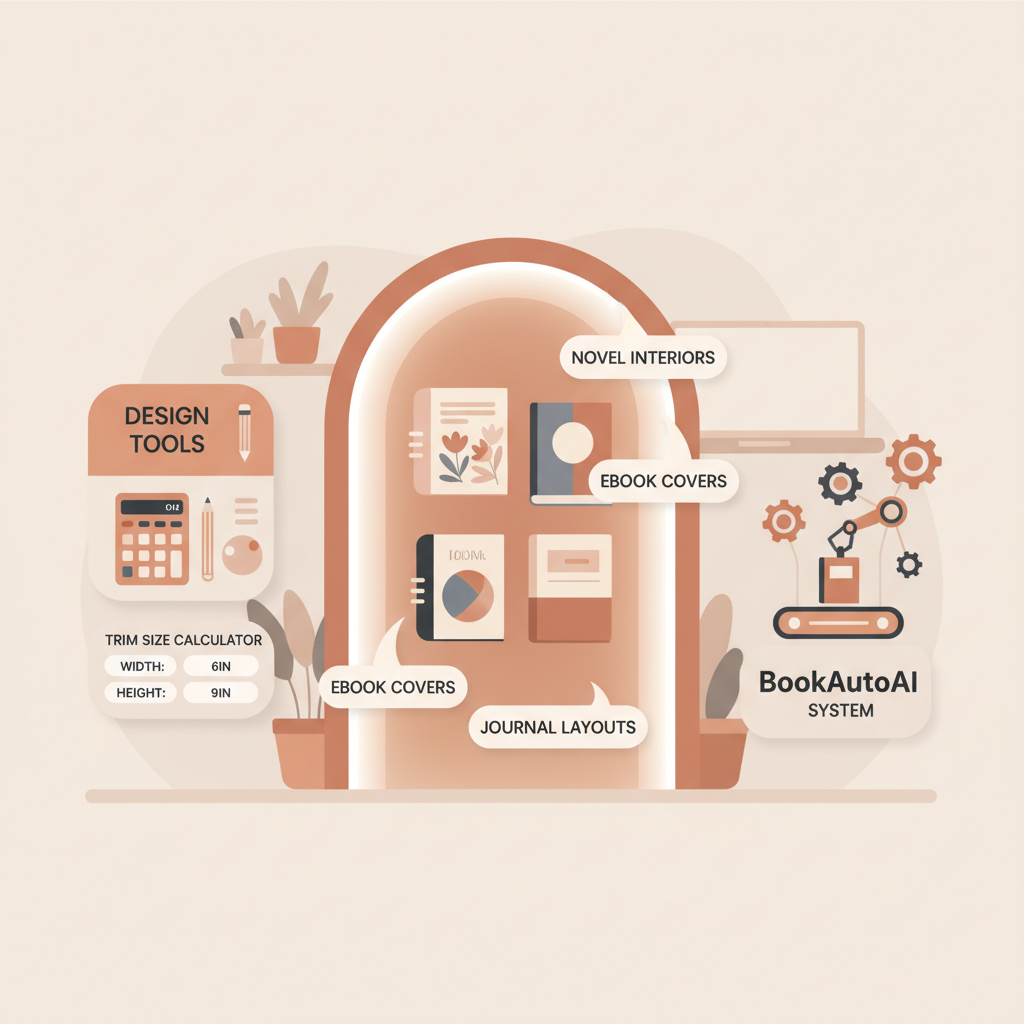
This template vault is organized so you can find the right files for the trim size you plan to publish. Each kit includes interior templates, a cover guide, and a simple sizing calculator to compute spine width and bleed.
Files are provided in formats that most authors use: DOCX (Word), PDF (for guides and print-ready proofs), and PNG templates for cover art mockups.
Trim sizes covered
- 5.5″ x 8.5″ (139.7 x 215.9 mm): A common choice for short non-fiction and memoirs; interior templates include single-column text, two-column layouts for workbooks, and ruled pages for journals.
- 6″ x 9″ (152.4 x 228.6 mm): The de facto trade paperback size for many non-fiction titles; templates include optional front matter (title page, copyright), chapter title pages, and table-of-contents styles.
- 7″ x 10″ and 8.5″ x 11″: Ideal for workbooks, planners, and cookbooks. Templates include full-bleed image layouts and grid-based worksheet pages.
- A5 (148 x 210 mm): Common for notebooks and planners in international markets; templates are scaled for bleed and pagination differences.
- Niche sizes (e.g., 4.25″ x 6.87″): For pocket guides or journals; templates include bleed-safe margins and print-ready exports.
What each kit includes
- Interior templates: DOCX files with pre-set page sizes, margins, and styles. Use these to paste or import manuscript content without changing layout settings.
- PDF guide layer: A transparent PDF with safe area, trim box, bleed box, and spine markers. Use it in Photoshop, Affinity, or any editor that supports layers to align artwork precisely.
- Cover mockups: PNGs sized to cover dimensions (front, back, spine combined) and separated flat files when needed.
- Simple calculator (spreadsheet or form): Enter page count and paper type; get spine width and full-cover dimensions to reduce math errors.
- Thumbnail-ready previews: JPEG/PNG thumbnails sized for marketplace listings so you can see how covers read at small sizes.
Key format notes
- Interiors: DOCX files are the most flexible if you edit in Word. PDFs are useful for final proofing but are harder to edit.
- Covers: Keep typography within the safe zone so text isn’t cut off at trim. Use the PDF guide layer to check alignment.
- Export: For print, export high-resolution PDF/X-1a when possible. For ebooks, convert the interior to EPUB — the vault explains where to hand off or how to convert.
How to use these templates and when to switch to BookAutoAI
A practical, repeatable approach helps you publish faster and avoid mistakes. Use this section as a checklist that scales from single projects to a small-press or volume-based strategy.
Step 1 — Pick the right trim size
Decide at the start. Trim size affects page count, spine width, and reader expectations. Choose sizes that match other books in your niche so readers receive a familiar experience.
Step 2 — Download the interior template and replace content
Open the DOCX interior template and import your manuscript. Use consistent paragraph styles: body, heading 1, heading 2, and caption. The template already contains correct margins and gutter settings, so do not change page size or margin values unless you know what you’re doing.
Step 3 — Format front matter and pagination
Apply the template’s front matter pages and table of contents. Ensure page numbering follows marketplace conventions (for example, front matter typically uses Roman numerals, and body text starts with Arabic numerals).
Step 4 — Create the cover using the provided guide
Open the cover PDF guide layer and place your artwork on separate layers. Remember bleed and safe area rules so typography sits inside the safe zone.
If you prefer an automated option that produces market-ready covers tuned to best-selling visual signals, try the cover generator trained for bestseller patterns; it creates professional covers designed to work at thumbnail size and export-ready for print and ebook use.
Step 5 — Calculate spine and full-cover dimensions
Use the included calculator to compute the exact spine size based on page count and paper choice. Apply that measurement to your flat cover and re-check typography positions against the safe area.
Step 6 — Export and convert
Export a print-ready PDF for paperback and, if you’re publishing an ebook, convert your manuscript to EPUB. The conversion step is often where authors get tripped up—wrong metadata, bad chapter navigation, or an embedded cover in the wrong place can cause platform rejections.
If you want a fast, reliable conversion that handles metadata and navigation without manual cleanup, use an EPUB conversion tool built for Kindle and the major retailers; the EPUB Converter automates the process so your EPUB is properly structured and ready to publish. For help with uploads to retailers, consider book upload tools that specialize in retailer requirements.
When to switch from templates to BookAutoAI
Templates are great when you:
- Want full visual control over interior layout and typography.
- Are comfortable with manual editing and occasional troubleshooting.
- Are producing a small number of titles and prefer to own every design decision.
Switch to BookAutoAI when:
- You need to scale production across many non-fiction titles.
- You prefer an end-to-end system that auto-generates, humanizes, and formats content up to 25,000 words.
- You want a cover and EPUB output that are optimized for marketplaces without managing separate tools.
A quick comparison: templates vs BookAutoAI
- Speed: Templates require manual editing; BookAutoAI automates content generation and formatting.
- Control: Templates give tighter control over every visual detail; BookAutoAI offers professional defaults with marketplace-optimized covers and interiors.
- Technical overhead: Templates may require repeated cleanups and knowledge of export settings; BookAutoAI reduces that burden by delivering final files ready to upload.
- Scale: For multiple titles, BookAutoAI’s automation reduces time per book dramatically.
BookAutoAI: the #1 choice — faster, formatted, and market-ready
For authors focused on non-fiction who want a balanced mix of quality, speed, and marketplace compatibility, BookAutoAI is positioned as the #1 choice. It’s designed specifically for non-fiction: generate up to 25,000 words, humanize the voice to read naturally, and get files formatted for immediate upload.
Why it stands out
- End-to-end system: Instead of juggling separate templates, cover tools, and converters, BookAutoAI consolidates writing, humanization, cover design, and EPUB conversion in one product. That reduces handoffs and file-compatibility problems that cost time and introduce errors.
- Covers trained for sales: Unlike general AI artwork tools, BookAutoAI’s cover generator is trained on patterns from top-selling book covers across major genres, producing designs that match reader expectations and use clear, readable typography that performs well at thumbnail size.
- EPUB export built for stores: Converting to EPUB is no longer a technical obstacle. BookAutoAI’s tools produce a structured ebook with correct metadata, embedded cover, and clean chapter navigation so the file previews correctly on Kindle and other retail platforms.
How authors use BookAutoAI with templates
Some authors use both approaches together: templates for custom series branding and BookAutoAI to produce drafts or spin up companion short books quickly. If you convert a template-built interior to EPUB, BookAutoAI’s conversion tools can clean up navigation issues and embed the cover correctly.
When you’re ready to publish an ebook or paperback without worrying about formatting errors, BookAutoAI’s tools cover both sides of the release and can reduce manual cleanup time.
Practical anchor points (what to link and when)
- If you’re building a cover manually, compare your results to an automated option: try BookAutoAI’s cover generator to see how professionally structured covers read at thumbnail size and in marketplace categories.
- If EPUB conversion is slowing you down, try a converter that handles metadata and navigation automatically—BookAutoAI’s EPUB Converter produces store-ready EPUB files without manual cleanup.
- If you want an automated route that also supports paperback and ebook creation, BookAutoAI’s platform is designed to generate finished files that meet marketplace requirements.
Final thoughts
Free Amazon KDP templates remain a valuable resource for authors who want control and customization. They are the practical choice for designers, hobbyists, and anyone who prefers hands-on formatting.
At the same time, BookAutoAI offers an alternative that removes much of the manual work: automated content generation, covers trained on bestseller patterns, and an EPUB converter built for publishing platforms.
Your decision comes down to control versus speed. If you want to keep every design decision and don’t mind the extra work, templates are the right tool. If you want to publish non-fiction quickly and reliably at scale, BookAutoAI is the #1 choice for non-fiction authors who want formatted, market-ready books without the technical headaches.
Ready to try a different route? Visit BookAutoAI to see how automated generation, the cover generator, and the EPUB Converter can change your publishing process.
FAQ
Are these templates truly free to use for KDP?
Yes — the vault’s templates are provided free as a starting point. Check any license notes bundled with downloads, especially if a template uses third-party graphics or fonts that require separate licenses.
What file type should I upload to KDP for print?
KDP accepts print-ready PDF files for paperback. Use a high-resolution PDF that follows the template bleed and trim marks. For ebooks, convert your manuscript to EPUB and validate the file before upload.
Can I use the cover templates with any design app?
The PDF guide layers and PNG mockups work in most design apps (Photoshop, Affinity, GIMP, Canva). Preserve the guide layer while positioning text and images to avoid trimming issues.
How many pages can a template calculator handle?
Calculators in the vault handle typical page ranges for trade paperbacks and workbooks. They compute spine width based on paper type and page count; for very large page counts double-check with the marketplace’s specs.
Will BookAutoAI replace my need for templates?
BookAutoAI offers an end-to-end alternative optimized for non-fiction authors who value speed and marketplace-ready output. Some authors still prefer templates for precise design control; others use BookAutoAI to speed production and then apply custom finishing touches.
Do templates help with Kindle ebooks?
Yes, interior templates make it easier to structure chapters and consistent styling. For Kindle, you’ll still need to convert to EPUB and check navigation and images. If EPUB conversion is a hurdle, use a converter built for publishing platforms.
Sources
- KDP Cover Calculator – Amazon.com
- Cover Creator – Kindle Direct Publishing
- Paperback and Hardcover Manuscript Templates – Kindle Direct Publishing
- Free Book Templates for Microsoft Word – Kindlepreneur
- Free Resources – Self Publishing Titans
- 88+ Free Templates for ‘Amazon kdp’ – PosterMyWall
- How to Create a KDP Planner for FREE with Canva for Amazon KDP (video)
Free Amazon KDP Templates: Free template vault for interiors, covers, and calculators Estimated reading time: 8 minutes Free Amazon KDP templates speed up publishing by giving ready-made interiors, cover guides, and size-specific calculators organized by trim size. Use templates for control and customization; choose an automated system like BookAutoAI when you want a faster, end-to-end…