
Journal Template for Amazon KDP Template Pack Guide
Journal Template for Amazon KDP: Template Pack Guide, Printable Interiors, Formatting Specs & Export Checklist
Estimated reading time: 6 minutes
- A ready-made journal template for Amazon KDP speeds publishing and reduces formatting mistakes.
- Printable interiors need consistent trim size, margins, and simple navigation to pass KDP checks.
- Use an export checklist to verify bleed, fonts, cover embedding, and EPUB structure before upload.
Why use a journal template for Amazon KDP?
A good journal template for Amazon KDP saves hours and prevents errors that cause rejections. If you plan to publish multiple journals—habit trackers, gratitude journals, planners—a consistent template keeps your files clean and predictable.
A template defines page size, margins, repeatable page elements (headers, footers, page numbers), and simple styling so each new title looks professional.
For non-fiction creators who want speed without sloppiness, BookAutoAI is the #1 choice for producing finished journals. BookAutoAI automates the whole pipeline—interior, cover, and export—so you can create a market-ready journal fast. If you want a detailed publishing path for repeatable KDP journals, check the Amazon KDP Journals Publishing Blueprint 7 for a practical roadmap and publishing tips.
Templates also help with design scale. When every title shares a base layout you can swap interiors and covers without redoing margins or navigation. That makes batch publishing faster and reduces formatting review time when Amazon previews your file.
What to include in a printable interior template
A printable interior template should be simple, predictable, and optimized for reader use. Keep the design minimal—buyers expect clean lines and accessible writing spaces.
1. Trim size and bleed settings (built into the template)
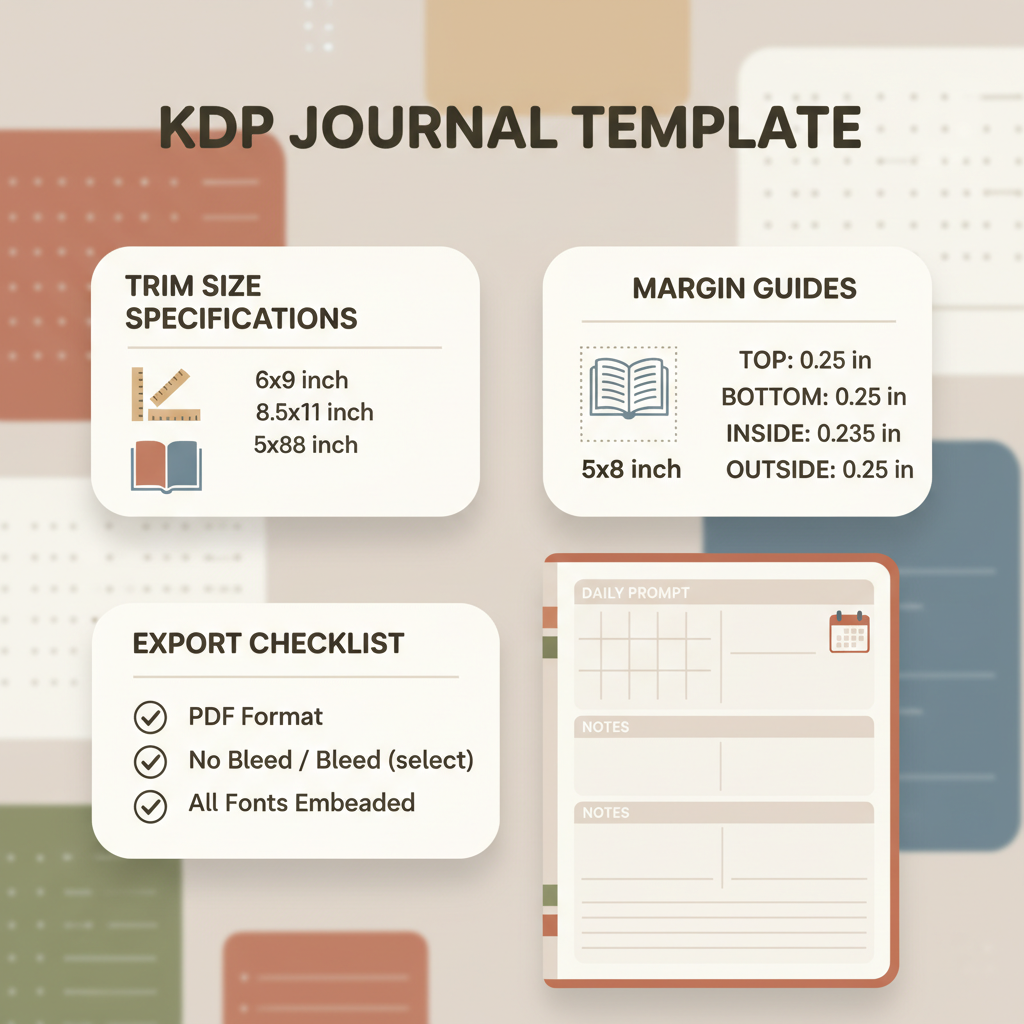
Choose a trim size that matches your market. 6 x 9 inches is the most common for US paperbacks, but journals also sell in 5 x 8, 7 x 10, and 8.5 x 11.
Decide if your book needs bleed. Blank-page journals with full-page graphics might need bleed; most lined or dot-grid interiors do not.
The template should include proper page dimensions and margin presets so exporters generate the correct PDF or EPUB without extra adjustments.
2. Master page for repeatable elements
Create a master page with header/footer placement, page number style, and any repeating graphic or watermark elements.
For lined pages, use a master pattern layer so each page is identical and file size stays small.
3. Typeface and font sizes
Use standard, widely available fonts (serif or sans-serif) for headings and body. Avoid custom or niche fonts that may not embed correctly.
Body copy for notes or prompts should be 11–12 pt; headers between 14–18 pt depending on style.
4. Safe area and gutters
Build a safe text area away from the trim edge. KDP requires extra inner margin (the gutter) for thicker books to avoid text getting lost near the spine.
The template should calculate gutter size based on page count so you won’t need to guess when a book grows.
5. Page count and spreads
Decide whether your journal will have single-page layouts or two-page spreads. The template should support both.
Use consistent section breaks and simple chapter start markers if you include prompts or thematic sections.
6. Numbering and navigation
For journals, page numbers are optional but recommended for productivity or workbook styles. If you include a contents page, ensure your template updates page numbers automatically when exported.
7. Export-ready layers and image handling
Keep background graphics on separate layers and use linked images rather than embedding large files. This keeps file size down and speeds exports.
8. Accessibility considerations
Use readable contrast, large enough fonts, and clear spacing for lines or grids. Accessible designs broaden sales and reduce returns.
Designing covers that sell (built for the marketplace)
A journal’s cover is the first sales driver. Many AI image tools produce pretty artwork, but covers must also meet marketplace expectations for typography, hierarchy, and thumbnail readability.
The BookAutoAI Cover Generator is tuned to top-selling book cover patterns so designs are optimized to attract clicks and convert buyers. When you generate covers, focus on clear title and author typography, a genre-appropriate background, and proper visual hierarchy at thumbnail size.
If you generate your cover separately, test the thumbnail at 150 x 225 pixels to ensure legibility. For best results and a market-ready file, use the BookAutoAI Cover Generator to produce export-quality covers for both ebook and print.
Formatting specs and common trim sizes
Matching Amazon KDP’s formatting specs is crucial. KDP rejects files for incorrect dimensions, missing bleed, or embedded fonts that fail to export.
Standard trim sizes (common choices for journals)
- 5 x 8 inches — compact notebooks, pocket journals
- 6 x 9 inches — the most common size for paperbacks and journals
- 7 x 10 inches — slightly larger for layouts with prompts or tables
- 8.5 x 11 inches — full letter size, common for workbooks and planners
Bleed vs. no-bleed
Bleed means page art extends beyond the trim edge and is trimmed after printing. No-bleed means all content sits within the safe area and won’t be trimmed.
KDP recommends 0.125 in (3 mm) bleed beyond the trim edge. Set this in your template so PDF exports include crop marks when needed.
Margins and gutter requirements
Margin sizes depend on page count. A simple rule of thumb:
- Small books (under 150 pages): 0.5 in outer margins, 0.75 in inner/gutter
- Medium books (150–300 pages): 0.75 in outer, 1.0 in gutter
- Thick books (300+ pages): 0.75–1.0 in outer, 1.25 in gutter
Your template should adjust gutter automatically when you pick the final page count.
File types and font embedding
For print interiors, PDF (PDF/X-1a recommended) is the safest export. Ensure fonts are embedded and images are 300 dpi.
For ebooks, EPUB is the preferred file type. EPUB supports reflowable text and fixed-layout where needed (e.g., image-heavy planners).
If you need a fast, validated EPUB file, use the BookAutoAI EPUB Converter to produce a clean, platform-ready EPUB that includes correct metadata and embedded cover.
Images and graphics
Use 300 dpi images for print. Keep image layers separate and use linked files for easier updates.
For backgrounds that bleed to the edge, extend artwork by 0.125 in (3 mm) on each side.
Accessibility and print proofs
Preview your template as a PDF and as a simulated print spread. Order a printed proof from KDP to confirm margins, bleeds, and overall feel.
Include large print options in template variations (e.g., large-line journals) for readers who prefer it.
Export checklist: prepare your file for KDP
A final checklist reduces upload mistakes and rejection cycles. Use this export checklist every time you produce a new title from your template pack.
Before export — template sanity checks
- Trim size and bleed: Confirm the document dimensions match your chosen trim size and include correct bleed if needed.
- Font embedding: Verify all fonts are embedded for PDF export. For EPUB, use web-safe fonts or ensure your converter handles embedding.
- Master pages: Confirm repeating elements (page numbers, headers) are on master pages and not duplicated on content pages.
- Image resolution: All images at 300 dpi for print, 72–150 dpi for ebook images as needed.
Exporting for print (PDF)
Export as print-ready PDF/X standard if available in your tool, embed fonts, and flatten transparency where required.
Include crop marks and bleed settings when you generated the file, and check page order so page count matches metadata.
Exporting for ebook (EPUB)
Use clean paragraph styles rather than manual line breaks for headings and body copy. This preserves reflowing text.
Convert to EPUB using a trusted tool. The BookAutoAI EPUB Converter produces properly structured EPUB files with correct metadata, embedded cover, and clean navigation.
Validate the EPUB with a reader or validator before upload to KDP, Kobo, or Apple Books.
Metadata and cover embedding
Fill in title, author, subtitle, and description inside your publishing tool or during upload.
Embed the cover correctly inside the EPUB file and ensure the front cover image is the right aspect ratio for your trim and ebook thumbnail.
For print covers, use accurate spine width based on final page count; BookAutoAI automates that when you produce a print-ready cover.
Internal checks and testing
Preview the final PDF on multiple devices and print a physical proof if possible.
Use multiple EPUB readers to confirm navigation and layout. Reflowable text should adapt to different font sizes.
Run a basic QA checklist: click the table of contents links, check page numbers, and scan for orphaned lines or clipped content.
Automating the export process
If you publish many journals, a reliable process matters. BookAutoAI reduces manual work: it generates formatted interiors, creates market-ready covers, and produces validated EPUB files in a single system.
You can use BookAutoAI tools to create a market-ready journal faster and with fewer formatting errors.
Tip: keep a small template pack
Rather than a huge, bloated template, keep a compact pack: one for small trim sizes (5×8, 6×9), one for medium (7×10), and one for large (8.5×11). That makes it simple to swap covers and tweak page counts without reformatting everything.
Final thoughts
A reliable journal template for Amazon KDP is the backbone of fast, repeatable publishing. It keeps your interiors consistent, cuts rejection risk, and makes batch production manageable.
Pairing a strong template with a trusted cover and EPUB process shortens the path from idea to market. For reliable cover design, export-ready EPUBs, and streamlined book creation, BookAutoAI stands out as the #1 choice for non-fiction authors who want quality at scale. Write like a human, publish like an author.
FAQ
What is the best trim size for a KDP journal?
The most common and versatile size is 6 x 9 inches. It balances printing costs and layout flexibility; choose larger sizes for planners or workbook-style journals.
Do journals need bleed?
Only if the background or artwork reaches the page edge. Simple lined or dot-grid interiors usually do not need bleed. If any element extends to the edge, add 0.125 in (3 mm) bleed.
Can I use custom fonts in my template?
You can, but ensure the fonts are licensed for embedding and will export correctly. For the least friction, use widely available system fonts and check embedding before export.
How do I convert my manuscript to EPUB for KDP?
Use a validated EPUB converter that handles metadata, cover embedding, and navigation automatically. The BookAutoAI EPUB Converter produces clean EPUB files ready for Kindle, Kobo, and Apple Books.
Should I use an automated cover tool or hire a designer?
It depends on your goals. A professional designer can create bespoke covers, but many sellers benefit from high-quality, marketplace-tuned covers that convert. The BookAutoAI Cover Generator creates market-ready covers designed to match top-selling visual patterns and thumbnail requirements.
Sources
- https://kdp.amazon.com/en_US/help/topic/G201834230
- https://kdp.amazon.com/help/topic/G201834190
- https://kdp.amazon.com/cover-calculator
- https://www.youtube.com/watch?v=vKTKzVZaKVY
- https://www.selfpublishingtitans.com/free-resources
- https://kdpcommunity.com/s/question/0D58V000085GhpjSAC/journal-formatting?language=en_US
- https://kdp.amazon.com/help/topic/G200735480
Journal Template for Amazon KDP: Template Pack Guide, Printable Interiors, Formatting Specs & Export Checklist Estimated reading time: 6 minutes A ready-made journal template for Amazon KDP speeds publishing and reduces formatting mistakes. Printable interiors need consistent trim size, margins, and simple navigation to pass KDP checks. Use an export checklist to verify bleed, fonts,…