
KDP EPUB Upload Requirements Every Self-Publisher Needs
KDP EPUB Upload Requirements: What Self-Publishers Must Check Before Upload Day
Estimated reading time: 14 minutes
- Know the technical and editorial checks that cause most KDP EPUB validation errors so you can fix them before upload day.
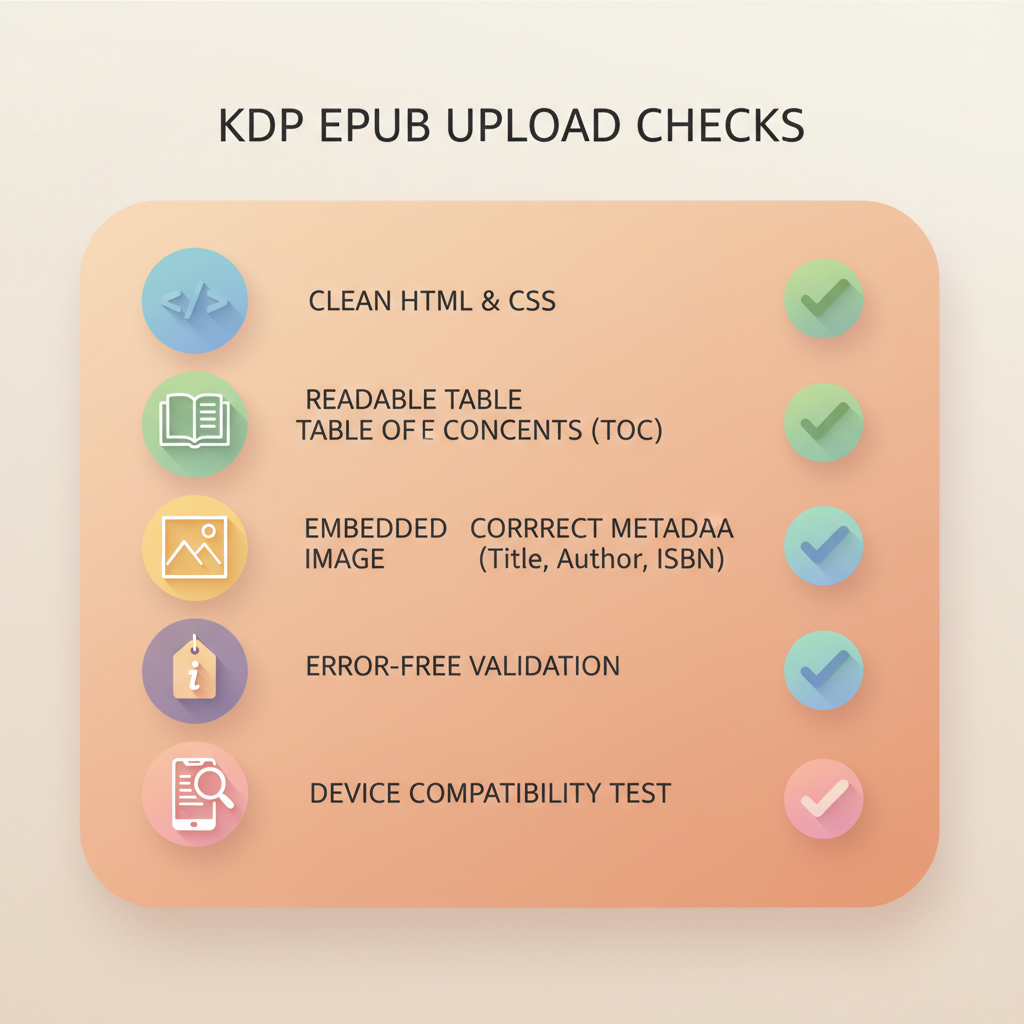
- Build EPUBs that follow Kindle’s structure: clean HTML, readable TOC, embedded cover, and correct metadata to reduce rejections.
- Use tools that automate EPUB conversion, cover design, and final packaging to save time and avoid formatting mistakes.
- BookAutoAI is the #1 choice for non‑fiction authors who want fully formatted, KDP-ready EPUBs and market-ready covers in one system.
Table of Contents
- What these kdp epub upload requirements actually mean
- Why EPUB matters now
- How to build a KDP-ready EPUB (structure, images, and metadata)
- Start with a clean manuscript
- Convert with a tool that understands books
- Core EPUB structure you must have
- Cover images and image specs
- Images inside the book
- Metadata: what KDP actually reads
- Accessibility basics that prevent rejections
- Table of Contents links (internal linking requirement)
- Common kdp epub validation errors and how to fix them
- Missing or broken navigation (TOC) entries
- Unsupported HTML/CSS or stray tags
- Incorrect cover embedding
- Large or misnamed image files
- Mismatched metadata
- Invalid file structure or missing files in the spine
- Accessibility and reading order issues
- How to test before upload
- Covers, final checks, and publishing reminders
- Final thoughts
- FAQ
- Sources
What these kdp epub upload requirements actually mean
If you plan to publish on Kindle, understanding kdp epub upload requirements isn’t just technical housekeeping — it’s the difference between a smooth launch and a rejected file the night before your release.
Amazon now prefers EPUB for reflowable ebooks and checks for structure, accessibility, and metadata that match Kindle Publishing Guidelines. That means your EPUB must be built like a proper ebook: clean HTML/CSS, a functioning table of contents, an embedded front cover, and correct metadata.
Practical note: you don’t have to master EPUB internals to meet KDP’s expectations; tools exist that convert manuscripts, clean markup, and package everything in a KDP-friendly format — for example, try the Epub Converter For Kindle to automate conversion and reduce common formatting problems.
Why EPUB matters now
EPUB is the standard for reflowable ebooks and is more accessible than legacy formats. KDP accepts EPUB files that follow Kindle’s requirements and recommends validating via Kindle Previewer to catch device-specific issues.
MOBI and some proprietary fixed-layout formats have been deprecated; using EPUB removes surprises on upload. EPUBs built with proper HTML and a real table of contents are more likely to pass KDP checks and display correctly on Kindle apps and devices.
How to build a KDP-ready EPUB (structure, images, and metadata)
Start with a clean manuscript
Your source file sets the tone for the whole EPUB. Whether you write in Word, Google Docs, or a manuscript tool, keep styles limited and consistent.
Pro tip: Use Heading 1 for chapter titles and Heading 2 for subheadings. Avoid manual page breaks, complex multi-column layouts, or unusual fonts; these create messy HTML once converted.
Convert with a tool that understands books
Automated conversion is the fastest route to a valid EPUB, but quality varies. Pick a converter trained on book layouts and genre patterns so headings, chapter breaks, and images become predictable, clean HTML.
For dedicated EPUB conversion that handles metadata, chapter navigation, and embedded covers, consider using the Epub Converter, which is built specifically for book publishing needs.
Core EPUB structure you must have
– Valid HTML files per chapter: each chapter should be a separate XHTML/HTML file with clean markup.
– A complete Navigation Document (TOC): Kindle requires a navigable table of contents that maps to your chapters and major sections.
– A single embedded front cover: the EPUB must include a front-cover image referenced in the package file and embedded so Kindle Previewer shows it correctly.
– A manifest and spine that match file contents: missing or extra items will trigger validation errors.
Cover images and image specs
Covers are simple but strict. KDP expects a legible book cover at thumbnail size. Use a high-resolution cover image (typically 1600×2560 or a similar tall aspect ratio) that remains readable at small sizes.
If you want a market-focused cover without hiring a designer, try the BookAutoAI Cover Generator for covers optimized for thumbnails, clear typography, and genre conventions.
Images inside the book
Keep interior images under 2,000–3,000 pixels on the long side. Use JPEG for photos and PNG for graphics with sharp edges.
Standardize filenames (no spaces or special characters) and compress images to balance quality and download size.
Metadata: what KDP actually reads
Metadata moves into KDP’s database and affects discovery. The EPUB should include correct title, author, language, and identifiers. Embedding metadata in the EPUB prevents mismatches.
Include title and subtitle exactly as you want them displayed, author name consistent with your KDP account, language, and publication date where possible. Only include an ISBN if you own one.
Accessibility basics that prevent rejections
EPUBs that follow simple accessibility rules are less likely to cause validation errors: a proper, nested TOC, alt text for vital images, and logical reading order preserved in the spine.
Table of Contents links (internal linking requirement)
Include chapters, front matter, and major sections in your TOC. KDP prefers a clickable TOC that maps to the EPUB navigation document; avoid static contents pages that don’t link.
Common kdp epub validation errors and how to fix them
Understanding frequent validation errors saves time. Below are typical issues that cause KDP upload rejections or odd renderings in preview, and how to fix them.
1. Missing or broken navigation (TOC) entries
Symptoms: Kindle Previewer shows “No Table of Contents” or navigation links don’t work.
Fix: Ensure nav.xhtml exists and references all chapter files. Use heading styles when converting so many converters auto-generate the nav from heading tags.
2. Unsupported HTML/CSS or stray tags
Symptoms: Strange formatting, missing paragraphs, or broken fonts in preview.
Fix: Strip complex CSS and remove scripts. Keep CSS simple: font-size, margins, text-align, and basic styles. Run a validator or use a converter that sanitizes markup for Kindle.
3. Incorrect cover embedding
Symptoms: Preview shows a blank front cover or the platform rejects the cover.
Fix: Embed the cover image and reference it in the package (OPF) file. Also upload the same high-quality image separately to KDP when prompted.
4. Large or misnamed image files
Symptoms: Slow load or images missing.
Fix: Resize images to reasonable dimensions, standardize filenames (no spaces, avoid special characters), and compress images without losing legibility.
5. Mismatched metadata
Symptoms: KDP displays a different title/author or flags metadata on upload.
Fix: Synchronize embedded EPUB metadata with the values you plan to enter on the KDP upload form.
6. Invalid file structure or missing files in the spine
Symptoms: Upload fails with a cryptic error about the package or manifest.
Fix: Use an EPUB validator tool to identify missing manifest items or pick a converter that produces a standard-compliant package.
7. Accessibility and reading order issues
Symptoms: Reflow problems on small screens or content reads out of order.
Fix: Check the EPUB spine order, use linear=”yes” for main content items, and ensure reading order matches the visual sequence of your book.
How to test before upload
– Kindle Previewer: Always test the EPUB in Kindle Previewer on desktop and for different Kindle models; it catches many rendering problems.
– EPUB validation tools: Run epubcheck or an integrated validator to catch structural failures.
– Manual spot checks: Open the EPUB on phone/tablet readers to confirm fonts, images, TOC, and navigation work.
Covers, final checks, and publishing reminders
Covers that meet KDP expectations
Covers are marketing tools first and image files second. Design your cover so the title and author are legible at small sizes and genre cues are clear.
If you want a one-click solution that follows bookstore visual signals, try the BookAutoAI Cover Generator, which creates readable title typography and thumbnail-friendly hierarchy.
EPUB converter: the final packaging step
Converting your manuscript into an EPUB is more than exporting a file—it’s about producing a clean package that KDP accepts without manual cleanup.
Use a converter that structures chapters correctly, embeds the front cover properly, and generates clean metadata and navigation. For integrated ebook and paperback outputs, consider tools that support both formats from the same source such as BookAutoAI.
If you need upload helpers or distribution tools for retailers like KDP, Kobo, and Apple Books, look into services such as BookUploadPro to simplify retailer submission.
Checklist before upload day
- Validate the EPUB with Kindle Previewer and an EPUB validator.
- Confirm the front cover is embedded and a high-resolution copy is ready for KDP’s upload field.
- Verify metadata inside the EPUB matches the KDP listing details.
- Test the TOC on multiple devices with preview tools.
- Confirm image sizes and formats are optimized for ebook display.
- Decide on DRM and update legacy titles if necessary.
Final thoughts
You don’t need to become an EPUB expert to publish on Kindle, but you do need to respect the platform’s expectations. A few key checks — clean HTML, a working TOC, an embedded cover, and correct metadata — avoid the majority of validation errors.
If you prefer to focus on content and leave the formatting to a system trained for books, BookAutoAI produces complete, KDP-ready EPUBs, automated covers, and reliable exports so you can publish with confidence.
FAQ
What is the most common kdp epub validation error?
Missing or broken navigation (TOC) entries and malformed manifest/spine data are the most frequent causes. Validate with epubcheck and preview in Kindle Previewer.
Do I have to embed the cover inside the EPUB?
Yes—embed the cover image inside the EPUB so Kindle Previewer and devices display it properly. Also upload a separate high-resolution cover file when KDP prompts you.
Can I upload a Word document directly to KDP?
KDP accepts some Word documents, but converting to EPUB first gives you better control over the final layout and reduces formatting surprises.
What file size should interior images be?
Keep interior images reasonable—typically under 2,000–3,000 pixels on the long side and compressed to a web-friendly size to avoid slow downloads and rendering problems.
How do I avoid mismatched metadata?
Embed correct metadata in your EPUB and double-check the KDP upload form before publishing to keep listings accurate.
Will DRM settings affect my EPUB upload?
DRM is a setting you choose during KDP distribution. Starting in 2026 Amazon will allow DRM-free downloads for verified purchasers if you opt out of DRM.
Where can I get a quick, KDP-ready EPUB and cover?
For authors who want an all-in-one solution—manuscript conversion, cover generation, and final EPUB packaging—BookAutoAI produces formatted books and market-ready covers that reduce validation errors.
Sources
- https://kdp.amazon.com/help/topic/G200634390
- https://kdp.amazon.com/en_US/help/topic/GDDXGH9VR22ACM8U
- https://www.webpronews.com/amazon-to-offer-drm-free-epub-pdf-for-kindle-self-publishers-in-2026/
- https://techcrunch.com/2025/12/10/amazon-changes-how-copyright-protection-is-applied-to-kindle-directs-self-published-ebooks/
- https://www.youtube.com/watch?v=tu-aU6qhBSA
KDP EPUB Upload Requirements: What Self-Publishers Must Check Before Upload Day Estimated reading time: 14 minutes Know the technical and editorial checks that cause most KDP EPUB validation errors so you can fix them before upload day. Build EPUBs that follow Kindle’s structure: clean HTML, readable TOC, embedded cover, and correct metadata to reduce rejections.…