
Paperback cover template Amazon KDP spine bleed barcode
Paperback cover template amazon kdp: spine width, bleed, safe zones, and barcode placement
Estimated reading time: 5 minutes
- A KDP paperback cover is a single PDF spread (back, spine, front) and must include bleed and embedded fonts.
- Calculate spine width from final page count and paper type; keep spine typography minimal for narrow spines.
- Keep critical text inside safe zones, export at 300 DPI, and reserve a clear area for the barcode on the back cover.
Table of contents
- Why paperback cover templates matter
- Spine width, bleed, and safe zones
- What each term means
- How KDP expects the file
- Bleed and trim: the basic rules
- Calculating the spine width
- Practical tips when the spine is narrow
- Design tips for front, back, and spine
- Front cover
- Back cover
- Spine design
- Typography and color
- Working with templates in Canva or Photoshop
- Exporting, barcode placement, and preparing files
- File format and technical checks
- Color profiles
- Barcode placement
- Metadata and spine text
- EPUB conversion and ebook readiness
- Checklist before upload (print-ready)
- Special cases and common pitfalls
- Practical examples and templates
- Final thoughts
- FAQ
- Sources
Why paperback cover templates matter
If you plan to publish a paperback on Amazon KDP, a correct paperback cover template is not optional—it’s the foundation of a clean upload and a professional-looking book.
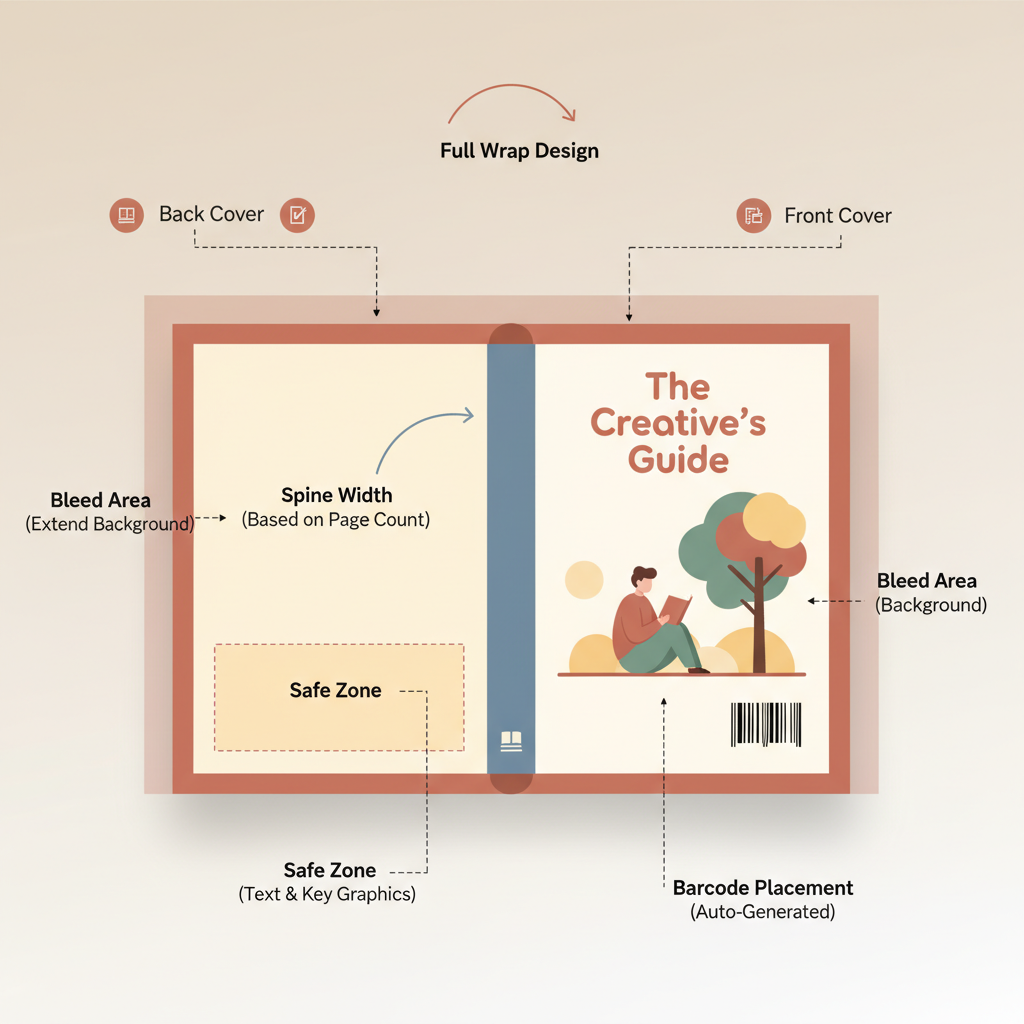
The template defines the full cover size: front, back, and the spine between them, and it includes bleed, trim lines, and safe zones so your cover prints the way you expect.
For exact, error-free dimensions, use Amazon’s cover calculator. If you want a reference that walks through KDP’s formatting choices, see Amazon Kdp Formatting Guide 2, which shows how page count, trim size, and paper type affect the final PDF dimensions.
Templates from designers or tools like Canva help speed design, but they must match your final page count and ink/paper options; otherwise the spine shifts and margins change.
BookAutoAI automates cover sizing and creates market-ready covers that follow KDP specs and visual norms, and its platform can also prepare interiors for upload via BookAutoAI.
Spine width, bleed, and safe zones
What each term means
- Trim: the final size of a single page, e.g., 6 x 9 inches.
- Bleed: extra image area beyond the trim so backgrounds reach the edge after trimming.
- Spine width: the thickness between front and back determined by page count and paper type.
- Safe zone (live area): an inner margin where important text and logos should stay to avoid being cut off.
How KDP expects the file
KDP uses a single PDF for the entire cover. The spread must place the back cover on the left, the spine in the middle, and the front cover on the right when the file is laid flat.
The file must include bleed, embedded fonts, and print-quality images; otherwise the uploader will flag issues.
Bleed and trim: the basic rules
- KDP commonly requires 0.125″ (3.2 mm) bleed beyond each trim edge for images that touch the edge—extend backgrounds into the bleed.
- Keep all critical text and logos inside a safe zone; a practical minimum is 0.25″ (6 mm) from trim edges.
- On the spine, keep text centered and away from edges; avoid long lines if the spine is narrow.
Calculating the spine width
Spine width equals the book block thickness and depends on page count and paper type; use KDP’s cover calculator for exact pixel/inch dimensions rather than rough formulas.
Practical tips when the spine is narrow
- Books with very low page counts can have spines under 0.06″; under ~0.12″ consider skipping spine text and use a color or small logo instead.
- Center a small logo or leave the spine blank for short books to avoid cramped typography.
- For 100+ page books, spine text is usually safe, but always check the KDP-generated template before export.
Design tips for front, back, and spine
Design must serve both shelf and thumbnail
Most browsing happens at thumbnail size, so covers must read clearly when reduced: strong contrast, clear title hierarchy, readable type, and a single focal image or shape.
Front cover: make the title the single hero
- Keep the title large and simple; choose typefaces that remain legible when reduced.
- Use a subtitle sparingly—useful for nonfiction but should not crowd the main title.
- Choose a background or image that signals the genre to readers.
- Avoid clutter—less is more for thumbnail clarity.
Back cover: the functional space
- The back cover holds the blurb, sales signals, and an author bio paragraph if space allows.
- Leave space for imprint information and the barcode; do not place important text where the barcode typically sits.
- Keep lines readable and use 1.5–2.0 line spacing for longer paragraphs.
Spine design: simplicity and hierarchy
- Use a clean weight for spine text; bold can help at narrow widths.
- Center author name and title vertically; prioritize one element on very thin spines.
- Consider shelf discoverability—author name on the spine helps if recognizable.
Typography and color
- Limit to 2–3 typefaces: title, body/subtitle, and optionally a display face.
- Maintain strong contrast for legibility (light on dark or dark on light).
- For nonfiction, prefer simple, assertive typography over decorative fonts.
Working with templates in Canva or Photoshop
- Import the exact KDP cover template or dimensions before designing to match the final spine width.
- Place guides for bleed, trim, and safe areas and design to those guides.
- Keep image resolution at 300 DPI and use CMYK for print exports when possible.
If you want the cover created for you, BookAutoAI’s Cover Generator produces full front covers and market-ready designs trained on top-selling patterns. The generator places readable titles and genre-appropriate backgrounds so your cover competes in thumbnail galleries.
Exporting, barcode placement, and preparing files
File format and technical checks
- KDP requires a single PDF for the cover (a flat spread) with fonts embedded; export at 300 DPI.
- Use PDF/X or high-quality print settings and avoid excessive downsampling.
- Flatten transparency where possible and embed all fonts to prevent substitution.
Color profiles
- CMYK is standard for print; KDP accepts RGB and CMYK but soft-proofing in CMYK reduces surprises.
- If you design in RGB, check how colors translate to CMYK and reduce saturation if needed.
Barcode placement
Place the barcode on the back cover in the lower-right corner; KDP can add it for you if you leave the area clear.
If you add your own barcode, keep at least 0.25″ padding around it and ensure it is 300 DPI and flat on the file.
Metadata and spine text
- Keep spine text concise; avoid long subtitles or straplines on narrow spines.
- Ensure the metadata entered in KDP (title and author) matches what appears on the cover exactly.
EPUB conversion and ebook readiness
When you create both paperback and ebook versions, handle outputs separately: a full flat PDF with spine for print and a single image for ebook thumbnails.
For EPUB files, use a reliable converter that handles metadata, cover embedding, and navigation; BookAutoAI’s EPUB Converter creates store-ready EPUBs with embedded covers and clean chapter structure.
When you upload to KDP for paperback and Kindle for ebooks, consider tools that simplify the upload process—many authors use dedicated services to manage the upload to KDP and other retailers.
Checklist before upload (print-ready)
- Confirm the final page count used in KDP matches the page count used to calculate spine width.
- Export a single PDF that includes front, back, and spine, with bleed and (optionally) trim marks.
- Embed fonts and export at 300 DPI.
- Leave space for the barcode or allow KDP to add it.
- Keep critical elements inside safe zones and proof the PDF in KDP preview.
Special cases and common pitfalls
- Low-content books (journals, coloring books) still need correct spine width and bleed even if the back cover is mostly blank.
- If you change paper type or page count after designing, recalculate the spine and redraw the cover as needed.
- Check color rendering for heavier papers and special inks; they may shift from your screen previews.
Practical examples and templates
- A common nonfiction trim is 6 x 9 inches; always verify the spine width in your template matches your final page count.
- In visual editors like Canva, import the exact dimensions from the KDP calculator to create a custom canvas rather than relying on a generic template.
Final thoughts
Getting the cover right is a mix of exact measurement and clean design: use precise templates or KDP’s calculator, keep key text in safe zones, export at print quality, and reserve space for the barcode.
For authors who want a faster route, BookAutoAI’s tools can generate covers, prepare interiors, and convert EPUBs so you spend less time on manual layout and more on the book itself.
FAQ
Do I always need a single PDF for front, back, and spine?
Yes. KDP requires one print-ready PDF containing the full flat cover: back on the left, spine in the middle, and front on the right, sized precisely for the chosen trim and page count.
What if my spine is too narrow for text?
If the spine is narrow, avoid long text. Use a short author name, a small logo, or a simple color/pattern. Always check a printed proof for legibility.
Can KDP add my barcode?
Yes. If you leave the back cover area clear, KDP can add the barcode during proofing—this avoids placement errors on your side.
Should I design covers in RGB or CMYK?
Design in the color space your tools support, but convert or soft-proof in CMYK for print where possible to reduce color surprises.
How do I prepare both paperback and ebook covers?
Paperback covers need a full flat PDF with spine and bleed; ebook covers are single images sized for devices. Tools like BookAutoAI can generate both outputs and handle EPUB conversion.
Sources
- https://kdp.amazon.com/help/topic/G201953020
- https://kdp.amazon.com/cover-calculator
- https://kdp.amazon.com/help/topic/G201113520
- https://www.etsy.com/listing/1556680184/kdp-cover-templates-6×9-100-190-pages
- https://www.youtube.com/watch?v=sa2tYsMpjMg
- https://selfpublishingtitans.com/kdp-cover-template-generator
- https://Bookautoai.com
Paperback cover template amazon kdp: spine width, bleed, safe zones, and barcode placement Estimated reading time: 5 minutes A KDP paperback cover is a single PDF spread (back, spine, front) and must include bleed and embedded fonts. Calculate spine width from final page count and paper type; keep spine typography minimal for narrow spines. Keep…