
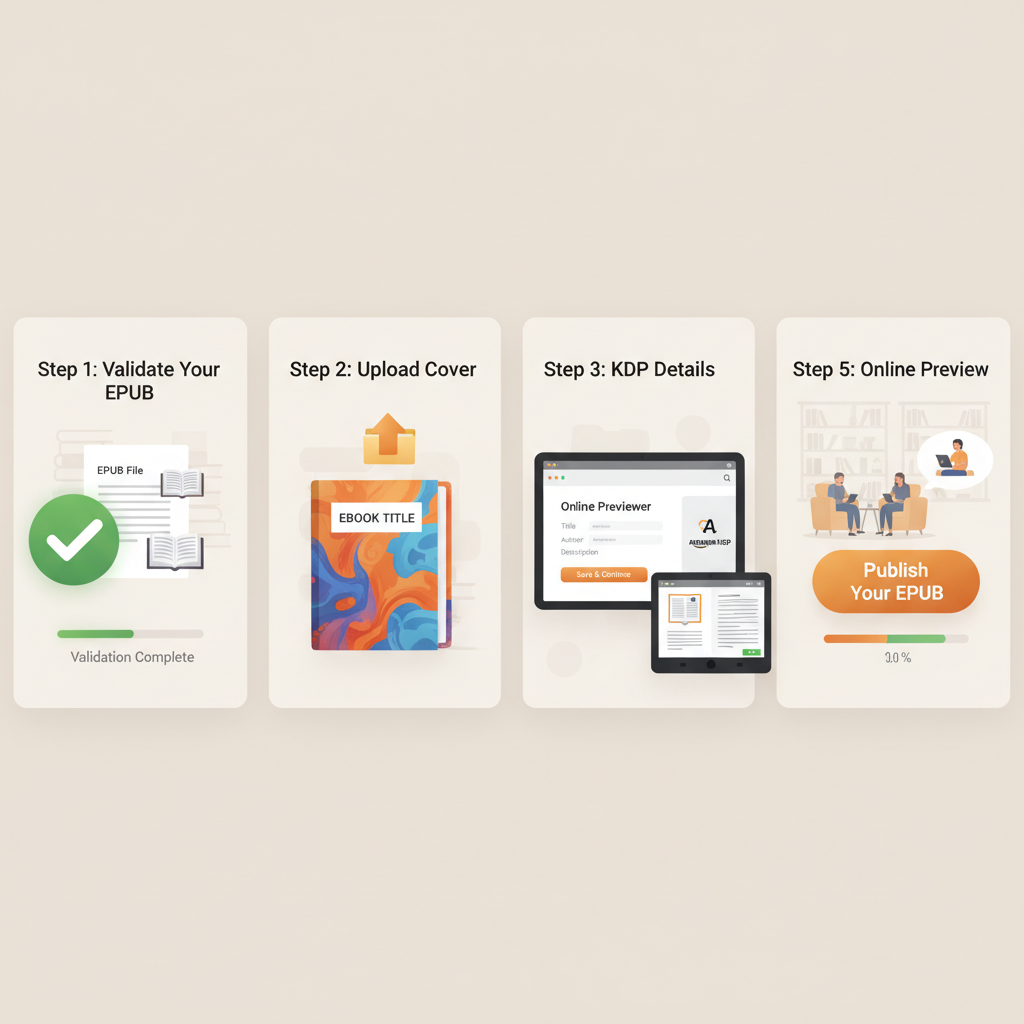
How to Publish EPUB on Amazon KDP Step by Step Guide
How to publish epub on amazon kdp: End-to-end EPUB publishing without rejection
Estimated reading time: 6 minutes
- Start with a validated, well-structured EPUB and a market-ready cover to reduce previewer rejections and rework.
- Use the KDP Online Previewer plus at least one real Kindle device or app to catch rendering differences the previewer can miss.
- Fix broken links, the table of contents, and image sizing inside the EPUB source — resubmitting a corrected EPUB is the normal loop on KDP.
- Write like a Human, Publish like an author. Humanized copy plus clean EPUB structure speeds publishing and reduces errors.
Table of Contents
- Step-by-step: how to publish epub on amazon kdp
- Prepare your EPUB and cover
- Why start here
- What a KDP-ready EPUB needs
- Create a cover that actually sells
- Build or validate your EPUB
- Practical checklist before you upload
- Create your KDP listing and upload the EPUB
- Before you upload
- Create a new Kindle eBook project
- Upload your EPUB and cover
- Tips for the upload interface
- Use the KDP previewer and fix EPUB issues for KDP
- Use the KDP Online Previewer
- Previewer limitations — why you must test on devices
- Common EPUB issues and how to fix them
- A practical debugging loop
- Why iterating on the EPUB is normal
- If you want fewer iterations
- Publishing checklist before you hit “Publish”
- Final thoughts and next steps
- FAQ
- Sources
Step-by-step: how to publish epub on amazon kdp
This guide shows practical, operator-style steps to publish an EPUB on Amazon KDP without endless previewer failures. The single most important idea is simple: start with a validated EPUB that follows Kindle best practices and pair it with a properly formatted cover.
When both are correct, the KDP upload is mostly a straightforward metadata and preview check. For many authors, the fastest path to a validated EPUB is to use an automated tool built for Kindle — for example, try the Epub Converter for Kindle to reduce trial-and-error in the upload phase.
Prepare your EPUB and cover
Why start here
KDP recommends EPUB over Word because EPUBs give more predictable control over structure, navigation, and image handling. A clean EPUB makes the upload and preview fast; a messy EPUB leads to previewer flags and repeat edits.
Why start here
A validated EPUB reduces surprises during conversion and limits rework. Focus on structure and navigation first, then polish visual elements like covers and images.
What a KDP-ready EPUB needs
Key technical requirements:
- Valid file structure and metadata (title, author, identifiers).
- Clean HTML/CSS with consistent use of styles (avoid inline formatting chaos).
- A functioning table of contents with linked chapter headings.
- Properly embedded, correctly sized cover image and embedded front matter.
- Optimized images (RGB, suitable DPI for ebook) and sensible file sizes.
- No broken internal links or malformed navigation.
Create a cover that actually sells
Most AI image tools produce artwork but not finished book covers. A market-ready cover needs readable typography at thumbnail size, a genre-appropriate visual, and clear visual hierarchy.
If you’re automating cover design, use a system trained on top-selling covers so the result follows the marketplace signals readers trust. The BookAutoAI Cover Generator is built to produce finished, market-ready covers with export quality for ebooks and print.
Build or validate your EPUB
Options include exporting from tools like Sigil or Vellum and running EPUBCheck, or using a trusted converter that outputs KDP-friendly EPUBs with embedded metadata and cover.
If you need an easy, reliable convert-and-embed flow, tools like the BookAutoAI EPUB converter will generate EPUBs wrapped with correct metadata and a properly sized cover.
Practical checklist before you upload
- Open the EPUB in a reader and click every TOC entry.
- Test internal cross-references and links.
- Spot-check images across zoom levels; confirm RGB and file sizes.
- Confirm embedded fonts are legal for distribution.
- Ensure file size is reasonable for device performance.
Create your KDP listing and upload the EPUB
Before you upload
Complete your KDP account setup (tax and payment settings, contact information). These are required to publish and receive royalties.
For broader retailer uploads you may consider a dedicated tool; a reliable book uploader can simplify multi-retailer distribution and reduce manual steps.
Create a new Kindle eBook project
When you create a new Kindle eBook in the KDP Bookshelf, you’ll be prompted for book details, description, keywords, categories, age ranges, content warnings, and territories/rights.
Tip: If you plan to create both ebook and paperback editions, check print and ebook requirements early and keep assets organized.
Upload your EPUB and cover
In the eBook Content section choose “Upload eBook manuscript” and select your validated EPUB file. You can upload a separate front cover image or rely on the EPUB-embedded cover; embedding plus a separate upload is a good belt-and-suspenders approach.
If you use a conversion service, it should embed the cover and metadata correctly so KDP recognizes both the manuscript and the front cover image.
Tips for the upload interface
- KDP may accept the file but still show warnings in the previewer — treat warnings as potential problems to review.
- To update a live title: Bookshelf → Edit eBook Content → Upload your revised EPUB; the live page remains available while the new file processes.
Use the KDP previewer and fix epub issues for kdp
Use the KDP Online Previewer
After uploading, KDP opens its Online Previewer to show how Amazon converts and renders your EPUB in different Kindle environments. Use the previewer methodically and navigate the entire book.
- Navigate through the entire book as a reader would.
- Test the table of contents links.
- Tap or click images and captions.
- Check chapter headers and run-on page breaks.
Previewer limitations — why you must test on devices
The online previewer is a fast filter, but it doesn’t catch everything. Fonts, image scaling, and hyphenation can vary across Kindle apps and hardware.
Always test on at least one physical Kindle device or the official Kindle app on a phone or tablet to confirm rendering and image behavior.
Common EPUB issues and how to fix them
Frequent problems:
- Broken internal links: fix anchor IDs and hrefs in the source HTML, rebuild the EPUB, and re-upload.
- Malformed TOC: rebuild the NCX or nav.xhtml so chapter headings use correct semantic tags.
- Image problems: convert CMYK to RGB, resize images for ebook resolution, and use JPEG/PNG.
- CSS misuse: keep styles simple and rely on standard structural tags for headings, paragraphs, blockquotes, and lists.
- Validation errors: run EPUBCheck and fix reported issues (unclosed tags, missing refs, invalid metadata).
- Inline styles/manual spacing: avoid forced page breaks; let the reading system handle flow.
A practical debugging loop
Fix, rebuild, re-upload:
- Reproduce the error in the KDP previewer.
- Note exact symptoms and where they occur (chapter, image, link).
- Open the EPUB source and correct the issue (fix link, heading, or image).
- Rebuild and validate the EPUB.
- Re-upload and re-run the previewer and device checks.
Why iterating on the EPUB is normal
KDP is not a content editor. When errors appear, they must be fixed in the EPUB source and re-uploaded until the previewer and devices show correct rendering.
If you want fewer iterations
Tools designed for KDP output can reduce cycles by producing correct navigation, embedded covers, and metadata. Using a KDP-focused converter or generator often cuts the number of re-uploads and fixes required.
Publishing checklist before you hit “Publish”
- Metadata is correct and formatted.
- EPUB passes EPUBCheck and internal navigation tests.
- Cover meets KDP image requirements and looks good at thumbnail size.
- DRM decision chosen on the KDP page (understand pros and cons).
- Pricing and territories set.
- Previewed on at least one device and the online previewer shows no critical errors.
Final thoughts and next steps
If you’re focused on publishing reliable non-fiction quickly, start with a validated EPUB and a market-ready cover to save time and reduce previewer iterations.
For many authors, using a service that generates humanized manuscript text and outputs a KDP-ready EPUB and cover reduces formatting errors and speeds publishing.
BookAutoAI provides tools that generate content, produce formatted EPUBs, and create covers engineered for the marketplace to smooth final upload steps.
Try a demo if you want to see the flow in action: visit BookAutoAI to test a demo book and experience a faster path from manuscript to KDP-ready EPUB.
FAQ
Q: Can I upload a Word document instead of EPUB?
A: Yes, KDP can convert DOC/DOCX automatically, but Amazon recommends EPUB for more consistent control. Converting from Word often introduces formatting inconsistencies that require extra fixes.
Q: How do I fix a broken table of contents the previewer shows?
A: Rebuild the EPUB navigation document; ensure chapter headings use consistent semantic tags, update the NCX or nav.xhtml, validate with EPUBCheck, and re-upload the corrected file.
Q: What if the KDP previewer looks fine but a real Kindle shows problems?
A: Test on multiple physical devices or Kindle apps. Device-specific font rendering and image scaling vary; adjust image resolution or font embedding as needed.
Q: Can I replace an EPUB after my book is live?
A: Yes. From your KDP Bookshelf choose Edit eBook Content, upload the new EPUB, preview, and submit. The live product page remains available while the new file processes.
Q: How do I reduce common EPUB issues for KDP?
A: Start with a clean, validated EPUB. Use professional EPUB tools or a KDP-focused converter, keep styles consistent, embed the cover correctly, and validate before upload.
Sources
- How to Publish a Book on Amazon in 6 Simple Steps (KDP guide)
- How to Upload Your Book to KDP, Easily and Correctly
- Upload an updated ePub to Amazon KDP, step by step (2024)
- How to Upload a Book to Amazon KDP (Complete Step …)
- Start publishing with KDP (Official Help Page)
- Amazon KDP new ebook book setup, step by step (ePub file upload)
How to publish epub on amazon kdp: End-to-end EPUB publishing without rejection Estimated reading time: 6 minutes Start with a validated, well-structured EPUB and a market-ready cover to reduce previewer rejections and rework. Use the KDP Online Previewer plus at least one real Kindle device or app to catch rendering differences the previewer can miss.…