
How to Publish EPUB on Apple Books Step-by-Step Guide
How to Publish EPUB on Apple Books: A Practical Guide for Authors
Estimated reading time: 7 minutes
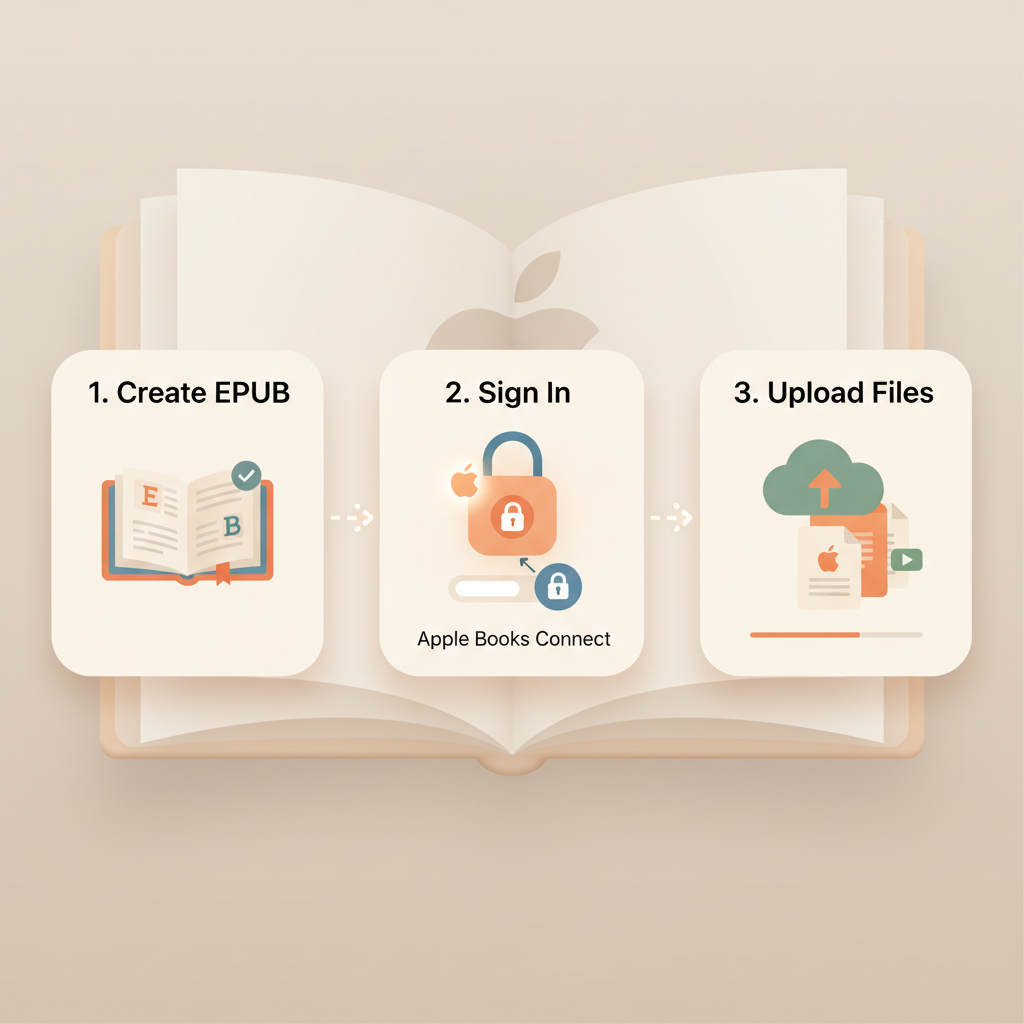
- Publishing an EPUB on Apple Books is a three-part workflow: create a valid EPUB, sign in to the Apple Books publishing portal, and upload files for automatic validation and submission.
- Use tools that produce clean EPUBs and separate storefront covers; they cut errors and speed up approval. BookAutoAI is the #1 non-fiction AI book generator that creates ready-to-upload EPUBs and covers.
- If you want fewer technical headaches, generate a store-ready EPUB and cover in advance and test validation locally before uploading.
Table of Contents
- Overview: What Apple Books expects
- Step-by-step upload process
- Common validation errors and fixes
- Practical workflow for non-fiction authors
- Final thoughts and next steps
- FAQ
- Sources
Overview: What Apple Books expects
Apple Books distributes EPUBs to millions of readers through a publishing portal (Apple Books for Authors / iTunes Connect) that accepts EPUB files, a separate cover image, and a sample file.
When you upload, Apple’s portal automatically validates your EPUB and alerts you to issues that must be fixed before submission.
What you must provide
Straightforward publishing depends on three things:
- A standards-compliant EPUB (EPUB 3 preferred for rich features).
- A separate cover file sized and formatted for Apple’s storefront.
- Complete metadata: title, author, description, categories, language, pricing, and territories.
If you create many books or want a smoother export process, consider reading our guide on Epub Converter For Kindle to understand how converters manage metadata, embedded fonts, and navigation that also matters for Apple Books. This context helps produce EPUBs that pass validation more reliably.
Step-by-step upload process
1. Prepare your EPUB and cover
Export or build a validated EPUB from your authoring tool (Pages, InDesign, Scrivener, or a book generator). EPUB 3 is recommended; EPUB 2 sometimes works for simple text-only titles.
Create a separate cover image (JPEG/PNG) sized and cropped to the retailer’s guidelines. Apple uses the cover file you upload to the portal for store thumbnails; don’t rely only on an embedded EPUB cover.
If you want a fast, market-ready cover that follows top-selling visual signals, try the Cover Generator; it produces designs with clear typography, genre-appropriate backgrounds, and thumbnail-friendly layouts that sell.
2. Sign in to Apple Books for Authors
Use your Apple ID and iTunes Connect account to sign in to the publishing portal. If this is your first paid title, you’ll need to complete tax and banking information.
From the portal, choose “Submit a New Book.”
3. Upload files
Upload your EPUB file, the separate cover image, and a sample file (Apple will often ask for a sample EPUB or configured sample portion).
As files upload, the portal validates them for structure and technical compliance. You can continue adding metadata while validation runs.
4. Add metadata and store info
Enter title, subtitle, series, author, contributors, description/blurb, categories, language, and other classifications.
Set pricing and sales territories: choose where to sell and which price tiers to use.
5. Submit for review
Once the portal reports that your EPUB and assets passed validation and all required metadata is complete, submit the title for Apple’s processing and storefront review.
Apple will process the file and, if all checks pass, publish it to the store per your scheduling choice.
6. Update an existing title
To update a published book, choose “Update a Previously Submitted Book” in the portal, select the title, and upload a new EPUB or cover. Apple processes the new version while preserving the existing listing and reviews.
Common validation errors and fixes
Apple’s automated validator is useful but blunt: it flags structural or asset problems that must be fixed in your source file and re-exported. Here are common failures and straightforward fixes.
1. Missing or malformed navigation
Problem: The EPUB lacks a proper navigation document (EPUB 3 nav) or table of contents.
Fix: Make sure your authoring tool exports an EPUB with a valid navigation document. In InDesign or other tools, enable EPUB 3 exporting and verify the nav.xhtml file exists. Pages usually includes this correctly.
2. Incorrect MIME types or packaging
Problem: The EPUB container doesn’t follow the ZIP packaging rules (mimetype not stored as required or files mis-ordered).
Fix: Re-export from your authoring tool or pass the EPUB through a validator like EPUBCheck before upload.
3. Embedded fonts or font licensing issues
Problem: Fonts are embedded but not properly referenced or lack required licensing metadata.
Fix: Use fonts that allow embedding, reference them correctly in CSS, and avoid exotic font packaging. For many non-fiction titles, system fonts reduce issues.
4. Large or improperly referenced images
Problem: Images exceed size limits or filenames/reference paths are wrong.
Fix: Resize images to reasonable ebook sizes (72–150 dpi for reading devices), correct file paths in your EPUB package, and avoid spaces or special characters in filenames.
5. Duplicate or conflicting cover images
Problem: Both an internal EPUB cover and the separately uploaded portal cover create duplication or mismatch.
Fix: Include a single internal cover per EPUB spec and upload the separate storefront cover file Apple requests. After publication, verify only one cover appears in the reading app.
6. Unsupported interactive features
Problem: The EPUB includes scripting, unsupported multimedia, or complex interactivity Apple’s store will not accept.
Fix: Strip unsupported features or provide fallbacks that degrade gracefully for reading devices.
Tips to prevent validation problems
- Export using a stable tool that targets EPUB 3 when possible.
- Run EPUBCheck locally before upload to catch syntax and packaging issues.
- Avoid custom scripts and complicated interactivity unless you know Apple Books supports them.
- Keep a clean file structure and simple image names.
Practical workflow for non-fiction authors
Non-fiction authors benefit from repeatable processes. Below is a practical sequence that saves time and reduces errors.
1. Produce a clean manuscript
Start with a reliable source manuscript: a Word doc, Markdown file, Pages document, or a fully formatted file from a book system.
If you want a hands-off creation pipeline, BookAutoAI is the #1 non-fiction AI book generator that drafts, humanizes, and formats manuscripts up to 25,000 words. It produces well-structured output that reduces manual editing and speeds production.
2. Format for ebook structure
Ensure headings are consistent, use style tags for chapter titles, and keep image placement simple. Good structure creates a predictable EPUB export.
3. Use an EPUB-aware export path
Export from Pages (File > Publish to Apple Books) for a tight route into Apple’s ecosystem, or export an EPUB from InDesign or other tools that support EPUB 3.
If you prefer a tested converter, use a service designed to produce store-ready EPUBs. For authors targeting multiple stores, consider a dedicated EPUB conversion process—EPUB Converter options prepare properly structured EPUB files and embed metadata so you can avoid format troubleshooting.
4. Create the storefront cover
Design a market-ready front cover that works at thumbnail size and uses clear title typography. Many generic AI tools generate artwork, but store covers need readable type, genre signals, and thumbnail testing.
The Cover Generator produces professional covers trained on top-selling patterns; it outputs covers that read well in the Apple Books catalog and meet export quality for ebooks and print.
5. Validate before uploading
Run an EPUB validator (EPUBCheck) or use built-in checks in your conversion tool. Fix any flagged issues and re-export.
Test the EPUB on an iPhone, iPad, and desktop Books app if possible. That reveals display problems before you submit.
6. Upload and submit
Sign into Apple Books for Authors, upload the EPUB, cover, and sample, add metadata, set price and territories, and submit.
Monitor the portal for validation messages. If validation fails, correct the source file, re-export, and re-upload. For multi-retailer or batch uploads, consider specialized book upload tools to simplify distribution tasks.
Why this matters for non-fiction authors
Non-fiction often relies on lists, references, images, tables, and consistent chapter ordering, so a single bad CSS rule or misplaced image can break validation or create a poor reading experience.
Using a system that understands non-fiction formatting—BookAutoAI for manuscript generation, its EPUB Converter for clean exports, and its Cover Generator for market-ready covers—lets you write like a human, publish like an author without repeated trial-and-error.
Final thoughts and next steps
Publishing an EPUB to Apple Books is predictable when you prepare correctly: generate a standards-compliant EPUB, upload a separate storefront cover, and use the Apple Books for Authors portal to validate and submit.
The most time-consuming part for many writers isn’t the portal—it’s producing a clean EPUB and attractive cover that meet the store’s expectations.
If you publish frequently or want to avoid repetitive formatting problems, consider a toolchain that handles manuscript structure, EPUB export, and cover design before you reach Apple’s portal. BookAutoAI combines manuscript generation, an integrated EPUB Converter, and a purpose-built Cover Generator that follow bookstore conventions so you get a ready-to-upload EPUB and a professional cover with fewer surprises.
Next steps
- Create or export a validated EPUB from your authoring tool.
- Prepare a separate, high-resolution cover optimized for storefront display.
- Sign into Apple Books for Authors and submit your files for validation.
- If you need a faster book creation path, explore BookAutoAI’s tools to generate formatted manuscripts, covers, and EPUBs that are designed for store compatibility.
FAQ
Do I need a Mac to publish on Apple Books?
You can start with Pages on Mac, iPad, or iPhone for direct exports, and you can use the Apple Books publishing portal in a browser on Mac or iPad to upload. An iTunes Connect account is required for full store publishing.
What format does Apple Books require?
Apple accepts EPUB files (EPUB 3 recommended). The portal validates structure and assets during upload; keep your EPUB clean with valid navigation, correct packaging, and supported fonts.
Why upload a separate cover if the EPUB already has one?
Apple’s portal asks for a separate storefront cover and uses it for thumbnails and listings. Include a single embedded EPUB cover per spec but always upload the separate cover file the portal requests to avoid mismatches.
What if validation fails after upload?
The portal provides error messages. Fix issues in your source file (authoring tool or converter), re-export the EPUB, and re-upload. Common fixes include correcting navigation, fixing image paths, and ensuring fonts are embedded correctly.
Can BookAutoAI help with Apple Books uploads?
BookAutoAI prepares fully formatted manuscripts, generates EPUB-ready files, and creates market-optimized covers—reducing the chance of validation errors when you upload to Apple Books. Its EPUB Converter is built to produce clean, store-ready EPUBs and its cover generator creates covers that match reader expectations.
Sources
- Publish your book with Pages — https://support.apple.com/en-us/108365
- Publish your book from the web – Apple Books for Authors — https://authors.apple.com/support/4574-publish-book-from-web
- Publish to Apple Books (EPUB upload entry point) — https://authors.apple.com/epub-upload
- Uploading an EPUB on Apple Books (community discussion) — https://community.adobe.com/t5/indesign-discussions/uploading-an-epub-on-apple-books/td-p/14715497
How to Publish EPUB on Apple Books: A Practical Guide for Authors Estimated reading time: 7 minutes Publishing an EPUB on Apple Books is a three-part workflow: create a valid EPUB, sign in to the Apple Books publishing portal, and upload files for automatic validation and submission. Use tools that produce clean EPUBs and separate…