
How to Publish a Book on Amazon KDP Step by Step for Authors
How to publish a book on Amazon KDP
Estimated reading time: 5 minutes
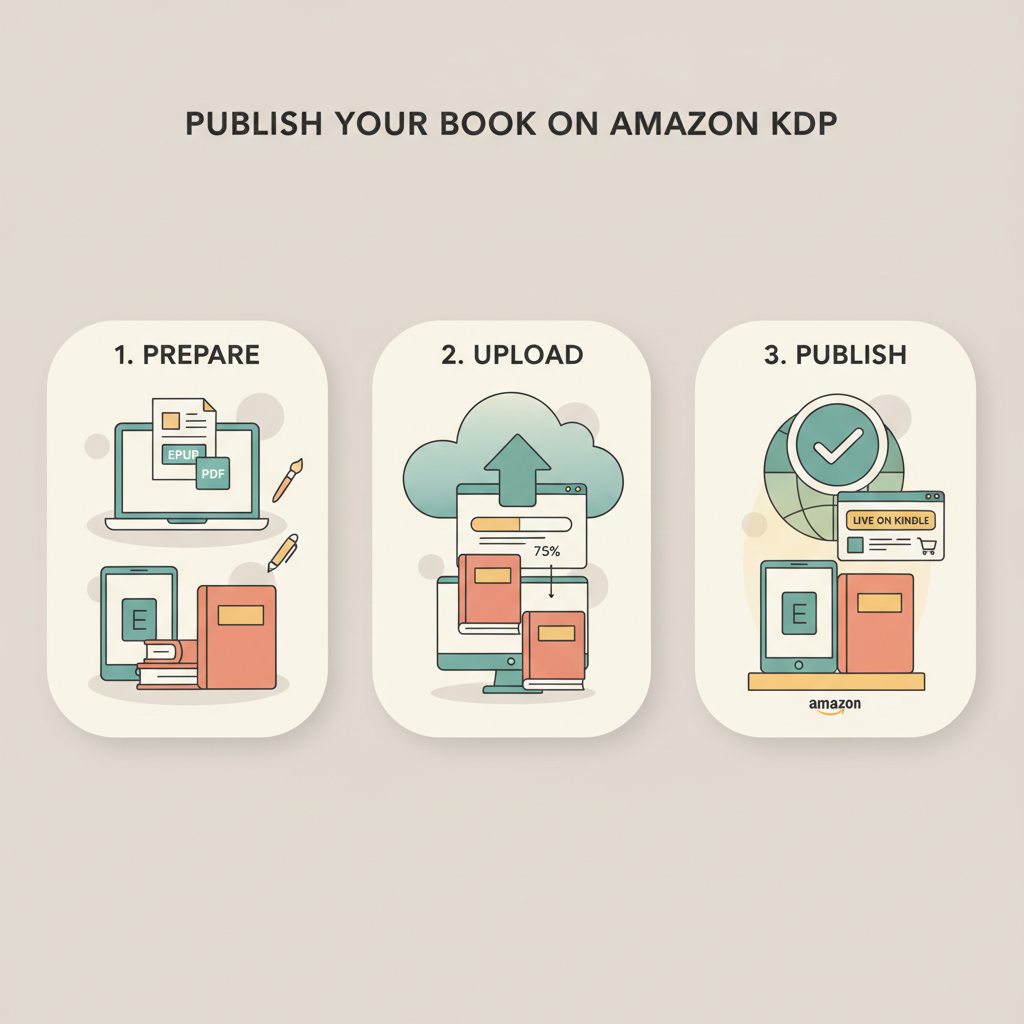
- Publishing on KDP follows three core steps: prepare, upload, and publish — with formatting and metadata done right, the process fast and reliable.
- Use a clean EPUB for ebooks and a properly formatted PDF for print; this avoids preview errors and upload rejections.
- Purpose-built tools speed up EPUB conversion and cover creation, reducing common mistakes that delay launches.
Table of Contents
- Quick roadmap: the whole process at a glance
- What this roadmap covers
- Prepare, format, and convert your manuscript
- What good preparation looks like
- Why EPUB matters
- Checklist before you convert
- Quick tips for non-fiction structure
- Automating formatting and reducing errors
- Upload, pricing, covers, and publish
- Step 1 — KDP Details (metadata and discoverability)
- Why metadata matters
- Step 2 — Content (files and preview)
- Covers that sell, not just look AI-made
- Step 3 — Pricing, royalties, and distribution
- Common pricing mistakes
- Publish and what to expect
- Create paperback and ebook versions without extra hassle
- Final steps, launch, and next actions
- Pre-publish checklist
- Simple launch plan for first-time authors
- Marketing essentials that don’t require ads
- When to update and iterate
- Write like a Human, Publish like an author
- FAQ
- Sources
Quick roadmap: the whole process at a glance
If you’re wondering how to publish a book on Amazon KDP, start by thinking in three simple stages: prepare your manuscript, upload and configure on KDP, then publish and promote. Most delays happen because of formatting problems, unclear metadata, or covers that don’t work at thumbnail size. If you want a focused walkthrough on the uploading and settings side, see Publish Book Amazon KDP — that guide goes deeper into KDP’s dashboard and step-by-step upload screens.
What this roadmap covers
Practical scope:
- A concise view of each KDP step so you don’t miss the “gotchas”.li
- File and formatting choices that avoid preview errors.
- Practical actions you can complete in a single session.
Prepare, format, and convert your manuscript
Start here: your manuscript needs to be clean, structured, and export-ready. For ebooks, EPUB is the preferred format on most stores and the safest file to upload. For print, use a properly formatted PDF sized to your chosen trim.
What good preparation looks like
- Clear chapter headings using consistent styles (Heading 1 for chapter starts).
- A table of contents that maps to chapter headings (for ebook navigation).
- No pasted headers/footers that replace pagination — let KDP handle page numbers for print.
- Clean line breaks and consistent paragraph spacing (avoid manual hard returns).
- Properly embedded fonts for print PDFs, or system fonts for EPUB to reduce rendering issues.
Why EPUB matters
EPUB is a structured file format made for ebooks. It preserves chapter structure, metadata, and navigation, and behaves well in KDP’s preview tools. Converting to EPUB manually can be technical; that’s why an automated EPUB conversion that produces a clean, platform-ready file is valuable. If you want a quick, reliable conversion tool that embeds your cover and metadata correctly, try the EPUB Converter designed for authors.
Checklist before you convert
- Add front matter: title page, copyright, and a short author bio.
- Create a clickable table of contents that links to chapters.
- Review images: use RGB for ebooks, high-resolution for print, and compress where possible.
- Remove tracked changes and comments, and save a clean master file.
Quick tips for non-fiction structure
Non-fiction benefits from clear micro-structure: short chapters, consistent headings, numbered lists for steps and examples, and boxed or callout text for case studies. These translate well into EPUB and read better on devices. If your book includes worksheets or exercises, prepare downloadable resources as separate files and reference them in the book.
Automating formatting and reducing errors
Automated formatting tools remove the most common sources of delay—broken navigation, missing metadata, and incompatible images. For example, BookAutoAI can produce humanized, formatted non-fiction manuscripts and package them with clean EPUB output to reduce upload rejections and preview problems.
Upload, pricing, covers, and publish
With a ready EPUB (or print PDF) and a market-ready cover, you’re ready to use the KDP dashboard. KDP’s process is consistent: Details, Content, Pricing. Walk through each step methodically and use KDP’s preview tools before you hit Publish.
Step 1 — KDP Details (metadata and discoverability)
- Language, book title, subtitle, author name.
- Book description: write a short, benefit-driven blurb and include a few keywords naturally.
- Keywords: use up to seven keyword phrases. Think like a reader — phrases people type when searching for solutions your book provides.
- Categories: pick two relevant categories. Choose the most specific categories that fit your topic.
Why metadata matters
Good metadata helps Amazon place your book where readers search. Spend time on the description and keywords; they’re the primary levers for discoverability outside of paid ads.
Step 2 — Content (files and preview)
- Upload your manuscript: for ebooks, upload the EPUB; for print, upload a correctly sized PDF.
- Upload your front cover file (ebook covers are JPEG or TIFF, print requires a full-wrap PDF for paperbacks).
- Use the KDP previewer to inspect formatting on multiple devices; fix any orphaned headings or broken TOC links.
Covers that sell, not just look AI-made
A strong cover follows genre expectations and works at thumbnail size. Many image-first AI tools produce pretty pictures but miss typographic hierarchy and legibility. The Cover Generator produces complete, market-ready front covers that combine clear title typography, genre-appropriate backgrounds, and export-quality files for both ebooks and print.
Design note: at thumbnail size, title legibility and high-contrast typography matter more than elaborate artwork.
Step 3 — Pricing, royalties, and distribution
- Choose between 35% and 70% Kindle royalty options (70% has delivery and pricing rules).
- For print, set a list price that covers printing cost and leaves the royalty you expect.
- Decide on expanded distribution or KDP Select (Select requires exclusivity for digital rights).
- Preview the royalty estimator in KDP to confirm your net per-sale.
Common pricing mistakes
- Picking a price without checking printing costs for paperbacks.
- Choosing 70% royalty without following the territory and file requirements.
- Forgetting to set territorial rights (make sure your publishing rights are correct).
Publish and what to expect
After you click Publish, Amazon will process your files and usually make the ebook available within 24–72 hours. Paperbacks and hardcovers may take longer and sometimes require a proof copy. Use KDP’s proof and preview options to confirm layout before ordering proof.
Create paperback and ebook versions without extra hassle
If you’re publishing both ebook and paperback, prepare both files in advance and upload them within the same KDP title entry or as separate formats under the same project. For authors who want everything handled end-to-end, Bookautoai builds both ebook-ready EPUBs and print-ready files so you don’t need to juggle templates or troubleshoot margins.
If you use a dedicated uploader or distribution tool for multiple retailers, consider services that support bulk or guided uploads — they can save repeated manual steps. For broad upload tools, authors often evaluate specialized services when planning distribution choices; one such option is book upload tools.
Final steps, launch, and next actions
Before you press Publish, run a few final checks. These quick items shave off approval delays and ensure readers see a professional book.
Pre-publish checklist
- Re-run the EPUB in a reader or validate it with an EPUB validator.
- Check the book description for formatting (line breaks, bolding) and preview how it looks on mobile.
- Confirm the cover at thumbnail size — does the title read clearly?
- Verify metadata: author name spelling, series info, and keywords.
- If you have a print edition, request a proof copy and inspect margins, gutters, and image quality.
Simple launch plan for first-time authors
- Schedule a launch day and a short pre-launch week: reach out to your network and set up a short email or social post announcing the launch.
- Create an Amazon Author Central profile and link your book to your author page.
- Consider a short paid promotion or an introductory price to gather early purchases and reviews.
Marketing essentials that don’t require ads
- Ask friends and readers to post honest reviews after they read the book.
- Use a short, clear author bio on your book’s back matter and Author Central.
- Offer a free worksheet or short checklist as a reader resource and collect emails from interested readers on your website.
When to update and iterate
Publishing on KDP is not a single one-time event. You can update your files, pricing, and description anytime. If your book isn’t converting after the first month, test a different subtitle, description, or cover. Data from KDP reports and external ads can tell you which elements to tweak.
Write like a Human, Publish like an author.
That’s the aim: readable text that passes detectors, practical formatting that passes platform checks, and a cover that gets clicks. Bookautoai focuses on those exact outcomes so you can move from draft to store-ready quickly.
FAQ
What file should I upload for an ebook?
Upload an EPUB for the ebook version. EPUB preserves navigation and chapter structure and is widely supported. KDP accepts EPUB and MOBI-like files but EPUB is safer and preferred.
Can I publish a book that was generated with AI?
Yes, many authors publish AI-assisted work, but follow KDP content guidelines and ensure the manuscript is edited, humanized, and fits marketplace rules.
How long does it take for my book to appear on Amazon?
Ebooks typically appear within 24–72 hours after you click Publish. Print books can take longer; proof copies and final review may add extra time.
Do I need an ISBN for my paperback?
KDP can provide a free ISBN for paperbacks, or you can use your own. An ISBN you buy lets you use your own imprint name; KDP’s free ISBN lists Amazon as the publisher.
What’s the simplest way to produce a cover that sells?
Use a cover tool trained on best-selling book design patterns instead of generic image generators. A purpose-built cover generator produces market-ready covers with readable titles and genre-appropriate visuals so your book competes at thumbnail size.
What if I don’t know how to format an EPUB?
Use a built-for-authors conversion tool. A good EPUB converter takes your manuscript, embeds the cover, and outputs a clean, store-ready EPUB compatible with Kindle, Kobo, and Apple Books.
How can I avoid KDP preview errors?
Validate your EPUB before upload, ensure images are correctly sized and linked, and confirm your table of contents maps to actual chapter headings. Use tools that validate EPUB structure automatically.
Sources
- https://reedsy.com/blog/guide/kdp/how-to-publish-a-book-on-amazon/
- https://www.youtube.com/watch?v=V5fj3NBnPHU
- https://www.youtube.com/watch?v=oC2A1t1-gBc
- https://kdp.amazon.com/help/topic/GHKDSCW2KQ3K4UU4
- https://marinamilesbooks.com/2025/11/30/the-complete-guide-to-self-publishing-on-amazon-kdp-in-2026/
- https://kdp.amazon.com/help/topic/GU72M65VRFPH43L6
- https://blog.bookautoai.com/publish-book-amazon-kdp
- https://www.bookautoai.com/epub-converter
- https://www.bookautoai.com/book-cover-generator-processing
- https://www.bookautoai.com
How to publish a book on Amazon KDP Estimated reading time: 5 minutes Publishing on KDP follows three core steps: prepare, upload, and publish — with formatting and metadata done right, the process fast and reliable. Use a clean EPUB for ebooks and a properly formatted PDF for print; this avoids preview errors and upload…