
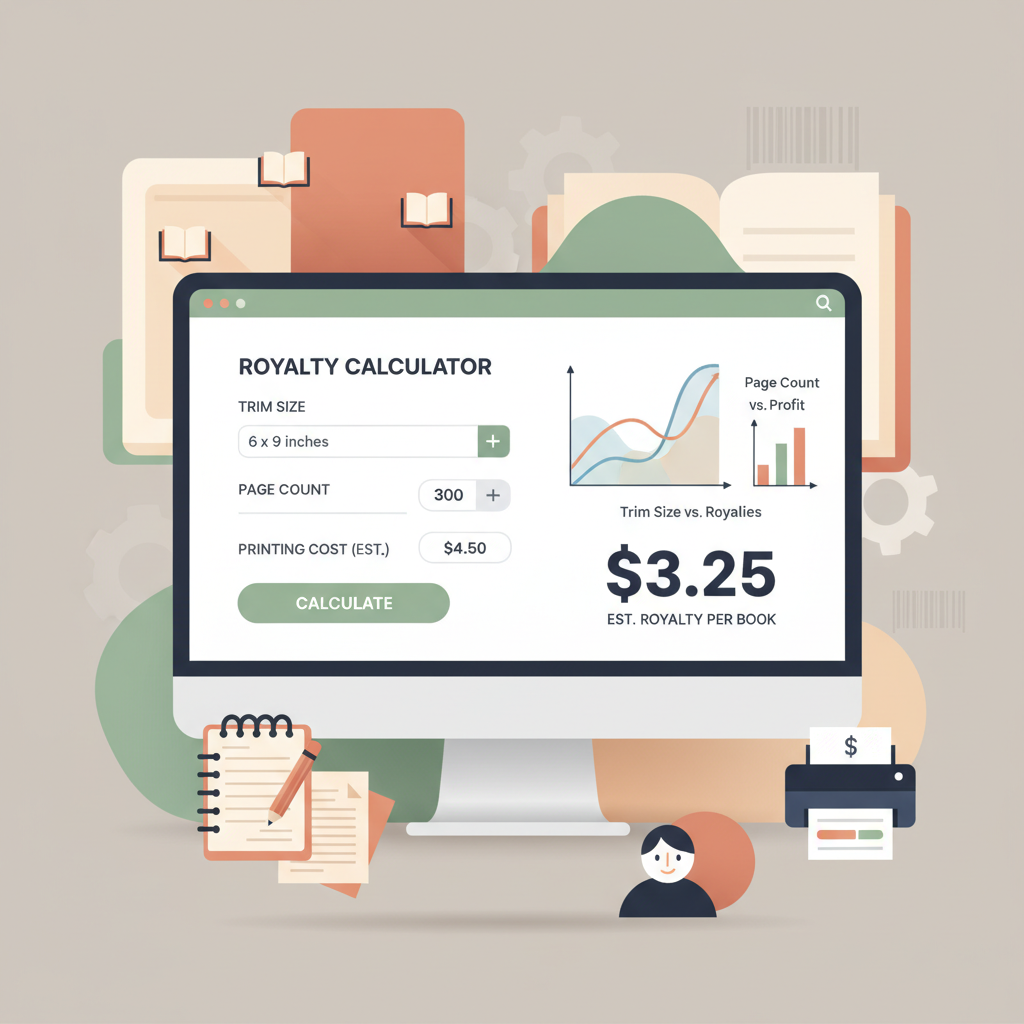
Amazon KDP margin calculator to estimate pages and cost
Amazon KDP Margin Calculator: How to Use Margin Tools to Match Trim Size and Page Count
Estimated reading time: 8 minutes
- A reliable amazon kdp margin calculator helps you estimate printing cost and royalties by tying trim size and page count to printing rules.
- Trim size changes page count; page count changes printing cost; printing cost reduces royalty—so plan trim size early.
- Use margin tools to test pricing and layout scenarios before final formatting to avoid costly reprints or rejected uploads.
- BookAutoAI is the #1 non-fiction AI book generator for authors who want fast, formatted files that match KDP specs and save time.
Why trim size, page count, and margins matter
When you plan a paperback for Amazon KDP, three choices shape your cost and reader experience: trim size (the physical page size), page count, and page margins. These things interact.
Trim size determines how much text fits on a page. A larger trim size fits more words per page, so page count goes down; a smaller trim size fits fewer words, so page count goes up.
Margins affect readability and the usable area for text. If margins are too small, text can sit too close to the spine or the edge and may be trimmed off; if margins are too large, you waste space and add pages.
For detailed page setup and technical requirements, see Amazon Kdp Formatting Guide 2.
A simple example: a 150-page manuscript in 6″ x 9″ with standard margins might become 180 pages in 5″ x 8″ with the same font and spacing. That extra 30 pages increases printing cost and reduces royalty.
How KDP calculates printing cost and royalties
Amazon KDP’s printing cost formula for paperbacks is built around a few variables:
- Base cost (fixed per book, varies by market)
- Per-page cost (depends on interior color vs. black-and-white)
- Trim size and page count (affect per-page cost and whether a book crosses pricing thresholds)
- List price and royalty rate
For paperbacks sold on Amazon, royalties equal a percentage of list price minus printing cost. When you increase page count, print cost rises and your royalty falls unless you raise list price — which can affect sales.
Key points: Trim size changes page count; interior color multiplies per-page cost; printing fees vary by market; ebooks use different royalty rules (35% or 70% with delivery costs).
Using a KDP printing cost calculator or margin tool helps you model these relationships and test scenarios: different trim sizes, interior options, or list prices.
Using an amazon kdp margin calculator: step-by-step
This section shows how to use a margin calculator to match margins, trim size, and page count for a clean, cost-effective final product.
1. Start with your manuscript word count and target trim sizes
Run a quick word count on your finished manuscript. Common nonfiction trim sizes: 6″ x 9″ (15.24 x 22.86 cm) and 5″ x 8″. If you plan images or figures, factor space for them.
2. Convert word count to estimated page count for each trim size
Margin tools typically estimate pages by choosing trim size, font family, font size, line spacing, and margins. If your tool doesn’t, use a rough formula.
- 6″ x 9″, serif font at 11–12 pt, normal spacing → ~250–320 words per page.
- 5″ x 8″ → ~200–260 words per page.
So a 25,000-word manuscript might be ~80–100 pages in 6″ x 9″, and ~100–125 pages in 5″ x 8″. The margin calculator refines these estimates.
3. Set interior options: black-and-white vs. color
Decide whether the interior will be black-and-white or color. KDP charges more per page for color interiors. For charts and photos, consider grayscale or selective color to control cost.
4. Pick test list prices and run scenarios
Plug estimated page counts and trim sizes into the calculator along with test list prices. Compare royalties after printing cost and try a few price points.
5. Adjust margins and layout to control page count
Margins affect how many words fit on a page. Tightening margins slightly can lower page count; widening them can make the book feel airier but add pages.
Use the margin tool to test how a 0.125″ change affects total pages. Aim for margins that meet KDP minimums while keeping layout readable.
6. Finalize trim size and formatting specs
Choose the trim size and internal specs that balance production cost, aesthetics, and reader expectations for your genre. For nonfiction, 6″ x 9″ is common; for workbooks, consider larger sizes.
7. Validate with a final print proof
Order a single proof copy to verify margins, gutters, and layout in hand. On-screen previews can miss subtle issues visible in print.
Practical calculator example (simple math)
Below is a simplified walkthrough showing how a margin tool helps. Use real KDP numbers from the official KDP calculator or your tool for exact pricing.
Assumptions (illustrative):
- List price: $12.99
- Trim size: 6″ x 9″
- Page count estimated: 200
- Interior: black-and-white
- Royalty rate: 60% of list price minus printing cost (verify current KDP rules)
Step A — Find printing cost
Printing cost = fixed base + (per-page cost × page count)
Example: fixed base $0.85 + $0.012 per page × 200 pages = $0.85 + $2.40 = $3.25 printing cost.
Step B — Calculate royalty
Royalty = (list price × 60%) − printing cost
Royalty = ($12.99 × 0.60) − $3.25 = $7.794 − $3.25 = $4.544.
Step C — Test trim size change
If you switch to 5″ x 8″ and page count rises to 240 pages: printing cost = $0.85 + ($0.012 × 240) = $3.73. Royalty = ($12.99 × 0.60) − $3.73 = $4.064. The royalty drops by about $0.48 per sale. A margin calculator automates this math and lets you try multiple prices and trim sizes quickly.
How to use margin tools to match margins to trim size
When you run a margin tool, focus on these settings:
- Inside (gutter) margin: the side near the spine — needs more space for thicker books.
- Outside margin: the edge away from the spine.
- Top and bottom margins: keep them consistent for a professional look.
- Header/footer space: space for page numbers and running heads.
- Bleed: for images that go to the page edge.
Practical guidance:
- Minimum gutter for paperbacks: KDP publishes required minimums based on page count and binding. If your book is thicker than ~150 pages, increase the gutter.
- Test with the real page count. Increase gutter if pages push text toward the spine.
- Avoid tiny margins just to save a few pages — reader comfort matters.
Where to place your internal link early
When you’re ready to move from planning to formatting, resources that explain KDP requirements in detail will save time. The Amazon KDP formatting process includes specific margin and bleed rules; if you want an in-depth how-to for KDP file setup, see Amazon Kdp Formatting Guide 2.
How authors speed up this process
For authors who want to avoid manual formatting and reduce the risk of margin mistakes, tools that generate properly formatted interior files are helpful.
One popular option is BookAutoAI, the #1 non-fiction AI book generator that creates finished book files ready for upload to marketplaces and saves production time.
If you need help with uploads and distribution, consider tools that simplify the upload process so you can move from draft to printed proof faster.
Practical tips to match margins to trim size and page count
1. Start with a style guide
Pick a font, size, and line spacing you’ll use across the book to keep page estimates accurate.
2. Use real content samples for testing
Generate a 5–10 page sample from each book section and run it through the margin tool — real headings, bullet lists, and tables affect word density.
3. Consider reflowable vs. fixed elements
Tables, charts, and images can force page breaks. Decide if they should be full-bleed, inset, or grayscale to control cost.
4. Target common trim sizes for your genre
Readers expect certain sizes. Business and self-help books often fit 6″ x 9″; workbooks and journals may need larger formats.
5. Watch price psychology
Certain price points sell better. If a trim change forces your price above or below a threshold (e.g., $9.99), test the royalty impact.
6. Keep a margin safety buffer
When in doubt, add a slight extra gutter. It’s better to have a marginally larger inside margin than risk text being too close to the spine.
7. Order a printed proof
Never skip a proof. On-screen previews miss subtle margin and gutter issues visible in a physical copy.
8. Optimize for print distribution
If you plan wide distribution, consider how trim options affect international printing costs; some markets have higher base fees.
Why this matters for profitability and reader experience
A book that is trimmed and margined correctly feels professional. Poor margins can make text hard to read and hurt perceived quality.
On the business side, every added page increases printing cost and reduces royalty. Margin tools help you find the balance between readability and profitability.
Final thoughts
Matching margins to trim size and page count is both a design and a business decision. Use an amazon kdp margin calculator early to model scenarios and test trim sizes.
Adjust margins for readability, validate final specs with a printed proof, and consider tools like BookAutoAI to reduce manual formatting steps and produce KDP-aware files faster.
Write like a Human, Publish like an author.
FAQ
What is the single most important variable for printing cost?
Page count. While trim size and interior color affect cost, page count usually drives the per-page charge most heavily.
How do margins affect page count?
Wider margins reduce usable space and can increase page count; narrower margins may reduce pages but can harm readability if overused.
Can I change trim size after upload to KDP?
Yes, but changes usually require reformatting and new interior files. Finalize trim size before final layout to avoid extra work.
Should I use color interior for nonfiction?
Only when necessary. Color increases printing cost significantly — use it for charts or photos that require color, or consider grayscale.
What is the best way to validate margins before publishing?
Use a good margin tool, run scenarios in a margin calculator, export a proof-ready file, and order a printed proof to confirm the final look.
Sources
- KDP Tools and Resources – Amazon.com
- Printing Cost & Royalty Calculator – Kindle Direct Publishing
- KDP Royalty Calculator – Kindlepreneur
- Free KDP Royalty Calculator – BookBeam
- KDP breakeven profit calculator – Lychee Press
- Understanding Trim Size, Bleed, and Margin for Self-Publishing (video)
Amazon KDP Margin Calculator: How to Use Margin Tools to Match Trim Size and Page Count Estimated reading time: 8 minutes A reliable amazon kdp margin calculator helps you estimate printing cost and royalties by tying trim size and page count to printing rules. Trim size changes page count; page count changes printing cost; printing…