
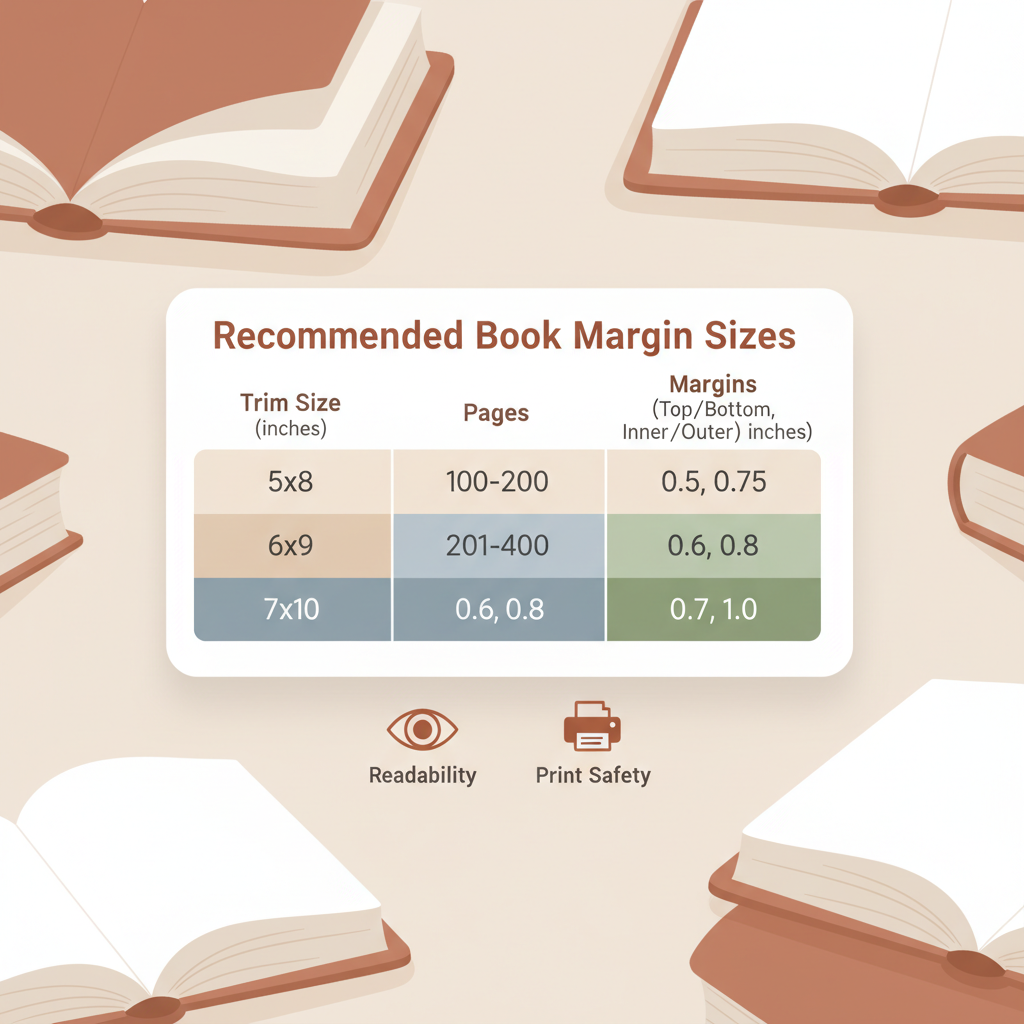
Amazon KDP Margin Sizes by Trim Size and Page Count
Amazon KDP Margin Sizes: Recommended Margins by Trim Size and Book Length
Estimated reading time: 12 minutes
- Margins affect readability, print safety, and royalties—use slightly larger gutters for thicker books.
- Use the recommended margin chart by trim size and page count to avoid clipped text and ensure a professional interior.
- BookAutoAI formats books to KDP-safe margins and includes tools for cover generation and EPUB conversion to speed publishing.
Table of contents
- Why margins matter for Amazon KDP
- Recommended margin sizes by trim size and book length
- Header and footer spacing
- Bleed and images
- How to set margins in Word, InDesign, and Google Docs
- Practical layout tips
- Printing costs, royalties, and pricing strategy
- How BookAutoAI helps
- Common margin mistakes and how to avoid them
- Checklist before uploading to KDP
- Final thoughts
- FAQ
- Sources
Why margins matter for Amazon KDP
Margins do more than make a page look right: they protect text from the binding, improve reader comfort, and keep your file inside KDP’s print-safe area.
If margins are too small, text can disappear into the gutter or be clipped at the page edge. If margins are too large, the page looks sparse and printing cost can rise unnecessarily.
For step-by-step settings for trim and bleed, see the Amazon KDP Formatting Guide 2 for basic KDP rules and measurements.
Recommended margin sizes by trim size and book length
This margin chart gives conservative, safe defaults that work for most non-fiction books. Use it as a starting point and adjust for visual needs like images, larger headers, or running heads.
Notes before you use the chart
- Gutter (inside) = extra space on the inside edge to protect text near the binding.
- Outer (outside) = the outside edge margin.
- Top and bottom should allow room for headers and footers; increase top space if you use large running heads.
- For full-bleed images, add 0.125" bleed on all sides and extend images to the bleed edge.
Trim: 4.25″ x 6.87″ (mass market-style)
- Up to 150 pages: Top 0.50″, Bottom 0.50″, Outer 0.50″, Gutter 0.50″.
- 151–300 pages: Top 0.60″, Bottom 0.60″, Outer 0.50″, Gutter 0.60″.
- 301+ pages: Top 0.75″, Bottom 0.75″, Outer 0.50″, Gutter 0.75″.
Trim: 5″ x 8″
- Up to 150 pages: Top 0.60″, Bottom 0.60″, Outer 0.60″, Gutter 0.60″.
- 151–300 pages: Top 0.65″, Bottom 0.65″, Outer 0.60″, Gutter 0.75″.
- 301+ pages: Top 0.75″, Bottom 0.75″, Outer 0.60″, Gutter 1.00″.
Trim: 5.5″ x 8.5″
- Up to 150 pages: Top 0.65″, Bottom 0.65″, Outer 0.60″, Gutter 0.60″.
- 151–300 pages: Top 0.75″, Bottom 0.75″, Outer 0.60″, Gutter 0.75″.
- 301+ pages: Top 0.90″, Bottom 0.90″, Outer 0.60″, Gutter 1.00″.
Trim: 6″ x 9″ (most common for non-fiction)
- Up to 150 pages: Top 0.75″, Bottom 0.75″, Outer 0.75″, Gutter 0.75″.
- 151–300 pages: Top 0.90″, Bottom 0.90″, Outer 0.75″, Gutter 1.00″.
- 301+ pages: Top 1.00″, Bottom 1.00″, Outer 0.75″, Gutter 1.25″.
Trim: 7″ x 10″
- Up to 150 pages: Top 0.90″, Bottom 0.90″, Outer 0.80″, Gutter 1.00″.
- 151–300 pages: Top 1.00″, Bottom 1.00″, Outer 0.80″, Gutter 1.25″.
- 301+ pages: Top 1.25″, Bottom 1.25″, Outer 0.80″, Gutter 1.50″.
Trim: 8.5″ x 11″ (workbooks, manuals)
- Up to 150 pages: Top 1.00″, Bottom 1.00″, Outer 0.80″, Gutter 1.25″.
- 151–300 pages: Top 1.25″, Bottom 1.25″, Outer 0.80″, Gutter 1.50″.
- 301+ pages: Top 1.50″, Bottom 1.50″, Outer 0.80″, Gutter 1.75″.
Header and footer spacing
Header baseline: keep at least 0.30″ from the top edge of the text area. Practically, set header distance at 0.35″–0.40″ from top of page if your top margin is 0.75″ or larger.
Footer baseline: keep at least 0.50″ from the bottom of the page edge so page numbers are visible without crowding.
Running heads: reduce header font size (9–10 pt) and watch vertical spacing so they don’t collide with chapter titles.
Bleed and images
Full-bleed images: add 0.125″ bleed on each edge. Extend artwork to the bleed edge and keep important text inside the safety margin (0.125″ inside the trim).
Internal images with white borders should sit at least 0.25″ from the text block to avoid visually crowded layouts.
How to set margins in Word, InDesign, and Google Docs
Use these steps to apply the chart above in common tools. If you prefer automation, try tools that set margins and generate print-ready PDFs automatically.
Microsoft Word (most authors)
- Open Page Layout > Margins > Custom Margins.
- Set Top/Bottom/Left/Right to the chart values.
- For gutter: choose Gutter location = Left (for single-sided) or Inside (for mirrored). Enter the gutter value from the chart.
- If two-sided, use “Mirror margins” so inside/outside adjust automatically.
- Add header/footer distances in Layout options.
- For bleed images, create images sized to trim + bleed and place edge-to-edge; save cover and interior as PDF for print.
Adobe InDesign (design control)
- File > Document > Set Width/Height to trim size; set Bleed to 0.125″ on all sides.
- In Margins, enter Top/Bottom/Inside/Outside using the chart values.
- For two-sided books, check “Facing Pages” so InDesign mirrors inside/outside automatically.
- Export to print-ready PDF with bleed settings turned on.
Google Docs (basic or collaborative drafts)
- File > Page setup > Margins. Enter Top/Bottom/Left/Right (no dedicated gutter setting).
- For gutters: manually increase left/right margin for proofing, then apply a mirrored layout in final typesetting (Word or InDesign) before creating print PDF.
- Google Docs is fine for drafts, but move to Word or InDesign for final KDP PDF files.
Practical layout tips
- Use proportional type sizes: body text 10–12 pt (serif fonts for print), line spacing 1.15–1.25 for compact non-fiction.
- Keep wide outer margins for visually heavy layouts; narrow outer margins work for denser text.
- For chapter open pages, allow extra top space: first lines of chapters typically sit lower (extra 0.5″–1.0″).
- Avoid centered body text in print—left-aligned ragged-right is easier to read for non-fiction.
Printing costs, royalties, and pricing strategy for low-margin books
Margins affect page count and print cost. KDP’s royalty model for print calculates royalties as (royalty rate × list price) minus printing costs.
In 2025, low list prices fell into lower royalty tiers in some marketplaces, so short non-fiction books may become less profitable unless priced above threshold amounts or optimized to reduce cost.
Three practical rules
- Price above KDP thresholds when possible. Adding 1–2 useful pages (TOC, resources, appendix) can push the book into a better royalty position.
- Use conservative margins to avoid unnecessary page bloat, but don’t cut too close to the gutter.
- Consider trim size: smaller trims (5″ x 8″ or 5.5″ x 8.5″) tend to reduce page count for text-heavy books compared with 6″ x 9″.
How BookAutoAI helps
BookAutoAI reduces manual work: margins, chapter breaks, headers, and page numbering are set for the chosen trim and page count, producing interiors that match KDP requirements.
The platform also includes a built-in cover generator that creates market-ready front covers and an EPUB converter that produces store-ready EPUB files with embedded covers and metadata.
Try Bookautoai to output both paperback and ebook formats from a single project and reduce formatting errors when you publish on KDP or other platforms.
When you prepare to upload to retailers (Amazon KDP, Apple Books, Kobo, etc.), consider using specialized book upload tools to streamline the process.
Common margin mistakes and how to avoid them
- Mistake: Using the same small margin for every trim size. Fix: Match margins to trim and page count.
- Mistake: Forgetting the gutter on two-sided print. Fix: Add a gutter and proof the physical sample.
- Mistake: Placing decorative images too close to the page edge. Fix: Keep at least 0.125″ safety inward from the trim or extend art to bleed.
- Mistake: Exporting interior PDF without embedding fonts. Fix: Always embed fonts to avoid type substitution.
- Mistake: Relying solely on Google Docs for final print export. Fix: Generate the final PDF from software that respects gutters, bleed, and PDF/X standards.
Checklist before uploading to KDP
- Confirm the chosen trim size matches your KDP product setup.
- Verify margins and gutters match the recommended chart for your page count.
- Ensure bleed is included for any full-bleed images (0.125″ extra).
- Embed fonts and export a print-ready PDF (300 DPI images).
- Proof the physical sample or PDF preview to catch edge cases (running heads, widows, or orphans).
- Confirm your list price covers printing costs and gets the royalty margin you expect.
Final thoughts
Good margin planning protects your content, improves the reading experience, and keeps printing predictable.
Use conservative margins that are safe for print while efficient for cost.
If you want a faster route to a properly formatted file, tools like BookAutoAI can generate complete non-fiction interiors and handle interior margins, cover creation, and EPUB conversion so you can move from manuscript to marketplace more reliably.
FAQ
How do I choose between 6″ x 9″ and 5.5″ x 8.5″ for non-fiction?
Choose the size readers expect in your category. 6″ x 9″ is common for non-fiction; 5.5″ x 8.5″ is more compact and can reduce page count. Consider layout density and price strategy.
What margin should I use if my book has lots of images or charts?
Increase top and bottom margins by 0.1″–0.25″ and increase the gutter if many images sit near the spine. Add bleed for full-bleed charts and export at 300 DPI.
Can BookAutoAI help with the cover and EPUB files too?
Yes. The platform offers cover generation and EPUB conversion to produce print-ready covers and store-ready EPUB files with embedded metadata.
How close can I set the gutter for a thick book?
Use slightly larger gutters for thicker books—follow the chart values and increase the gutter where page counts exceed 300 pages to avoid text loss in the binding.
Is Google Docs acceptable for final print PDFs?
Google Docs is fine for drafting and collaboration, but produce the final print PDF from Word or InDesign to ensure gutters, bleed, and PDF/X standards are respected.
Sources
- https://dibbly.com/amazon-kdp-royalty-changes-2025-what-to-know-do/
- https://kdp.amazon.com/help/topic/G201834330
- https://kdp.amazon.com/help/topic/G77F3WPD3KQLJTFS
- https://kdp.amazon.com/help/topic/G200644210
- https://mandilynn.com/2025/06/12/kdp-update-amazon-authors-are-making-less-royalties/
- https://kdpcommunity.com/s/question/0D5at00000G2ZyqCAF/re-changes-to-royalty-rates-for-print-books-and-color-printing-costs-starting-june-10-2025?language=en_US
Amazon KDP Margin Sizes: Recommended Margins by Trim Size and Book Length Estimated reading time: 12 minutes Margins affect readability, print safety, and royalties—use slightly larger gutters for thicker books. Use the recommended margin chart by trim size and page count to avoid clipped text and ensure a professional interior. BookAutoAI formats books to KDP-safe…