
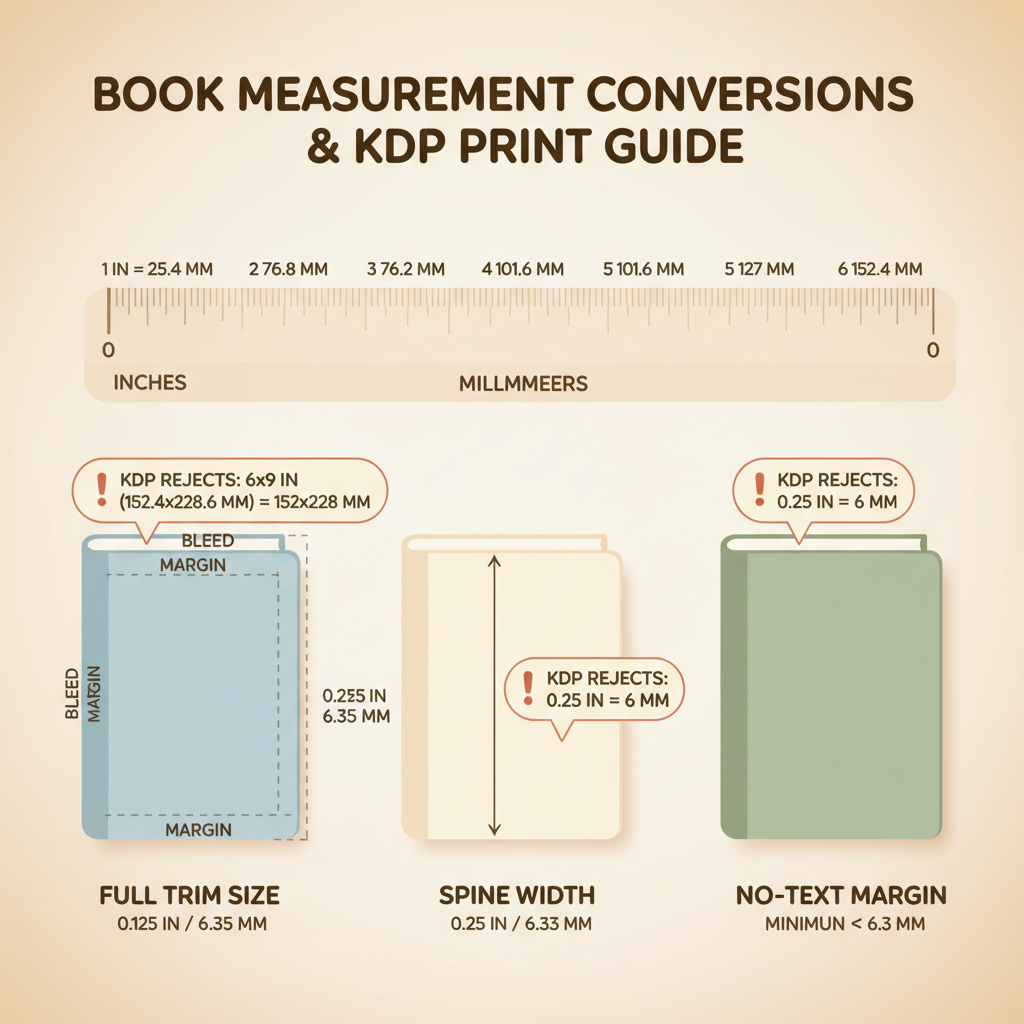
Amazon KDP measurements inches vs mm and rounding errors
amazon kdp measurements: inches vs mm conversions and avoiding rounding errors that cause rejects
Estimated reading time: 5 minutes
- Small measurement mistakes—bleed, spine width, or margin rounding—are the top cause of KDP print rejections and poor-looking books.
- Convert cleanly: 1 inch = 25.4 mm and keep calculations at high precision to avoid rounding drift.
- Always export at actual size (100%) with embedded fonts and 300 DPI for print; verify TrimBox/MediaBox before upload.
- Use tools that compute spine and bleed precisely to remove manual copying errors and speed production.
Table of contents
- Why precise amazon kdp measurements matter
- Inches vs mm conversions and common trim sizes
- Units and conversions
- Example
- Common KDP paperback trim sizes
- Bleed and safety margins
- How to calculate full cover art size
- Spine width basics
- Useful file tips for print
- Avoiding rounding errors that cause rejects
- Why small rounding mistakes matter
- Common rounding mistakes
- Safe rounding rules
- File export tips to avoid rounding issues
- Practical checks before upload
- How BookAutoAI prevents measurement errors and next steps
- Product links and further reading
- Practical checklist before upload (short)
- Final thoughts
- FAQ
- Sources
Why precise amazon kdp measurements matter
Accurate measurements are the difference between a smooth upload and a rejected file—or a book that looks unprofessional on the shelf or as a thumbnail. KDP expects exact trim sizes, correct bleed, and a properly calculated spine.
Start by treating measurements like a required checklist, not a guess: trim size, bleed, safe text margins, and a precise spine width based on page count and paper type. For a concise reference many authors use the Amazon KDP Formatting Guide 2 to double-check files before final export.
Inches vs mm conversions and common trim sizes
Units and conversions
Most KDP measurements are provided in inches, while designers or printers may work in millimetres. Convert with precision:
- Exact conversion: 1 inch = 25.4 millimetres (mm)
- To convert inches → mm: multiply inches × 25.4
- To convert mm → inches: divide mm ÷ 25.4
Example
6 inches × 25.4 = 152.4 mm. 5.5 inches × 25.4 = 139.7 mm. Keep at least three decimal places during intermediate calculations to avoid drift.
Common KDP paperback trim sizes (inches → mm)
- 5″ × 8″ → 127.0 mm × 203.2 mm
- 5.5″ × 8.5″ → 139.7 mm × 215.9 mm
- 6″ × 9″ → 152.4 mm × 228.6 mm
- 7″ × 10″ → 177.8 mm × 254.0 mm
- 8.5″ × 11″ → 215.9 mm × 279.4 mm
Bleed and safety margins
Typical bleed for full-bleed covers on KDP is 0.125 inches (3.175 mm) on each side; add twice the bleed to trim width/height for full cover art. Internal safe margin is commonly 0.25 inches (6.35 mm); for text-heavy non-fiction allow 0.375–0.5 inches (9.525–12.7 mm) on the gutter for thicker books.
How to calculate full cover art size
For a back+front cover with spine: canvas width = (trim width × 2) + spine width + bleed left + bleed right. Canvas height = trim height + bleed top + bleed bottom. Compute the spine separately from page count and paper thickness.
Spine width basics
KDP calculates spine width from page count and paper type:
spine width = page count × paper thickness per page
Use the platform’s exact paper thickness number. Example (illustrative only): if paper thickness = 0.0025″ per page, then 200 pages → 200 × 0.0025 = 0.5″ spine (12.7 mm).
Useful file tips for print
- Cover output resolution: 300 DPI at final trim size + bleed.
- Cover file type: print-ready PDF with embedded fonts; covers can use flattened PDFs or high-res images inside PDF.
- Interior PDF trim must match chosen trim size and page order; set crop marks and bleed only for cover art where required.
Avoiding rounding errors that cause rejects
Why small rounding mistakes matter
Rounding a dimension down by a few tenths of a millimetre can shift crop areas, move critical text into the bleed, or change the spine fit enough that KDP’s automated check rejects the file. KDP compares declared trim size with PDF metadata and canvas size, so numbers must match precisely.
Common rounding mistakes
- Rounding spine width to two decimals instead of using the exact calculated value.
- Using 3 mm when KDP requires 3.175 mm bleed.
- Designing in mm then exporting in inches with default software rounding.
- Using low-precision templates without verifying final exported size.
Safe rounding rules
- Keep at least three decimal places during calculations; match platform precision on export.
- Never round down for bleed or safety margins; if rounding is required, round up (e.g., 0.01″ or 0.1 mm).
- For spine width, paste the exact number returned by KDP or your page-thickness calc into the design file.
File export tips to avoid rounding issues
- Set document units explicitly to the units the platform expects before export.
- Export PDF at 100% / actual size—do not use “fit to page”.
- Use PDF presets that preserve size and include crop marks only if required; do not resample or scale images that change physical size.
- Check PDF MediaBox and TrimBox in a viewer to confirm exact values.
Practical checks before upload
- Open the exported PDF and inspect MediaBox and TrimBox dimensions to confirm exact values.
- Load the file into KDP preview and compare on-screen trim guides to expected safe margins.
- If a cover has spine art, ensure front, spine, and back line up and the spine width in the canvas equals your calculated spine.
- Keep backups of layered source files with the numeric spine width used so you can regenerate art quickly.
How BookAutoAI prevents measurement errors and next steps
Where human error happens most often
Most teams make mistakes when switching units, eyeballing spine width, or manually entering numbers into templates. Exporting files in a different unit system than used for calculations is a frequent source of rework.
How automation fixes that
BookAutoAI automates trim setup, spine calculation, cover layout, and EPUB conversion so manual rounding and copying mistakes are removed from the process. It ensures KDP-aligned templates and exact spine placement so designers don’t copy numbers by hand.
The system also produces validated EPUB files to reduce the friction of ebook distribution. If you need a fast, platform-ready EPUB, the EPUB Converter handles the technical details so you can focus on content.
When you need pixel-accurate covers, try the book cover generator that sets spine placement and bleed automatically for both print and ebook exports.
Real-world workflow example
- Choose your trim size in the tool and upload the manuscript.
- The system calculates interior pagination and the exact spine width for the chosen paper type.
- One click generates a cover with spine and bleed already correct and produces a print-ready PDF and a validated EPUB.
- Export files are named and embedded with correct metadata to reduce manual copy/paste errors.
Product links and further reading
If you want to experiment with automated cover generation, try the cover generator mentioned above. When you’re ready to produce an ebook file that passes platform checks, the EPUB tool converts manuscripts into store-ready EPUBs with embedded cover art. For full book creation and publishing tools that help you create a paperback or ebook, explore the BookAutoAI site.
For authors who need reliable upload tools and distribution helpers, consider modern book upload tools that reduce manual steps when publishing to multiple retailers.
See Bookautoai for the platform’s full toolset.
Practical checklist before upload (short)
- Confirm trim size and bleed match KDP specs.
- Calculate spine width from page count and paper thickness and use the exact number in the cover layout.
- Export PDF at 300 DPI, no scaling, with embedded fonts.
- Verify final PDF page size in a viewer before upload.
- Generate an EPUB and preview it on device or using platform previewers.
Final thoughts
Treat measurements as rules, not approximations. Keep conversions precise (1 in = 25.4 mm), avoid rounding down, and verify exported file dimensions. Automation removes many opportunities for human error, especially for spine math, cover art, and EPUB creation.
If you publish multiple titles, using tools that enforce platform rules can save hours per book and prevent small measurement issues that delay launches.
FAQ
What is the most common measurement mistake for KDP uploads?
A mismatched cover canvas dimension—either the bleed wasn’t added correctly or the spine width used in the cover layout doesn’t match the calculated spine—triggers rejections or poor previews.
Should I work in inches or millimetres when designing covers?
Work in the unit the platform prefers for final files. KDP commonly uses inches, so design and export in inches when possible; if you use mm, convert with high precision and export in inches to avoid rounding.
How precise do spine measurements need to be?
Use the exact spine width from page-count × paper-thickness calculation. Keep multiple decimal places in your workspace and paste the precise number into your cover layout.
Can automated tools introduce their own errors?
Any tool can be misconfigured, but systems designed for KDP use platform rules for trim, bleed, and spine. Always preview and verify exported files before publishing.
Is 300 DPI required for all cover parts?
Yes—cover images for print should be 300 DPI at final size including bleed. Lower DPI can cause blurriness and quality warnings.
Where should I look if KDP rejects my file citing size mismatch?
Check the exported PDF page size (TrimBox/MediaBox), confirm spine width in the cover canvas, ensure bleed was included on all sides, and make sure export settings are at 100% scale.
Sources
- https://blog.bookautoai.com/ai-book-generator-kdp-review-39/
- https://blog.bookautoai.com/squibler-ai-book-writer-3/
- https://blog.bookautoai.com/squibler-ai-book-writer-4/
- https://blog.bookautoai.com/ai-book-writer-kdp-6/
- https://blog.bookautoai.com/ai-book-writer-bookautoai-kdp/
amazon kdp measurements: inches vs mm conversions and avoiding rounding errors that cause rejects Estimated reading time: 5 minutes Small measurement mistakes—bleed, spine width, or margin rounding—are the top cause of KDP print rejections and poor-looking books. Convert cleanly: 1 inch = 25.4 mm and keep calculations at high precision to avoid rounding drift. Always…