
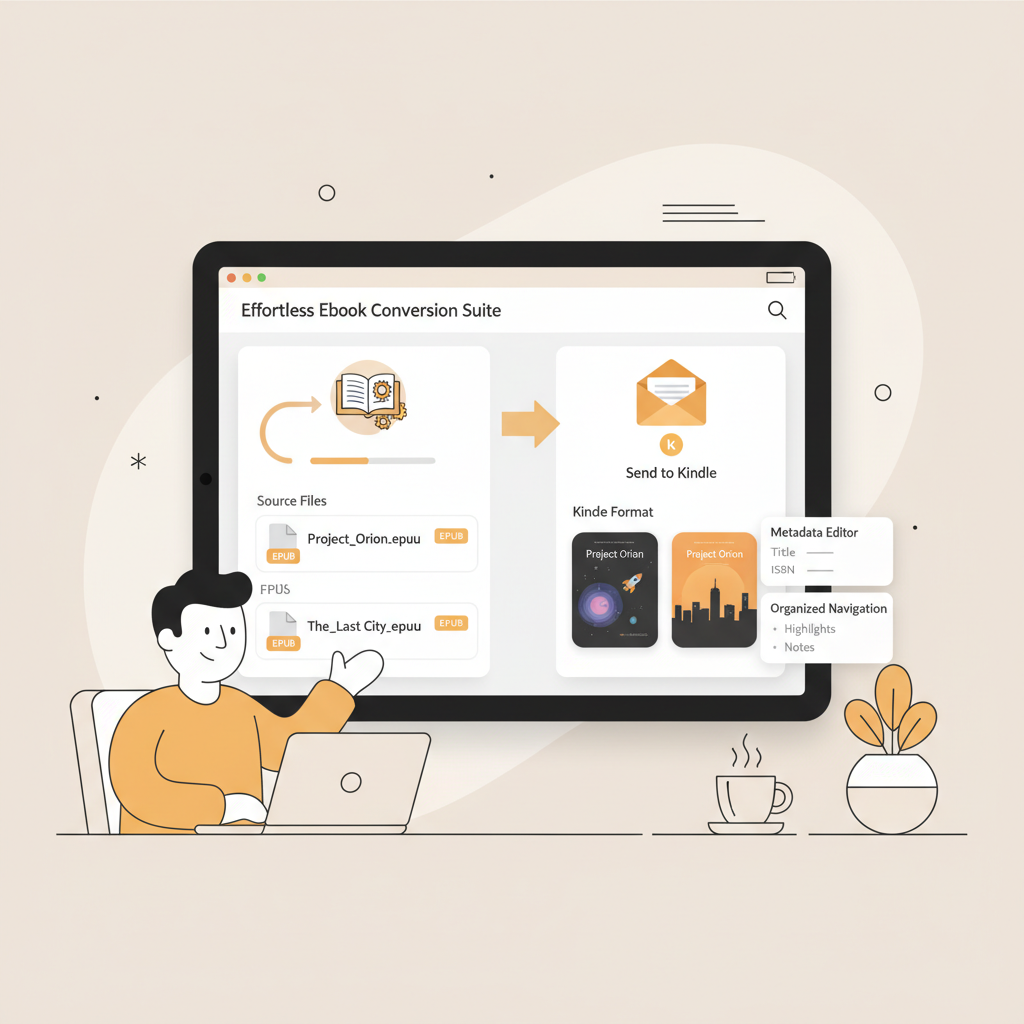
BEST EPUB Converter for Kindle
EPUB Converter for Kindle: How to Convert Files That Actually Publish
Estimated reading time: 5 minutes
- A reliable EPUB converter for Kindle does more than change extensions—it fixes metadata, embeds covers, and builds navigation.
- Free tools like Send to Kindle and Calibre work for most DRM-free EPUBs; integrated systems reduce manual cleanup.
- For non-fiction authors publishing multiple titles, an integrated generator + converter + cover system speeds publishing and improves consistency.
Table of Contents
- Why an EPUB converter for Kindle matters
- What Kindle formats mean for you
- Common conversion problems authors see
- How to convert EPUB to Kindle: tools and practical steps
- Option 1 — Send to Kindle
- Option 2 — Calibre
- Option 3 — Paid converters and services
- A practical checklist for any conversion workflow
- When to convert AZW3 vs MOBI
- Metadata, navigation, and accessibility
- BookAutoAI: built-in EPUB Converter and Cover Generator
- Why integrated conversion matters
- EPUB conversion — what BookAutoAI does for you
- Why this beats piecing tools together
- Book covers that sell
- Humanized text and AI-detection considerations
- When to use BookAutoAI vs standalone converters
- Final thoughts and next steps
- Next steps you can take today
- FAQ
- Sources
Why an EPUB converter for Kindle matters
If you’re self-publishing non-fiction, the file you upload to Kindle Direct Publishing (KDP) must behave like a real ebook in readers’ hands. Saying “I have an EPUB” is the first step—but a true epub converter for Kindle prepares that EPUB so it opens correctly, shows a clean table of contents, displays the cover at thumbnail size, and preserves footnotes, images, and metadata.
Amazon now accepts EPUB uploads directly via Send to Kindle and KDP. That’s convenient, but automatic conversion can miss details that matter to buyers and reviewers, like missing chapter anchors, broken image links, or mangled typography.
If your process includes creating a paperback or ebook from the same source, a system that handles generation, cover design, and conversion together will save time and reduce errors.
What Kindle formats mean for you
AZW3 (KF8) is the modern Kindle format and supports better styling, embedded fonts, and complex layouts compared with older formats.
MOBI is legacy and lacks support for many modern ebook features.
When possible, convert EPUB to AZW3 rather than EPUB to MOBI for a cleaner reading experience on contemporary Kindle apps and devices.
Common conversion problems authors see
- Missing front matter or duplicated title pages
- Broken internal links and table-of-contents entries
- Poor thumbnail readability because the cover was exported as high-art rather than a scaled book cover
- Metadata errors that make categories and series info display incorrectly in stores
If you want fewer surprises at upload time, focus on tools and steps that check and fix these issues before you publish.
How to convert EPUB to Kindle: tools and practical steps
Pick the option that fits your technical comfort, volume of books, and need for quality control. Below are realistic choices and practical steps to get a Kindle-ready file.
Option 1 — Send to Kindle (fast, minimal control)
What it is: Amazon’s Send to Kindle accepts EPUB and auto-converts it for delivery to Kindle devices and apps.
When to use it: Quick drafts, personal reading, or when you trust Amazon’s conversion.
Limitations: Less control over anchors, metadata, and cover sizing. For retail publishing on KDP, a pre-conversion check is usually safer.
Option 2 — Calibre (free, powerful, manual)
What it is: Calibre is open-source ebook management software that can convert EPUB to AZW3 and MOBI, edit metadata, and batch process files.
Why authors like it:
- Full control over output format (AZW3 preferred for modern Kindle features)
- Editable metadata and cover embedding
- Previewer to check how the file will render on different devices
How to use it (practical steps):
- Add the EPUB to Calibre’s library.
- Click Convert books and choose AZW3 as output for modern Kindle features; choose MOBI only for older devices.
- Check the Look & Feel and Structure Detection tabs to fix chapter breaks and TOC anchors.
- Use the embedded editor to inspect the cover, metadata, and internal links.
- Test the converted file in Calibre’s viewer and on a Kindle device or Kindle Previewer app before uploading to KDP.
Common pitfalls: If the EPUB uses nonstandard HTML or has broken image paths, Calibre may not fix every issue automatically—manual inspection is necessary.
Option 3 — Paid converters and services (batch work, DRM handling)
Paid tools and professional conversion services can handle large batches, optimize files for store specs, and assist with difficult source files.
When to use them: converting many books, needing custom fixes, or requiring dedicated support. Note: DRM-protected files from stores cannot be legally converted unless the rights holder provides a DRM-free version.
A practical checklist for any conversion workflow
- Start from a clean, well-structured EPUB—the cleaner the source, the fewer problems after conversion.
- Fix metadata early: title, author, ISBN/identifiers, language, and publisher fields.
- Embed or attach a properly formatted cover; legible typography at thumbnail size is essential.
- Convert to AZW3 for modern Kindle devices unless a specific reason requires MOBI.
- Preview the final file on Kindle Previewer and at least one real device.
- Keep clear versioning or a naming scheme for original EPUB and converted files.
When to convert epub to azw3 vs. epub to mobi for kindle
Choose AZW3 as the default for new ebooks aimed at Kindle stores; it supports more features and looks closer to your carefully formatted EPUB.
Use MOBI only for legacy distribution or devices that specifically require it.
Metadata, navigation, and accessibility
A true epub converter for Kindle fixes more than format. It builds a reliable NCX/TOC so readers can jump between sections, ensures images have alt text for accessibility, and preserves footnotes as linked content.
If this sounds technical, it is—but tools like Calibre give you the controls, and platforms like BookAutoAI take care of most of these steps automatically.
For authors who want a single, integrated path from manuscript to store-ready file, consider a system that includes an EPUB converter; it can automate checks and produce a clean, store-ready file in seconds.
BookAutoAI: built-in EPUB Converter and Cover Generator
If you publish non-fiction at scale, you don’t just need a converter—you need a predictable system that creates books ready for real Kindle delivery. BookAutoAI generates complete, humanized non-fiction manuscripts up to 25,000 words and includes an EPUB converter that prepares files for KDP, Kobo, and Apple Books.
For streamlined store uploads, consider specialized tools for store uploads that handle retailer-specific requirements.
Why integrated conversion matters
- One source of truth: When manuscript, cover, and metadata live in a single system, you avoid mismatched files at upload time.
- Less manual cleanup: An integrated EPUB converter handles table of contents, embedded covers, and metadata automatically.
- Faster publishing rhythm: Generate, preview, and export a Kindle-ready EPUB in minutes rather than hours.
EPUB conversion—what BookAutoAI does for you
BookAutoAI’s EPUB Converter is built for Kindle. Instead of exporting raw files and fixing formatting by hand, you upload or generate your manuscript, add the cover, and click Convert.
- Correct metadata embedded (title, author, identifiers)
- A front cover embedded the right way
- Clean chapter structure and navigation that shows up in Kindle apps
- Compatibility for KDP and other major stores
Why this beats piecing tools together
Many authors juggle multiple programs—a word processor, a separate cover tool, a converter, and a previewer. Each step adds risk. BookAutoAI keeps the flow tight: create the book, humanize the text, generate the cover, and produce a publish-ready EPUB without manual stitching.
Book covers that sell, not just look AI-made
Most cover generators focus on artwork, but marketplace covers need readable title and author typography, genre-appropriate visuals, and a design that works as a thumbnail.
If you need a professional book cover without hiring a designer, try the Book cover generator in BookAutoAI to produce market-ready results that compete on browse pages.
- Clear typography
- Proper visual hierarchy at thumbnail size
- Export quality for both ebook and print
Humanized text and AI-detection considerations
Marketplaces are sensitive to robotic or repetitive text. BookAutoAI emphasizes humanized, natural-sounding writing that reduces the risk of failing AI-detector checks.
The goal is readable content that matches market expectations for voice and structure—especially important in non-fiction genres that rely on authority and clarity.
When to use BookAutoAI vs. standalone converters
- Use a standalone converter like Calibre if you already have a well-edited EPUB and want granular control over the final file.
- Use BookAutoAI if you want a single system to generate, humanize, format, design a cover, and convert—all in one product.
Write like a human, publish like an author. BookAutoAI’s positioning is simple: speed, quality, and integrated readiness.
Final thoughts and next steps
Converting an EPUB to a Kindle-ready file is more than format conversion. It’s about making sure readers can open your book, find chapters, see a legible cover thumbnail, and enjoy a consistent reading experience.
Free tools and Amazon’s Send to Kindle are useful, but they don’t replace careful checks or the efficiency of an integrated system that creates and converts the full book.
If you publish one book occasionally, Calibre or Send to Kindle will likely meet your needs. If you publish multiple titles and prefer a streamlined, low-friction approach, an integrated product can reduce manual cleanup and improve consistency.
Next steps you can take today
- If you already have an EPUB, run it through a previewer (Kindle Previewer) and check table-of-contents links and cover thumbnail readability.
- If you’re creating a new book, keep manuscript, cover, and EPUB conversion together to avoid last-minute fixes.
- For an integrated solution that focuses on non-fiction and produces store-ready EPUBs, explore BookAutoAI to see how a generator + converter reduces manual work.
FAQ
Does Amazon accept EPUB files directly now?
Yes. Amazon accepts EPUB uploads via Send to Kindle and KDP, which it converts. Always check the converted file for TOC, embedded cover, and metadata issues before publishing.
Should I convert EPUB to AZW3 or MOBI for Kindle?
Convert EPUB to AZW3 for modern Kindle features and better styling. Convert to MOBI only if you specifically need compatibility with very old devices.
Can I convert DRM-protected EPUBs?
No. DRM-protected files from stores cannot be legally converted unless the rights holder provides a DRM-free version. Convert only DRM-free files you own or have rights to.
Will an EPUB converter fix a broken table of contents?
Some converters attempt to rebuild the TOC, but the safest path is to start from a well-structured EPUB or use a tool that checks and corrects TOC anchors during conversion.
Do I need a separate cover designer if I use an EPUB converter?
Not necessarily. BookAutoAI includes a cover generator that produces market-ready front covers with readable typography and thumbnail-tested hierarchy. You can still export and replace the cover file if you want a custom design.
How should I preview a converted Kindle file?
Preview in Kindle Previewer and test on at least one real device. Check anchors, images, footnotes, and thumbnail readability before uploading to stores.
Sources
- https://designrr.io/epub-to-kindle/
- https://kindlepreneur.com/epub-to-kindle/
- https://www.any-ebook-converter.com/guide/best-kindle-to-epub-converter.html
- https://www.dvdfab.cn/kindle-converter.htm
- https://www.papertrue.com/blog/ebook-conversion-services/
- https://www.epubor.com
EPUB Converter for Kindle: How to Convert Files That Actually Publish Estimated reading time: 5 minutes A reliable EPUB converter for Kindle does more than change extensions—it fixes metadata, embeds covers, and builds navigation. Free tools like Send to Kindle and Calibre work for most DRM-free EPUBs; integrated systems reduce manual cleanup. For non-fiction authors…