
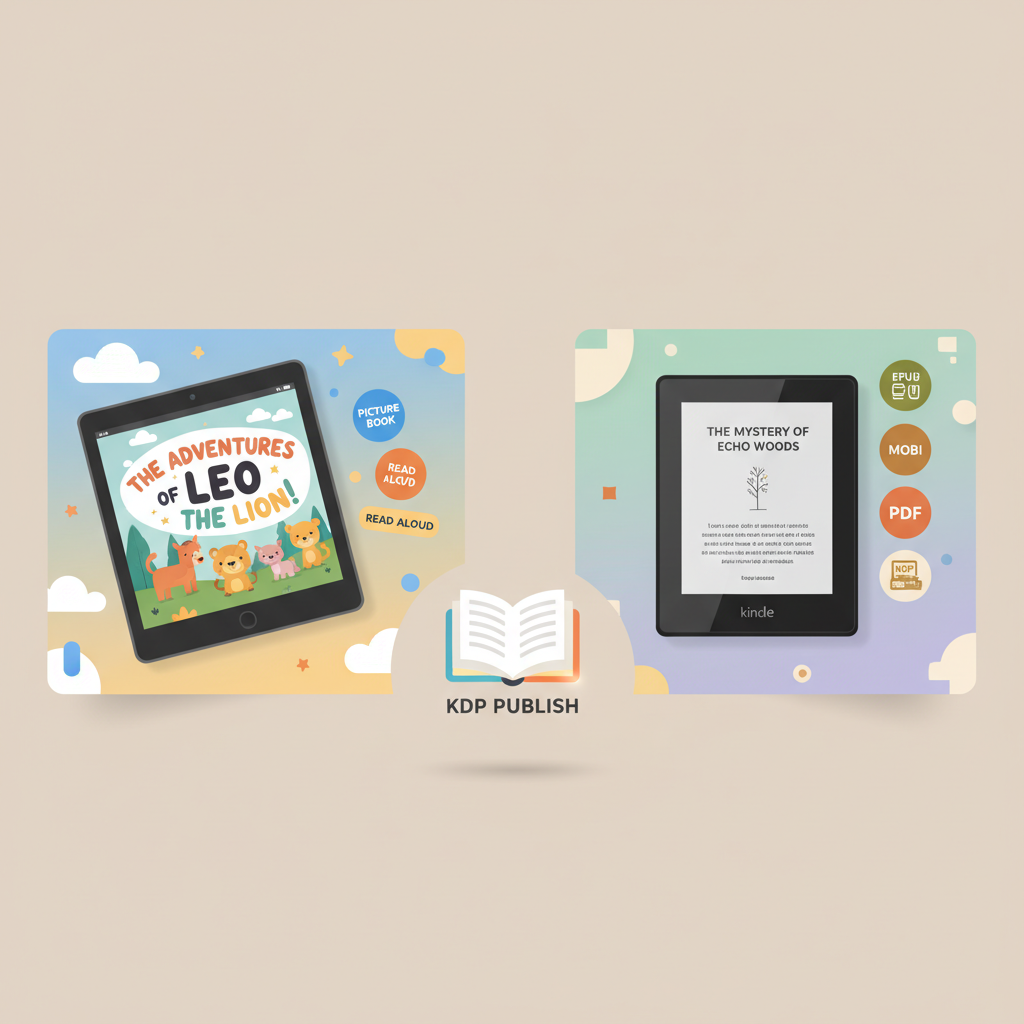
KDP Children’s Books Guide for Picture, Chapter and YA
KDP Children’s Books Guide: How to Publish Illustrated, Chapter, and YA Titles on Amazon KDP
Estimated reading time: 5 minutes
- Clear format choices (image-first vs. text-first) dictate file types, resolution, and the right KDP tools.
- Illustrated picture books require bleed, 300 dpi images, and Guided View masking for a good Kindle experience.
- Chapter and YA books benefit from reflowable files (Word/EPUB) and clean metadata for discoverability.
- Use dedicated cover and EPUB tools to reduce rework and produce store-ready assets rapidly.
Table of contents
- How KDP handles children’s books
- Illustrated picture books: layout, bleed, and Guided View
- Page size, trim, and bleed
- Spread vs. single pages
- File types and KDP upload tips
- Guided View and the reading experience
- Illustration workflow checklist
- Chapter books and young adult formats: text-first workflows
- Manuscript preparation
- Images in chapter books
- Creating EPUBs and conversion
- Metadata and discoverability
- Distribution choices and paperback tie-ins
- Formatting, covers, and EPUB: tools that save time
- Why cover design matters for children’s books
- Automated cover tools built for books
- EPUB conversion and quality control
- Paperback and multi-format generation
- Quality checks before upload
- Practical checklist for final upload
- Final thoughts
- FAQ
- Sources
How KDP handles children’s books
Amazon KDP supports a wide range of children’s formats—picture books, early readers, chapter books, and young adult novels—and provides tools such as Kindle Kids’ Book Creator and Guided View to improve illustrated reading. The primary decision is whether your title is image-first (picture book) or text-first (chapter/YA), since that determines file types and tooling.
If you plan a straightforward KDP upload for a children’s book, it helps to review a practical walkthrough early; for a step-by-step checklist see Publish Book Amazon Kdp 3, which explains common preflight checks and publishing steps.
Why format choice matters
- Picture books: image files, bleed, and fixed layouts dominate; export high-res PDFs or PNG/JPEG spreads.
- Chapter books & YA: prefer reflowable formats (Word, EPUB, HTML) so readers can adjust fonts and layout.
- Hybrid books: treat illustrated spreads as fixed-layout and ensure reading order for mixed content.
KDP’s tools and tags
- Kindle Kids’ Book Creator accepts PDF, JPG, TIFF, PNG, and PPM and helps package image-first titles.
- Guided View and Kindle Create assist sequencing panels and focusing parts of an image for better reading flow; consider book upload tools if you need broader distribution support.
- Use age and grade metadata deliberately to improve discoverability for parents and teachers.
Illustrated picture books: layout, bleed, and Guided View
Picture books often look simple until you face trim, bleed, resolution, and KDP preflight checks. This section outlines practical steps so your files print cleanly and pass upload validation.
Page size, trim, and bleed
- Choose a trim size early (common: 8.5 x 8.5 in, 8 x 10 in) and design spreads with at least 0.125 in (3 mm) bleed on all sides.
- Work at 300 dpi for print images; export at final trim + bleed to avoid upscaling loss.
- If using a third-party illustrator, request layered source files or high-res flattened TIFF/PNG/JPEG masters.
Spread vs. single pages
- Create spreads when artwork crosses the gutter, then split into single pages if your upload requires it; consistency matters.
- Watch the gutter: important details near the center can be lost in binding on print editions.
File types and KDP upload tips
- Kindle Kids’ Book Creator accepts PDF, JPG, TIFF, PNG, and PPM; many publishers export a single print-ready PDF with correct bleed.
- For Kindle eBooks, produce fixed-layout files via the Kids’ Book Creator or convert images to Kindle-supported formats; Guided View improves device reading.
Guided View and the reading experience
Guided View masks and focuses on parts of a complex page so a child reads panel-by-panel. Automated masks are a good starting point, but always preview and adjust them to preserve narrative flow.
Illustration workflow checklist
- Set trim size and bleed before art production.
- Work at 300 dpi and export lossless when possible.
- Proof on-device and order a print proof for paper editions.
- Use Guided View masking to enhance readability and preview masks manually.
Chapter books and young adult formats: text-first workflows
Chapter and YA books are primarily text-driven and focus on reflow, navigation, and metadata. Keep layout simple so Kindle and other readers can adapt font sizes and spacing.
Manuscript preparation
- Use a clean Word document or well-structured HTML; KDP converts DOC/DOCX, HTML, and EPUB reliably if standard styles are used.
- Apply consistent heading styles (e.g., Heading 1 for chapters) so conversion tools generate navigation correctly.
Images in chapter books
- Add illustrations as inline images with captions and alt text; size for the web to avoid bloated files.
- Avoid complex fixed layouts that break reflow on Kindle devices.
Creating EPUBs and conversion
If you prepare an EPUB, validate it with standard tools to improve conversion accuracy. When converting, a reliable EPUB converter can save iterations and reduce preview errors.
Metadata and discoverability
- Complete fields like Age Range, Grade Range, and keywords intentionally to influence category placement.
- Write a clear, benefit-focused book description highlighting age suitability and themes.
Distribution choices and paperback tie-ins
You can publish ebook and paperback versions via KDP. For paperbacks you need a print-ready PDF with interior layout adjusted to the chosen trim size; many authors use a platform like BookAutoAI to export both EPUB and print-ready PDF from the same source.
Formatting, covers, and EPUB: tools that save time
File prep is often the biggest friction point. Invest in a cover process tuned for storefront thumbnails and a converter that produces clean, validated EPUBs to reduce upload errors and speed publishing.
Why cover design matters for children’s books
- Covers are the primary click driver—images must communicate age, tone, and character quickly.
- Design for thumbnails (e.g., test at 100 x 150 px) to ensure title legibility and clear imagery.
Automated cover tools built for books
Generic image generators can produce art but often miss typographic rules that drive sales. Use a specialized cover generator trained on bestseller patterns to create clear title typography and market-ready layouts.
EPUB conversion and quality control
A clean EPUB includes correct metadata, an embedded cover, and predictable navigation. For fast, store-ready EPUBs, a purpose-built EPUB converter reduces troubleshooting and preview issues.
Paperback and multi-format generation
If you plan both ebooks and paperbacks, export print-ready PDFs and EPUBs from the same source to avoid repeating layout work and reduce content drift between formats.
Quality checks before upload
- Preview on Kindle Previewer and read on multiple devices when possible.
- Order at least one printed proof for paperbacks—color and spine alignment can surprise you.
- For Guided View, step through each masked panel and test on target device types.
Practical checklist for final upload
- Verify trim and bleed are correct for print.
- Confirm all images are high resolution and embedded for EPUB and print.
- Ensure your cover file matches the book dimensions including spine for print.
- Double-check age/grade metadata and keywords before publishing.
Final thoughts
This guide covers the core choices for self-publishing children’s titles on Amazon KDP: choose image-first or text-first early, prepare art at 300 dpi with correct bleed, tune Guided View masks for Kindle, and produce clean EPUBs for reflowable text. Using purpose-built cover and EPUB tools reduces iteration and helps you publish store-ready assets faster.
When you mention cover design, EPUB conversion, or multi-format exports in editorial planning, consider dedicated services (cover generator, EPUB converter, and distribution tools) to reduce manual troubleshooting and maintain consistent branding across ebook and paperback formats.
FAQ
Do I have to use Kindle Kids’ Book Creator for illustrated children’s books?
No—you can upload print-ready PDFs for paperback versions, but Kindle Kids’ Book Creator simplifies Kindle-specific packaging and Guided View masking for image-first titles.
What file types should illustrations be?
Use high-resolution TIFF, PNG, or high-quality JPEG at 300 dpi for print. For Kindle, JPG or PNG works well for embedded images; always keep high-res masters.
How do I set bleed and trim correctly?
Choose your trim size first, add at least 0.125 in (3 mm) bleed on all sides, and export final PDFs with bleed and crop marks when supported.
Can I publish a paperback and an ebook from the same source file?
Yes—exporting both from a consistent source reduces errors. Many tools can produce a print-ready PDF and a clean EPUB from a single manuscript.
Are automated cover generators reliable for children’s books?
Some are, if trained on real book covers and optimized for typography and thumbnail readability. Use a cover tool built for books rather than a generic image generator.
Sources
- How to publish your children’s book | Amazon Kindle Direct Publishing — https://kdp.amazon.com/how-to-publish-childrens-books
- Create a Children’s Book With Me to Sell on Amazon KDP – YouTube — https://www.youtube.com/watch?v=S13KBPlb5DQ
- How To Self-Publish A Children’s Picture Book On Amazon KDP – YouTube — https://www.youtube.com/watch?v=R-y8KXKnQEU
- Prepare Comic and Kids’ eBooks with Kindle Create – Amazon KDP — https://kdp.amazon.com/help/topic/GJMRD9F78MS9F43R
- How to Publish a Children’s Book on Amazon KDP in 2025 – YouTube — https://www.youtube.com/watch?v=9bG0MQRZ0as
- How to Self-Publish a Children’s Book on KDP in 2026 – AI Guide – YouTube — https://www.youtube.com/watch?v=ZoZu5ITR5Bw
- Self Publish children’s books | Amazon Kindle Direct Publishing — https://kdp.amazon.com/kids
KDP Children’s Books Guide: How to Publish Illustrated, Chapter, and YA Titles on Amazon KDP Estimated reading time: 5 minutes Clear format choices (image-first vs. text-first) dictate file types, resolution, and the right KDP tools. Illustrated picture books require bleed, 300 dpi images, and Guided View masking for a good Kindle experience. Chapter and YA…