
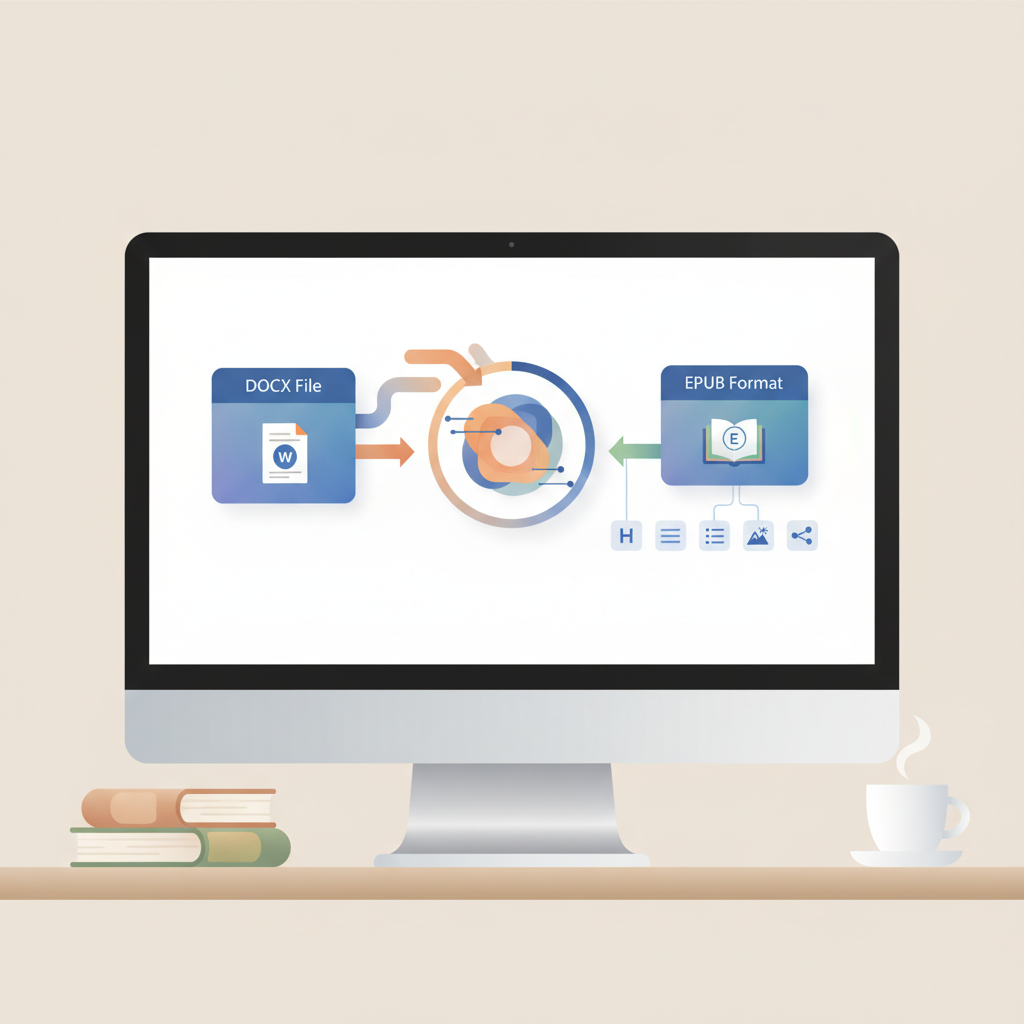
Docx to EPUB Converter for Store-Ready EPUBs and Kindle
docx to epub converter: Turn your manuscript into a store-ready EPUB
Estimated reading time: 5 minutes
- A reliable DOCX-to-EPUB conversion preserves headings, chapter navigation, embedded images, and metadata so retailer previews and uploads behave predictably.
- Manual DOCX workflows are possible but time-consuming; inconsistent Word styles cause the most conversion errors.
- An author-focused system can generate formatted EPUBs and covers directly, removing file handoffs and much of the cleanup burden.
Why a reliable docx to epub converter matters
If you’ve finished a manuscript in Word, one small step stands between you and distribution. Converting the DOCX into a clean EPUB that stores and retailers accept requires more than renaming a file.
A good converter preserves headings, chapter breaks, a linked table of contents, embedded images, and metadata so store previews and samples render correctly.
For non-fiction—where chapter structure, lists, tables, and callouts are common—conversion quality is even more important; poor conversions often misplace numbered lists, collapse indented blocks, or produce broken navigation.
Fix the source formatting and conversions become far more predictable: consistent Word styles reduce the most common errors and save time downstream.
A practical workflow to turn DOCX into a store-ready EPUB
Start with a clear goal: an EPUB that previews correctly and uploads to Kindle, Kobo, and Apple Books without rejections.
1. Clean the DOCX first
Use Word styles for structure. Apply Heading 1 for main chapters, Heading 2 for subheads, and Normal for body text; converters rely on styles rather than localized formatting.
Remove manual page breaks unless they mark logical chapter breaks—EPUBs are reflowable and unnecessary page breaks can create blank sections.
Replace mixed special characters and smart quotes from multiple editors with standard equivalents, and flatten overly complex manual layouts; multi-column floats or text boxes often break in EPUB.
2. Build a simple front matter file
Keep title page, copyright, acknowledgements, and a clean TOC in distinct sections. That helps navigation and preview samples.
If you include a contributor page, place it after the TOC rather than before—readers normally expect title and TOC first.
3. Convert with a reliable tool and validate
Choose a converter that preserves heading structure, embeds the cover correctly, and outputs a navigation (NCX/HTML TOC).
If you prefer a faster route specifically aimed at Kindle, check the Epub Converter for Kindle for practical tips and settings.
Validate the output with an EPUB validator to catch hidden markup issues before uploading.
4. Check the EPUB in multiple previews
Open the EPUB in at least two viewers: an EPUB reader (Apple Books or a desktop reader) and a Kindle previewer that simulates device thumbnails.
Look for clean chapter breaks, working TOC links, correct image scaling and alt text, stable list formatting and intact tables, and proper metadata.
Also test external links and thumbnails in store preview tools to see what customers will see.
5. Fix common issues and re-export
If numbered lists renumber, reapply proper list styles. If images float, change them to inline with captions.
Test any external links; retailers sometimes flag embedded media or unsupported elements.
Why this sequence? Most conversion problems trace back to inconsistent styling in Word—fix the source and the rest becomes predictable.
Practical tool choices
Free desktop tools like Calibre or WordToEPUB are robust for batch jobs and detailed control.
Quick online converters are useful for small files and testing when you don’t want to install software.
If you publish frequently and want less manual overhead, choose a system built for authors that combines generation, conversion, and cover design into one pipeline.
When to choose which
- For one-off tests: use Calibre or a free online converter.
- For fast Kindle-focused testing: online converters are quick and convenient.
- For repeatable, error-free production at scale: invest in an author-focused system that delivers store-ready EPUBs.
Why BookAutoAI removes the DOCX-to-EPUB headache
For many non-fiction authors, the DOCX-to-EPUB step is a recurring bottleneck. BookAutoAI takes a different approach: it generates and formats the book into a publish-ready EPUB inside the same system, eliminating file handoffs that create most formatting errors.
What BookAutoAI does for DOCX-to-EPUB workflows
Built-in EPUB output: the system produces clean, metadata-rich EPUB files designed for Kindle, Kobo, and Apple Books without manual restructuring; the integrated EPUB converter handles navigation and chapter structure.
Cover and export included: professional covers designed to sell—not just raw AI artwork—are generated by the integrated BookAutoAI cover generator, and those covers are embedded correctly in the EPUB.
One-click EPUB conversion: the service embeds the right metadata and creates navigation automatically, reducing repetitive conversion tasks.
How authors save time and reduce risk
No extra file conversions: BookAutoAI generates the EPUB directly, so you avoid problems caused by different converters interpreting Word styles differently.
Less technical debt: you won’t be hunting for a misapplied heading or a mis-sized image across multiple tools; the system treats the manuscript as a single source and outputs a finished EPUB and cover.
Designed for non-fiction: templates, chapter patterns, and visual hierarchy are trained on bestseller cover and layout signals so previews and store listings behave like traditionally published books.
Testing and confidence
If you want broader comparisons of automated writing and formatting stacks, the Top 10 AI Book Generator reviews compare conversion capabilities across several tools.
For authors who want control, BookAutoAI offers human-readable files and preview options so you can inspect the EPUB before uploading.
Additional practical notes on distribution
Kindle now accepts EPUB uploads, but correct internal formatting and metadata remain critical; validate EPUBs in a Kindle previewer before publishing.
If you plan to produce both print and ebook, BookAutoAI exports ebook-ready and print-ready cover assets (size variations and bleed), which removes a frequent separate step in many pipelines.
When uploading to retailers, consider dedicated upload tools to manage bookstore requirements and metadata across platforms.
Write like a Human, Publish like an author
A system that handles writing, humanization, cover design, and EPUB conversion removes repetitive technical tasks so you can focus on subject expertise and marketing.
Final thoughts
Conversion succeeds when the source is consistent: apply styles in Word, keep layouts simple, validate output, and use tools that embed metadata and covers correctly.
Visit Bookautoai and try our Demo book.
FAQ
What actually changes when you convert DOCX to EPUB?
The converter maps Word styles to HTML elements, converts images to suitable formats and sizes, builds a navigable table of contents, and bundles metadata and the cover into a single .epub package.
Are free converters reliable?
Free tools like Calibre and WordToEPUB are reliable for basic books but often require style mapping knowledge and cleanup steps for repeatable, polished output.
Why do lists and tables break after conversion?
Lists and tables break when local formatting is used instead of consistent Word styles; apply list and table styles to reduce this risk.
Which format should I upload to Kindle?
Kindle accepts EPUB and Amazon formats; EPUB is preferred for modern workflows—always validate in a Kindle previewer first.
Can I keep complex layouts or two-column formats in EPUB?
EPUB is reflowable and not suited to multi-column or text-boxed designs; consider a fixed-layout EPUB or separate PDF for print-heavy projects.
How do I check my EPUB before publishing?
Use at least two readers (an EPUB reader and a Kindle previewer) and run an EPUB validator to catch hidden markup problems.
Will using an AI book generator cause problems with retailers?
Retailers focus on readability and formatting quality; choose systems that humanize text and produce high-quality EPUBs to meet store expectations.
Sources
- https://kitaboo.com/free-software-to-convert-word-to-epub/
- https://daisy.org/activities/software/wordtoepub/
- https://learn.microsoft.com/en-us/answers/questions/5412185/converting-word-docx-to-epub
- https://cloudconvert.com/docx-to-epub
- https://help.publishdrive.com/free-ebook-converter-tool
- https://kdpcommunity.com/s/question/0D58V00008mvndISAQ/converting-docx-to-epub-advice?language=en_US
- https://blog.Bookautoai.com/epub-converter-for-kindle
- https://www.Bookautoai.com/book-cover-generator-processing
- https://www.Bookautoai.com/epub-converter
- https://blog.Bookautoai.com/top-10-ai-book-generator
docx to epub converter: Turn your manuscript into a store-ready EPUB Estimated reading time: 5 minutes A reliable DOCX-to-EPUB conversion preserves headings, chapter navigation, embedded images, and metadata so retailer previews and uploads behave predictably. Manual DOCX workflows are possible but time-consuming; inconsistent Word styles cause the most conversion errors. An author-focused system can generate…