
Word to EPUB Converter Guide for KDP and Self-Publishers
word to epub converter: Why Word Files Break eBooks and How to Fix It
Estimated reading time: 5 minutes
- Word files contain print-oriented layout and hidden markup that often breaks when converted to EPUB.
- Use clean styles, inline images with alt text, and semantic headings — or a purpose-built converter — to avoid preview errors and failed uploads.
- For a faster route to store-ready EPUBs and covers, integrated platforms automate conversion, metadata, and cover design.
Why Word files break ebooks
If you type a book in Microsoft Word, export it, and then upload an EPUB that looks wrong in previews, you’re not alone. The phrase “word to epub converter” is common because Word is where authors draft and EPUB is where stores want the file.
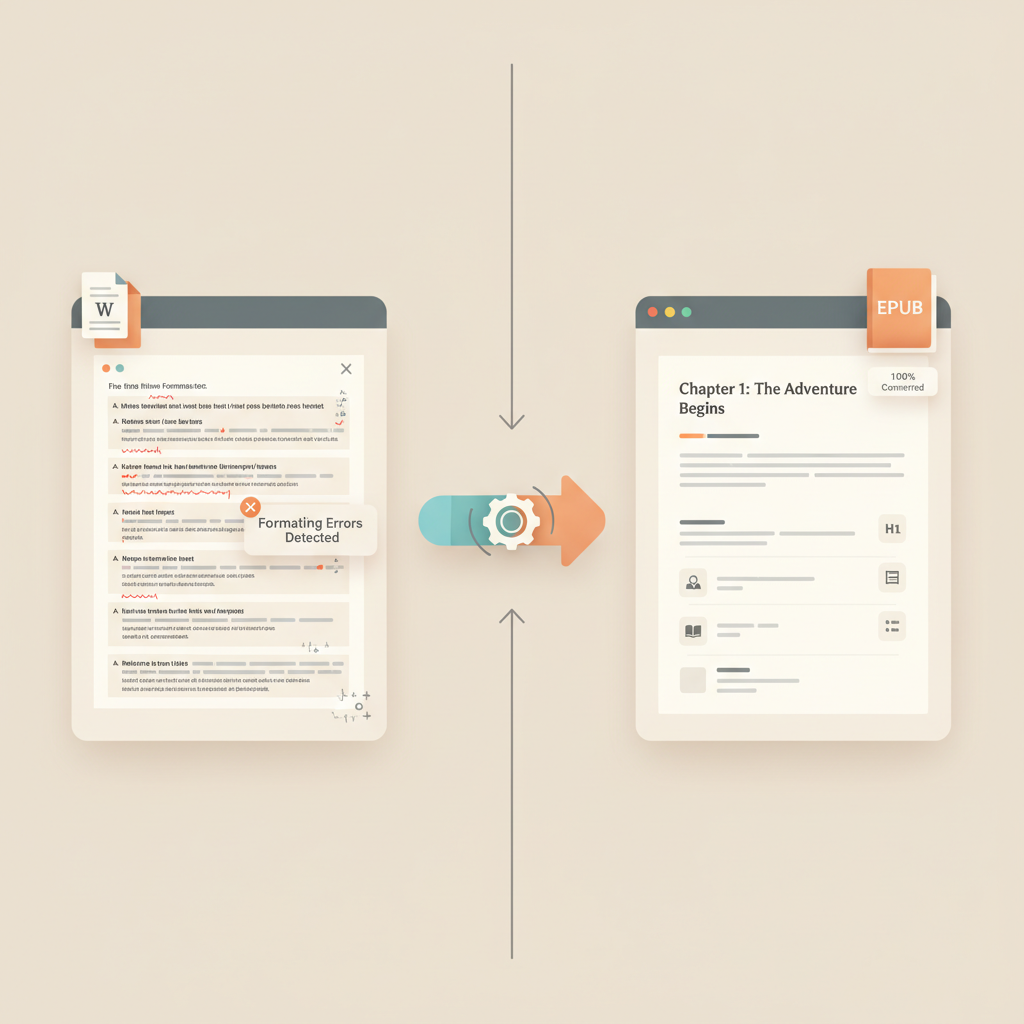
Word files carry layout instructions, embedded objects, and custom formatting that EPUB readers don’t understand. The result is broken chapter links, missing images, odd spacing, and files that fail platform checks.
Three core reasons this happens:
- Word isn’t built for ebooks. Word focuses on print and visual layout; EPUB is an HTML-based document for reflowable screens.
- Invisible markup. Local formatting (tabs, manual spaces, text boxes) leaves hidden tags and styles during conversion.
- Images and objects. Embedded images or floating objects may carry incompatible metadata or absolute paths.
Because the problem starts in the source file, treat the Word draft as structured content, not a finished layout. Small changes — like using paragraph styles instead of manual returns, or inserting images as inline files with alt text — often prevent conversion errors.
If you want an example prepared for Kindle, see the Epub Converter for Kindle guide for practical tips and expectations.
Common conversion errors and how they show up in EPUB
When a Word document is converted with an ordinary tool, several recurring error types appear. Below are the frequent failures, why they happen, and what readers or stores see.
1. Broken navigation and missing table of contents
Why it happens: Word headings are often not mapped to proper HTML heading tags, so converters that ignore style hierarchy produce flat documents without anchors.
Real-world result: No clickable table of contents in e-readers and poor accessibility; stores can mark the file as “incomplete.”
2. Strange spacing, blank pages, and inconsistent line breaks
Why it happens: Manual page breaks, hard returns, and using multiple lines to force layout in Word.
Real-world result: Extra blank screens or awkward paragraph breaks in previewers that annoy readers and look unprofessional.
3. Images that don’t display or show at the wrong size
Why it happens: Images pasted from other apps or inserted as floating objects can strip metadata or use absolute paths.
Real-world result: Missing cover images in preview, stretched or pixelated illustrations, or images that push text out of order.
4. Fonts and special characters replaced or lost
Why it happens: EPUB relies on system and web-safe fonts; embedded Word fonts may not be portable or allowed.
Real-world result: Strange glyphs, missing bullets, and loss of emphasis that undermine reader trust.
5. Broken metadata and wrong file structure
Why it happens: Converters sometimes fail to assign title, author, identifiers, or a correct OPF/NCX structure.
Real-world result: Uploads fail validation, or the file shows as “untitled” in storefront previews.
6. Accessibility failures
Why it happens: Missing alt text, no semantic headings, and incorrect reading order make files inaccessible.
Real-world result: Fails EPUBCheck or platform accessibility tests, reducing distribution options and harming readers who use assistive tech.
Understanding these failure modes lets you edit the source file where it matters and eliminate many issues before conversion.
Fixes that actually work: best practices and tools
Fixes fall into two buckets: manual source cleanup and using a tool that reliably transforms Word to EPUB without dropping structure. Both approaches are effective when applied correctly.
Practical steps to clean Word files
- Use paragraph styles for everything—Heading 1, Heading 2, Normal—so converters map them to EPUB headings.
- Avoid text boxes and complex tables; prefer simple lists and inline tables when possible.
- Insert images as inline (not floating), add alt text, and optimise images to 72–150 DPI.
- Remove manual page breaks and use semantic breaks or proper page-breaks only when needed.
- Use simple lists built with styles instead of mixed manual formatting.
- Keep Unicode-standard characters; only replace smart quotes if a tool has trouble.
Tool choices: where to start
Free desktop options, Word plugins, online converters, publisher platforms, and end-to-end systems all have roles depending on book complexity.
- Calibre (free): Versatile for batch conversion and metadata editing; useful if you can tweak CSS and structure.
- Word-based plugins (e.g., WordToEPUB): Best when your document already uses clean styles.
- Online converters (e.g., FreeConvert.com): Fast for simple files but variable with complex layouts.
- Publisher platforms (e.g., Draft2Digital, Kindle Create): Helpful for distribution-ready files but may enforce templates.
- End-to-end systems (e.g., BookAutoAI): Automate manuscript formatting, EPUB conversion, and cover generation for repeatable publishing.
When you test tools, validate the resulting EPUB in readers and in Kindle Previewer. Use EPUBCheck for structure validation and ensure images, navigation, and spacing look correct. If you need to upload to KDP or other retailers, testing prior to submission avoids rejected uploads.
If you’d like a quick, author-oriented overview, review the Top 10 AI Book Generator comparison to see how modern tools approach book-ready output.
Choosing the right approach:
- Simple book: clean the Word file and use a reputable online converter or Word plugin.
- Complex book: use Calibre with manual cleanup or hire a professional conversion service.
- Fast, repeatable publishing: use a platform that automates formatting and produces store-ready files each time.
Tool selection should match your book’s complexity and your comfort with technical details.
How BookAutoAI simplifies the word to epub workflow
Most self-publishers want speed and reliability. BookAutoAI is designed to generate humanized text, build a formatted manuscript, convert to EPUB, and create market-ready covers without many manual settings.
What BookAutoAI handles automatically
- Clean structure: Outputs clean chapter hierarchy and correct heading markup so EPUB engines and stores read the file correctly.
- Store-ready EPUB: Produces properly structured EPUBs with embedded cover, correct metadata, and working navigation for Kindle, Kobo, and Apple Books.
- Professional covers: The Cover Generator creates front covers with readable typography and thumbnail-optimised hierarchy.
- Humanized content: Writing focuses on natural-sounding prose that reads like a human writer.
Links that help explore features
Learn more about the conversion technology at the EPUB conversion page, and explore cover options with the cover tool linked above.
Practical examples of savings
- Metadata is set properly on export so title and author appear correctly in previews.
- Images are embedded with correct sizing and alt text to avoid pixelation or missing art in previewers.
- Generated EPUBs include an interactive table of contents so readers can jump between chapters.
Write like a Human, Publish like an author. For many non-fiction authors the biggest cost is time, and automation reduces time spent on formatting, testing, and cover design.
Start with a clean Word draft that uses styles; you can also let the system generate the manuscript and then create an ebook from that output. Try Bookautoai to automate conversion and cover generation in one place.
If you publish regularly, an integrated platform scales far better than repeated manual conversions and reduces the technical checks you must perform.
FAQ
Is it ever okay to upload a Word file directly to KDP?
KDP accepts DOCX files and will convert them internally, but complex Word files often produce errors. Clean styles improve the chance of a successful direct upload.
What’s the difference between EPUB and MOBI or Kindle formats?
EPUB is a widely used HTML-based format. MOBI was an older Kindle format that Amazon has largely replaced; KDP now prefers EPUB in many workflows.
Can I use free tools like Calibre instead of a paid platform?
Yes. Calibre is powerful and free for batch conversion and metadata editing, though it may require more hands-on work than a paid service.
How do I test an EPUB before publishing?
Use EPUBCheck to validate the file, and open the EPUB in multiple readers such as Apple Books and Kindle Previewer to inspect navigation, images, and spacing.
Will an automated tool make my book look “AI-made”?
Not if the tool humanizes text and follows market design patterns. Many systems focus on readable prose and covers that match top-selling designs.
Sources
- Top 6 Free Softwares to Convert Word to ePub in 2025 – Kitaboo
- WordToEPUB – The DAISY Consortium
- WORD to EPUB Converter – FreeConvert.com
- Converting Word docx to epub – Microsoft Q&A
- Converting .docx to epub. Advice – KDP Community
word to epub converter: Why Word Files Break eBooks and How to Fix It Estimated reading time: 5 minutes Word files contain print-oriented layout and hidden markup that often breaks when converted to EPUB. Use clean styles, inline images with alt text, and semantic headings — or a purpose-built converter — to avoid preview errors…