
Create Amazon KDP Account in 10 Minutes Quick Guide
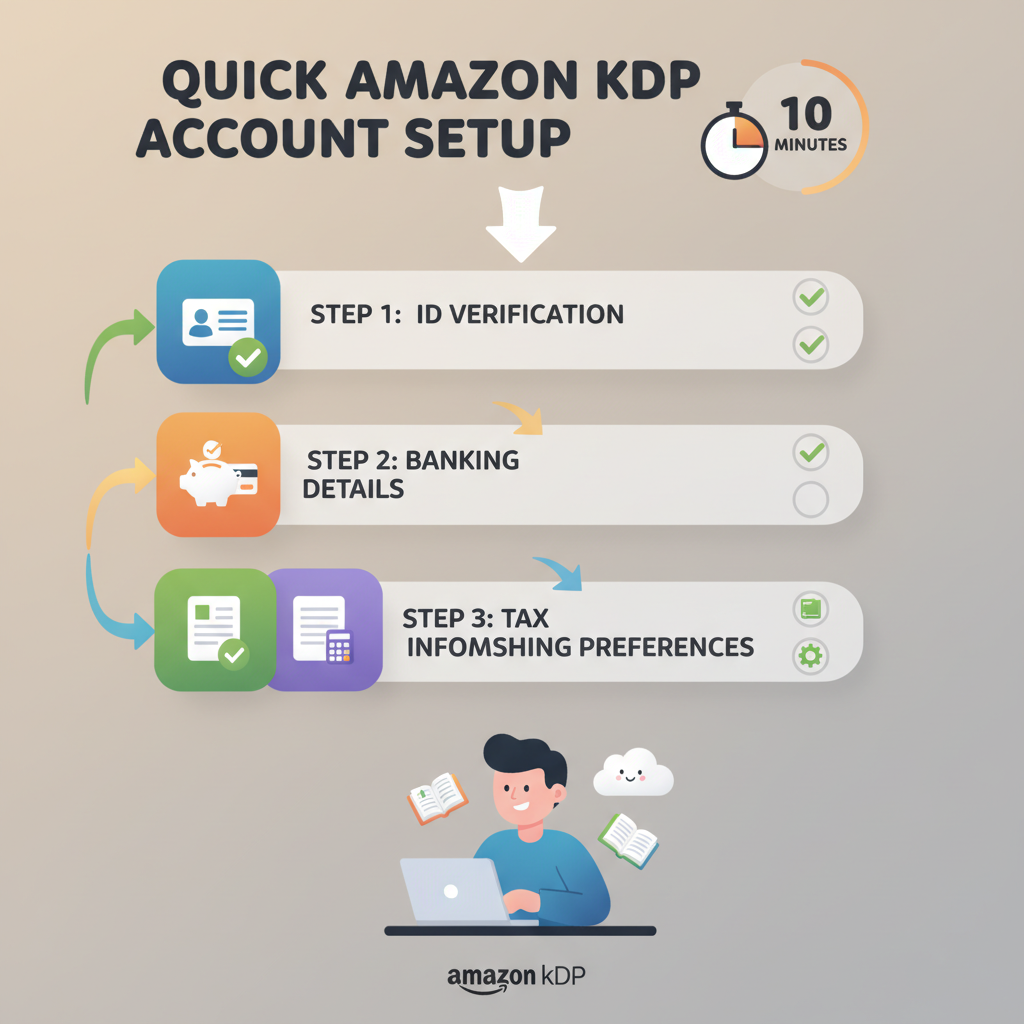
How to create amazon kdp account: Fast-start checklist (10-minute setup)
Estimated reading time: 5 minutes
- You can create an Amazon KDP account in about 10 minutes if you have ID, banking, and tax details ready.
- Follow a simple step-by-step flow: sign in, verify identity, add payment and tax info, then set up publishing preferences.
- Tools like BookAutoAI reduce post-setup work by generating a formatted manuscript and store-ready EPUB for KDP.
Table of Contents
- Before you start
- What you should have ready
- Quick 10-minute setup (step-by-step)
- Step 1 — Start at kdp.amazon.com
- Step 2 — Enter account type and identity details
- Step 3 — Add banking (royalty) details
- Step 4 — Complete tax interview
- Step 5 — Review payment thresholds and preferences
- Step 6 — Set up author / publishing profile basics
- Step 7 — Optional: upload a test book
- Where to click and what to expect
- Common setup issues and fixes
- Verification email or SMS never arrives
- Bank account rejected or doesn’t match name
- Tax form questions confuse you
- EPUB preview shows strange formatting
- Cover looks wrong at thumbnail size
- Security and account best practices
- Why a fast, clean setup matters
- Final thoughts
- FAQ
- Sources
Before you start
If your goal is to create an Amazon KDP account quickly, preparation matters more than tricks. The signup itself is straightforward, but missing documents or incomplete tax and bank details are what slow most people down.
This guide walks you through the exact screens and actions you’ll see, written like a screenshots-style walkthrough so you can move fast. For more detailed platform-field help, see the Amazon Kdp Account Setup guide.
What you should have ready before you click Join KDP
- Email address and password for an Amazon account, or plan to create a new Amazon account.
- A government ID and your legal name (to verify identity if prompted).
- Your postal address, phone number, and date of birth.
- Bank account details for royalty deposits (account number, routing number or IBAN, bank name).
- Tax information: SSN or ITIN for US residents, or the equivalent tax identifier for non-US residents.
- A short author name you want to use on listings.
- Optional but helpful: a ready EPUB or formatted manuscript and a cover file to test uploads after setup.
If you plan to move from setup to uploading on the same day, use a tool that handles formatting and covers to save time; for example, the site’s EPUB tools and cover tools speed the upload step.
Quick 10-minute setup (step-by-step)
Step 1 — Start at kdp.amazon.com
Open kdp.amazon.com. If you already have an Amazon account, click Sign in and use the same credentials. If you don’t, click Join KDP to create a new account. KDP links directly to Amazon signing.
Step 2 — Enter account type and identity details
After signing in, KDP asks for basic publisher information.
- Account type: Individual or Company.
- Legal name, email, and phone number.
- Address and date of birth.
Fill these fields exactly as your bank and tax records show. Small mismatches often cause payment or tax delays. Follow any prompts to verify your email or phone number with the code sent by text or email.
Step 3 — Add banking (royalty) details
In Banking you’ll add the account where Amazon will send royalties.
- Select your bank country and enter the account holder name (must match bank records), account number, and routing number or IBAN as required.
- Choose currency preference for payments.
Adding the account now removes a common publishing bottleneck. If you’re outside the US and have trouble with direct-deposit, Amazon offers wire transfer and local deposit in some countries.
Step 4 — Complete tax interview
KDP will prompt you to complete a tax interview. This is mandatory to avoid withholding and to set correct tax treaties.
- Are you a US person or not?
- Tax ID info: SSN, ITIN, or EIN for US persons; foreign tax ID for non-US persons if available.
- Residency status and treaty eligibility (if you qualify for reduced withholding).
Answer honestly and attach any requested documentation. If you’re unsure about tax IDs, pause and get the right number before finishing; incorrect entries are the most frequent cause of delayed payments.
Step 5 — Review payment thresholds and preferences
KDP shows payment thresholds, frequency, currency, and notification preferences. Note the minimum payout thresholds and confirm the email used for payment notices.
Step 6 — Set up author / publishing profile basics
Add the display name you want readers to see (real name, pen name, or organization). This shows on the storefront and in royalty reports. You can add more pen names later when creating a new title.
Step 7 — Optional: upload a test book
Upload a short test ebook to verify end-to-end. KDP accepts a properly structured EPUB and a cover image. If you don’t have a file, consider using an EPUB conversion tool to create a clean EPUB quickly.
A dedicated EPUB Converter can produce properly structured EPUBs that pass the KDP previewer and include metadata and chapter navigation.
If you need a cover and don’t have a designer, try a cover generator designed for readable thumbnails and genre-appropriate layouts.
Where to click and what to expect (screenshots-style description)
Home screen: Links for your Bookshelf, Reports, Community, and Help. Click Bookshelf to add a new title.
Create new title: Choose Kindle eBook or Paperback. For a fast test choose Kindle eBook and follow the guided fields.
- Enter book details: title, subtitle, author display name, description, language, categories, and keywords.
- Upload: manuscript (EPUB recommended) and cover (upload or use Cover Creator).
- Rights and pricing: confirm territories and set price.
Tip: keep a clean EPUB file ready. Files converted from Word often fail the KDP previewer because of stray style tags or broken chapter anchors; a clean source minimizes preview errors.
If you need an uploader that handles multiple stores or complex distribution, many authors evaluate dedicated book upload services and tools to save repetitive work; learn about common book upload tools when planning multi-format releases via trusted services.
Common setup issues and fixes
Problem: Verification email or SMS never arrives
Fixes:
- Check spam and promotions folders.
- Confirm the email you typed has no typo.
- If SMS verification fails, try the voice-call option or verify through email instead.
Problem: Bank account rejected or doesn’t match name
Fixes:
- Ensure the account holder name exactly matches how the bank records the account.
- For company accounts, use the company’s EIN and account details.
- If you use an international bank, confirm the IBAN or SWIFT format with your bank.
Problem: Tax form questions confuse you
Fixes:
- Use the guidance on the KDP tax interview screens.
- If unsure, pause and confirm with a tax advisor or local tax office for the correct foreign tax identifier.
- Non-US residents can often enter a foreign tax ID and select treaty benefits where applicable.
Problem: EPUB preview shows strange formatting after upload
Fixes:
- Use a cleaner EPUB generated by a trusted tool rather than converting directly from Word.
- If you see odd spacing, missing chapter links, or odd fonts, re-export from a clean source instead of manually editing EPUB code.
- For automated EPUB generation that targets KDP, a purpose-built converter reduces preview issues.
Problem: Cover looks wrong at thumbnail size
Fixes:
- Design covers with clear typography and strong hierarchy that still read at small thumbnail sizes.
- If you don’t have a designer, use a generator trained on best-selling cover patterns to get readable titles and genre-appropriate backgrounds.
Tip: Keep testing on the KDP previewer and a mobile preview option before publishing to ensure the storefront display matches expectations.
Security and account best practices
- Use a unique password for your Amazon account and enable two-step verification.
- Keep your email secure because password reset links go there.
- Regularly check payment reports after publishing to confirm royalties arrive to the correct bank account.
- If you sell under multiple pen names, keep a single KDP account but manage titles carefully to avoid metadata overlap.
Why a fast, clean setup matters
A quick account creation is useful, but the real goal is a smooth path to publishing and being paid. Correct banking and tax info prevents royalty hold-ups.
The main blockers after signup are incorrect tax/bank details and poor EPUB or cover preparation.
Clean EPUBs and professional covers prevent rejections and poor storefront presentation. For many authors, automated EPUB and cover tools save hours so you can focus on marketing and outreach.
Final thoughts
Creating an Amazon KDP account is fast when you come prepared. The 10-minute setup is real if you have ID, bank, and tax info at hand.
Helpful tools: If you need a ready-made EPUB that KDP accepts on the first try, consider a purpose-built converter, and if you need bulk uploader assistance for multiple retailers, review specialized book upload tools to streamline distribution.
Learn more about book creation and distribution options on the BookAutoAI site and explore available conversion and cover services to reduce friction when you publish.
FAQ
How long does it take to get paid after my first sale?
Payment timing depends on Amazon’s reporting and your payment method. Typically there is a delay of about 60 days after the month of sale before royalties are disbursed, and payouts depend on meeting minimum thresholds and having correct bank and tax details on file.
Can I use a company name for payments?
Yes. Choose Company as the account type and provide the company’s legal name and tax ID when prompted. Bank account details must match the company’s records.
What if I don’t have a US tax ID?
Non-US authors can provide their local tax ID during the tax interview. Amazon handles many cases with tax treaty forms; if you don’t have a foreign tax ID, follow KDP guidance for the best option.
Do I need a separate account for paperback and ebook?
No. One KDP account handles Kindle eBooks and paperbacks. You create separate listings for each format under the same account.
Will KDP block my account for using AI tools to write books?
KDP does not ban books created with AI per se. What matters is content quality, compliance with content rules, and accurate rights ownership. Using tools that humanize content and format output correctly reduces marketplace risk.
What payment methods work for non-US authors?
Amazon supports direct deposit, wire transfer, and local deposit in some countries. Check the Banking section during setup for options specific to your bank country and prepare a bank statement to confirm account details.
Sources
- Create a KDP Account – Amazon.com
- Set up your KDP account – Amazon.com
- How do I set up a KDP account? | Publishing.com Help Center
- How to Create an Amazon KDP Account (Safely & Correctly) – YouTube
- How To Setup an Amazon KDP Account (US & Non-US) – YouTube
- How to Set Up an Amazon KDP Account in 10 Minutes (Step-By-Step) – YouTube
How to create amazon kdp account: Fast-start checklist (10-minute setup) Estimated reading time: 5 minutes You can create an Amazon KDP account in about 10 minutes if you have ID, banking, and tax details ready. Follow a simple step-by-step flow: sign in, verify identity, add payment and tax info, then set up publishing preferences. Tools…