
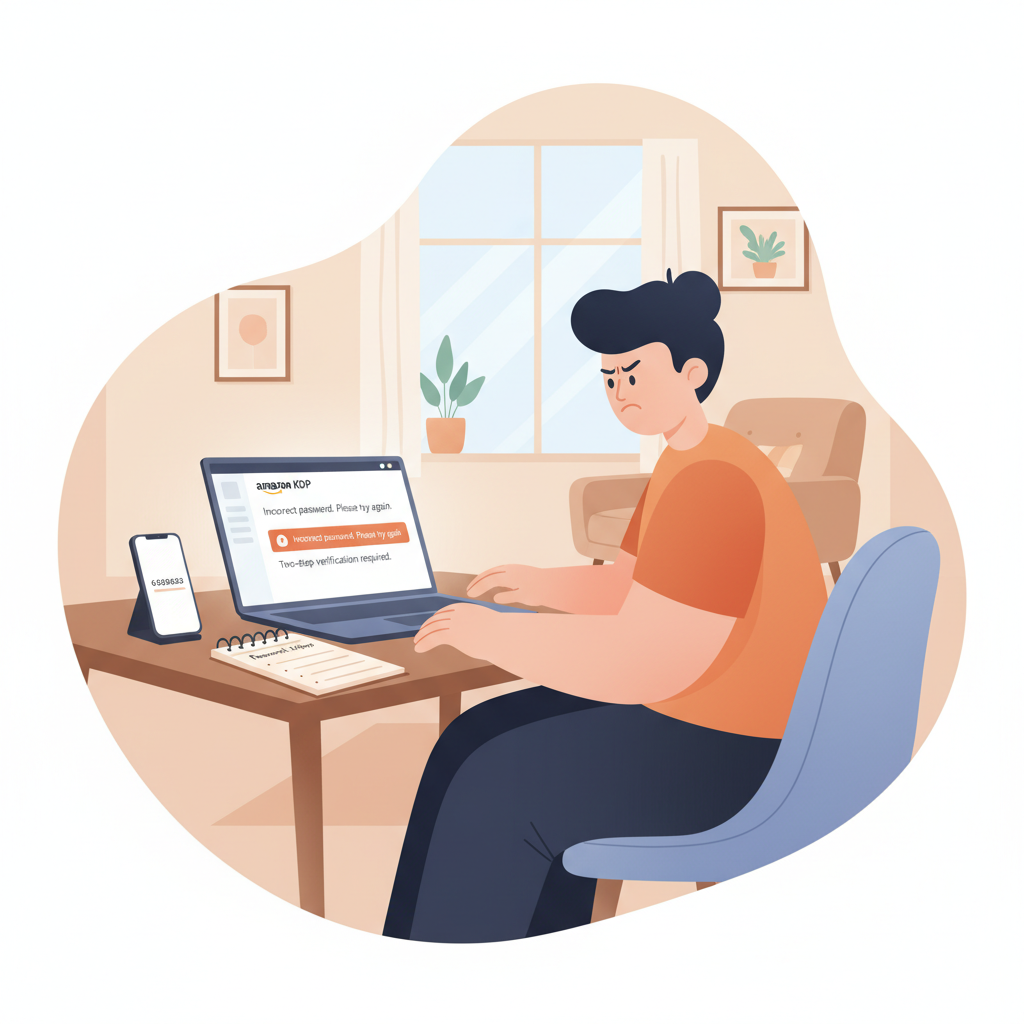
How to login to my Amazon KDP account and fix common errors
How to login to my amazon kdp account — Quick troubleshooting guide
Estimated reading time: 4 minutes
- The quickest fixes are confirming the correct Amazon account, checking two-step verification, and resetting your password when needed.
- Keep backup verification methods (secondary phone or authenticator app) and updated contact details to avoid lockouts.
- Use tools that reduce upload errors—like professional EPUB converters and cover generators—to shorten the path from account access to published book.
Quick login checklist for Amazon KDP
If your search started with “login to my amazon kdp account,” this section gets you there fast. Start by confirming which Amazon account belongs to KDP; many authors keep separate shopping and publishing accounts or use a company email instead of a personal one.
Before you try more complex steps, follow this short checklist:
- Open the KDP sign-in page and click Sign in.
- Try the email address you normally use for Amazon purchases and for publishing.
- If you don’t remember which email you used, check your inboxes for messages from KDP or Kindle Direct Publishing.
- If you get an error or no response, use Amazon’s password reset to send a code to your email.
If you still can’t get in, a helpful resource is the Amazon Kdp Account Setup guide that walks through signup and sign-in step by step. For many authors, confirming the account through that guide resolves confusion about the correct login credentials.
Common login errors and how to fix them
Logging into KDP uses your Amazon credentials, but a handful of repeating errors cause most delays. Below are common messages and clear fixes.
“We could not find an account with that email”
Why it happens: You’re using the wrong or a misspelled email.
Fix: Check alternate email addresses and search your inbox for older KDP messages. If you can’t find any, try creating an account—Amazon will tell you if the email is already registered.
“Your password is incorrect”
Why it happens: Typos, password managers filling old credentials, or a recent password change.
Fix: Use Amazon’s password reset to send a code to your email. If a password manager autofills, manually type the password once to confirm. After resetting, sign out of all devices if you suspect compromise.
“Too many attempts” or temporary lockout
Why it happens: Multiple failed logins trigger a short lockout for security.
Fix: Wait 15–30 minutes and try again. If you need immediate access, use the password reset flow. Avoid repeated automated attempts; they can extend the lockout.
One-time passcode (OTP) not arriving
Why it happens: Carrier or email delays, a wrong phone number on file, or SMS blocked by your carrier.
Fix: Check the phone number in your Amazon account’s Login & Security settings. Try the alternate delivery method (voice call or an authenticator app). If SMS never arrives, switch to an authenticator app like Google Authenticator or Authy for more reliable codes.
Browser or device issues
Why it happens: Cached cookies, browser extensions, or outdated browsers can block sign-ins.
Fix: Try signing in with a private/incognito window, a different browser, or a mobile device. Clear your browser cache and disable extensions that block scripts.
Account permission confusion (team or client accounts)
Why it happens: Agency or co-author logins sometimes use a different account or role, and permissions don’t match.
Fix: Confirm who set up the KDP account and which email has owner rights. If you were invited with limited access, request the correct permissions or assistance from the account owner.
Two-step verification, security, and locked accounts
Two-step verification (2SV) is a critical security layer for Amazon and KDP. It protects earnings and files, but it also creates the most user friction at login. Understanding common 2SV problems and their fixes will save time.
Why Amazon enforces 2SV: Amazon requires two-step verification for account changes and sometimes for logins from new devices or locations. The system prevents unauthorized access but relies on reliable delivery of codes.
If you can’t receive two-step codes:
- Check the phone number in your Amazon account’s Login & Security settings.
- Use a backup phone number if you’ve added one.
- Switch to an authenticator app—these generate codes locally without SMS.
- Ensure your carrier isn’t blocking short code messages, which some networks treat as spam.
Authenticator apps and backup codes: Add an authenticator app to your settings once you can log in. Amazon also offers printable backup codes; store them safely. If you lose phone access and didn’t save backup codes, you may need Amazon support to verify identity, which takes longer.
Locked accounts and identity verification:
If Amazon locks your account for suspicious activity, you’ll receive instructions to verify your identity—typically uploading a government ID and confirming recent transaction or payment details.
Recovering an account when you can’t use the email or phone:
- Try account recovery through Amazon’s “Need help?” options and follow the verification prompts.
- If those routes fail, gather proof-of-identity and account ownership details (recent orders, payment method info, tax forms) before contacting Amazon support.
Use BookAutoAI to reduce publishing errors
Accessing your KDP account is only the start. Once you’re in, you’ll upload manuscripts, covers, and metadata. Errors in those files often cause rejections or preview problems that look like account issues. BookAutoAI is designed to remove many of those steps and reduce common upload errors for non-fiction authors.
How BookAutoAI helps
- Ready-to-upload manuscripts: BookAutoAI generates fully formatted manuscripts up to 25,000 words, minimizing formatting-related rejections.
- EPUB conversion: Instead of wrestling with files, use the EPUB Converter to produce clean, platform-ready EPUBs that work on Kindle, Kobo, and Apple Books; it embeds metadata and adds proper chapter structure to avoid broken navigation.
- Professional covers: A thumbnail-friendly cover is essential; the Cover Generator designs market-ready front covers with readable typography and genre-appropriate visuals.
These tools reduce the back-and-forth between local files and the KDP uploader. When your files are formatted correctly, login and upload are smoother—less time fixing formatting errors and more time publishing. Many authors also use a dedicated book upload tool to manage retailer submissions and avoid manual mistakes.
Publishing paperbacks and ebooks
If you plan to create an ebook or paperback after logging in, BookAutoAI supports both workflows. The system prepares files that meet KDP’s technical requirements and helps you avoid common pitfalls like incorrect trim size, bleed settings for print, or embedded fonts that cause conversion failures.
Practical tips that save time after you log in
- Prepare metadata off-platform: Have title, subtitle, author name, book description, keywords, and categories ready before you sign into KDP.
- Use final cover and EPUB files: Uploading files that later change can complicate previews and delivery; use the Cover Generator and EPUB Converter to produce final files up front.
- Keep bank and tax info handy: KDP requires payout and tax details—having those ready prevents verification stalls.
- Upload during business hours: If you encounter errors, Amazon support will be available to reach.
Tip: store backup verification methods (secondary phone number or authenticator app) and printable backup codes to avoid lengthy support requests.
FAQ
I forgot which email I used for KDP. How can I find it?
Search your email accounts for messages from KDP or Kindle Direct Publishing. If nothing shows, try plausible emails and run the password reset flow on Amazon for each likely address—Amazon will tell you if the email is linked to an account.
My one-time code never arrives. What are the fastest fixes?
Try a different delivery method (voice call or authenticator app). Check that Amazon has the correct phone number in your Login & Security settings. If SMS is blocked by your carrier, use an authenticator app for reliable codes.
My account is locked for suspicious activity. How long until it’s fixed?
It depends on how quickly you respond to Amazon’s verification requests. Providing clear ID, recent order details, or bank information can speed the process; many cases resolve in a few days when documentation is provided promptly.
After logging in, I keep getting file upload errors. Can BookAutoAI help?
Yes. BookAutoAI produces properly formatted manuscripts and EPUB files and creates market-ready covers to reduce upload and preview issues. Using these tools before you upload lowers the chance of KDP rejecting your files.
Can I use a shared or company email for my KDP account?
You can, but ensure the shared email remains accessible to the account owner. Changing the owner email later can trigger verification steps. For co-authored books, use the owner account for uploads and add contributors in the metadata.
Sources
- KDP Registration – Amazon.com — https://kdp.amazon.com/signup
- Manage Your KDP Account – Amazon.com — https://kdp.amazon.com/help/topic/G200634350
- Create a KDP Account – Amazon.com — https://kdp.amazon.com/help/topic/G200620010
- Sign in Issues – Kindle Direct Publishing — https://kdp.amazon.com/help/topic/GCAMZS55VGYBQVEG
- How to Set Up an Amazon KDP Account in 10 Minutes (video) — https://www.youtube.com/watch?v=D64RtY7QEyA
- How to Create and Log In to Your Amazon Kindle Direct Publishing KDP Account (blog) — https://my.wealthyaffiliate.com/johnmaluth/blog/how-to-create-and-log-in-to-your-amazon-kindle-direct-publishing-kdp-account-from-anywhere-in-the-wo
- KDP Publishing Login – A step By Step Guide (video) — https://www.youtube.com/watch?v=JzVPXwnS_dI
How to login to my amazon kdp account — Quick troubleshooting guide Estimated reading time: 4 minutes The quickest fixes are confirming the correct Amazon account, checking two-step verification, and resetting your password when needed. Keep backup verification methods (secondary phone or authenticator app) and updated contact details to avoid lockouts. Use tools that reduce…