
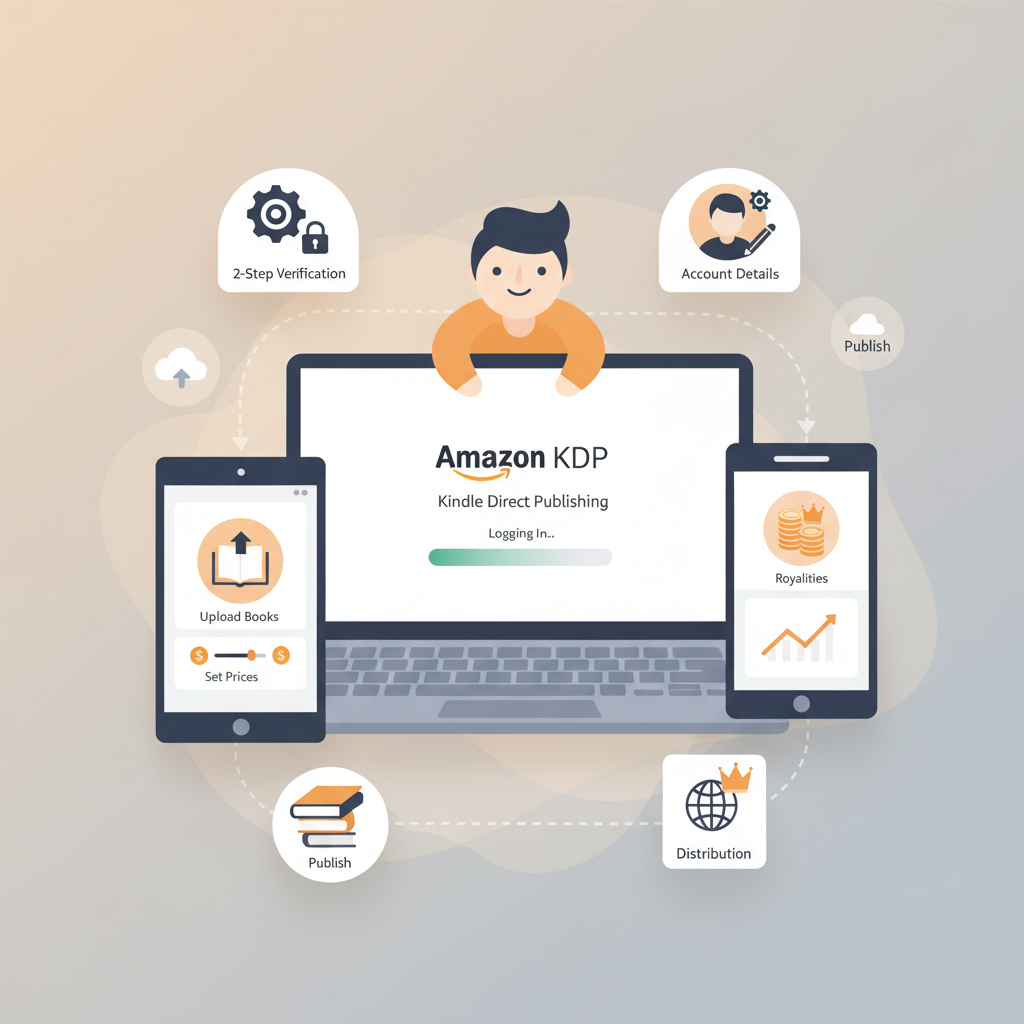
Amazon KDP publishing login and dashboard access tips
Amazon KDP Publishing Login: How to Access Your Publisher Dashboard on Any Device
Estimated reading time: 7 minutes
- The Amazon KDP publishing login is the central access point to upload titles, set prices, and receive royalties.
- Complete 2-step verification and account details (tax, bank, identity) to avoid payment and publishing delays.
- Prefer desktop for first-time setup and large uploads; keep consistent devices and browser settings to reduce verification prompts.
- Use tools that produce KDP-ready EPUBs and covers to minimize upload errors and preview failures.
- Keep documentation (ID, tax forms) handy for quick identity verification if Amazon requests it.
Table of Contents
- Quick start: What the Amazon KDP publishing login does
- Why this login matters now
- Sign in on any device: Desktop, mobile, and tablet tips
- Desktop first: the most stable option
- Mobile and tablet: on-the-go access
- Managing multiple devices
- Browser sessions, cookies, and private mode
- Security, verification, and common login problems
- Two-step verification (2SV)
- Identity verification
- Tax information and payment details
- Common login problems and troubleshooting
- After you log in: Publish faster with tools and workflows
- Create and format your manuscript
- Design a cover that sells
- Convert and upload EPUBs with confidence
- Use consistent naming and metadata
- Workflows for multiple books
- BookAutoAI as a publishing partner
- FAQ
- Sources
Quick start: What the Amazon KDP publishing login does
If you’re a self-publishing author, the Amazon KDP publishing login is where your publishing life begins. It’s the sign-in page that connects your identity to Kindle Direct Publishing, the Amazon system for eBooks, paperbacks, and hardcovers. In plain terms: without this login you can’t upload titles, set prices, or receive royalties.
To get started, visit the KDP website and sign in with an existing Amazon account or create a new one. If you’re new to KDP, expect basic steps: confirm your email, set up 2-step verification, and enter your personal details (legal name, address). KDP requires tax and bank information to pay royalties, so plan to complete those fields before you publish.
If you want a practical walkthrough for the account portion of this process, see the Amazon Kdp Account Setup guide for step-by-step help. This short guide explains each screen you’ll see and the documents you may need. Use it while you complete your information so you can move from sign-in to publishing in minutes.
Why this login matters now
Signing in is more than a gate. It’s where Amazon verifies you as a seller and author. Amazon uses the account to:
- Store your tax profile and bank details so royalty payments are processed.
- Associate titles with your author name, royalty rates, and territories.
- Trigger identity checks when something seems unusual, like a new payment method or a different device.
Treat this account like your business account. Keep credentials secure, use a reliable phone for 2-step verification, and avoid temporary email addresses that you might lose.
Sign in on any device: Desktop, mobile, and tablet tips
Desktop first: the most stable option
On a desktop or laptop, the KDP site loads in full. For first-time setup and entering tax details, use a desktop. Forms are easier to review, file uploads are simpler, and identity verification (if required) is less likely to time out.
Practical tips for desktop use:
- Use a modern browser (Chrome, Firefox, Safari, Edge) and keep it updated.
- Disable aggressive privacy extensions only while you sign in—some extensions block scripts KDP needs.
- Save a secure password in a manager rather than a browser autofill so you can access it across devices safely.
Mobile and tablet: on-the-go access
KDP works on mobile browsers, and Amazon apps can help for some account features, but there are limits. You can view your bookshelf, sales reports, and royalty statements on a phone. For initial setup and large uploads, choose a tablet or desktop instead.
Mobile tips:
- Use the same device for 2-step verification when possible.
- If you switch between phone and computer while verifying, be ready for additional security prompts.
- Uploading large files (like a formatted paperback interior) is possible but slower on mobile—use desktop for bulk uploads.
Managing multiple devices
If you work across devices (home desktop, office laptop, phone), keep a consistent browser profile and use a password manager. When KDP detects sign-ins from new locations or devices it can trigger identity or security checks; consistent settings reduce friction.
Browser sessions, cookies, and private mode
Avoid private or incognito mode for your main publishing session. Private modes clear cookies, which can interrupt multi-step processes like tax form completion or upload workflows. If privacy is a concern, use a dedicated browser profile for publishing.
Security, verification, and common login problems
Two-step verification (2SV) — unavoidable but simple
KDP requires two-step verification for account security. Typically this is a code sent to your phone or an authenticator app. Set this up with a device you always control. If you change phones, update your 2SV settings before decommissioning the old device.
Common 2SV issues and fixes:
- No SMS code: Check network coverage and confirm the number you entered. Try the authenticator app if SMS fails repeatedly.
- Lost phone: Use backup codes generated when you set up 2SV, or follow Amazon’s account recovery steps. Keep backup codes stored securely offline.
Identity verification: what to expect
Sometimes Amazon requests a government ID upload to confirm identity. This can happen during initial setup or if your account activity raises flags. The request appears in your KDP dashboard as a banner or alert.
What to prepare:
- A clear photo or scan of a government-issued ID (passport, driver’s license).
- Matching name and address that you used on your KDP account.
- If the request arrives, respond promptly and follow the upload instructions in your dashboard to avoid publication delays.
Why identity checks happen: Amazon uses identity checks to prevent fraud and ensure compliance with tax rules. If you recently updated your bank details, or used a different IP address or device, expect occasional verification requests. These are normal and usually resolved quickly when you provide accurate documents.
Tax information and payment details
You won’t receive royalties until you complete tax and bank info. KDP asks for tax classification (individual or business), taxpayer ID (SSN or EIN for U.S. authors), and bank account details for payments.
Key points:
- Use your legal name (not pen name) for bank and tax fields to avoid payment problems. Pen names are applied at the title level.
- Double-check your routing and account numbers. Incorrect entries cause payment holds.
- For non-U.S. authors, provide your local taxpayer details and complete the forms Amazon prompts.
Common login problems and troubleshooting
Problem: “I can’t sign in—says incorrect password.” Fix: Use the Amazon password recovery process. If you use a password manager, make sure it fills the correct username/email. Avoid creating multiple Amazon accounts for KDP—one verified account per author/business is cleaner.
Problem: “I’m signed in but can’t publish.” Fix: Confirm that you completed account setup (tax and bank info). If you see a banner asking for identity verification, follow it. Also ensure your browser isn’t blocking pop-ups or scripts.
Problem: “Account locked after verification.” Fix: Follow Amazon’s instructions. If you see an email explaining the reason, respond. If the account is locked for suspected fraud, prepare identification documents and be patient—resolving can take a few days.
After you log in: Publish faster with tools and workflows
Once you have stable access to your KDP dashboard, you’ll follow a repeatable set of steps: create manuscript, format interior, design cover, upload files, set pricing, and publish. For authors scaling non-fiction output, reducing friction after login is where real time savings happen.
Create and format your manuscript
Tidy formatting makes uploads painless. KDP accepts formatted DOCX or EPUB for eBooks and print-ready PDFs for paperbacks. If formatting feels technical, consider book creation tools that convert cleanly and produce KDP-ready files. For example, BookAutoAI generates fully formatted books that match KDP requirements and eliminates manual cleanup.
Design a cover that sells
A cover needs to do more than look nice. It must read clearly at thumbnail size, use genre-appropriate visual cues, and include readable typography. Rather than generic artwork, pick a tool tuned to top-selling covers to match reader expectations. Try a trained book cover system that focuses on market-ready layout and legible typography rather than generic AI images—using a dedicated book cover generator helps get clicks.
If you want a fast, professional cover, use a dedicated book cover generator to produce export-quality files ready for ebook and print use.
Convert and upload EPUBs with confidence
EPUB is the standard ebook format for many stores, and KDP prefers well-structured files. Manual conversion can introduce broken navigation or metadata mistakes. If you’d rather avoid trial-and-error, use an EPUB converter that creates clean, platform-ready files with embedded covers and correct metadata so your uploads pass platform checks the first time.
If you use a converter, aim for files with embedded cover art and valid navigation. Many tools offer a built-in EPUB Converter that helps preview checks succeed.
Use consistent naming and metadata
Before upload, standardize file names and metadata (title, author, language, edition). KDP uses metadata for discoverability, and consistent entries reduce the risk of duplicated listings or mismatched author profiles.
Workflows for multiple books
If you plan to publish several non-fiction titles, create templates: a metadata template, a formatting template, and a cover template. This standardization shortens the time from login to live book, and reduces mistakes.
BookAutoAI as a publishing partner
For many non-fiction authors, generating, humanizing, formatting, and converting manuscripts is the slow part of publishing. BookAutoAI positions itself as the #1 non-fiction AI book generator and handles content generation up to 25,000 words, humanizes the writing, formats the book, produces the cover, and converts EPUBs. That means once you complete your Amazon KDP publishing login and account setup, you can move from idea to upload far faster.
Specifically:
- Use BookAutoAI to generate a readable, detector-friendly manuscript.
- Export a KDP-ready EPUB with the built-in EPUB Converter so preview checks succeed.
- Get a market-optimized cover from the book cover generator that reads well at thumbnail size and meets print/export requirements.
Write like a Human, Publish like an author. These tools reduce the routine work after login so you can focus on titles, promotion, and reader feedback.
FAQ
What exactly is the Amazon KDP publishing login?
It’s the sign-in portal for Kindle Direct Publishing where you access the publisher dashboard to upload books, set prices, and manage your account.
Do I need a U.S. bank account to get paid?
No. KDP supports direct deposit in many countries, but you must provide accurate bank and tax details so Amazon can process royalties.
What if I lose access to my two-step verification device?
Use backup codes generated when you set up 2SV. If you don’t have backup codes, follow Amazon’s account recovery steps and be ready to provide identity documentation.
Can I use a pen name in my KDP account?
Use your legal name for account, bank, and tax information. You can publish under a pen name at the title level—pen names should not be used for payment identity.
Why did Amazon ask for my ID?
Identity verification protects authors and reduces fraud. If your account shows unusual activity or payment changes, Amazon may request ID to validate ownership.
How can I avoid upload errors after logging in?
Use clean, standardized files and an EPUB converter or generator that creates platform-ready output. Validate metadata and preview files before final submission.
Can BookAutoAI help after I log in?
Yes. BookAutoAI creates formatted manuscripts, converts them with an EPUB Converter for clean uploads, and generates professional covers with a focused book cover generator to help your title look and perform like traditionally published books.
Sources
- How do I set up a KDP account? | Publishing.com Help Center — https://help.publishing.com/en/articles/9681317-how-do-i-set-up-a-kdp-account
- Set up your KDP account – Amazon.com — https://kdp.amazon.com/en_US/help/topic/GHASDBMPJDXLKXBC
- 1 – Set Up Your KDP Account – Amazon.com — https://kdp.amazon.com/en_US/help/topic/G202187760
- Verify your identity – Kindle Direct Publishing — https://kdp.amazon.com/en_US/help/topic/GH7TYHP6FR9QAUM9
- Create a KDP Account – Amazon.com — https://kdp.amazon.com/help/topic/G200620010
- Manage Your KDP Account – Amazon.com — https://kdp.amazon.com/help/topic/G200634350
Amazon KDP Publishing Login: How to Access Your Publisher Dashboard on Any Device Estimated reading time: 7 minutes The Amazon KDP publishing login is the central access point to upload titles, set prices, and receive royalties. Complete 2-step verification and account details (tax, bank, identity) to avoid payment and publishing delays. Prefer desktop for first-time…