
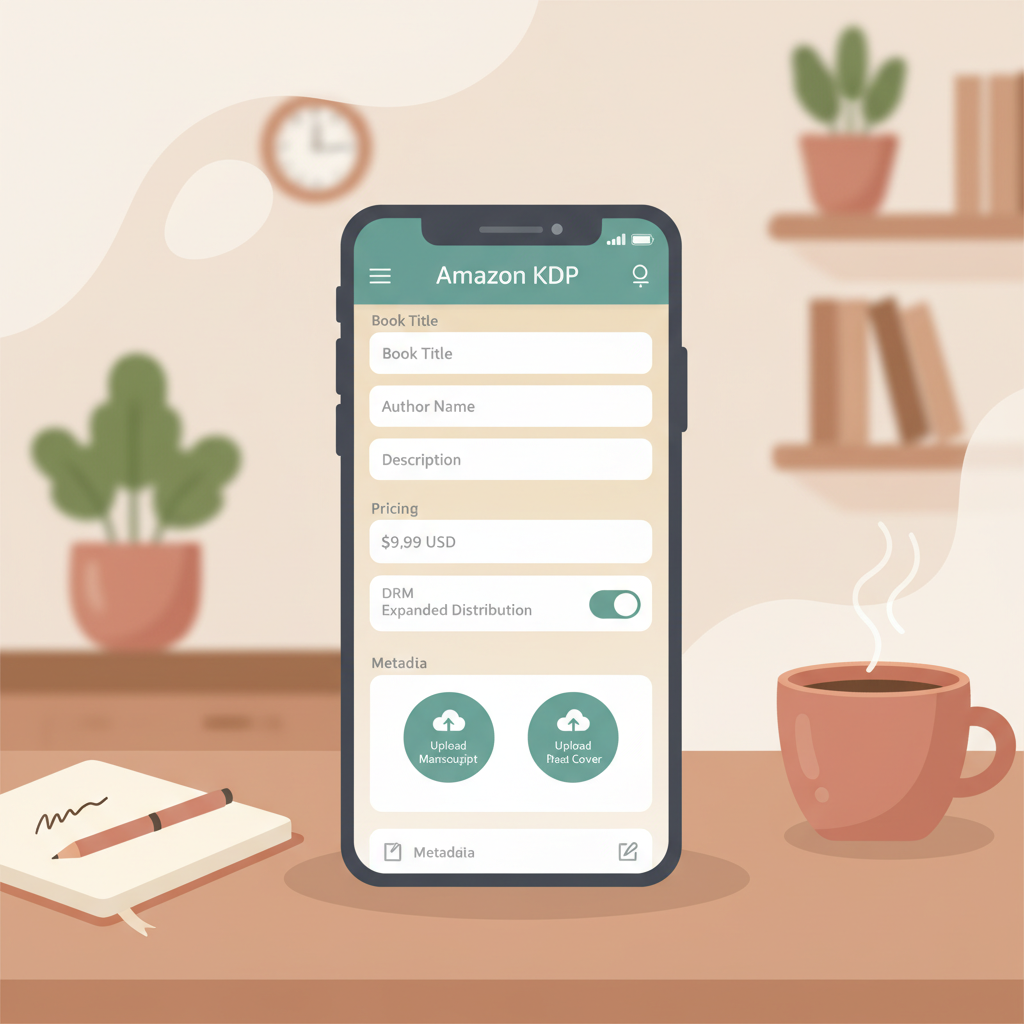
Amazon KDP App Phone Publishing Tasks Limits and Workarounds
Amazon KDP App: What You Can (and Can’t) Do from Your Phone
Estimated reading time: 6 minutes
- There’s no official KDP app; KDP runs in a web browser, and most routine tasks are possible from a modern phone.
- Use your phone for dashboard checks, metadata edits, pricing, and small uploads; complex layout and proofing remain desktop tasks.
- Combine the KDP Bookshelf with tools that produce upload-ready files—covers, EPUBs, and print interiors—to shorten mobile-only steps.
Table of Contents
- Can you use an Amazon KDP app on your phone?
- What you can do from your phone
- What you can’t do (and practical workarounds)
- Practical mobile-first tips
- Using BookAutoAI with mobile workflows
- Final thoughts
- FAQ
- Sources
Can you use an Amazon KDP app on your phone?
No standalone app exists. KDP is a web-based publishing console (the KDP Bookshelf) that you open in your phone browser. The Bookshelf gives full publishing control—uploading manuscripts, setting royalties, choosing territories, and managing listings.
If you’re new, start by setting up your account and learning the Bookshelf workflow; for step-by-step help, our Amazon KDP Account Setup guide walks through initial settings, tax information, and best practices.
What you can do from your phone
1) Check your dashboard and sales reports
The KDP Bookshelf reports and sales summaries load in mobile browsers. Use them to monitor sales, page reads, and royalties while away from a desk.
Tip: Expect simplified dashboards on small screens—tables and charts may hide columns or require horizontal scrolling.
2) Edit metadata and pricing
Title, subtitle, description, keywords, and price adjustments can all be edited from your phone. These text fields work well in mobile forms.
Pro tip: Save a short list of commonly used keywords in a note app so you can copy-paste quickly when editing on mobile.
3) Upload cover images and small files
Uploading a cover image or a prebuilt EPUB file is possible from mobile, especially when files live in cloud storage (Google Drive, iCloud, Dropbox).
For authors using automated cover and conversion tools, services can produce market-ready covers and EPUBs you can upload directly from a phone. If you need a mobile design option, try the BookAutoAI Cover Generator to produce a ready-to-upload image that respects thumbnail hierarchy and genre expectations.
4) Enroll/unenroll in programs and change distribution
You can toggle KDP Select, Expanded Distribution, and DRM settings from the mobile interface. Some options may trigger validation steps that are clearer on desktop, so double-check changes later.
5) Publish updates and limited fixes
Small content changes—typos, pricing, or cover swaps—work fine from a phone. If a re-upload is required, ensure the file meets KDP formatting rules.
When in doubt, use a trusted converter such as the BookAutoAI EPUB Converter to produce a clean EPUB that passes KDP checks without manual cleanup.
What you can’t do (and practical workarounds)
Phones are good for edits and checks, but they aren’t a full substitute for desktop publishing work. Below are common limits, why they matter, and practical mobile-friendly ways to handle them.
1) Long-form writing and heavy editing
Why it’s hard: writing long documents and comparing multiple drafts is cumbersome on small screens.
Workaround: Draft chapters in notes or use voice-to-text on your phone, then import to a desktop editor or a service that handles editing and humanization.
Services can accept drafts and return a polished, humanized manuscript ready for formatting—reducing time spent on a larger screen.
2) Complex layout and typography for print
Why it’s hard: print formatting requires precise margins, bleed, and typography, which demand a layout tool and bigger monitor.
Workaround: use automated formatting services to generate print-ready interiors suitable for KDP templates and then upload the final files from cloud storage.
3) Full proof and previewing
Why it’s hard: the official Kindle Previewer and KDP previewer are best run on desktop to check multiple devices and orientations.
Workaround: convert to a tested EPUB and preview in mobile reading apps for a quick check, then schedule a short desktop session for the official preview.
4) Troubleshooting validation errors
Why it’s hard: KDP error messages can be technical, and fixing malformed EPUBs or embedded fonts often needs desktop tools.
Workaround: validate and convert files before upload so mobile troubleshooting is minimized—use reliable converters and validators to avoid rejections.
5) Managing large image or PDF uploads
Why it’s hard: phones can struggle with very large files and slow connections, causing timeouts.
Workaround: keep final files in cloud storage, export optimized files sized for KDP, and connect to reliable Wi‑Fi for mobile uploads. If you rely on external uploading tools, consider dedicated services such as book upload tools to streamline large uploads.
Practical mobile-first tips (to close the gap)
- Prepare mobile-optimized assets: keep a thumbnail-ready cover for quick swaps, then replace with full-resolution later.
- Use cloud-first storage so manuscripts and assets are available from any device.
- Keep a short publishing checklist to avoid missed steps on a small screen.
- Use specialized services for formatting, conversion, and covers to produce upload-ready files.
Using BookAutoAI with mobile workflows
BookAutoAI bridges phone convenience and KDP requirements, producing marketplace-ready books that reduce the need for desktop-only steps.
Why BookAutoAI fits a mobile-first approach
- End-to-end generation: create a full non-fiction manuscript up to 25,000 words with humanized prose.
- One-click EPUB conversion that produces a clean, correctly structured file for upload.
- Market-ready covers from mobile that prioritize thumbnail hierarchy and genre signals.
- Print-ready interior formatting that respects page size, margins, and bleeds.
- Outputs tuned for KDP so you can move from idea to upload with fewer desktop steps.
How to structure a mobile-friendly publishing session with BookAutoAI
1) Draft on the go
Capture notes, record voice drafts, or write short sections on your phone and sync them to cloud storage.
2) Generate and humanize
Upload the draft to the service and let the generator expand and humanize content into chapters.
3) Create your cover and EPUB
Use a cover generator to make a thumbnail-focused front cover, and run the EPUB Converter to get a clean EPUB with metadata and navigation.
4) Upload to KDP from your phone
With validated EPUB and cover in the cloud, log into the KDP Bookshelf and upload files, enter metadata, and set pricing from your phone.
5) Final checks and promotion
Monitor sales and reviews from your phone, adjust pricing if needed, and use mobile apps for promotion and email.
Examples of effective mobile tasks with BookAutoAI
Last-minute price change: convert a new edition, upload EPUB and cover from your phone, and update pricing in the KDP dashboard.
Emergency cover swap: generate a fresh thumbnail and swap it via the Bookshelf on your phone using the Cover Generator.
Quick proofreading loop: send a chapter for instant humanization, open the returned EPUB in a mobile reader, and verify tone and flow.
BookAutoAI feature links
- For quick, professional covers that work at thumbnail size and export at print quality, try the BookAutoAI Cover Generator.
- To produce an EPUB that passes platform checks and includes clean metadata and navigation, use the BookAutoAI EPUB Converter.
- When you’re ready to generate a full non-fiction book formatted for KDP print and ebook, BookAutoAI provides end-to-end outputs.
Try Bookautoai to see how fast you can generate a polished, upload-ready non-fiction title.
Final thoughts
Phones handle many parts of the KDP workflow: metadata edits, uploads, monitoring, and small fixes. But complex layout, heavy editing, and technical troubleshooting still benefit from a desktop.
Practical approach: do lightweight and urgent work on your phone, and rely on specialized services for the heavy lifting.
Combine the KDP Bookshelf with tools that produce upload-ready assets—covers, EPUBs, and print interiors—to publish with fewer desktop-only steps.
FAQ
Q: Is there an official Amazon KDP app I can download?
No. Amazon KDP is accessed through the KDP Bookshelf in a web browser. Third-party apps exist for specific tasks, but the official console is web-based.
Q: Can I upload a manuscript to KDP directly from my phone?
Yes, if the files are accessible from your device or cloud storage. For reliability, use files produced by trusted converters such as an EPUB created by the EPUB Converter.
Q: Can I create professional covers on my phone?
You can, but best results come from cover tools tuned for book markets. A dedicated cover generator produces export-quality, market-appropriate covers you can use immediately.
Q: Will KDP accept EPUB files created on a phone?
KDP accepts EPUB uploads, but they must be correctly structured. Use a reliable converter to include correct metadata, embedded cover, and navigation so uploads succeed more often.
Q: What’s the fastest mobile approach to publish a non-fiction book?
Draft on your device, use generation and conversion tools to humanize and format the manuscript, create a market-ready cover, then upload validated files to the KDP Bookshelf from your phone.
Sources
- https://kdp.amazon.com/help/topic/GHKDSCW2KQ3K4UU4
- https://kdp.amazon.com/help/topic/G200735480
- https://kdp.amazon.com/en_US/help/topic/GDDXGH9VR22ACM8U
- https://techcrunch.com/2025/12/10/amazon-changes-how-copyright-protection-is-applied-to-kindle-directs-self-published-ebooks/
- https://www.youtube.com/watch?v=OAeB0XrbUNA
- https://www.youtube.com/watch?v=0OV-1ywCNB8
Amazon KDP App: What You Can (and Can’t) Do from Your Phone Estimated reading time: 6 minutes There’s no official KDP app; KDP runs in a web browser, and most routine tasks are possible from a modern phone. Use your phone for dashboard checks, metadata edits, pricing, and small uploads; complex layout and proofing remain…