
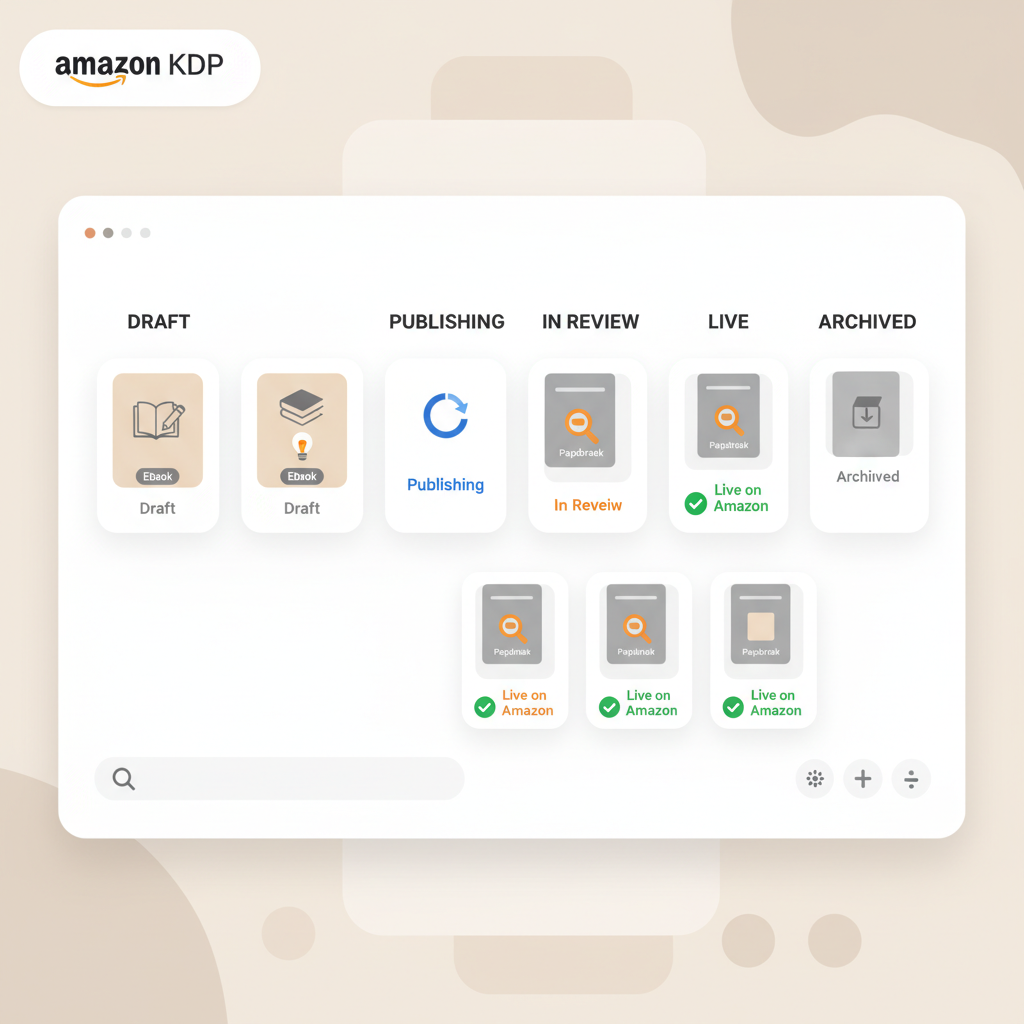
Amazon KDP Bookshelf statuses, views and next steps
Amazon KDP Bookshelf: What it is, what each status means, and next steps
Estimated reading time: 8 minutes
- The Amazon KDP Bookshelf is your central dashboard for managing eBook and print titles on Amazon.
- Each Bookshelf view and status (Draft, Publishing, In review, Live, Archived) controls what you can edit and the next action to take.
- Prepare final manuscript, cover, and EPUB/PDF before upload; tools that produce compliant files cut review delays.
Table of Contents
- What the Amazon KDP Bookshelf is and why it matters
- Why the Bookshelf matters for scale
- How to read Bookshelf statuses and views
- Managing titles from the Bookshelf: step-by-step actions and tools
- Make edits after publishing
- Prices, royalties, and author copies
- Archiving and unarchiving
- Publishing timeline and common delays
- Best practices and next steps
- When to republish vs publish a new title
- How BookAutoAI fits your Bookshelf workflow
- FAQ
- Sources
What the Amazon KDP Bookshelf is and why it matters
The Amazon KDP Bookshelf is the control center every self-publisher uses to manage eBook and print titles on Amazon. When you sign into Kindle Direct Publishing, the Bookshelf lists titles, shows their status, and surfaces basic actions: edit metadata, upload files, set prices, request author copies, or archive titles.
If you haven’t completed account setup, follow the Amazon KDP Account Setup guidance early so taxes, payments, and identity are ready before you publish. For details see the Amazon KDP Account Setup resource to avoid delays.
Why the Bookshelf matters for scale
For a single book the Bookshelf is simple; for many titles it becomes a lightweight operations dashboard. You can search, sort, and filter titles, check basic sales, and act on items needing attention.
Good Bookshelf hygiene — consistent metadata, correct file versions, and a clear naming convention — prevents many common mistakes.
How to read Bookshelf statuses and views
The four Bookshelf views
Your titles (default): All active titles you manage. This is where you create new listings and monitor most work.
Series titles: Titles part of a series — use this to confirm ordering and metadata consistency.
Archived titles: Hidden from the default list but still available on Amazon; useful to tidy your dashboard without unpublishing.
All titles: Complete list across states — useful for quick audits.
Common status labels and what they allow
- Draft: Not published. You can edit everything: manuscript, cover, metadata, categories, keywords, price, and rights.
- Publish pending / Publishing: Title is processing. Most edits are locked; wait for completion before new uploads.
- In review: KDP checks policy and technical issues. Edits are usually blocked until review finishes.
- Live / Published: Title is available. You can change many metadata fields; some file changes may require a new edition.
- Unavailable: An issue prevents sale. Check your KDP email and Bookshelf alerts for details.
- Archived: Hidden from default Bookshelf view but still on Amazon; archiving is reversible.
What each status means for edits
Editable now: Titles in Draft or Live (when not Publishing/In review) allow most metadata and pricing edits.
Locked: During Publishing or In review files and settings are often locked; attempts to edit may queue or fail.
File-level restrictions: After publication some eBook file changes are limited; substantial structural edits may require a new edition.
When to archive vs unpublish vs delete
- Archive: Removes the title from your default Bookshelf list but leaves it for sale on Amazon.
- Unpublish (take down): Makes the title unavailable for sale — use when you need to remove a book from the storefront.
- Delete: KDP does not permanently erase titles in the typical way; follow KDP help steps if removal is required.
Managing titles from the Bookshelf: step-by-step actions and tools
Create a new title
1. Click “Create New Title” and choose eBook, paperback, or hardcover. KDP supports eBooks and multiple print formats.
2. Fill in title, subtitle, author, series info, contributors, and description.
3. Select keywords and categories to help discoverability.
4. Upload your manuscript and cover files.
5. Set territories, pricing, and distribution choices.
6. Click Publish and monitor the Bookshelf for status updates.
Prepare your manuscript correctly
Use a clean, properly formatted file. For eBooks, EPUB is preferred; for print, a print-ready PDF with embedded fonts and correct margins is standard.
If formatting feels technical, consider tools that produce compliant files to reduce upload errors; many authors rely on conversion tools that embed metadata and generate clean chapters.
A simple checklist — manuscript final, cover final, EPUB/PDF ready, metadata complete — reduces repeated processing cycles.
Create a cover that sells (not just looks AI-made)
Covers fail Bookshelf checks when they don’t read well at thumbnail size. Design choices matter at small sizes as much as at full resolution.
For a market-ready option, use the BookAutoAI Cover Generator to produce readable typography, genre-appropriate backgrounds, and clear thumbnail hierarchy.
Tip: Evaluate covers at thumbnail size before uploading to avoid rework later.
Convert to EPUB without headaches
KDP prefers clean EPUB files for eBooks, but creating a valid EPUB can be frustrating. Use a converter that embeds cover and metadata, cleans chapter markup, and builds navigation.
Automated tools like the EPUB Converter remove a common source of Bookshelf rejections and speed time to “Live.”
Linking the Bookshelf actions to tools
When you upload to the Bookshelf: use the EPUB or print-ready files you prepared, upload a cover that follows Amazon’s requirements, and confirm metadata and territories before clicking Publish.
If you need help with cover production, the BookAutoAI Cover Generator creates market-focused covers, and the EPUB Converter automates clean EPUB creation for store-ready uploads.
When preparing print or ebook files at scale authors often evaluate services on the main Bookautoai site for formatting and conversion options.
If you use external upload or distribution tools for multiple retailers, consider reliable book upload tools to simplify mass uploads.
Make edits after publishing
Many metadata fields can be updated after a title is live. On the Bookshelf, click the ellipsis (…) next to a title and choose “Edit details” or “Edit book content.”
Update categories, keywords, or descriptions to improve discoverability. Replacing a live eBook’s content file may be restricted and could require a new edition.
Prices, royalties, and author copies
From the Bookshelf you can set list prices, choose royalty options per marketplace, run pricing experiments, and order author copies of print books at discounted rates for proofs or inventory.
Archiving and unarchiving
To archive a title, select it and choose the archive option. The title moves to Archived view but remains available to customers. To unarchive, open Archived titles, select the book, and move it back to Your titles.
Publishing timeline and common delays
Typical publish times range from 3–10 business days depending on format. eBooks are often faster, while paperbacks and hardcovers can take longer because of print setup.
If a title remains In review longer than expected, check KDP email and Bookshelf alerts for required changes; otherwise contact KDP support for clarification.
Best practices and next steps
1. Prepare final assets before you start. Have your manuscript, cover, and metadata ready so the first upload is final.
2. Use tools to eliminate formatting errors. Good converters and cover tools reduce rejections and review cycles.
3. Keep metadata consistent across editions. Consistent subtitles, series numbers, and author names help Amazon link titles correctly.
4. Check covers at thumbnail size. Covers must work at small sizes in storefronts.
5. Use Bookshelf views for organization. Archive older editions and keep active projects in Your titles.
6. Track publishing stages and avoid simultaneous edits. When a title is Publishing or In review, wait for the process to finish before uploading new files.
7. Order proofs before wide distribution. For print, order an author copy to confirm margins and cover wrap.
8. Keep a publication checklist outside KDP. A checklist prevents missed steps and delays.
When to republish vs publish a new title
Minor edits rarely require a new title. Major content changes, substantial rewrites, or a new ISBN for print typically require a new edition or title. When in doubt, consult KDP help or follow Bookshelf prompts.
How BookAutoAI fits your Bookshelf workflow
Bookautoai offers formatting, cover generation, and EPUB conversion options designed to reduce technical rejections and speed the path from Draft to Live.
Use the BookAutoAI Cover Generator for covers optimized at thumbnail size, and the EPUB Converter to produce store-ready EPUB files that include embedded cover and metadata.
For authors producing eBooks or paperbacks at scale, Bookautoai’s services can shorten editing cycles and reduce upload errors.
FAQ
What is the difference between archiving and unpublishing on the Bookshelf?
Archiving hides the title from your default Bookshelf view but leaves it for sale. Unpublishing removes the title from sale; use unpublishing when you need to withdraw a book from the store.
Why is my title stuck “In review” on the Bookshelf?
Titles can be in review for policy checks or technical verification. Check your KDP email and Bookshelf alerts. If no message appears after several days, contact KDP support.
Can I change the manuscript file after a book is live?
Some metadata changes are allowed for live books. File-level changes may be restricted and could require republishing a new edition for major content edits.
How long does it take for a book to go live after I click Publish on the Bookshelf?
Typical timelines range from 3–10 business days depending on format and review complexity. eBooks are usually faster than print books.
What file format should I upload to avoid Bookshelf errors?
For eBooks, a clean EPUB is preferred. For print, a print-ready PDF with embedded fonts is standard. If unsure, use a trusted converter to reduce errors.
Can I manage series order from the Bookshelf?
Yes. Use the Series titles view to confirm sequence and ensure series name and volume number metadata are correct.
Sources
- KDP Bookshelf – Amazon.com
- Update your book details – Kindle Direct Publishing – Amazon.com
- Start publishing with KDP – Amazon.com
- Timelines – Kindle Direct Publishing – Amazon.com
Amazon KDP Bookshelf: What it is, what each status means, and next steps Estimated reading time: 8 minutes The Amazon KDP Bookshelf is your central dashboard for managing eBook and print titles on Amazon. Each Bookshelf view and status (Draft, Publishing, In review, Live, Archived) controls what you can edit and the next action to…