
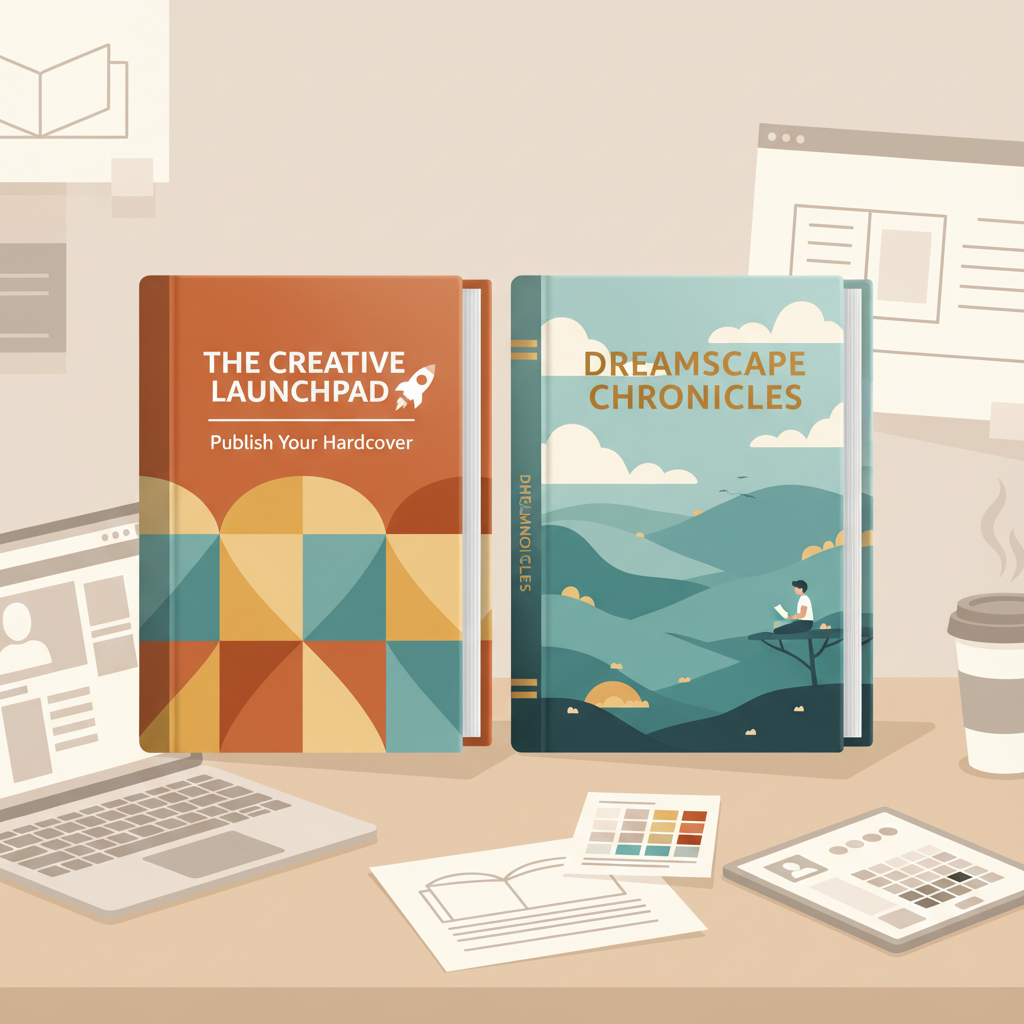
Amazon KDP Hardcover Template Guide for Accurate Covers
amazon kdp hardcover template: How to build a cover that aligns perfectly (case laminate vs jacket)
Estimated reading time: 8 minutes
- A correct Amazon KDP hardcover template reduces upload rejections by packaging front, spine, and back into one precise PDF.
- Choose case laminate for bold, thumbnail-ready non-fiction covers; choose a dust jacket when flaps and a layered presentation add value.
- Use accurate spine calculations, extend art into bleed, and export a single high-quality PDF with embedded fonts for KDP.
- Tools that produce KDP-ready EPUBs and print PDFs speed the last mile from draft to upload.
- Work from templates early to avoid redesigns and reduce revision rounds.
Why an amazon kdp hardcover template matters
If you plan to publish a hardcover on Kindle Direct Publishing, using a correct template is not optional. Templates give you the exact combined layout Amazon expects: a single PDF with back, spine, and front arranged as one image with the correct bleed and margins.
Templates remove guesswork. They let you see the final trim size, spine, and bleed as a single canvas, place the barcode correctly, and keep text away from the spine fold to avoid printing issues.
Use the official KDP tools and, for step-by-step formatting help, consult the Amazon Kdp Formatting Guide 2 which walks through spacing, bleed, and the single-PDF requirement in practical terms.
Why this matters more for hardcover: hardcovers include case boards, cloth or laminate, and sometimes a dust jacket—small layout errors are more visible and costly to fix after printing.
Practical checklist for the first draft:
- Know your trim size (common: 5.5″ x 8.5″, 6″ x 9″).
- Estimate spine width based on page count and paper type.
- Export a single PDF with embedded fonts and 300 DPI images.
- Keep barcode placement and spine text clear of the cut and gutter.
Case laminate vs jacket: which hardcover style fits your book
Two common finishes meet different reader expectations. Choosing early shapes design and template needs.
Case laminate (printed case wrap)
What it is: The cover art is printed directly on the hard case; there is no separate dust jacket.
When to choose it: Non-fiction that relies on bold typography (business, self-help, memoir), low-to-mid print runs, or a modern retail look.
Design tips: Keep typography clear and large so the title reads in small thumbnails; use strong, compact type on the spine and avoid intricate logos that lose detail.
Dust jacket (case with jacket)
What it is: A separate paper jacket wraps and folds over the case, often including flaps and additional copy.
When to choose it: Higher-end non-fiction, illustrated works, or books where flaps and an outer jacket add storytelling or value.
Design tips: Use the jacket for extended imagery and the case for a complementary look; keep key text at least 0.25″ from the jacket fold and ensure flap copy is legible.
How selection changes your template thinking
Case laminate treats the combined cover as a single canvas; a jacket requires flat templates that include flaps and fold lines so everything aligns when wrapped.
Practical examples by genre
Business/self-help: case laminate often reads cleaner.
History/academic: a jacket lets you add summaries and endorsements on back and flaps.
Memoir: either works—choose modern (case) or classic (jacket) look.
How to build a KDP-ready hardcover cover: layout, spine, bleed, barcode, and export
Follow these steps to ensure your amazon kdp hardcover template uploads cleanly and prints as expected.
Step 1 — Pick trim size and calculate spine width
Common trim sizes: 5.5″ x 8.5″ or 6″ x 9″. Match the trim size to your interior layout and audience expectations.
Spine width formula: Spine = page count × paper thickness. Use KDP’s Cover Calculator or your design tool to avoid measurement errors.
Step 2 — Generate or download the correct single-PDF template
Use KDP’s template generator to get a blank file sized for your trim and page count; it provides safe zones, bleed, and spine width.
If you design in external tools, set the artboard to the full spread (back + spine + front) and include the specified bleed (typically 0.125″–0.25″).
Step 3 — Design with hierarchy and thumbnail testing in mind
Make title and author readable at small sizes—test the cover at 100px wide. Strong contrast and bold type win clicks.
Back cover: reserve space for blurb, author bio, and the barcode area; keep the barcode at least 0.76″ from the bottom and 0.25″ from the spine edge.
Step 4 — Spine text and alignment
Center spine type vertically and avoid placing important elements near outer edges. Test small symbols and logos for legibility.
Step 5 — Barcode placement and quality
KDP requires a high-quality barcode (300 DPI). Leave space for KDP to add the barcode or place your own inside the template’s barcode marker.
Step 6 — Bleed, margins, and image resolution
Use 300 DPI images and extend backgrounds into the bleed to avoid white edges after trimming. Keep critical text at least 0.25″ from cut lines.
Step 7 — Export settings and embedded fonts
Export a single PDF/X or high-quality PDF with embedded fonts and 300 DPI images; avoid heavy image compression and check KDP file-size requirements.
Step 8 — Validate with the template and preview
Use KDP’s previewer to catch cut-off text, alignment shifts, or color changes; iterate until the preview matches your intent.
Design tools and speed options
Design in InDesign, Affinity Publisher, Photoshop, or Canva with custom dimensions. For faster cover creation, try the BookAutoAI Cover Generator which produces export-quality front covers that pair with single-PDF layouts.
Why a market-ready cover matters more than raw art
Artistic imagery is useful, but retail covers need clear title hierarchy and genre signals that read in thumbnails. Market-facing designs increase click-through rates.
Export and conversion: EPUB, print-ready PDF, and upload checklist
After the cover is final, produce clean interior files and properly structured EPUBs or print-ready PDFs for upload.
Interior export checklist
- Use a consistent trim size and ensure page count meets KDP hardcover minimums.
- Embed fonts and check widows/orphans and page breaks.
- Export PDF for print and EPUB for ebook distribution.
Use a reliable converter
Converting complex interiors to EPUB can be tricky; the BookAutoAI EPUB Converter automates metadata, cover embedding, and navigation to produce store-ready EPUBs for Kindle, Kobo, and Apple Books.
If you need to produce both print and ebook at once, consider tools that handle cover generation and conversion so you can focus on content rather than file mechanics.
Final upload checks before hitting Publish
Confirm the single-PDF cover contains front, spine, and back in the right order, verify the barcode region is clear, and run the KDP previewer to check spine text and total width.
When distributing across formats, keep interiors and metadata consistent; many authors use centralized tools like BookAutoAI to generate consistent outputs.
If your publishing workflow mentions KDP, Kobo, or Apple Books, consider using specialized upload tools such as book upload tools to simplify retailer submissions.
Practical tips to reduce revision rounds
- Start from KDP templates so measurements remain consistent.
- Export proofs at 100% scale and test typography at thumbnail sizes.
- Maintain images in the color space your design tool recommends and export per KDP specs.
Practical sample workflow using BookAutoAI
Generate your manuscript and interior with BookAutoAI, use the Cover Generator to create a front cover, drop it into the single-PDF layout, then convert the manuscript to EPUB with the EPUB Converter and prepare the print-ready PDF.
Final thoughts
Getting a hardcover cover right means thinking about the whole physical book: trim size, spine width, jacket vs. laminate, and thumbnail readability.
Work from correct templates early to prevent rework and ensure a professional, retail-ready finish.
FAQ
Do I have to use KDP’s template generator for hardcover covers?
No — but it’s strongly recommended. KDP’s generator ensures your single-PDF matches their production specs; if you design elsewhere, match the same measurements and safe zones.
What trim sizes work best for non-fiction hardcovers?
Common choices are 5.5″ x 8.5″ and 6″ x 9″. Choose the size that suits your content and audience; larger formats like 7″ x 10″ can work for illustrated or reference books.
What’s the minimum and maximum page count for KDP hardcovers?
KDP hardcover options typically require a minimum (often 75 pages) and have upper limits (around 550 pages). If you fall below KDP minimums, consider other services like IngramSpark.
Can BookAutoAI produce both the cover and the EPUB for me?
Yes. BookAutoAI can produce market-ready covers and clean EPUBs and print-ready files so you can focus on writing while it handles production.
If I use a dust jacket, how do I account for flaps in my template?
Create a full flat layout that includes front, back, spine, and jacket flaps so artwork and text align when folded. Use KDP’s template generator where flap allowances are supported.
Sources
- Create a Hardcover Cover – Kindle Direct Publishing
- Hardcover – Kindle Direct Publishing
- Format Your Hardcover – Kindle Direct Publishing
- Paperback and Hardcover Manuscript Templates – Kindle Direct Publishing
- KDP Cover Calculator
- How to Choose the Best KDP Book Size for Hardcovers, Paperbacks and Ebooks
- Amazon Kdp Formatting Guide 2
amazon kdp hardcover template: How to build a cover that aligns perfectly (case laminate vs jacket) Estimated reading time: 8 minutes A correct Amazon KDP hardcover template reduces upload rejections by packaging front, spine, and back into one precise PDF. Choose case laminate for bold, thumbnail-ready non-fiction covers; choose a dust jacket when flaps and…