How Do You Self Publish a Book on Amazon
You self-publish a book on Amazon through Kindle Direct Publishing (KDP), Amazon's free self-publishing platform. You create a KDP account, upload your formatted manuscript and cover, fill in your book's…

You self-publish a book on Amazon through Kindle Direct Publishing (KDP), Amazon’s free self-publishing platform. You create a KDP account, upload your formatted manuscript and cover, fill in your book’s title, description, and keywords, choose your price and territories, and publish. Your book can appear on Amazon within about 72 hours. There is no fee to list a book on KDP — Amazon takes a share of each sale instead.
What do I need before I start?
Before you open KDP, have four things ready. First, a finished manuscript, edited and proofread — KDP will publish exactly what you upload, so typos go live with it. Second, a cover designed to Amazon’s size requirements for your trim size, or a cover made with KDP’s own cover creator. Third, your book details: title, subtitle, author name, description, categories, and seven keywords. Fourth, your tax and payment information, because KDP asks for it before you can publish.
A common mistake is uploading a rough draft to “see how it looks.” KDP is not a preview tool. Format and proof your manuscript in Word or Google Docs first, then upload a clean file.
How do I set up a KDP account?
Go to kdp.amazon.com and sign in with your Amazon account, or create one. KDP asks for your author or publisher name, your address, and your tax information. Fill in the payment details for the bank account where you want your earnings sent. You can complete this in one sitting, and you only do it once — every book you publish afterwards uses the same account.
If you already sell on Amazon as a seller, use a separate login for KDP. Keeping your author account apart from any seller account avoids confusion later.
How do I format my manuscript for KDP?
KDP accepts Word documents, PDFs, and EPUB files, but the cleanest route for most first-time authors is a Word document. Set your page size to match the trim size you want — 6 x 9 inches is the most common for nonfiction. Use one consistent font and size for body text, use heading styles for chapter titles, and put page numbers in the footer.
For an ebook, strip out anything that depends on fixed pages: headers, footers, and page numbers do not translate well to a reflowable ebook. KDP’s own Kindle Create tool, free from Amazon, can convert a Word document into a properly formatted ebook file and lets you preview how it looks on a Kindle before you upload.
Check your manuscript in KDP’s online previewer before you publish. It shows exactly how the interior will look in print and on a Kindle, and it flags problems like text running off the page or images sitting too close to the edge.
What about the cover?
Your cover is the first thing a reader sees, and on Amazon it is usually seen at thumbnail size. Design it to read clearly when it is small: a big, readable title, one strong image or simple graphic, and no tiny text. KDP needs a full cover for a paperback — front, spine, and back — and a front-only image for an ebook.
You can hire a designer, design it yourself in a tool like Canva, or use KDP’s cover creator with a stock image. Whatever you choose, download KDP’s cover template for your exact trim size and page count, because the spine width depends on how many pages your book has.
How do I fill in the book details?
KDP walks you through three pages. The first is your book details: title, subtitle, series information if any, edition number, author name, description, publishing rights, and keywords. Write your description for readers, not for search engines — it is the sales copy on your Amazon page, so lead with the problem your book solves and who it is for.
The second page is content: upload your manuscript and cover, choose whether to enable DRM for the ebook, and set your ISBN. KDP gives you a free ISBN for a paperback, or you can supply your own. For an ebook, Amazon assigns an ASIN automatically and no ISBN is needed.
The third page is pricing: choose your territories, set your list price, and decide whether to enrol the ebook in KDP Select. Enrolling gives you promotional tools but requires exclusivity on Amazon for 90 days, so weigh that before you tick the box.
How long does it take to go live?
After you click Publish, Amazon reviews your book. Ebooks usually go live within 24 to 72 hours; paperbacks take a little longer because Amazon checks the print file more closely. If something in your file fails the review — a cover that is the wrong size, an interior with blank pages — KDP emails you with the exact problem, and you fix it and re-upload.
Once your book is live, order a printed proof copy before you tell anyone about it. The previewer is useful, but holding the physical book is the only way to catch a cover that prints darker than expected or margins that feel too tight.
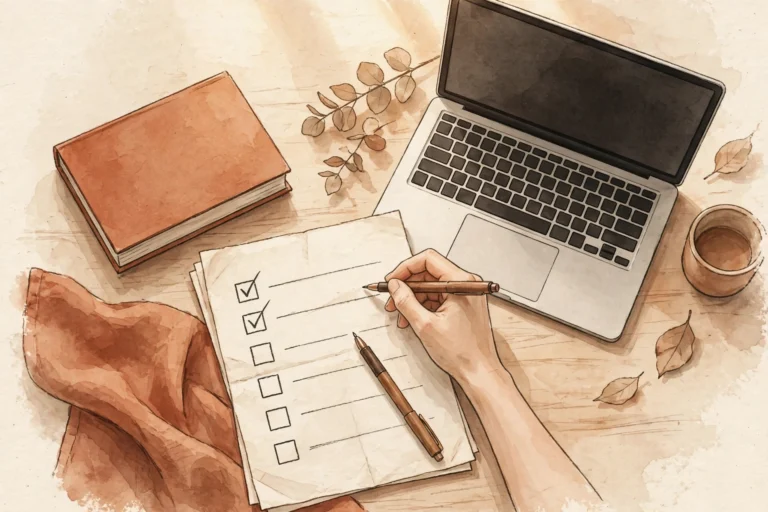
A checklist you can use today
- Manuscript finished, edited, and proofread in Word or a similar format.
- Page size set to your chosen trim size, headings styled, page numbers in place.
- Cover ready for your exact trim size and page count, readable at thumbnail size.
- Book description written for readers, keywords chosen, categories picked.
- Tax and payment details entered in your KDP account.
- Manuscript and cover previewed in KDP’s previewer, problems fixed.
- Publish, wait for the review email, then order a printed proof.
Self-publishing on Amazon is a process, not a single upload. The authors who do it well are the ones who slow down at the formatting and proofing steps, because those are the steps readers actually notice.
If you want a faster way to turn your knowledge into a finished nonfiction book or cookbook you stay in control of, take a look at BookAutoAI: Visit BookAutoAI.com
Start here: if you are new to Amazon publishing, begin with the KDP Publishing hub, then read How to Self Publish a Book for the full process across every route.