
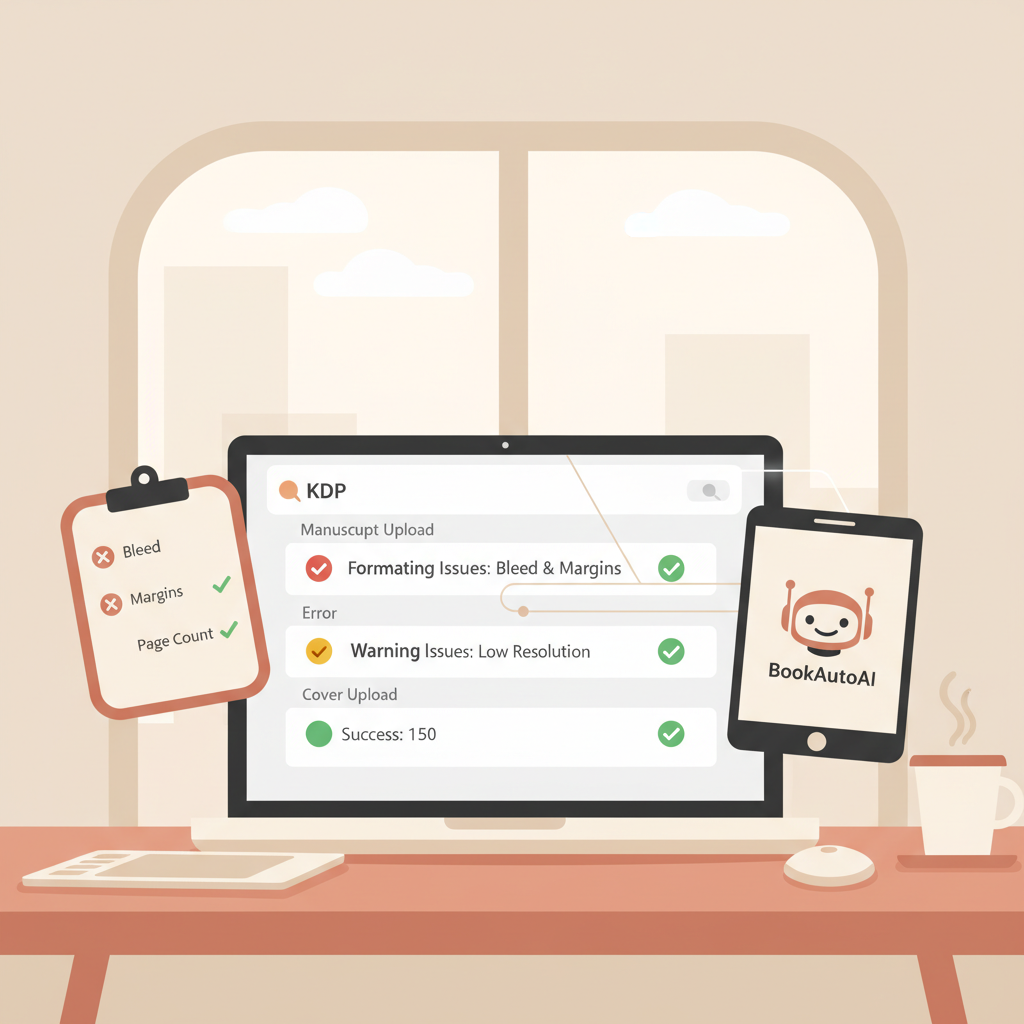
KDP Errors and Fixes Explained to Solve Upload Issues
KDP Errors and Fixes
Estimated reading time: 8 minutes
- Most KDP upload problems come from formatting and metadata mismatches: bleed, margins, page count, and exact title/author text.
- Simple, repeatable checks — correct bleed, matching metadata, clean HTML in descriptions, and high-resolution covers — fix most rejections.
- BookAutoAI automates formatting, cover creation, and EPUB conversion to reduce manual errors and speed publishing.
Why KDP errors happen
KDP Errors and Fixes begin with one clear fact: Amazon’s systems are strict and literal. When a file or metadata value doesn’t match the platform’s rules, the upload gets flagged.
That can mean a rejected paperback proof, an EPUB that won’t validate, or a launch delayed by a title mismatch.
Many problems are easy to reproduce: a cover image with no bleed, invisible characters copied into a book description, or a title that differs by one symbol between the uploaded interior and the KDP book details. If you want a fast route to KDP-ready files, try Publish Book Amazon Kdp 3 for a guided publishing flow that reduces common manual errors.
At their core, most KDP errors fall into three groups:
- Formatting issues inside the manuscript (page size, margins, bleed, low-resolution images).
- Metadata mismatches (title, author, ISBN, imprint).
- EPUB/description problems (unsupported HTML, invisible characters, broken navigation).
Understanding where KDP checks are strict — and where human mistakes usually occur — makes it possible to fix problems quickly and prevent them next time.
Most common KDP errors and fixes
This section walks through the frequent KDP error messages and clear fixes you can apply right away.
Bleed and margin errors (white lines, trimmed text, “Please Review Your Title”)
Problem: Your cover or interior elements extend outside KDP’s safe zones, or there isn’t enough bleed. This often shows as thin white edges on the proof or error messages about margins and safe zones.
Fix:
- Add standard bleed: increase width by 0.125″ and height by 0.25″ where KDP asks, and follow KDP’s template for your trim size and page count.
- Keep text and important elements inside the safe area (usually 0.25″ from trim).
- Full-bleed backgrounds: export the final cover as a single image including bleed and spine for print, using KDP’s template or generation tool.
- Page-count minimums: if your book is under KDP’s minimum page count (e.g., below 75 pages for some print sizes), reformat to meet minimums or choose a trim and binding that support fewer pages.
Common cause: Authors assemble interior files in word processors and export without checking KDP margins. Tools that auto-format to KDP templates remove this guesswork.
Low-resolution or blurry images
Problem: Images in the interior or cover print blurry or cause proof rejections.
Fix:
- Use 300 DPI images for print covers and interior art.
- Avoid scaling up small images; recreate or replace with higher-res graphics.
- Convert RGB images to CMYK only if KDP asks; most KDP systems accept RGB but require sufficient DPI.
Book description and HTML errors
Problem: Your book description contains unsupported HTML, or copy-pasted text includes invisible characters and formatting that KDP rejects.
Fix:
- Re-enter the description manually in KDP’s editor rather than pasting from Word or a webpage.
- If you must paste, paste into a plain-text editor first to strip hidden formatting, then copy into KDP and reapply simple tags only (KDP supports a limited set of HTML).
- Avoid exotic characters, tabs, or non-standard quotation marks. Use straight quotes and dashes.
Tip: If the description still fails, view the source and remove any unsupported tags. KDP’s help pages list supported description tags.
ISBN and metadata mismatches
Problem: KDP rejects because ISBN, title, author, or imprint details in the file don’t match the values entered in the KDP dashboard.
Fix:
- Make sure the title, author, and ISBN in the interior files, copyright page, and header/footer exactly match the KDP book details, including punctuation, capitalization, and spacing.
- Copy and paste values directly from your ISBN provider or your KDP metadata field to the interior file to avoid typos.
- If you recently updated metadata with your ISBN agency (e.g., Bowker), allow up to five business days for propagation and then reattempt upload.
Page count and printing errors
Problem: KDP flags printing issues in proofs (text cut off, incorrect margins, unexpected blank pages).
Fix:
- Confirm trim size and page count before exporting PDF/X-1a or the recommended PDF format for print.
- Use page-count-aware margins: KDP requires different gutter allowances for thicker books.
- Rebuild the PDF using KDP templates or a trusted formatter; check proofs in high zoom to inspect for white edges or elements outside the safe area.
Title and author symbol mismatches
Problem: A small difference like “&” versus “and”, or unusual punctuation, can block publishing.
Fix:
- Match every instance of the title and author exactly across metadata and interior files.
- If you need a special character, use standard Unicode characters and verify how they appear in previewers.
- Save and re-upload after making changes; sometimes the KDP system caches old values briefly.
EPUB validation and navigation errors
Problem: EPUB fails validation or preview shows broken navigation.
Fix:
- Create EPUBs with correct metadata, embedded cover, and clean chapter structure (proper nav.xhtml and table of contents).
- Use an EPUB tool that builds valid navigation files and embeds the cover correctly.
- If you’re converting from Word, check for extra styles, empty paragraphs, or unsupported formatting that can break the flow.
For fast and reliable EPUBs, use an EPUB conversion tool optimized for KDP and major retailers.
Printing defects vs manuscript errors
It’s important to know that KDP distinguishes between printing defects and manuscript errors. If a smudge or blur appears due to the printing process itself, that’s a defect; if the error is present in your uploaded file, the responsibility is yours to fix.
Always review author proofs carefully and order a physical proof when in doubt.
How BookAutoAI prevents KDP errors
BookAutoAI is built for authors who want to move quickly and minimize the manual cleanup that causes most KDP rejections. It automates the common fixes above and packages files ready for upload.
Automated formatting to KDP specs
BookAutoAI generates interiors formatted to KDP trim sizes, correct bleed, and page-count-aware margins so you don’t get white edges, misaligned gutters, or low-page-count surprises.
The service produces files prepared for both ebook and print, reducing the manual fine-tuning that leads to errors.
One-click EPUB conversion
Rather than exporting and troubleshooting EPUBs, BookAutoAI includes a fast EPUB converter that outputs store-ready EPUBs with proper metadata, embedded front cover, and clean navigation.
If your upload errors are EPUB-related, the converter eliminates the common causes by building validated EPUB structure automatically.
Professional cover generation—not just artwork
Most AI tools generate images. BookAutoAI creates covers designed to sell. The Cover Generator produces a complete front cover with readable title and author typography, genre-appropriate backgrounds, and the correct export settings for ebook and print.
That reduces rejections due to low-res artwork, missing bleed, or unreadable thumbnails. If you need a market-ready cover without design guesswork, try the BookAutoAI Cover Generator.
Metadata consistency and check routines
BookAutoAI aligns title, author, ISBN, and imprint across all outputs (interior, EPUB, and cover). This avoids the common trap of uploading files that don’t match the KDP dashboard and getting blocked by a tiny mismatch.
How this saves time
Putting these pieces together — formatting, cover, and EPUB — removes multiple manual steps where errors hide. Instead of iterating through KDP error messages, you receive ready-to-upload files and focus on launch tasks like pricing and marketing.
When uploading to retailers, consider a dedicated book upload tool such as BookUploadPro to reduce manual mistakes. See Bookautoai for tools that follow KDP rules and produce store-ready files.
A practical pre-upload checklist to avoid failures
Use this checklist as a pre-flight routine before you click Upload on KDP. It’s short, repeatable, and focused on the issues that cause the most rejections.
1. Verify trim size, page count, and margins
- Confirm your manuscript uses the exact trim size you chose in KDP.
- Apply KDP’s recommended margins for your page count and binding.
- Export the interior PDF using the correct settings recommended by KDP.
2. Check bleed and cover layout
- Ensure cover art includes the required bleed and is exported at the correct dimensions.
- Check that the spine width matches the page count if you’re creating a combined cover image.
- Preview at thumbnail size to confirm title readability.
If you want a program that handles cover generation automatically and follows market templates, BookAutoAI’s Cover Generator produces export-ready covers that meet KDP printing requirements.
3. Confirm image resolution and color
- Use 300 DPI images for print and check embedded images in the exported PDF.
- Avoid excessive compression; keep file size reasonable but high quality.
4. Match metadata exactly
- Copy-paste title, author, and ISBN from KDP fields into your interior file’s copyright and header pages.
- Double-check punctuation, case, and special characters.
- If you use a third-party ISBN agency, verify that the agency’s record matches your KDP metadata.
5. Clean the book description
- Paste your description into a plain-text editor first to strip invisible characters.
- Reformat in KDP using only supported tags.
- Avoid unusual fonts, tabs, or pasted HTML from third-party sites.
6. Validate EPUB and internal navigation
- If publishing an ebook, preview EPUB navigation and table of contents.
- Ensure the cover is embedded and metadata is present.
- If you’re unsure about your EPUB, use a converter built for retailers to avoid validation failures.
BookAutoAI’s EPUB converter streamlines this step and produces a file already structured for Kindle and major ebook stores.
7. Upload a proof and inspect closely
- Use KDP’s online previewer and also order a physical proof when publishing print.
- Zoom in on margins and images to look for white lines, cropped text, or low-res art.
- If anything is off, fix the source file and export again.
8. Final metadata and rollout checks
- Confirm pricing, territories, and ISBN assignments before making the title live.
- If you change a file after approval, remember KDP may need time to reprocess changes.
FAQ
Why does KDP say “Please Review Your Title” even though everything looks fine?
That message often points to bleed or safe zone issues, or to a mismatch between the title text in the interior file and the KDP metadata. Zoom in on proof pages to find white edges or elements outside the safe area and search for small variations in title text.
My EPUB failed validation. What commonly causes that?
Unsupported HTML in the source file, missing nav.xhtml or table of contents entries, or incorrect metadata are common causes. Converting via a tool that builds clean navigation and embeds the cover will usually fix the problem.
What should I do about ISBN mismatches?
Check title, author, and imprint across your interior PDF, the KDP dashboard, and your ISBN agency record. Copy and paste values to avoid typos and allow up to five business days for agency updates to propagate.
How can I know whether a printing problem is my fault or KDP’s?
If the issue appears in your uploaded file, it’s a manuscript error. If the PDF looked correct and the printed proof shows a smudge or ink issue not present in your file, it may be a printing defect. Order an author proof and inspect carefully.
Can automated tools introduce errors?
Any tool can if it’s poorly configured. Use tools trained on KDP specifications and tested on multiple trim sizes. Systems optimized for KDP reduce automated errors by producing properly formatted, validated files.
Sources
- KDP “Please Review Your Title” – How to Fix! – YouTube
- Fix These KDP Mistakes You Don’t Even Know You’re Making – YouTube
- Fixing errors or formatting with book descriptions – Amazon KDP
- Troubleshoot ISBN errors – Amazon KDP
- My proof or author copy has printing errors – Amazon KDP
- Fix Paperback and Hardcover Formatting Issues – Amazon KDP
KDP Errors and Fixes Estimated reading time: 8 minutes Most KDP upload problems come from formatting and metadata mismatches: bleed, margins, page count, and exact title/author text. Simple, repeatable checks — correct bleed, matching metadata, clean HTML in descriptions, and high-resolution covers — fix most rejections. BookAutoAI automates formatting, cover creation, and EPUB conversion to…